Streamlining Integration: Using Azure Managed identities in Power Apps and Power Automate to access Microsoft Graph API – Part 2

In Part 1 of the blog series on using Managed identities in Power Apps and Power Automate to access Microsoft Graph API securely, I have delved into the setup and configuration of the Azure API management service with the necessary Microsoft Graph permissions for the managed identity. Building upon that foundation, Part 2 aims to take it further your integration journey in making the API’s available as a connector in Power Apps and Power Automate secured with API key Authentication.

Azure API Management Instance: Managing API Subscription Keys

APIs published through the Azure API Management instance are by default secured by Subscription keys. These keys play a crucial role in establishing connections in Power Apps or Power Automate after exporting APIs as custom connectors.

To manage these keys, navigate to the left navigation menu under the “Subscriptions” blade in the Azure portal within your API Management (APIM) instance. Here, you have the option to generate a new key or utilize an existing one. Copy the key from the portal to create the connection in the later section.

You can test the API by using the Subscription key from Postman as shown below:            

Exporting API as a Connector in Power Platform:

To harness the capabilities of the APIs within your API Management instance secured with the Managed identities, exporting them as connectors in Power Platform is a major step in order to be used in Power Apps and Power Automate. Follow these simple steps for a seamless integration:

In the left navigation menu, navigate to Power Platform under the APIs blade.

  • Click on Create a connector to initiate the connector creation process.
  • Choose the specific API (e.g., msgraph) that you wish to export as a connector.
  • Select the Power Platform environment where you have Maker/Admin role access.
  • Under API Display Name, enter a name for the connector. This will be the identifier for your connector within Power Platform.
  • Click on the “Create” button to complete the process.

Once the connector is created, navigate to your Power Apps or Power Automate portal. You’ll see the API listed under Custom Connectors on the left navigation bar in Environment where the connector has been created from the API Management instance.

  • Click on the Edit icon to initiate the analysis and testing of connector actions.
  • Explore the Definition tab to view the view the API operations within the APIM instance now listed as Actions.
  • Verify the Authentication type of the connector by navigating to the Security tab, where the setting is configured to API key for streamlined validation.
  • Begin by creating a connection in the Test tab. Click on + New connection to start testing.
  • Enter the Subscription key, which you previously copied from the Azure portal for the API Management (APIM) instance. This key establishes the secure link between your connector and the APIM services. If there is no error, the connection will be created.

In the event of encountering below error message indicating that connection creation has been blocked by Data Loss Prevention (DLP) policy

Add the Gateway URL copied from the API management instance under the Overview section on the portal as a connector pattern allowed in the Business/Non Business category of the DLP policy.

Note: Please be aware that in the API Management instance, within the APIs Policies section, if you haven’t included the wildcard (*) as I did for CORS, and have instead specified particular URLs like https://make.powerapps.com, an additional policy in the Custom connector is required to be added under the Definitions tab. Specifically, you need to add a policy to set the request Origin header.

Testing the Custom Connector:

Once the connection is created, return to the edit mode of the custom connector to initiate testing of the actions. Navigate to the Test tab, where you can select the specific connection and choose the operation you wish to test. Test the operation and validate the results of the custom connector action.

Summary:

This completes the Part 2 of the blog series where we have explored the process of accessing Microsoft Graph APIs securely within the API management with Subscription key authentication using managed identities (System and User) as a connector in Power Platform. In our next article, we will delve into the enhancing security further by implementing OAuth authentication within the custom connector for API management APIs. Stay tuned. Hope you have found this informational & thanks for reading. If you are visiting my blog for the first time, please do look at my other blogposts.

Do you like this article?

Subscribe to my blog with your email address using the widget on the right side or on the bottom of this page to have new articles sent directly to your inbox the moment I publish them.

Streamlining Integration: Using Azure Managed identities in Power Apps and Power Automate to access Microsoft Graph API – Part 1

Using Microsoft Graph in Power Apps and Power Automate offers several advantages for streamlining integration with various Microsoft 365 services and applications. Additionally, securing these integrations with Azure Managed Identities significantly enhances the overall security of the solution. Azure Managed Identities enable applications and services to authenticate with Azure services seamlessly and securely. When it comes to using Microsoft Graph API, you don’t need a client secret anymore. This makes it simpler to manage and keeps everything more secure. This blog series, divided into multiple articles, is dedicated to utilizing managed identities either System Assigned or User Assigned in Power Platform to access MS Graph API endpoints. It leverages Azure API Management service with the support of a custom connector. The focus of this particular article is on configuring the Azure API management service with the necessary Microsoft Graph permissions for the managed identity.

Pre-requisites & permissions:

Here are the resources and permissions required to follow along this blogpost:

Azure Subscription/Entra ID:

You need an Azure subscription to create and manage Azure API Management instances.

  • Azure Managed Identity – User or System Assigned:
    • Create or use an existing Azure Managed Identity. This can be either a user-assigned identity or a system-assigned identity of the APIM resource, depending on your requirements.
  • Global Admin or Privileged Administrator Role:
    • The user should have Global Administrator or Privileged Administrator role in the Microsoft Entra ID to grant Admin consent for the MS graph permissions on the Managed Identity using Microsoft Graph PowerShell SDK.

Power Platform Environment:

Set up a Power Platform Environment where you plan to create and use custom connectors.

  • Role:
    • Ensure that the user/maker has the System Administrator/Customizer/Maker role on the Power Platform Environment. This role is required to create custom connectors.
  • DLP Policy:
    • Make adjustments to allow custom connector endpoints, especially in cases where endpoints are blocked by the tenant scoped DLP policy.
  • License:
    • A Power Apps or Power Automate Premium license is necessary for creating and using custom connectors. Ensure that the user has the required premium license assigned.

Azure API Management Setup with Microsoft Graph Permissions:

Create a Azure API Management resource and turn on System assigned managed identity and if available, add a User Assigned Managed Identity in the Security section of the API Management instance. Execute the following PowerShell script which user Microsoft Graph SDK to add the permission User.Read.All to either the System or User assigned managed identity. Adjust the permissions as needed for your specific requirements. Before executing the script, replace the permission and the display name of the Managed identity depending on the managed identity you have used. If you have used a System Assigned managed identity, ensure that it corresponds to the display name of the API Management instance.

# Install Microsoft Graph PowerShell module if not already installed

$PermissionName = "User.Read.All"
$DisplayNameOfMSI = "replaceherewithactualnameofManagedIdentity"
$GraphAppId = "00000003-0000-0000-c000-000000000000"

# Connect to Microsoft Graph
Connect-MgGraph -Scopes "Directory.ReadWrite.All","AppRoleAssignment.ReadWrite.All"

# Get Managed Identity Service Principal

$MSI = (Get-MgServicePrincipal -Filter "displayName eq '$DisplayNameOfMSI'")
# Sleep for a while to allow time for service principal creation if needed

Start-Sleep -Seconds 10
# Get Microsoft Graph Service Principal
$GraphServicePrincipal = Get-MgServicePrincipal -Filter "AppId eq '$GraphAppId'"

# Retrieve the App Role from the Microsoft Graph Service Principal based on the specified Permission Name
$Role = $GraphServicePrincipal.AppRoles | Where-Object {$_.Value -eq $PermissionName}

# Create an App Role Assignment HashTable for assigning the role to the Managed Identity
$AppRoleAssignment = @{

principalId = $MSI.Id

resourceId = $GraphServicePrincipal.Id

appRoleId = $Role.Id }

# Assign the Graph permission
New-MgServicePrincipalAppRoleAssignment -ServicePrincipalId $MSI.Id -BodyParameter $AppRoleAssignment

You can download the above script from this link. If you prefer using the Azure AD PowerShell module, keep in mind that it is planned for deprecation. In such a case, you can get the script from this link.

Note: You’ll discover equivalent commands for Microsoft Graph PowerShell as opposed to the Azure AD PowerShell cmdlets on the following link

https://learn.microsoft.com/en-us/powershell/microsoftgraph/azuread-msoline-cmdlet-map?view=graph-powershell-1.0

Upon successful execution of the script, the following message will be displayed

The permission granted to the Managed identity can be validated from the Entra ID portal as shown below

Configure the Microsoft Graph API endpoint in API Management and configure policy:

SettingValue
Display namemsgraph
Web service URLhttps://graph.microsoft.com/v1.0
API URL suffixmsgraph

In the API Management instance, on the left menu select APIs > + Add API. Select HTTP and enter the following settings. Then select Create.

System Assigned Managed Identity:

Navigate to the newly created API and select Add Operation. Enter the following settings for accessing the API through System Assigned Managed Identity (SAMI) and select Save.

SettingValue
Display namegetUsrProfileSAMI
URL for GET/users/{User (UPN)}

Select the Operation getUserProfile. In the Inbound processing section, select the (</>) (code editor) icon to use the authentication-managed-identity policy to authenticate with the Microsoft Graph API endpoint using the Managed Identity. This policy uses the managed identity to obtain an access token from Microsoft Entra ID for accessing the specified graph resource.

Replace with the following code in the inbound node:

<inbound>
<base />
<authentication-managed-identity resource="https://graph.microsoft.com" />
</inbound>

User Assigned Managed Identity:

If you prefer to utilize a user-assigned managed identity, click on Add Operation, input the specified settings for accessing the API via User Assigned Managed Identity (SAMI), and then click Save

SettingValue
Display namegetUsrManagerUAMI
URL for GET/users/{User (UPN)}/manager

The Inbound processing section should have the following code

<inbound>

<base />
<authentication-managed-identity resource="https://graph.microsoft.com" client-id="ReplaceitwiththeAppcationIdoftheUAMI" />
</inbound>

You would now be able to test the Graph API endpoint for both the identities from the Test tab.

Add CORS Policy to API in API Management:

CORS settings allow or restrict web applications or services hosted on different domains from making requests to your API. If you want to enable cross-origin requests to the configured Graph API’s from Power Platform Custom connector, you need to configure CORS settings in the API Management service. In the left menu, select APIs and select the API that you will export as a custom connector. If you want to, select only an API operation to apply the policy to.

In the Policies section, in the Inbound processing section, select + Add policy. Select Allow cross-origin resource sharing (CORS).

Add the following Allowed origin: *

Select Save.

I have added * which allows all URL’s but you can be specific by adding the only the relevant URL’s such as https://make.powerapps.com, https://make.powerautomate.com etc

Reference: https://learn.microsoft.com/en-us/azure/api-management/enable-cors-power-platform#add-cors-policy-to-api-in-api-management

Summary:

Up to this point, we have set up the API Management instance with Graph API endpoints for both System Assigned and User Assigned identities. In the upcoming article, we will delve into exporting the API to the Power Platform as a custom connector, implementing security through API key authentication. Hope you have found this informational & thanks for reading. If you are visiting my blog for the first time, please do look at my other blogposts.

Do you like this article?

Subscribe to my blog with your email address using the widget on the right side or on the bottom of this page to have new articles sent directly to your inbox the moment I publish them.

Streamlining Integration: Leveraging Service Principal Authentication for SQL Connector in Power Apps and Power Automate

In the ever-evolving landscape of business processes and data management, efficient integration is the key to success. Securing and managing connections in Power Apps and Power Automate is a critical aspect of integration. This blog post delves into how to use Service Principal authentication to create a connection for Azure SQL Server database with the SQL Server connector in Power Apps and Power Automate. The other supporting authentication types for the SQL Server connector are Azure AD Integrated, SQL Server Authentication, and Windows Authentication.

Prerequisites:

  • An existing Azure SQL Database deployment with Owner role.
  • Access to an existing Microsoft Enterprise tenant for creating an Azure AD App registration.

Setting up the Service Principal:

Let’s headover to the Microsoft Entra Admin center to register an AD application. To register an app, you need to either be a Microsoft Entra admin or a user assigned the Microsoft Entra ID Application Developer role.

To register your application:

In the Azure portal, select Microsoft Entra ID > App registrations > New registration (Microsoft only – Single Tenant)

Retrieve the Client ID, Tenant ID, Display name from the Overview section of the Azure AD app, and then proceed to generate a Secret within the Certificates & secrets section under the Manage blade. Once the secret is generated, copy its value

Granting SQL Roles to Service Principal in Azure SQL Database:

Now that the service principal is created, you can grant an SQL role either from SQL Management Studio or the Azure Portal. In this post, I have used the Azure portal. Follow these steps:

  1. In the Azure portal, navigate to your SQL database’s Overview page.
  2. From the left menu, select “Query editor (preview).”
  3. Connect to the database using either SQL Server Authentication or Microsoft Enterprise Authentication.
  4. In the query window, execute the following script to create a new user in the SQL Server database authenticated with the Azure AD provider.
  5. Run a second query to add the newly created user to the “db_owner” database role. You can assign the role based on your specific requirements.
CREATE USER [PPServicePrinicipal-AzureSQLServer-DisplayNameoftheServicePrincipal] FROM EXTERNAL PROVIDER
GO
EXEC sp_addrolemember 'db_owner', [PPServicePrinicipal-AzureSQLServer- DisplayNameoftheServicePrincipal]
GO

Create Connection:

The service principal has access to the Azure SQL database, let’s proceed to create the connection using the SQL Server connector. In the Power Apps maker portal, navigate to Connections and click on + New Connection as shown below:

From the connectors list, choose SQL Server, and then select the Authentication type as Service Principal (Azure AD application). Enter the Tenant ID, Client ID, and the secret that you copied earlier for the service principal. Finally, click Create, as shown below:

The connection has now been successfully created and is ready for use in Power Apps and Power Automate.

Use the connection in Power Automate Flow:

In the Power Automate Portal, begin by creating an Instant flow. Add the Get Rows action from the SQL Connector and ensure that you’ve selected the connection associated with the Service Principal created earlier.

For the Server name, choose Enter custom value, and enter the Azure Server name in the format serverName.database.windows.net. For the Database name, select ‘Enter custom value’ and enter the Database Name. As for the Table, it may automatically load, or you can select ‘Enter custom value’ and specify it as [dbo].[TableName].

Execute the flow, and it should run successfully. While I’ve tested it with a Trigger (When and item is created etc) and it didn’t work, I will provide an update here as soon as I gather more information.

Use the connection in Power Apps:

Begin by creating a blank Power App from the Power Apps maker portal. Add the SQL connector from the Data section in the left navigation bar, and select the SQL connection you have created earlier. Provide the SQL server name and the database name, then click Connect. This will allow you to select tables and create the data source connection.

Add a Gallery control and then test it.

Caveats:

References:

https://learn.microsoft.com/en-us/connectors/sql/#service-principal-azure-ad-application

https://learn.microsoft.com/en-us/azure/azure-sql/database/authentication-aad-service-principal-tutorial?view=azuresql#create-the-service-principal-user-in-azure-sql-database

Summary:

In this blog post, I’ve shown how to utilize Service Principal authentication with the SQL Server connector in Power Automate and Power Apps. While there are still some limitations, it’s encouraging to see that Microsoft is actively working to expand the capabilities of Service Principal authentication. If you found this post helpful, you might also be interested in my previous article, where I discuss the use of Service Principal authentication with custom connectors via the Graph API. Hope you have found this informational & thanks for reading. If you are visiting my blog for the first time, please do look at my other blogposts.

Do you like this article?

Subscribe to my blog with your email address using the widget on the right side or on the bottom of this page to have new articles sent directly to your inbox the moment I publish them.

Streamlining Integration: Using Service Principal authentication on Custom connectors with Microsoft Graph Application Permissions

Microsoft recently announced a long awaited feature: support for Service Principals in Custom connectors which is currently in Public Preview. This empowers you to authenticate as a service principal instead of relying on user accounts. It’s a game-changer that paves the way for a multitude of scenarios, especially those requiring seamless, uninterrupted access for automated processes, free from the constraints of user involvement.

In one of my earlier posts, I discussed how to harness the power of Microsoft GRAPH API within custom connectors through delegated permission. In this article, I’ll delve into the step-by-step process of configuring service principal authentication in a custom connector for the Graph API with Application permissions to send emails. While I’ve chosen to focus on email communication, remember that you have the flexibility to opt for any of the supported Graph application permissions.

Setting up the Service Principal:

Let’s headover to the Microsoft Entra Admin center to register an AD App and grant the application permissions to send emails using the Graph API. Register an AD application with the following Application permission

Mail.Send: Send Mail as any user

Retrieve the Client ID & Tenant ID from the Overview section of the Azure AD app, and then proceed to generate a secret within the Certificates & secrets section under the Manage blade. Once the secret is generated, copy its value for use within the custom connector configuration. Add a Web Redirect URI https://global.consent.azure-apim.net/redirect as shown below

The Redirect URI is common and will be created while creating the custom connector.

Create Custom Connector:

With the service principal now created, let’s proceed to create the custom connector from the Power Apps maker portal. Choose the environment where you intend to create the custom connector. Navigate to Custom connectors on the left navigation menu, then click on + New custom connector and select Create from blank.

Once you’ve provided the connector name, you’ll be presented with the following screen. Enter graph.microsoft.com in the Host field and provide a brief description of the connector. Additionally, you have the option to customize the connector’s logo to your preference.

Now click Security at the lower-right corner of the above screen, which allows you to input the Azure AD application information for the service principal/App registration created earlier in the Entra Admin portal.

Here’s the step-by-step configuration:

  • Choose Authentication type as OAuth 2.0.
  • Change the Identity provider to Azure Active Directory.
  • Check the box Enable Service Principal support
  • Enter the Client ID and Client Secret from the Azure AD application.
  • Keep the Authorization URL as https://login.microsoftonline.com and Tenant ID as common.
  • Enter the Resource URL as https://graph.microsoft.com
  • For the Scope, specify Mail.Send based on the permissions you have added to the Azure AD app. If you have multiple permissions, separate them with spaces.

Once you’ve filled in this information, click Create connector. This action will automatically generate the Redirect URL as https://global.consent.azure-apim.net/redirect This URL should match the Redirect Web URI you previously added in the Azure AD application. With this configuration, your connector is now ready for the adding the actions based on the Graph API endpoints for sending emails.

Create Action to Send email:

With the connector successfully created, it’s time to create the action for sending emails. This action can be utilized in both Power Apps and Power Automate. The Graph API endpoint for sending emails is:

Http Request Mode: POST

Request URI: https://graph.microsoft.com/v1.0/users/{fromEmailAddress}/sendMail

The request parameter fromEmailAddress is to collect the information from the user while using the action

Request Body:

{
  "message": {
    "subject": "Mail sent using Custom Connector",
    "body": {
      "contentType": "Text",
      "content": "This is a sample email sent using Custom Connector which uses Service prinicipal"
    },
    "toRecipients": [
      {
        "emailAddress": {
          "address": "mailboxaddress@domain.com"
        }
      }
    ]
}
}

Proceed to the Definition tab of the Custom Connector. Here, select + New action, which will generate the following screen for you to enter information about the action.

After the Summary, Description and Operation ID is entered. Click + Import from sample under the Request section to the enter the Graph API endpoint request details as shown below

Click Import on the screen above. You can optionally provide a sample response by entering details in the default response section in the Add Action interface which will help you identify objects in Power Apps if the request has a response. For more information, please refer to my earlier blog post, which I have referenced in the introduction section. Don’t forget to update the connector.

Create Connection:

Once the connector with the Send Email action is set up, you can now proceed to test the action for sending emails. The first step is to create the connection, navigate to the below interface and click on + New connection under the section Test and then on the following popup select the Authentication Type as Service Principal Connection.

Enter the Client ID, Secret, and the Tenant ID you copied earlier to create the connection. You would now be able to test the action.

To use this in the Power Apps, after adding the connector, you would be able to call the action using the below code:

ServicePrinicpalSupport.SendEmail("fromEmailAddress@domain.com", {
        'message': {
            'subject': "Mail sent using Custom Connector from Power Apps",
            'body': {
                'contentType': "Text",
                'content': "Sample email sent from Custom Connector leveraging Service Principal"
            },
            'toRecipients': [
                {
                    'emailAddress': {
                        'address': "toUseraddrees@domain.com"
                    }
                }
            ]
        }
    });

The connections created uses the Authentication Type Explicit Authentication.

https://learn.microsoft.com/en-us/power-platform/admin/security/connect-data-sources#authenticating-to-data-sources

Sharing Connector:

When the app is shared with the user, the user will not be prompted to create a connection; instead, the consent window below will appear to allow the connection. You can use the PowerShell command Set-AdminPowerAppsApiToBypassConsent if you want to bypass consent for the app users. The connection is shareable, allowing you to share it for editing, using, sharing, etc., with other users.

Authentication Flow:

The authentication flow for custom connectors enabled with Service Principal uses the OAuth 2.0 client credentials flow, while for the custom connectors without Service Principal authentication, the OAuth 2.0 Authorization code flow is used. Below, you’ll find the Swagger details for the custom connector, showing both scenarios for connecting to Microsoft Graph using OAuth2 with Azure Active Directory

Swagger definition for Service Principal AuthenticationSwagger definition for Non Service Principal Authentication
securityDefinitions:   oauth2-auth:     type: oauth2     flow: accessCode     tokenUrl: https://login.windows.net/common/oauth2/authorize     scopes:       Mail.Send: Mail.Send     authorizationUrl: https://login.microsoftonline.com/common/oauth2/authorize   oAuthClientCredentials:     type: oauth2     flow: application     tokenUrl: https://login.windows.net/common/oauth2/authorize     scopes:       Mail.Send: Mail.Send security:   – oauth2-auth:       – Mail.Send   – oAuthClientCredentials:       – Mail.SendsecurityDefinitions:   oauth2-auth:     type: oauth2     flow: accessCode     tokenUrl: https://login.windows.net/common/oauth2/authorize     scopes:       Mail.Send: Mail.Send     authorizationUrl: https://login.microsoftonline.com/common/oauth2/authorize security:   – oauth2-auth:       – Mail.Send

Summary:

In this blog post, I have shown you how to use Service principal authentication in custom connector with application permissions to send an email through the Graph API. You can apply this feature for any supported Microsoft Graph Application permission such as SharePoint, Exchange, Teams, Azure AD, and more. It’s a game-changer, making automated processes smooth and user-free. Hope you have found this informational & thanks for reading. If you are visiting my blog for the first time, please do look at my other blogposts.

Do you like this article?

Subscribe to my blog with your email address using the widget on the right side or on the bottom of this page to have new articles sent directly to your inbox the moment I publish them.

Convert Speech to Text using OpenAI Whisper in Power Apps

OpenAI has released a new neural network called Whisper, which is an open-source model that can convert speech to text with impressive accuracy. This model is specifically designed to transcribe spoken language into text with high precision and speed, making it an ideal tool for a variety of applications, such as virtual assistants and video captioning. Whisper relies on advanced machine learning algorithms to analyze audio signals from multiple languages and convert them into written text. OpenAI has recently made API endpoints available to the public since March 1, 2023, allowing developers to easily integrate this powerful technology into their own applications.

The Speech to Text Open API can

  • Transcribe audio into whatever language the audio is in.
  • Translate and transcribe the audio into English.

As of the date I am writing this post, this model is not available in Azure. In this blog post, I will cover how to use the Microphone control and File Upload control to convert speech to text using the OpenAI Whisper API in a Power Automate flow.

Download Link to the Sample App: https://github.com/ashiqf/powerplatform/blob/main/OpenAI-SpeechtoText.msapp. Replace the API Key in the Power Automate flow HTTP Action Authorization Header.

OpenAPI Speech to Text API:

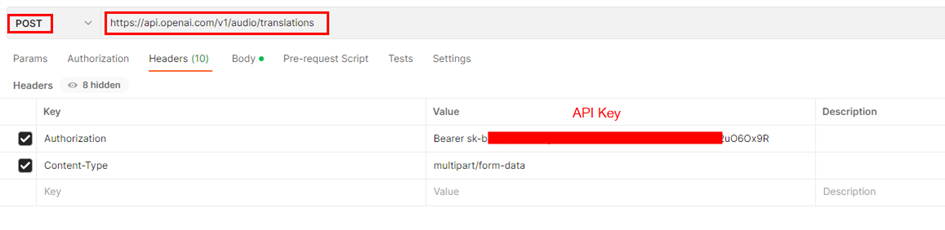
The speech to text API provides two endpoints, transcriptions and translations. At present, the maximum file size allowed for uploads is 25 MB and the supported audio formats are mp3, mp4, mpeg, mpga, m4a, wav, and webm. In this blog post, I utilized the Translation API to demonstrate its capability to convert English audio into text, it can understand other languages as well

POST https://api.openai.com/v1/audio/translations

If you have not yet created an API key, please sign up/login for OpenAI and obtain it from there.

Body:

Integration with Power Apps:

I have used a Power Automate flow with the Power Apps trigger to invoke the Speech to Text API via the HTTP connector in Power Automate. Alternatively, you can achieve the same outcome by constructing a Custom Connector. This sample app can be downloaded from this github link.

Microphone Control:

The audio control captures audio input through the device’s microphone and will be sent to the Power Automate flow for conversion into text using the Whisper API. The audio format of the recording depends on the type of device being used

  • 3gp format for Android.
  • AAC format for iOS.
  • Webm format for web browsers.

I’ve tested this control from the app accessed through the web browser. If you encounter an unsupported audio format for OpenAI, you can use utilities such as FFMpeg. Additionally, a .Net version of the control is available for download which can be used in Azure Function. John Liu (MVP) has written a sample Azure function that handles the conversion of audio formats using the aforementioned utility.

Step 1: To add a microphone control to the canvas, insert the Microphone control from the command bar. To preview the recorded audio from the Microphone control, add an Audio control

Step 2: Add a button to convert and to trigger the Power Automate flow. Find below the Power FX code

//Generates a JSON Text with the binary of the Audio file or Recorded audio
Set(varJson,JSON(Microphone1.Audio,JSONFormat.IncludeBinaryData));
Set(strB64Audio, Last(Split(varJson, ",")).Value);
Set(strB64AudioContent, Left(strB64Audio, Len(strB64Audio) - 1));
//Extract Audio Format
Set(varAudioFileType,Mid(varJson,Find(":",varJson)+1,Find(";",varJson)-Find(":",varJson)-1));
//Call the Power Automate Flow
Set(audioText,'SpeechtoText-OpenAIWhisper'.Run(strB64AudioContent,varAudioFileType).audiotext);

The Power FX code performs the following task

  • Stores the audio captured by a Microphone control in a variable as JSON data, including binary data.
  • Extracts the base64-encoded audio content from the JSON data using the string manipulation functions Split, Left, Mid.
  • Determines the audio file type by parsing a string variable.
  • Uses the extracted audio content and file type to call the Power Automate flow ‘SpeechtoText-OpenAIWhisper’ to obtain the corresponding text transcription which comes in later section of this post.
  • Assigns the resulting text transcription to a variable named ‘audioText’, this is assigned to a Text Label to display the converted text from the OpenAI Whisper API.

Step 3: Add a Label control to display the converted Text set to the variable audioText

File Upload Control

As of the day I am writing this post there is no file control that can handle all types of files in Power Apps, I have created a custom component utilizing the Attachment control to create a file attachment control. For further details, please refer to blogpost Uploading Files Made Easy: A Guide to Using the Attachment Control in Power Apps to add the control to the app.

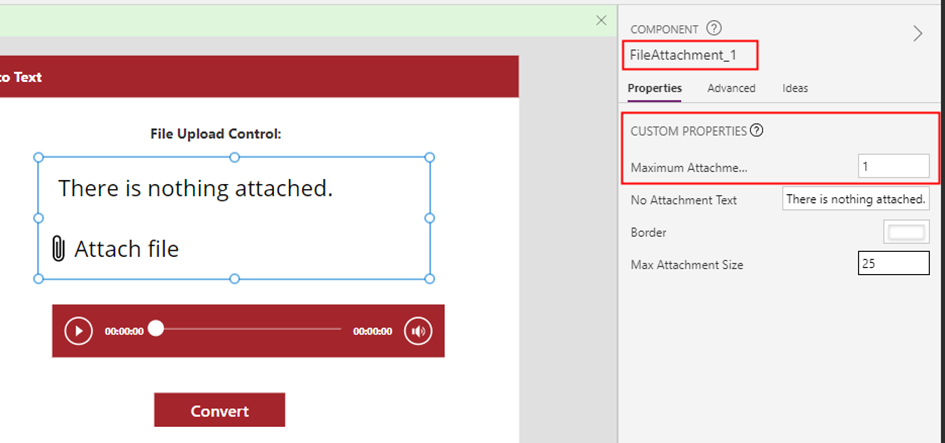
Step 1: Add the file attachment control to the app from the component library. Set the input property for Maximum Attachments to 1 from the component.

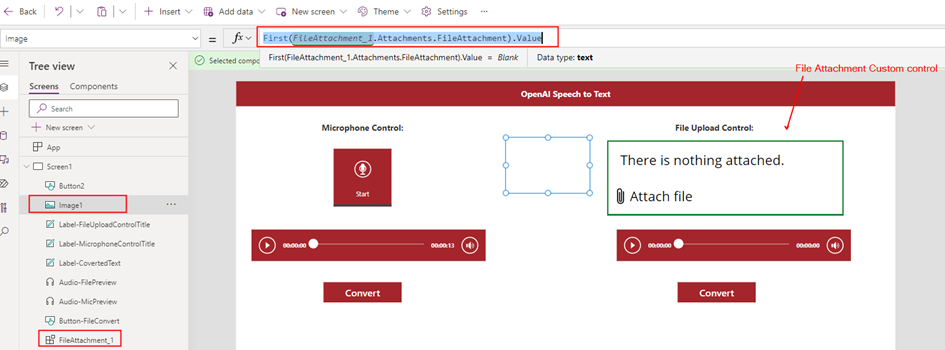
Step 2: To extract the binary content of an audio file, add an Image control to the app. The Image control is capable of working with any type of file to extract its content.

Step 3: Add a Button control to convert the Audio from the uploaded file. Find the PowerFX below

//Generates a JSON Text with the binary of the Audio file using the Image control
Set(varFileContent,JSON(Image1.Image,JSONFormat.IncludeBinaryData));
//Extract Base64 content
Set(varExtractedFileContent,Last(Split(varFileContent,",")).Value);
//Remove the last character " from the string
Set(varExtractedFileContent,Left(varExtractedFileContent,Len(varExtractedFileContent)-1));
//Extract Audio Format
Set(varAudioFileType,Mid(varFileContent,Find(":",varFileContent)+1,Find(";",varFileContent)-Find(":",varFileContent)-1));
//Call the Power Automate Flow
Set(audioText,'SpeechtoText-OpenAIWhisper'.Run(varExtractedFileContent,varAudioFileType).audiotext);

Step 4: Add a Label control to display the converted Text set to the variable audioText

Power Automate Flow

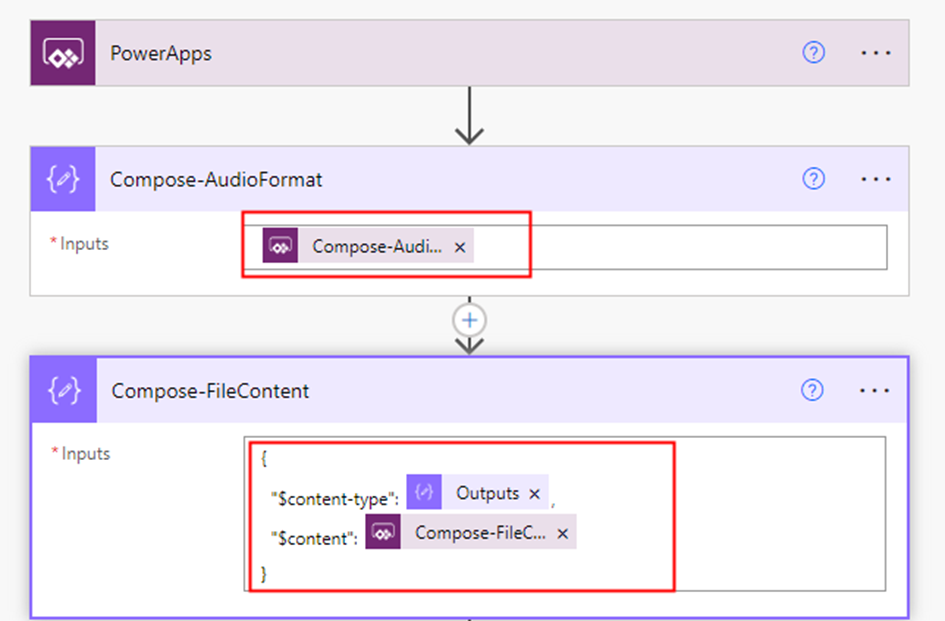
Now, let’s create a Power Automate flow with the Trigger type Power Apps to invoke the OpenAI Whisper API and convert speech to text. Step 1: Add two compose action (input parameters) to receive the audio format and content from either the recorded audio captured by the Microphone control or the uploaded audio file from the file attachment control in the Power Apps

{
  "$content-type": @{outputs('Compose-AudioFormat')},
  "$content": @{triggerBody()['Compose-FileContent_Inputs']}
}

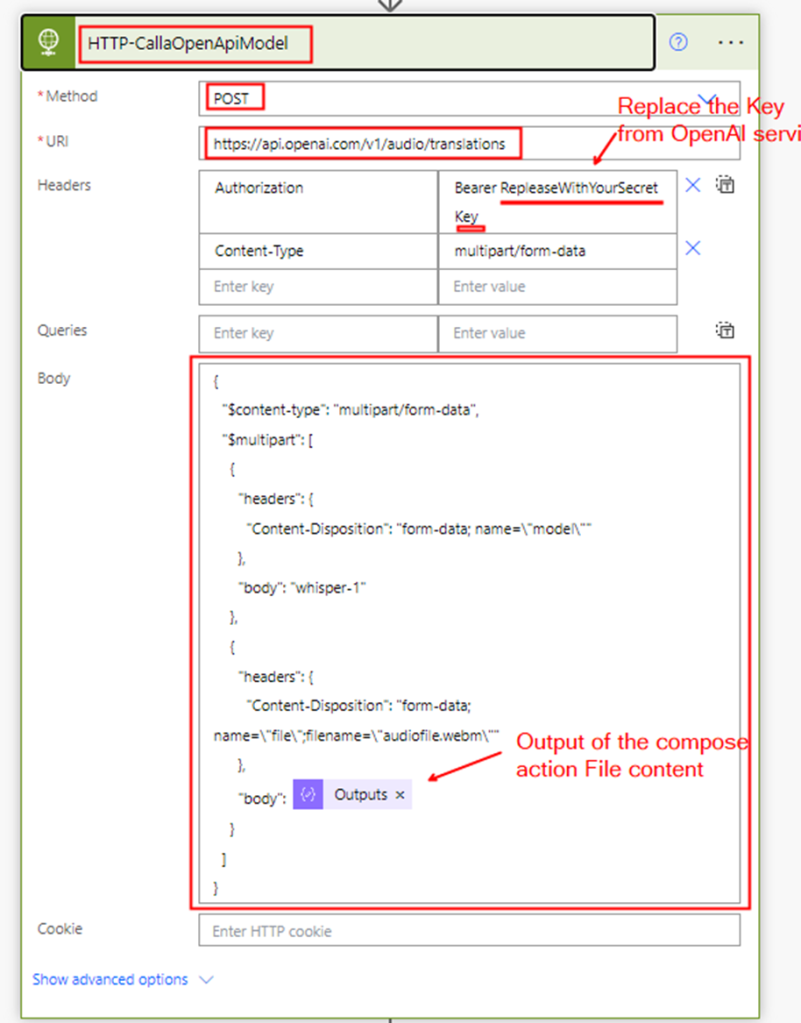
Step 2: Add a HTTP connector to make a request to the Whisper API endpoint. Refer to the blog post How to use form-data and form-urlencoded content type in Power Automate or Logic Apps HTTP action for handling multipart/form-data in the HTTP action

Request Body:

{
  "$content-type": "multipart/form-data",
  "$multipart": [
    {
      "headers": {
        "Content-Disposition": "form-data; name=\"model\""
      },
      "body": "whisper-1"
    },
    {
      "headers": {
        "Content-Disposition": "form-data; name=\"file\";filename=\"audiofile.webm\""
      },
      "body": @{outputs('Compose-FileContent')}
    }
  ]
}

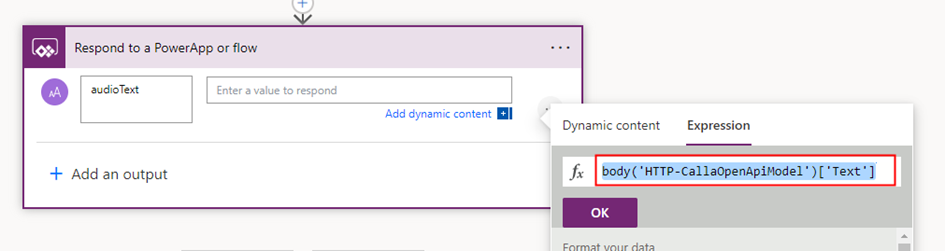
Step 3: Add the Respond to a PowerApp or a flow action to pass the converted text back to the app. To get the converted text, use the following expression

body('HTTP-CallaOpenApiModel')['Text']

The expression was constructed based on the response of the Whisper API call. In the event that the response property changes in the future, please ensure to update the expression accordingly.

Summary:

In this post, I’ve outlined a step-by-step guide on how to develop a basic app with Speech to Text functionality using Power Apps and a Power Automate flow leveraging the OpenAI’s Whisper API. The possibilities for using this technology are endless, from creating virtual assistants to generating audio captions and translations. Furthermore, the Whisper API can also be used to transcribe video files, adding even more versatility to its capabilities. It’s worth noting that while Azure offers its own Speech to Text service, it currently does not rely on the OpenAI Whisper Model. However, it’s possible that the two services will eventually integrate in the future. Hope you have found this informational & thanks for reading. If you are visiting my blog for the first time, please do look at my other blogposts.

Do you like this article?

Subscribe to my blog with your email address using the widget on the right side or on the bottom of this page to have new articles sent directly to your inbox the moment I publish them.

How to copy an existing DLP Policy in Power Platform

DLP policies are essential in ensuring that data is managed uniformly across an organization, thereby preventing critical business data from being accidentally published to social media or other connectors. These policies can be created at both the tenant and environment levels, with management handled through the Power Platform admin center. However, it is currently not possible to copy an existing DLP policy from the Admin center. This limitation can create difficulties when there is a need to create new policies based on an existing one.

In this blog post, we will explore various options for copying existing DLP policies to streamline the process. By using these options, you can save time and effort when creating new policies based on existing ones.

  • Power Automate Flow
  • DLP Editor Power Apps from CoE starter kit app
  • Power Shell

Note: To create a DLP policy at the Tenant level, you must be a Power Platform or Global Administrator role in AD.

Power Automate Flow:

The Power Platform Connector for Admins, available in both Power Automate and Power Apps, offers a range of environment lifecycle management capabilities, including DLP policy management.

To copy an existing DLP Policy, we will be utilizing the action List DLP Policies and Create DLP Policy in a Button Flow

Step 1: In the trigger, create two parameters to get the input for the existing Policy Name and the New DLP Policy name followed with the action List DLP Policies from the connector Power Platform for Admins to list all the policies in the Organization

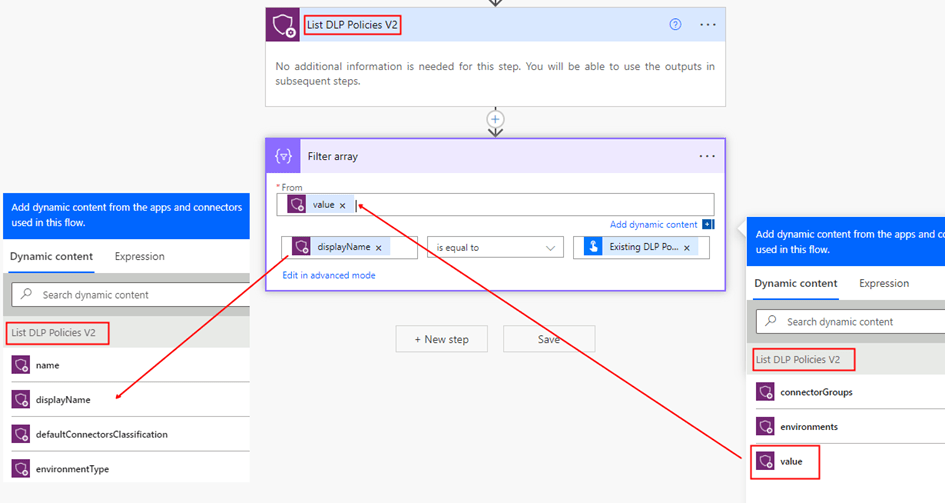
Step 2: To select the DLP policy that you want to copy in a Power Automate flow, add a Filter Array action. This action filters the DLP policies obtained from the List DLP Policies action based on a condition. Specifically, it checks whether the displayName of the DLP Policy from the DLP Policies list action matching with the trigger input Existing DLP Policy Name. Once the Filter Array action is executed, it returns a new array containing only the DLP policy that meets the condition. This filtered array can then be used as input for creating a New DLP policy

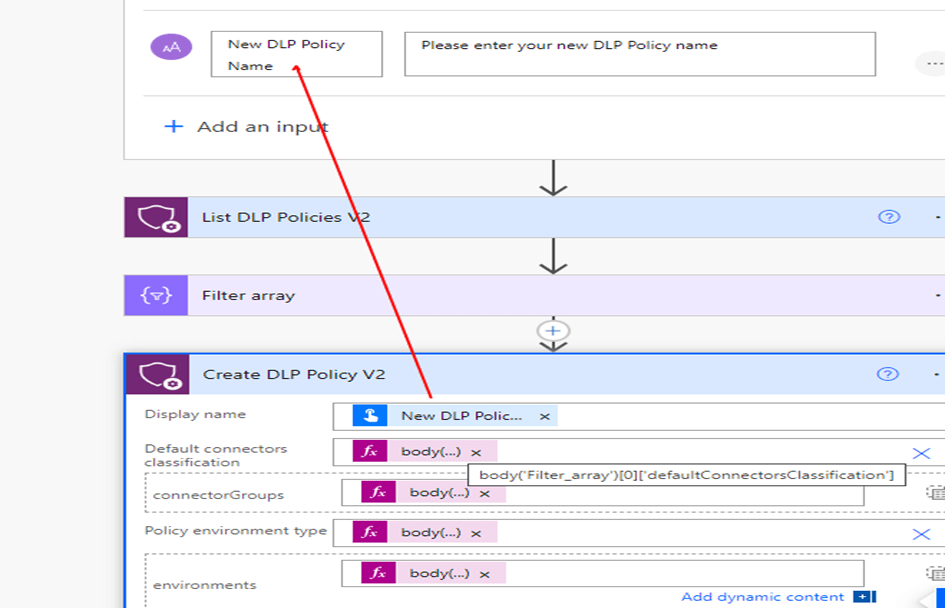
Step 3: Add the action Create DLP Policy from the Power Platform for Admins connector with the first property Display Name from the Trigger input. For the other input parameters for the action, use the expression from Output of the Filter Array action as shown below

body('Filter_array')[0]['defaultConnectorsClassification']
body('Filter_array')[0]['connectorGroups']
body('Filter_array')[0]['environmentType']
body('Filter_array')[0]['environments']

Save the changes to ensure that they are preserved. Once you have saved the flow, you can test it to make sure that it works as intended. I have the flow definition saved in my github if you wanted to take a copy of it.

CoE Starter Kit App:

The Center of Excellence (CoE) starter kit core components solution includes a Canvas app DLP Editor with a range of useful features to manage and administer DLP policies. One such feature is the ability to copy an existing Data Loss Prevention (DLP) policy, making it easy to replicate policies across multiple environments or tenants.

This app uses the Power Platform for Admins connector.

Power Shell:

Power Apps Administration PowerShell provides a convenient set of cmdlets that enable you to easily create and manage Data Loss Prevention (DLP) Policies. Microsoft has provided a helpful sample script that allows you to manage your tenant and environment policies. With this script, you can perform a wide range of tasks related to DLP policies, including creating new policies, reading existing policies, updating policies, and removing policies. The sample can be found here. By breaking down the sample script into manageable sections, you can gain a deeper understanding of how DLP policies work and how you can modify them to suit your organization’s needs with PowerShell.

Summary:

This blog post provides a overview of different methods that can be used to copy existing Data Loss Prevention (DLP) policies, which is currently not available from the Power Platform admin center. These techniques can help automate the DLP policy creation process, saving time and effort.

Do you like this article?

Subscribe to my blog with your email address using the widget on the right side or on the bottom of this page to have new articles sent directly to your inbox the moment I publish them.

Uploading Files Made Easy: A Guide to Using the Attachment Control in Power Apps

The Attachment control in Power Apps is a useful feature that allows users to upload and delete files, but it can only be used with data sources such as SharePoint List or Dataverse table. However, if you need to upload and delete files without using these data sources, you can create a custom component using the Attachment control or you can directly use this control in the app. I have followed the tip from Shane Young in this YouTube video to add the Attachment control to a component library.

By creating a custom component Library for the attachment control, you can upload and delete files similar to a Picture control but with the ability to handle any file type across any apps within an environment. This blog post is not a tutorial on how to create the component, but rather

  • How to use it
  • To Save the file in SharePoint Document Library using Power Automate Flow
  • How to customize the component to fit your needs.

How to use it – Add the Component to the Power Apps:

To incorporate this component into your app, you need to first import it into your environment. Please find below the steps to follow

Step 1: Download the component library from my github repo.

Step 2: Create a Blank Canvas App with a temporary name, on the studio command bar, click on the ellipsis > Click ‘Open’, browse to select the downloaded .msapp package. Save the App and then publish it. You would now be able to see the component from the Component Libraries.

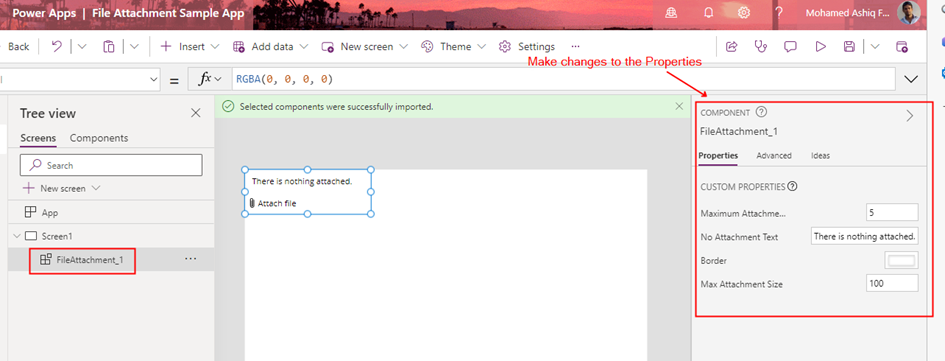
Step 3: After following the instructions outlined in this documentation to import the Published component into your app, the component will be available for use in any app within the environment as shown below.

Step 4: Modify the input parameters of the component to adjust settings such as maximum number of attachments, border colour, attachment size, and other defined parameters of the component.

Step 5: To display the uploaded file content within the app or to send the file to a Power Automate flow, you can incorporate any of the following controls based on the file type:

In the Media Property of the control, the formula to display the file content is

First(FileAttachment_1.Attachments.FileAttachment).Value

The file content will be uploaded to the app as binary data with the URL appres://blobmanager/ for each file uploaded from the attachment control. To get the file Name:

First(FileAttachment_1.Attachments.FileAttachment).Name

Note: In the above screenshot, I have set the Max Attachments Component property to 1 in the Step 4

Send the File to Power Automate:

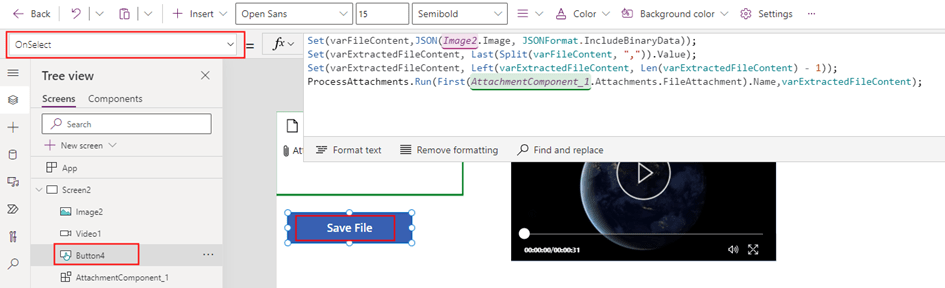
In order to send or store a file using a Power Automate flow, I needed to convert the file content to Base64 format. To accomplish this, I used a image control to capture the file content in binary format. Here is how I configured the image control:

This control works with any types of files to get the binary content.

After obtaining the binary content of the file using the JSON function, I performed some string manipulations to extract the binary content while excluding the Content-Type. Specifically, I used a combination of Split(), Left() and Last() functions to separate the content into an variable varExtractedFileContent.

Set(varFileContent,JSON(Image2.Image, JSONFormat.IncludeBinaryData));
Set(varExtractedFileContent, Last(Split(varFileContent, ",")).Value);
Set(varExtractedFileContent, Left(varExtractedFileContent, Len(varExtractedFileContent) - 1));

By performing these manipulations, I was able to extract the binary content of the file in a format that could be easily passed to a Power Automate flow or other API or action.

This allowed me to send the file to a Power Automate flow, which could then save the file in a SharePoint library or call some other API or action that required the data to be in Base64 format.

The Power Automate flow used to save the file to a SharePoint Document Library is simple. The flow consists of a Power Apps trigger and a SharePoint action Create File, which takes two input parameters: File Name and File Content.

I have used the base64toBinary() expression to convert the base64-encoded string to binary data. This expression is a prerequisite for the SharePoint create file action and ensures that the file is saved correctly to the SharePoint Document Library.

PowerFx to call the flow from Power Apps:

ProcessAttachments.Run(First(AttachmentComponent_1.Attachments.FileAttachment).Name,varExtractedFileContent);

If you need to upload multiple files to a library using the Attachment control, you can use Gallery control with the Image control, Collections, ForAll function, and the OnAddFile property from the Attachment control. First, create a collection to store the files that are uploaded using the Attachment control using the OnAddFile property. Then, use the Gallery control to load the binary of the uploaded files in the Image control. Next, use the ForAll function to iterate through each file in the gallery and call the Power Automate flow on a button click.

Customizing the Component:

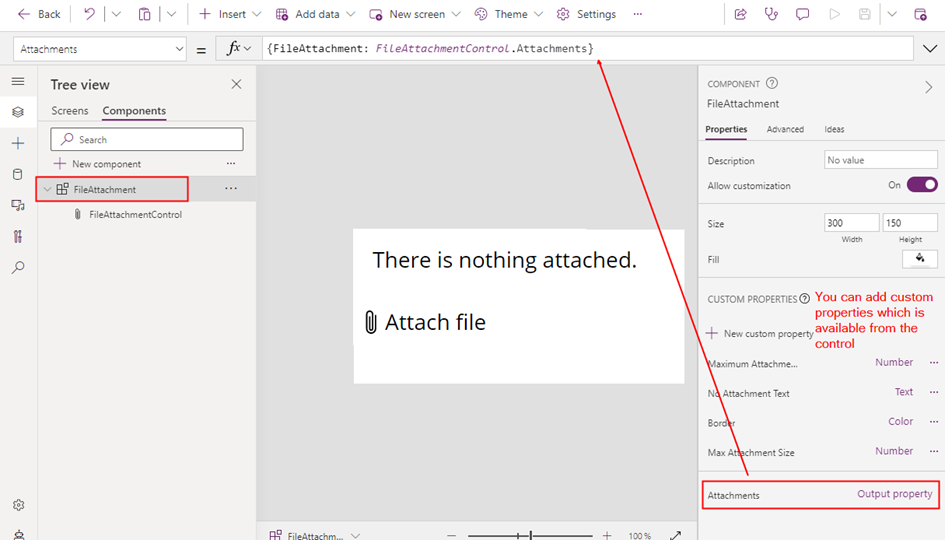
The component I’ve created is a simple one for handling file attachments, but it does not have all the properties from the Attachment control. If you need more customization, you can easily modify it to suit your specific needs by adding additional input or output properties.

To add a new property, you can simply edit the component code and include the new property as an input or output parameter.

By customizing the component in this way, you can tailor it to your specific requirements and ensure that it meets all of your file attachment needs

Summary:

In summary, the Attachment control in Power Apps is a useful feature for uploading and deleting files, but it is limited to certain data sources. To work around this limitation, you can create a custom component using the Attachment control, which allows you to handle any file type and bypass the use of data sources like SharePoint or Dataverse tables. Hope you have found this informational & thanks for reading. If you are visiting my blog for the first time, please do look at my other blogposts.

Do you like this article?

Subscribe to my blog with your email address using the widget on the right side or on the bottom of this page to have new articles sent directly to your inbox the moment I publish them.

Changing Connections in Connection References on a Managed Solution

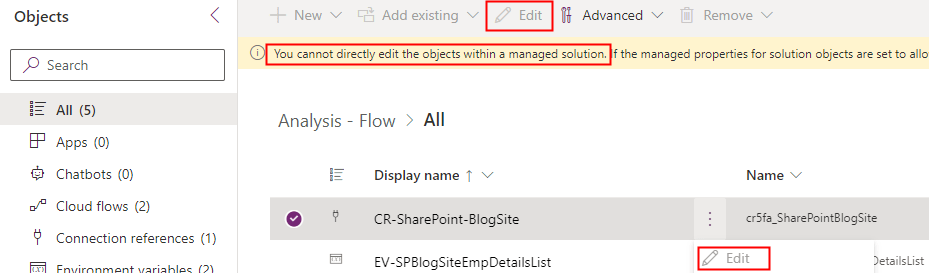
A connection reference is a component in a solution that holds information about a connector. It can be used by both a Canvas app and Power Automate flows. When importing a managed solution to an environment, the user is asked to either select an existing connection or create a new one. However, once a managed solution is imported, it cannot be edited as shown below

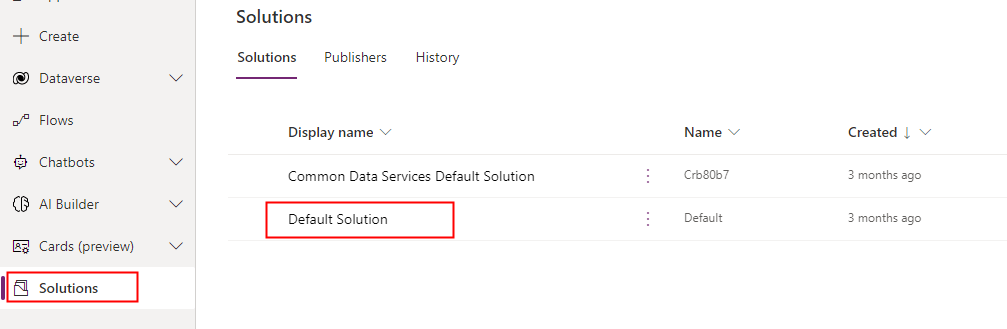
The solution to this is to use the Default Solution, which is a special solution that holds all the components within the environment.

Go to the Default Solution as shown below

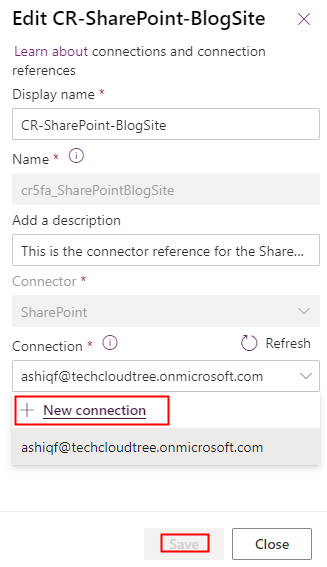
To change a connection in a connection reference:

  1. Go to Connection references
  2. Select the connection reference you want to edit
  3. Click “Edit” button.

Change the connection and then click Save

This will update the connection to a new user.

Do you like this article?

Subscribe to my blog with your email address using the widget on the right side or on the bottom of this page to have new articles sent directly to your inbox the moment I publish them.

How to send an Adaptive card to a Microsoft Teams Private channel using Power Automate flow

Within Microsoft Teams, private channels create focused spaces for collaboration where only the owners or members of the private channel can access the channel. The Microsoft Teams connector in Power Automate has an action to Post an Adaptive card in a chat or channel, which posts an adaptive card as a flow bot to a specific Teams channel. The following error will appear if this action is used to post the card as a Flow bot in the Private channel

Request to the Bot framework failed with error: ‘{“error”:{“code”:”BotNotInConversationRoster”,”message”:”The bot is not part of the conversation roster.”}}’.

The above action will work if the Post as property in the action is changed to User but the creator of this connection has to be a member of the Private channel. This article shows how you can send an Adaptive card to a Private channel using incoming webhooks without being a member of the private channel

Create the Adaptive Card:

An adaptive card facilitates the exchange of UI content in a unified and consistent manner with a simple JSON without the complexity of customizing HTML or CSS. The adaptive card I have used in this example is created from the designer portal. Find below the JSON card payload

{
    "type": "AdaptiveCard",
    "body": [
        {
            "type": "TextBlock",
            "size": "Medium",
            "weight": "Bolder",
            "text": "Adaptive Card in a Private Channel"
        },
        {
            "type": "TextBlock",
            "text": "Lorem Ipsum is simply dummy text of the printing and typesetting industry. Lorem Ipsum has been the industry's standard dummy text ever since the 1500s, when an unknown printer took a galley of type and scrambled it to make a type specimen book",
            "wrap": true,
            "color": "Attention"
        }
    ],
    "actions": [
        {
            "type": "Action.OpenUrl",
            "title": "View",
            "url": "https://ashiqf.com"
        }
    ],
    "$schema": "http://adaptivecards.io/schemas/adaptive-card.json",
    "version": "1.4"
}

Create Incoming Webhook on a Private Channel:

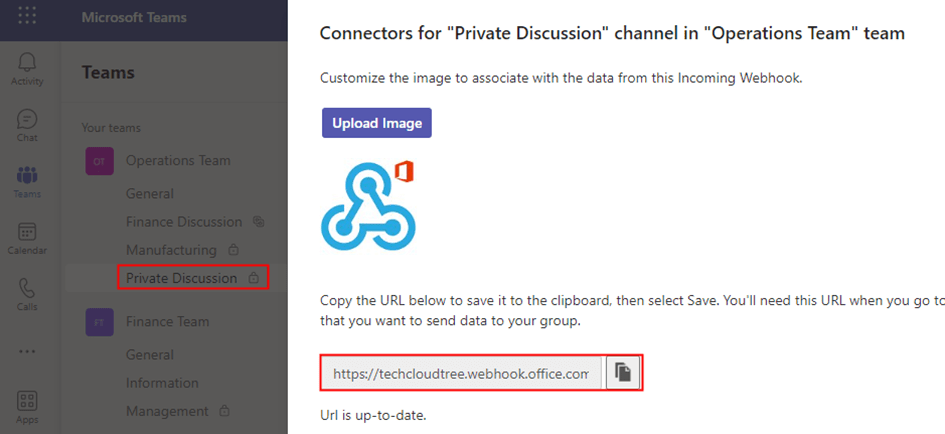
Incoming Webhooks allows external applications to share content within Microsoft Teams channels, in this case the cloud will be the external application sending an Adaptive card message to the private teams channel. You can add and configure an incoming webhook on a private channel by following the instructions on this link from Microsoft. Copy the Incoming webhook URL as mentioned in Step 6 from Microsoft documentation as shown below

Cloud Flow to send the Adaptive Card to a Private Teams channel:

The adaptive card JSON and the Incoming webhook is configured, lets create now create a flow with a HTTP action to send the Adaptive card

Step 1:

Form the HTTP request body for the HTTP action. Replace the Text with the JSON payload of the Adaptive card

{
  "type": "message",
  "attachments": [
    {
      "contentType": "application/vnd.microsoft.card.adaptive",
      "contentUrl": null,
      "content": 
	  Replace the ADAPTIVE CARD JSON PAYLOAD from the designer portal
    }
  ]
}

Step 2:

Add the HTTP action to the cloud flow with the following values against each parameter

Method: POST

URL: Incoming Webhook URLBody: from Step 1

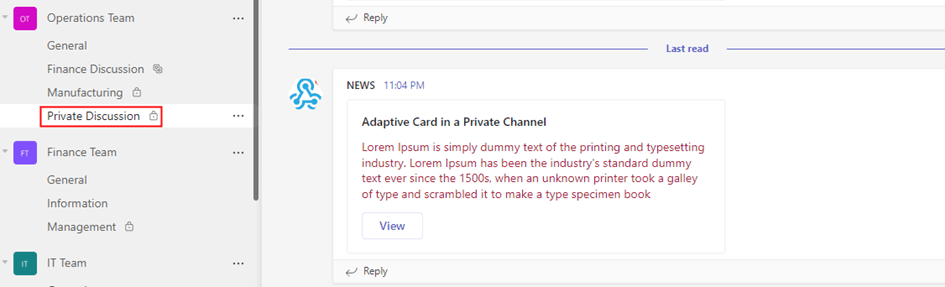
Find below the adaptive card in the Private channel

Do you like this article?

Subscribe to my blog with your email address using the widget on the right side or on the bottom of this page to have new articles sent directly to your inbox the moment I publish them.

Send Teams Activity Feed notification from Power Automate using custom Teams Bot

Activity feed notifications appears in the Teams activity feed panel with link to various locations thus enabling developers to build actionable content. These notifications are sent as push notifications in the Teams client. In this blogpost, let us see how to send Teams activity feed notification using

  1. Custom Teams App with a Bot
  2. Power Automate standard action: Post a feed notification

Pre-Requisites:

Custom Teams App with a Bot:

Microsoft graph has API endpoints to send activity feed notifications to Teams users. The pre-requisite to use the activity feed graph endpoint is to have a custom Teams app scoped to a Team, or in a chat or user.

Step 1: Custom Teams App scoped to Team:

For this blogpost, I have used a custom Teams app scoped to a Team. Refer to the following blogpost to create a custom Team app scoped to a Team with a Bot capable of sending an Adaptive card message on a channel
Do not install the Teams App yet before completing the other steps given below. After the Teams bot is created, a custom Azure Active directory Application must be registered.

Step 2: Azure AD Application – Microsoft Graph Activity Feed permission:

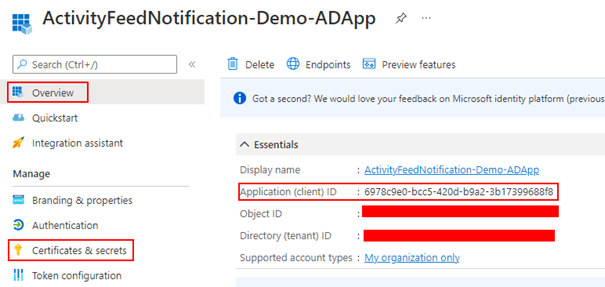
Register an Azure AD application to add the Microsoft Graph permission to be send activity feed. Copy the Application (client) ID and Tenant Id of the registered app from the Overview section and create a secret from the Certificates & secrets under Manage blade per the screenshot shown below. Once the secret is created, copy the value to be used in the Power Automate cloud flow

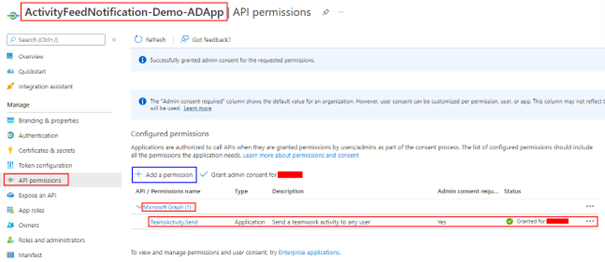
Add the application permission TeamsActivity.Send with an admin consent.

Step 3: Link the AD app to the Teams App

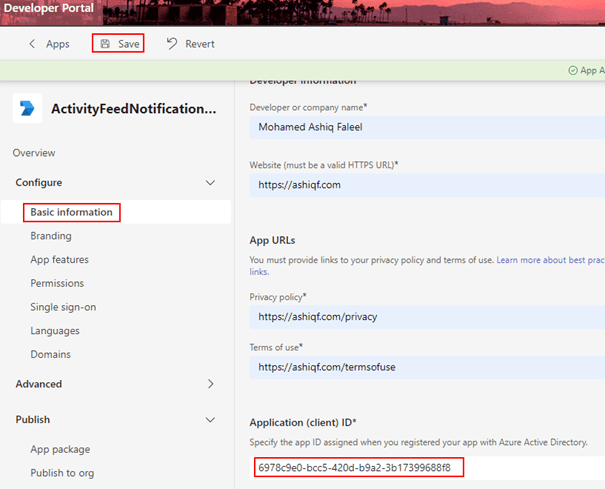
The AD application with permission to send activity feed is created, the next step is to link the Teams app created in Step 1 with the AD app. In the Teams Developer portal, enter the Application (client) ID in the apps Basic Information under the Overview section as shown in the below screen shot

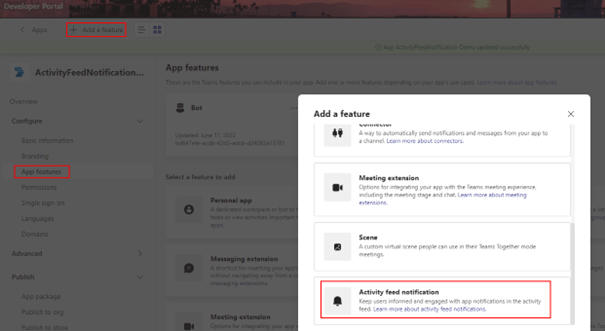
Don’t forget to Save the App in the Developer portal after the Application ID is entered. Now go to the App Features and then click Activity Feed notification as shown below

Click + Add an activity and enter the following information per the screenshot below

Type: informationBroadcasted

Description: Information Broadcasted Activity

Title: Notification from {actor} broadcasted by {broadcastedBy}

Click Save. The Teams app is now ready to be installed, follow the instructions here to install the bot in a Team for testing the Activity Feed notifications.

Power Automate Cloud Flow to send Adatpive card message and Activity Feed:

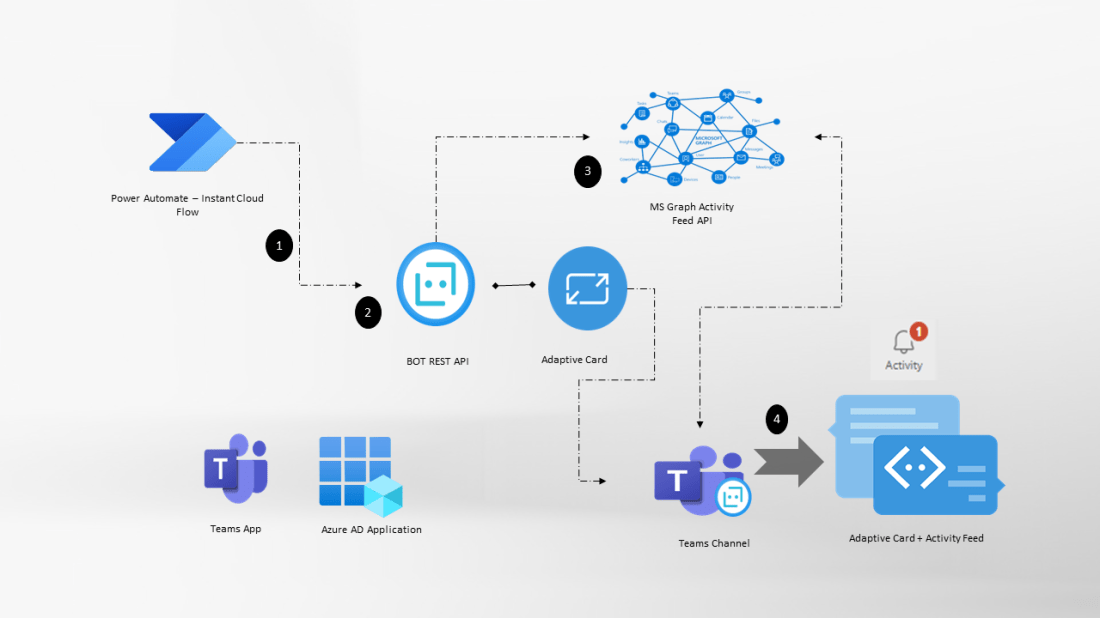
The Teams app is ready and now let’s create an Instant cloud flow with manual trigger to send an Adaptive card message to a Teams channel (General or any standard channel) and then Deep link to the adaptive card post in the Teams Channel to the activity feed notification.  I have used a Premium HTTP connector action to send the adaptive card using Bot Framework REST API. Go through the following post to send the Adaptive card

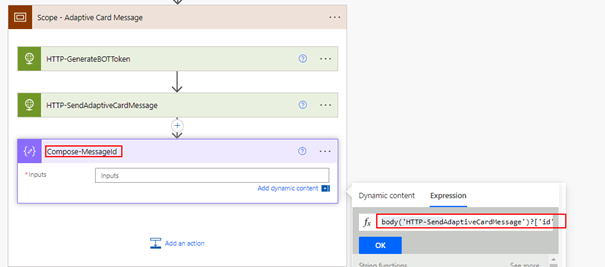
In the flow after the action HTTP-SendAdaptiveCardMessage, add a compose action with the following expression to get the Message ID of the Adaptive card channel message

body('HTTP-SendAdaptiveCardMessage')?['id']

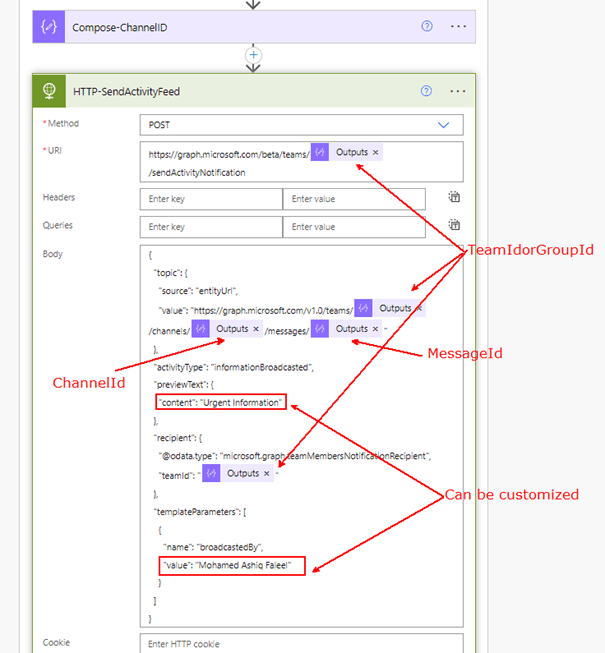
Add two compose action to store the TeamIdorGroupId and TeamChannelID as shown below

Add a HTTP action (Premium) to send the activity feed to all Team members (Beta) using the Graph Activity Feed API. Find the details below for the HTTP request

Type: POST

URI: https://graph.microsoft.com/beta/teams/teamIdorGroupId/sendActivityNotification

Replace teamIdorGroupId from the compose action

Body:

{
  "topic": {
    "source": "entityUrl",
    "value": "https://graph.microsoft.com/v1.0/teams/@{outputs('Compose-TeamIdorGroupId')}/channels/@{outputs('Compose-ChannelID')}/messages/@{outputs('Compose-MessageId')}"
  },
  "activityType": "informationBroadcasted",
  "previewText": {
    "content": "Urgent Information"
  },
  "recipient": {
    "@odata.type": "microsoft.graph.teamMembersNotificationRecipient",
    "teamId": "@{outputs('Compose-TeamIdorGroupId')}"
  },
  "templateParameters": [
    {
      "name": "broadcastedBy",
      "value": "Mohamed Ashiq Faleel"
    }
  ]
}

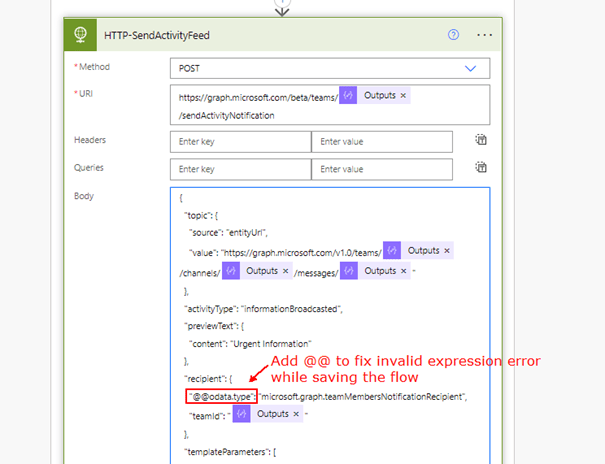
If you are having issues (Invalid Expression) while saving the flow, add additional @ keyword in the recipient as shown below

Click Show advanced options in the HTTP action to enter the Authentication details. Enter the Client (Application) ID, Secret and Tenant Id from Step 2

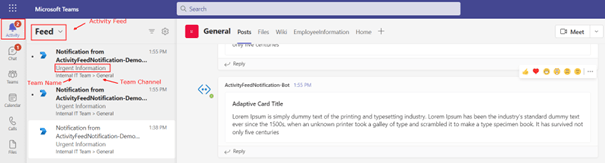
Time to test the Power Automate flow. Find below the Activity Feed message for a Teams user

Note:

The Teams app can also be enabled with Resource Specific Consent, to do so in the Teams Developer portal click Permissions on the Left bar. In the section Team Permissions select TeamsActivity.Send.Group under Application. If you have done this, Step 2 is not required. I will cover this in a different blog post.

Power Automate standard action: Post a feed notification:

There is a standard Teams action Post a feed notification which creates an activity feed with/without Deep link to a chat or Teams Channel using the Power Automate Teams Bot. Find below the action

Summary:

Isn’t this powerful to have engaging and actionable content for the users in Teams. There can be many use cases which could be applied for this setup e.g: Notify user and deep link to a Power App added in Teams channel etc. Hope you have found this informational & thanks for reading. If you are visiting my blog for the first time, please do look at my other blogposts.

Do you like this article?

Subscribe to my blog with your email address using the widget on the right side or on the bottom of this page to have new articles sent directly to your inbox the moment I publish them.