Secure Your MCP Server with Service Principal Authentication for Copilot Studio

In my previous post, we explored how to secure an MCP Server using Microsoft Entra ID delegated permissions, where the user’s identity is passed through to the API.

Secure Your MCP Server with Entra ID Authentication for Copilot Studio

But what if your scenario does not require user context?

What if you want:

  • A centralized connection
  • No per-user sign-in prompts
  • A backend service-to-service integration

In this post, we’ll walk through how to secure an MCP Server using application permissions (service principal authentication) and integrate it with Copilot Studio.

Introduction

MCP Servers exposed to Copilot Studio can be secured using different OAuth patterns:

  • Delegated permissions → user context
  • Application permissions → app-only context

This post focuses on the application permission model, where:

  • Copilot Studio uses a service principal (client credentials flow)
  • MCP Server validates app tokens instead of user tokens
  • No user interaction is required at runtime

Why Use Application Permissions?

Delegated access is great when you need user context. But in many enterprise scenarios:

  • Background operations don’t need user identity
  • Shared tools should behave consistently
  • Managing per-user connections becomes overhead

With application permissions:

  • Authentication is centralized
  • No per-user connection creation
  • Better suited for automation and shared agents

Prerequisites

Before starting:

  • Access to Microsoft Entra ID
  • Access to Copilot Studio and Power Platform
  • MCP Server implementation (you can reuse the same repo)
  • Permissions to create app registrations and custom connectors

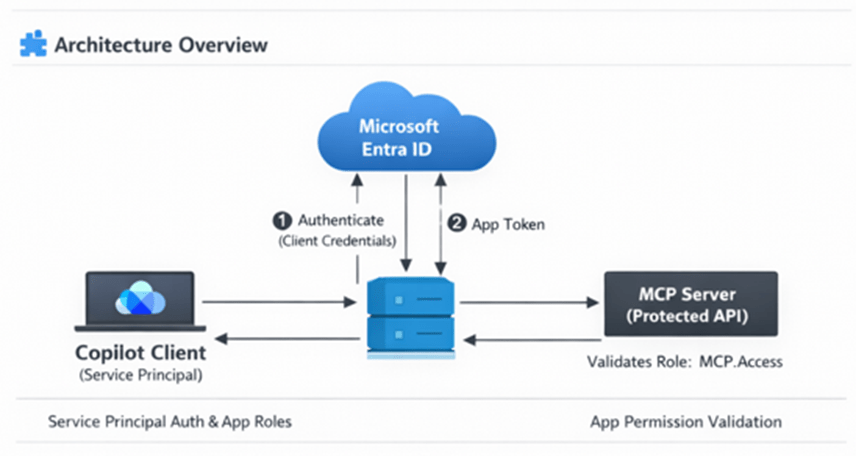
Architecture Overview

In this setup:

  • MCP Server → Protected API (App roles enabled)
  • Copilot Client → Service principal (client credentials flow)
  • Entra ID → Issues app-only tokens

Flow:

  1. Copilot (via connector) authenticates using service principal
  2. Entra ID issues app-only token
  3. Token is sent to MCP Server
  4. MCP Server validates role-based access

Step 1: Update MCP Server App Registration (Resource API)

Go to your existing MCP Server app registration created from the instructions in my other post.

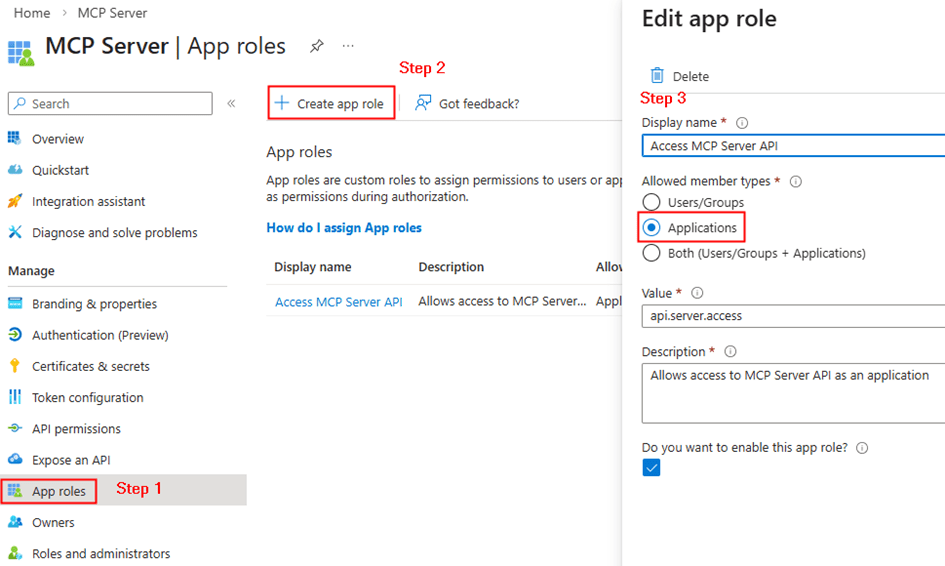
Create App Roles

Navigate to App roles → Add new role:

  • Display name: Access MCP Server API
  • Allowed member types: Applications
  • Value: api.server.access
  • Description: Allows access to MCP Server as an application

This is the key difference from delegated setup.

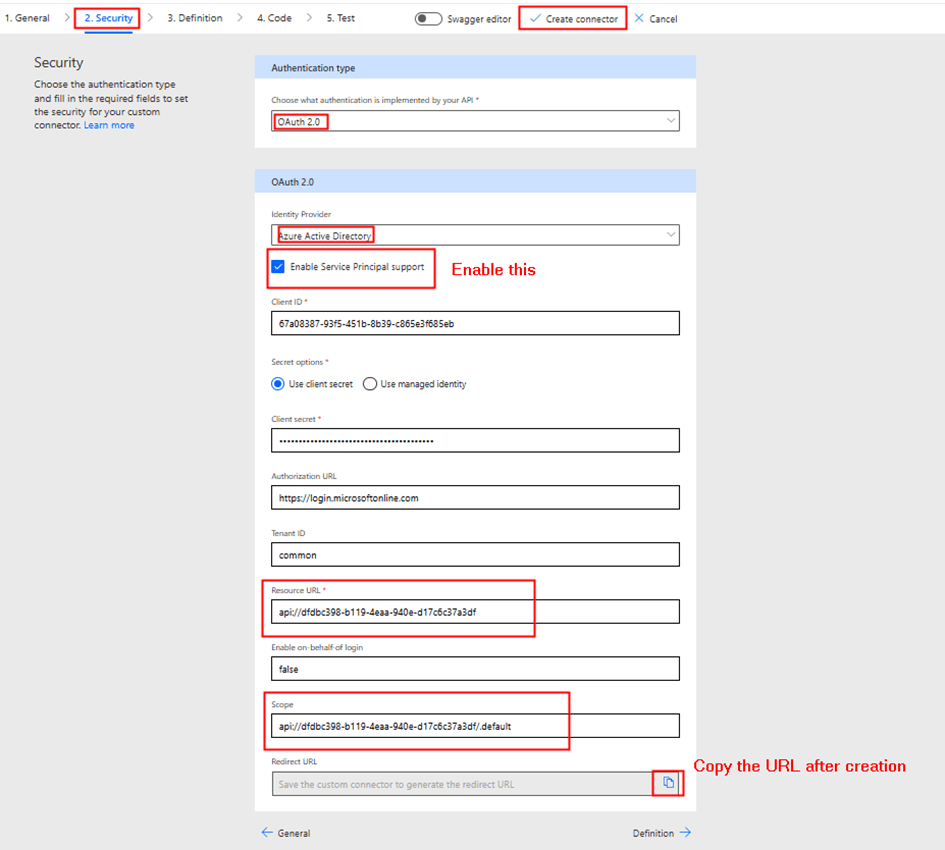
Instead of scopes, we have defined app roles for applications. Copy the resource url from the api permissions. E.g: api//xxxxx-xxxx-xxxx-xxx

Step 2: Configure Copilot Client App (Service Principal)

Go to your second app registration (Copilot client).

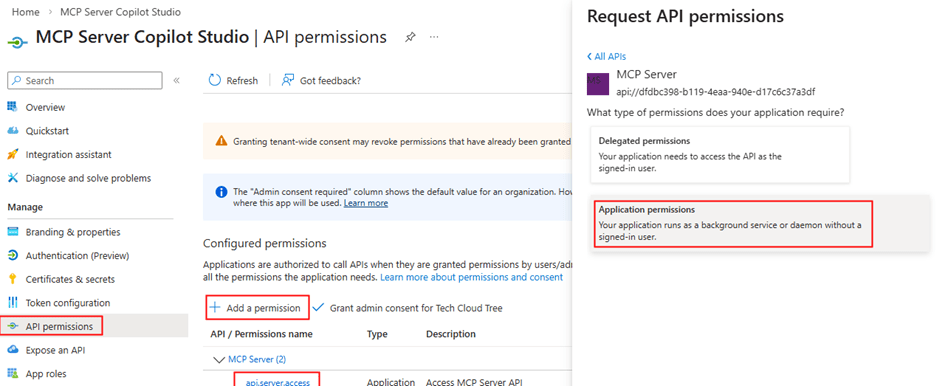
Add Application Permission

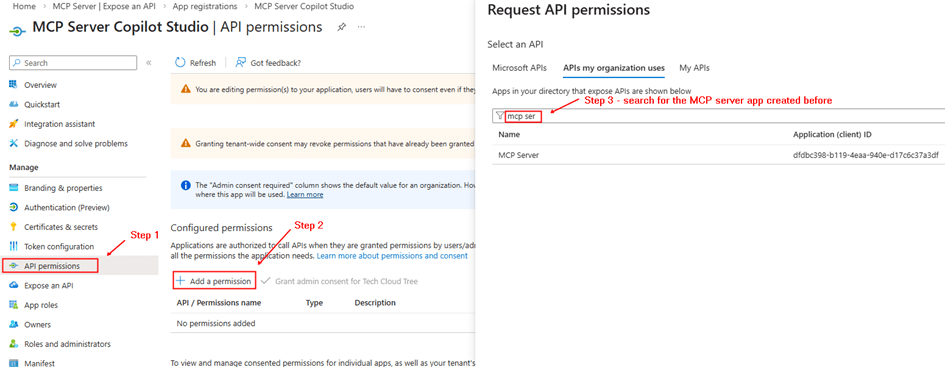
  • API permissions → Add permission
  • My APIs → Select MCP Server app
  • Choose Application permission → api.server.access

Grant Admin Consent

This allows the client app to call MCP Server without a user

Copy the client id, client secret for entering in the security tab while creating the custom connector.

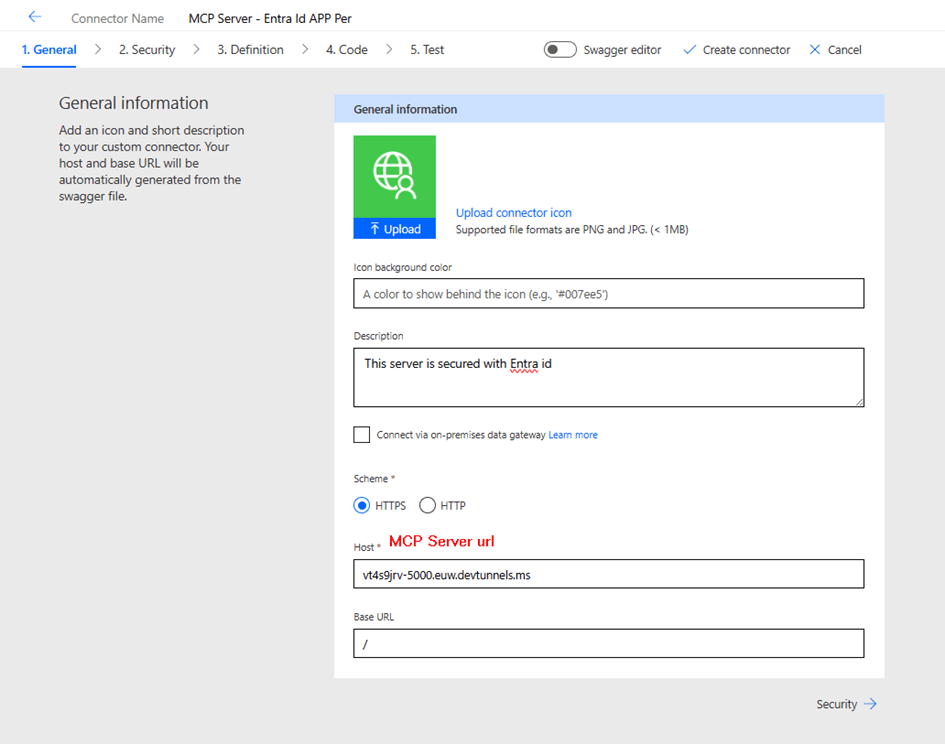
Step 3: Create Custom Connector in Power Platform

Unlike the delegated setup, this time we do not add MCP Server directly from Copilot Studio.

Instead:

  • Go to make.powerapps.com
  • Create a Custom Connector
  • Configure:
    • Security → OAuth 2.0
      1. Enable Service Principal support

This connector uses the service principal credentials. After the entering the above details, click create connector. After the connector is created, copy the redirect URL to enter it in the Copilot studio client app registration

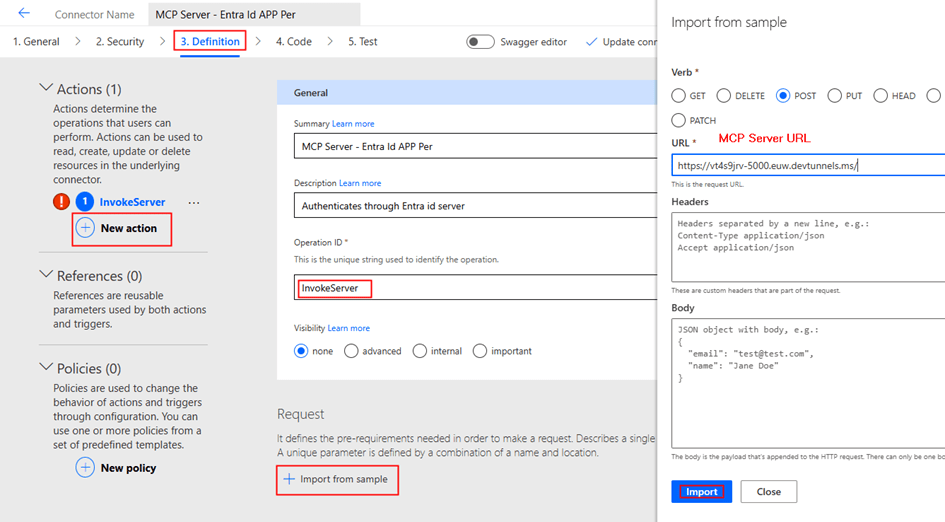
Now we can add the action Invoke server as below

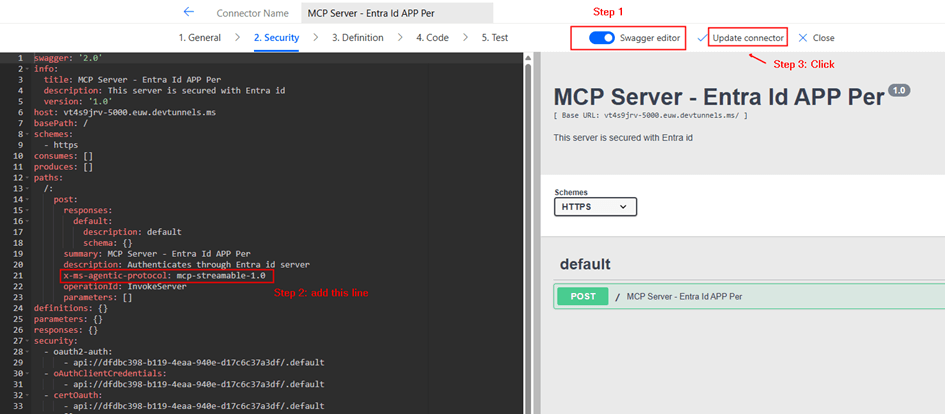
Update the connector. Now Toggle Swagger editor to add x-ms-agentic-protocol: mcp-streamable-1.0 as shown below

What It Does

Declares MCP Server Compatibility with Power Platform Agents

This extension tells Power Platform (and AI agents like Copilot) that your connector:

ComponentMeaning
x-ms-Microsoft-specific extension (not standard OpenAPI)
agentic-protocolIndicates the API supports agentic/AI agent operations
mcp-streamable-1.0Uses Model Context Protocol v1.0 with streaming support

What This Enables

  1. Agentic Discovery – Agents can discover available tools/operations
  2. Streaming Responses – Support for long-running async operations with streaming results
  3. Native MCP Integration – Direct compatibility with MCP clients and servers
  4. Agent Invocation – AI agents can invoke your MCP server endpoints intelligently

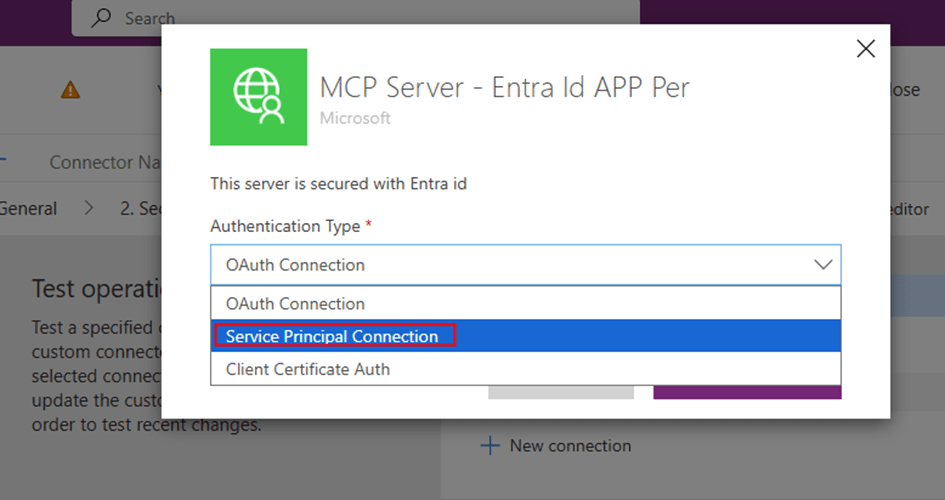
Step 4: Create Connection Using Service Principal

After updating the connector:

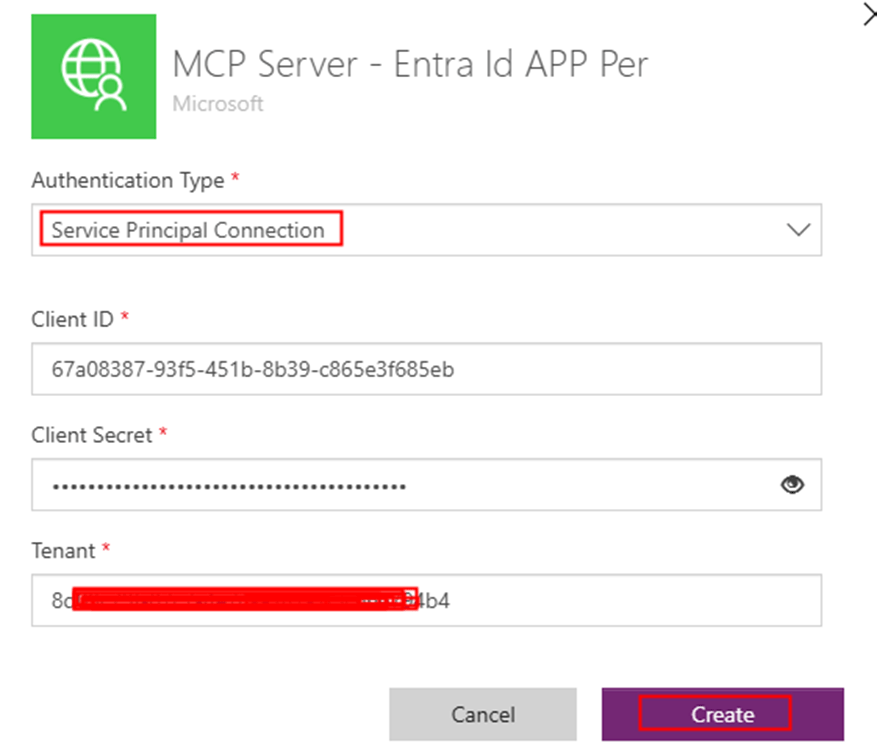
  • Create a new connection from the Test Tab in custom connector creation interface
  • Provide the below from your Copilot studio client app registration:
    • Client ID
    • Client Secret
    • Tenant ID

This creates a shared connection

Key difference:

  • No user login prompt
  • Connection is tied to service principal, not individuals

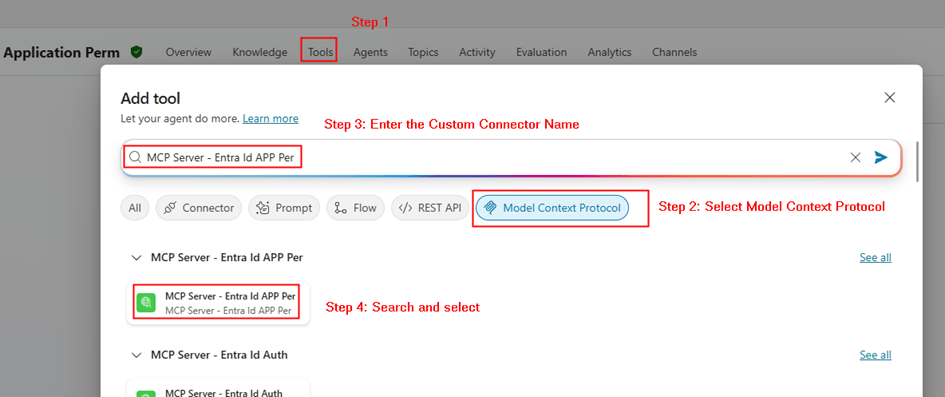
Step 5: Add MCP Server to Copilot Studio

Now go to Copilot Studio:

  • Open your agent
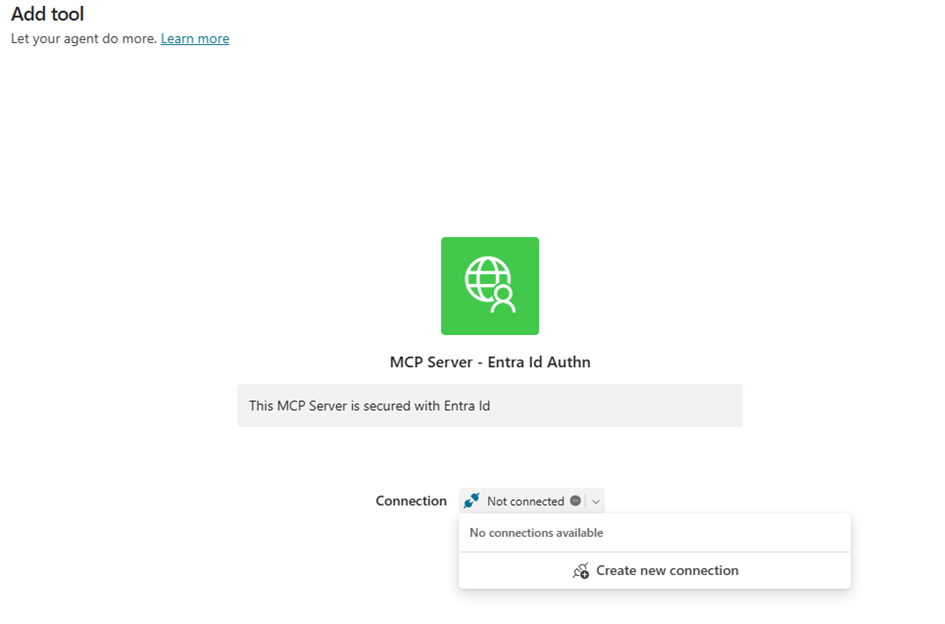
  • Add Tool → Browse existing MCP Servers
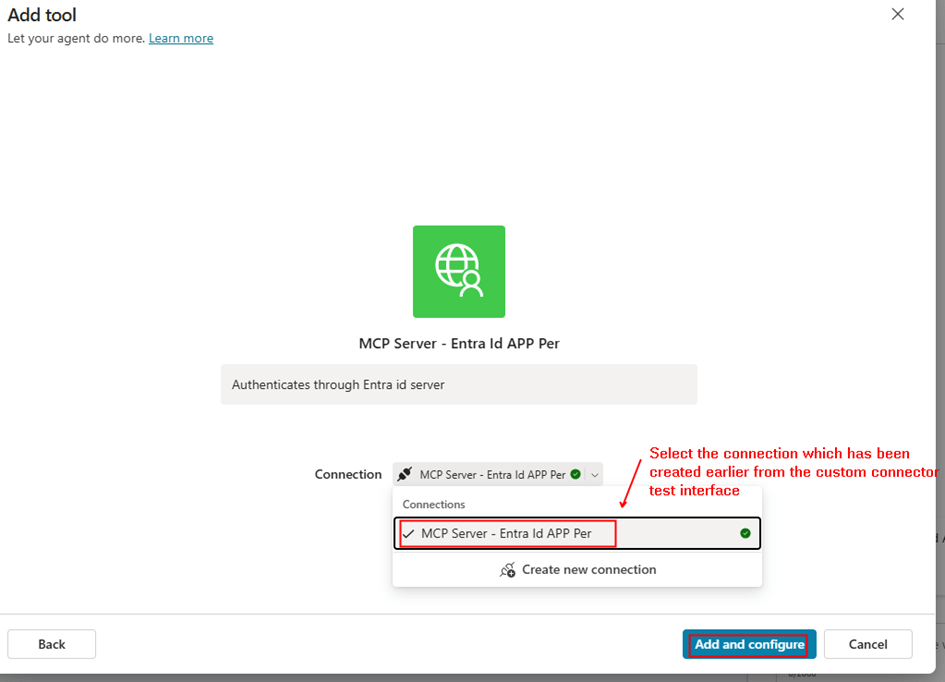
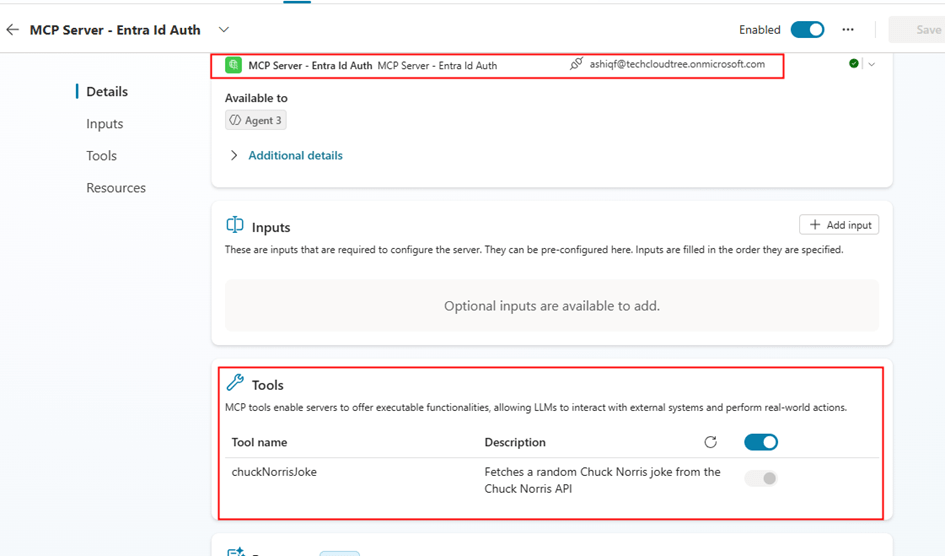
  • Select your MCP connector and the connection as below

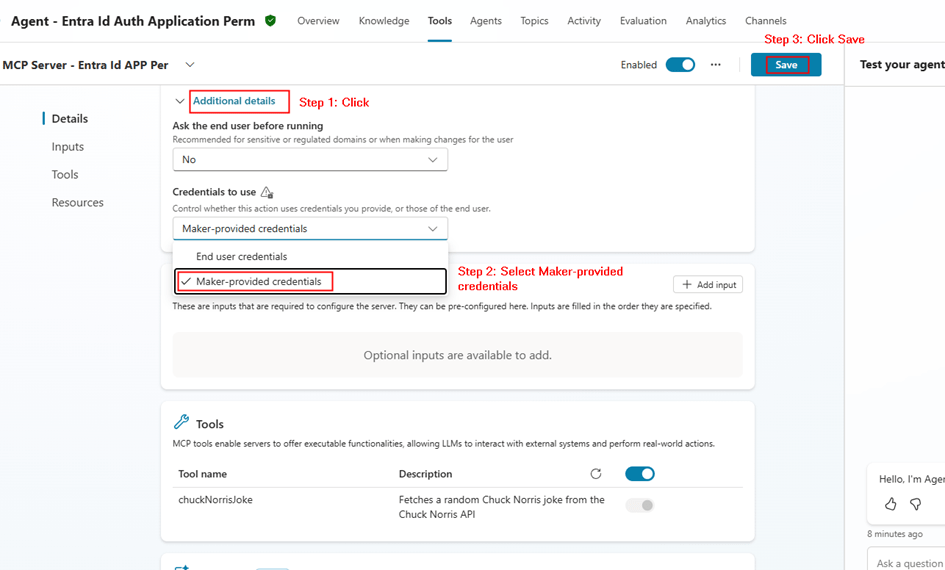
Important configuration in Copilot studio after the tool/MCP server is added:

  • Credentials to use: Maker provided
  • Save

This ensures:

  • The agent always uses the same connection
  • No per-user authentication required

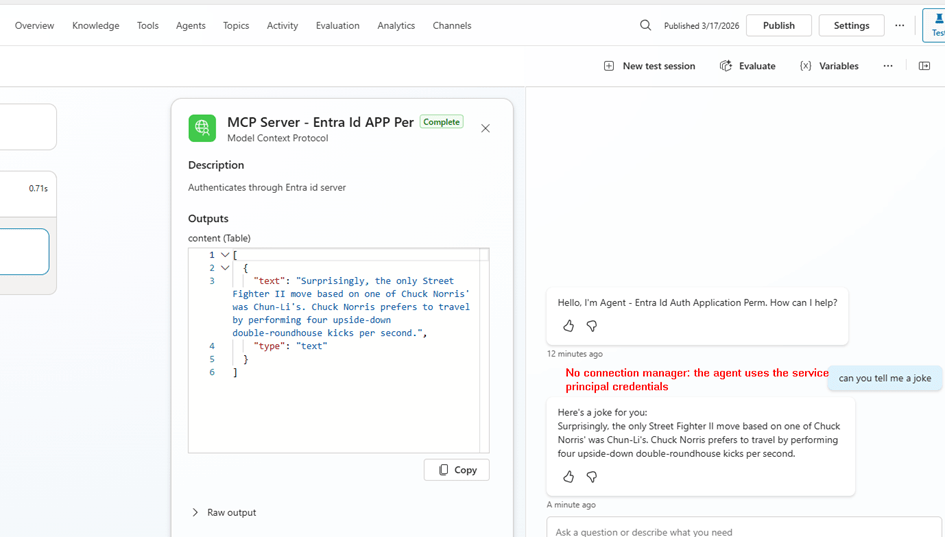
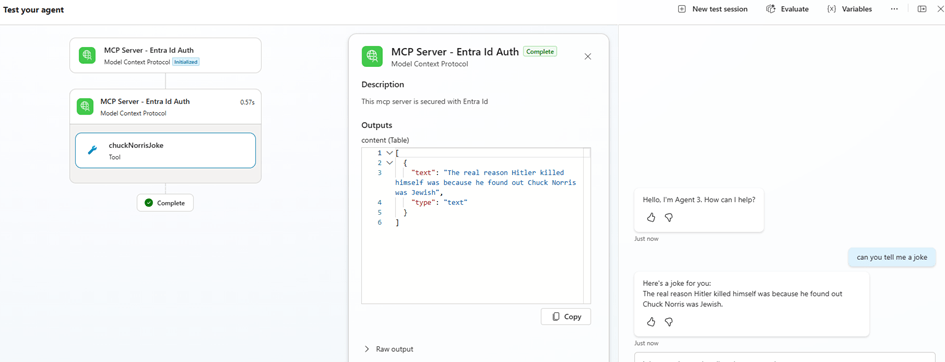
Step 6: Test the MCP Agent

Now test your agent:

  • Invoke MCP tool
  • Verify response

You should see:

  • No login prompts
  • Consistent responses
  • Backend authentication working

Delegated vs Application Permissions

FeatureDelegatedApplication
IdentityUserApp
Token TypeUser tokenApp token
ConsentUser/AdminAdmin only
ConnectionPer userShared
Use CaseUser-specific dataBackground/shared APIs

Summary

In this post, we covered:

  • Securing MCP Server using application permissions
  • Creating app roles for application access
  • Assigning application permissions to client app
  • Creating custom connector in Power Platform
  • Using service principal connection
  • Adding MCP server to Copilot Studio via existing connector
  • Configuring maker-provided authentication

Why This Matters

Using application permissions is critical when:

  • You want centralized authentication
  • Your MCP tools don’t require user context
  • You want to avoid connection sprawl
  • You need consistent behavior across all users

This model is especially useful for:

  • Enterprise APIs
  • Shared automation tools
  • Backend integrations

Final Thoughts

Both delegated and application permission models have their place.

  • Use delegated when user identity matters
  • Use application permissions when it doesn’t

By implementing service principal authentication for your MCP Server, you enable:

  • Scalable architecture
  • Simplified connection management
  • Secure, app-driven integrations with Copilot Studio

Secure Your MCP Server with Entra ID Authentication for Copilot Studio

With the rise of AI agents and extensibility through MCP (Model Context Protocol), exposing your APIs and tools to agents like Copilot Studio is becoming increasingly common. But the catch – without proper authentication, you’re opening the doors to your enterprise data.

In this post, we’ll walk through how to secure an MCP Server using Microsoft Entra ID and consume it from Copilot Studio using delegated permissions.

We’ll be using this sample repo as a reference implementation: MCP-Server-Entra-Id-Auth

Introduction

MCP servers allow AI agents to invoke tools and APIs in a standardized way. When integrated with platforms like Microsoft Copilot Studio, they unlock powerful automation scenarios.

However, MCP servers are essentially OAuth 2.0 resource servers, and every MCP client (like Copilot Studio) acts as an OAuth client.

Why Securing Your MCP Server is Important

Without proper authentication:

  • Anyone with access to the endpoint could invoke your tools
  • Sensitive operations such as internal APIs may be exposed
  • No identity context → no auditing or governance

Modern MCP implementations rely on OAuth-based authentication, ensuring:

  • Identity-aware requests
  • Scoped access tokens
  • Secure communication between client and server

In enterprise scenarios, Entra IDbecomes the natural choice.

Prerequisites

Before we begin, make sure you have:

  • Access to a Microsoft Entra ID tenant
  • Access to Microsoft Copilot Studio
  • Basic understanding of:
    • OAuth 2.0 / Delegated permissions
    • App registrations
  • MCP server up and running (use the repo above)

Architecture Overview

We will configure:

  • MCP Server → Protected resource (API)
  • Copilot Studio → Client application
  • Entra ID → Identity provider

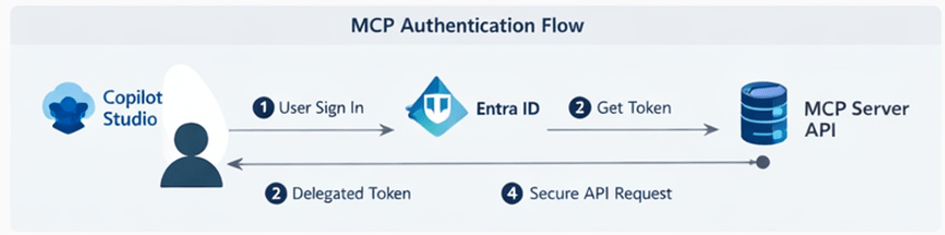
Flow:

  1. User signs in via Copilot Studio
  2. Copilot gets delegated token
  3. Token is sent to MCP Server
  4. MCP Server validates and processes request

Step 1: Create App Registration for MCP Server (Resource API)

Go to Entra ID → App registrations → New registration

Configure:

  • Name: MCP-Server-App
  • Supported account types: Single Tenant

    After creation:

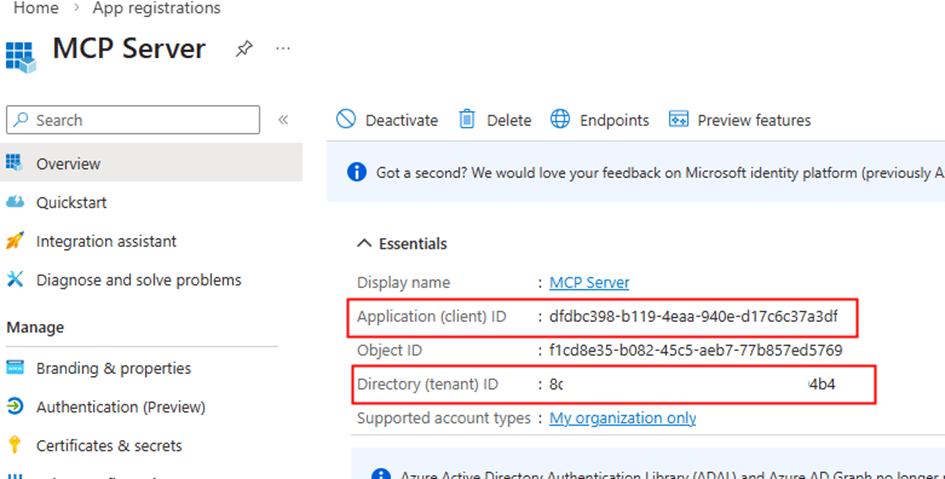
    1. Copy the Client Id, Tenant Id from the Overview section.

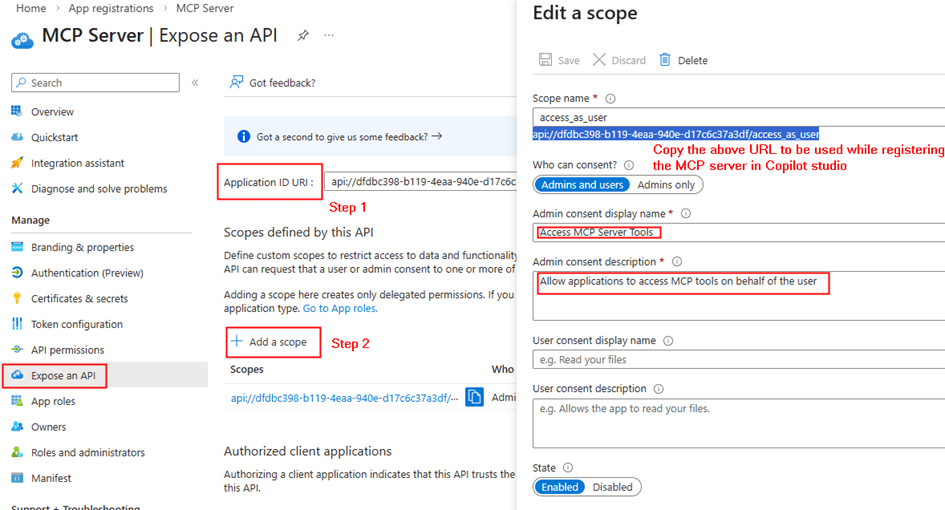
    Expose an API

    1. Go to Expose an API
    2. Set Application ID URI (e.g., api://xxx-xxxx)
    3. Add a scope:
      • Name: access_as_user
      • Who can consent: Admins + users

      Configure Permissions

      • Add required Microsoft Graph delegated permissions (if needed) or remove it.

      This app represents your secured MCP Server

      Step 2: Configure MCP Server with Entra ID

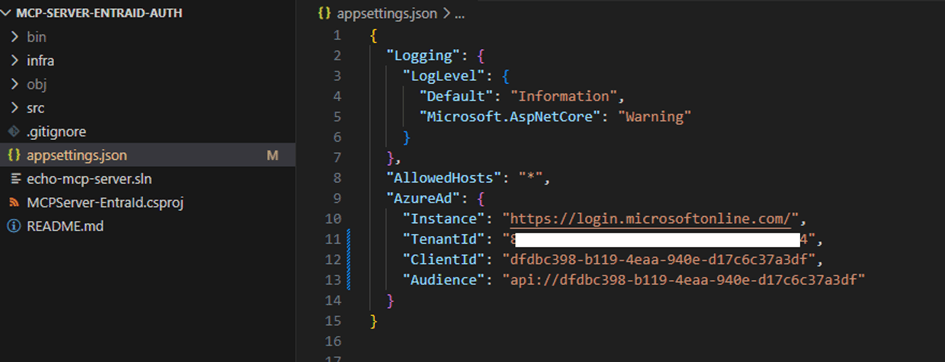
      In your MCP server, appsettings.json (from repo):

      Configure:

      • Tenant ID
      • Client ID (MCP Server app)
      • Scopes

      This allows the server to:

      • Validate incoming tokens
      • Optionally call APIs like Microsoft Graph

      Many MCP implementations use OAuth flows such as on-behalf-of (OBO)/delegates permissions to call APIs using the user’s identity.

      Step 3: Create App Registration for Copilot Studio (Client)

      Create another app:

      • Name: Copilot-MCP-Client
      • Supported Account Types: Single tenant only

      Configure:

      API Permissions

      Add permission:

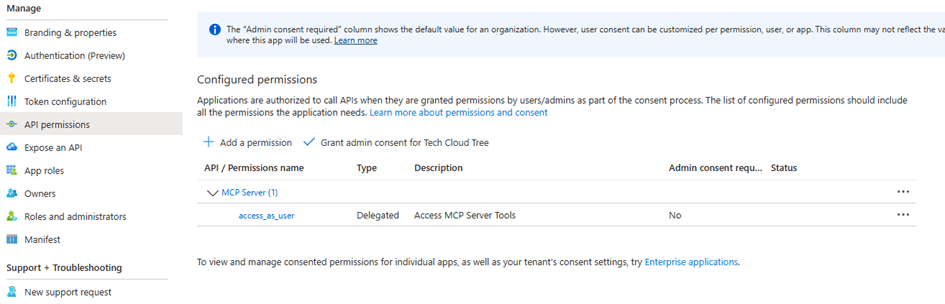
      • My APIs → MCP-Server-App
      • Select: access_as_user (delegated)

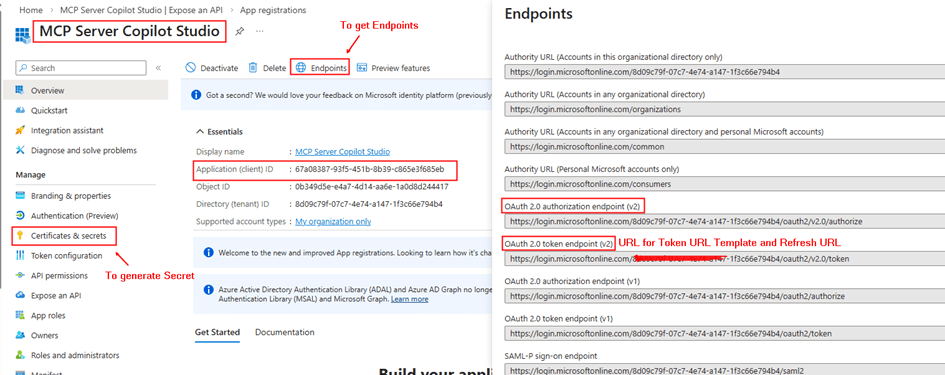
          Copy the Client Id, secret and the OAuth endpoints for adding the MCP server in Copilot studio interface.

          Grant Admin Consent

          This step is not Mandatory, if not provided an admin consent the user will asked for a consent with the permissions for the app while creating the connection to the MCP Server.

          Step 4: Add MCP Server in Copilot Studio

          Now comes the interesting part.

          In Copilot Studio:

          1. Go to Tools
          2. Click + Add a tool > Model Context Protocol
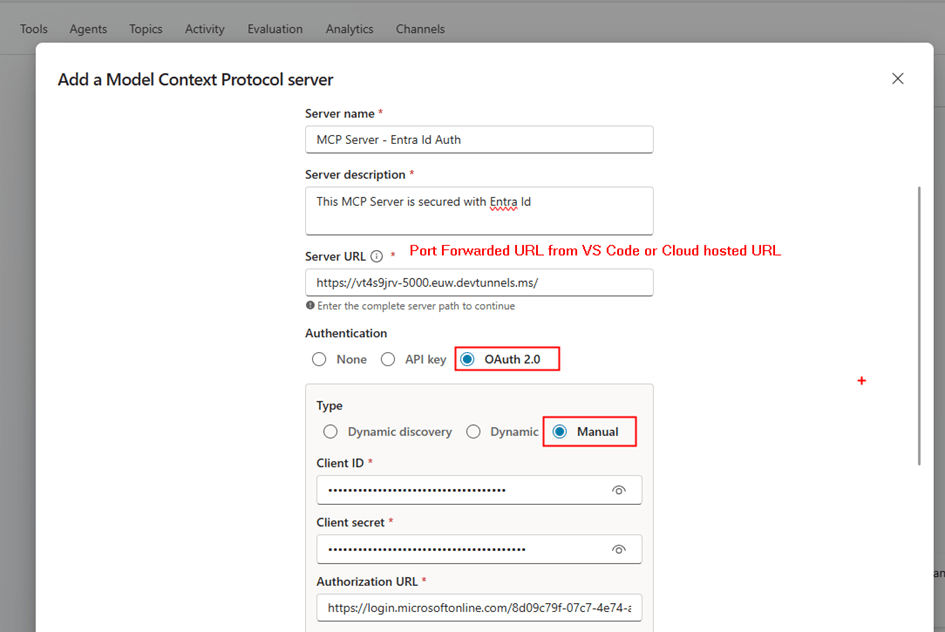
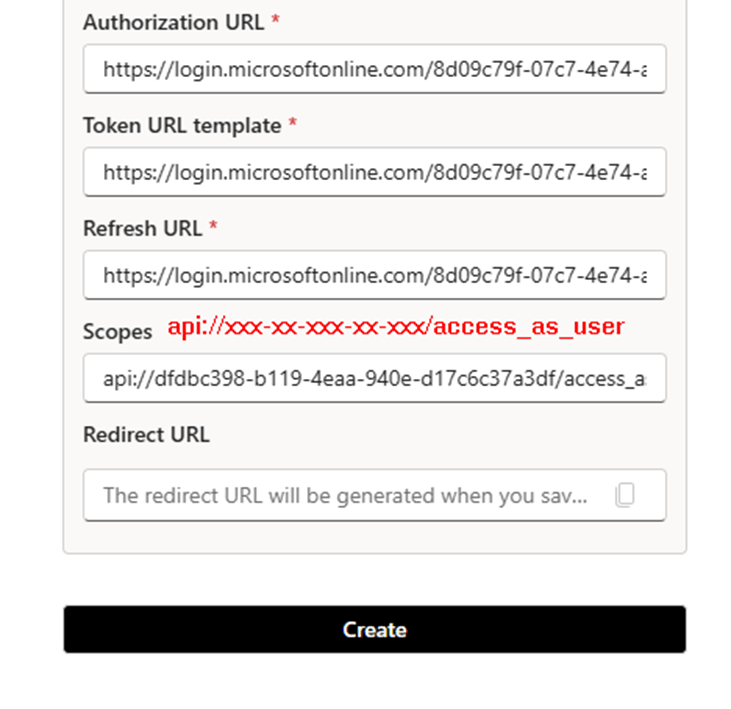
          3. Provide the details from the Copilot Studio Client app registration and MCP endpoint (e.g., /mcp or /)

          Copilot Studio will:

          • Create a custom connector behind the scenes

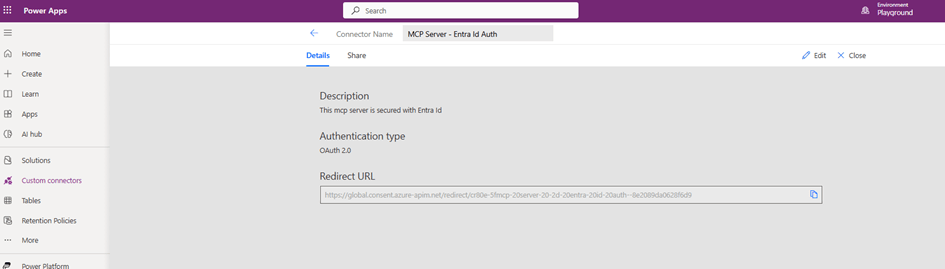
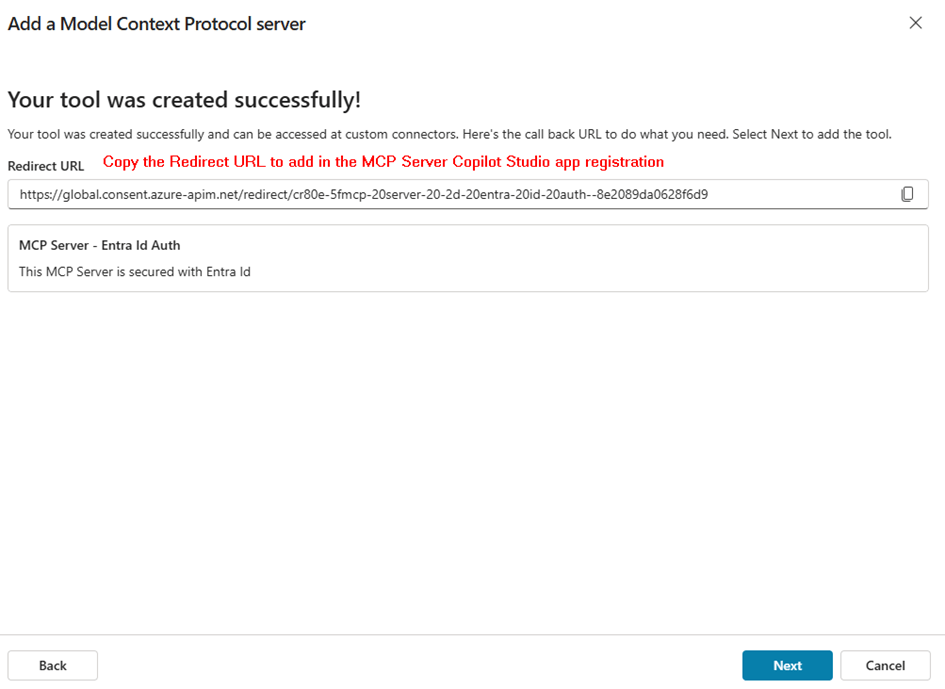
          On the next screen, you will get the link to the redirect url

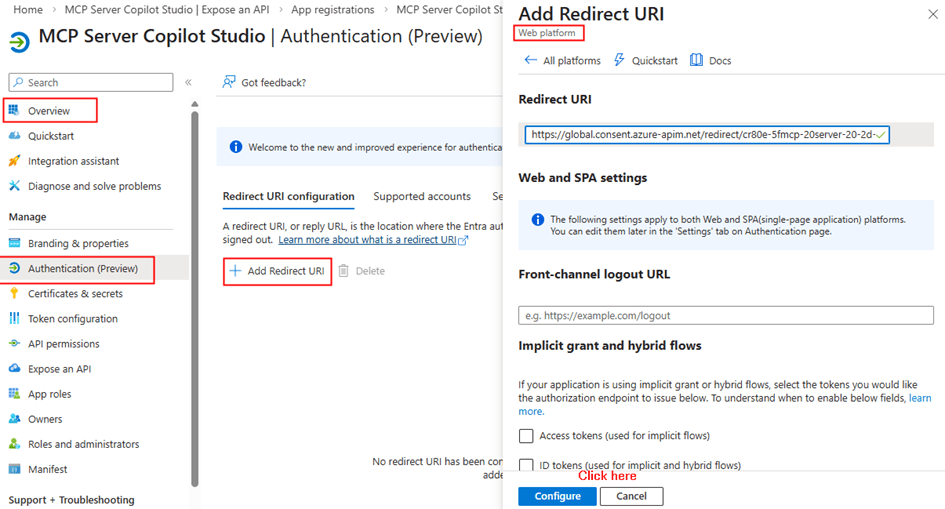
          Now go to the Copilot studio client app registration Authentication section under Manage blade

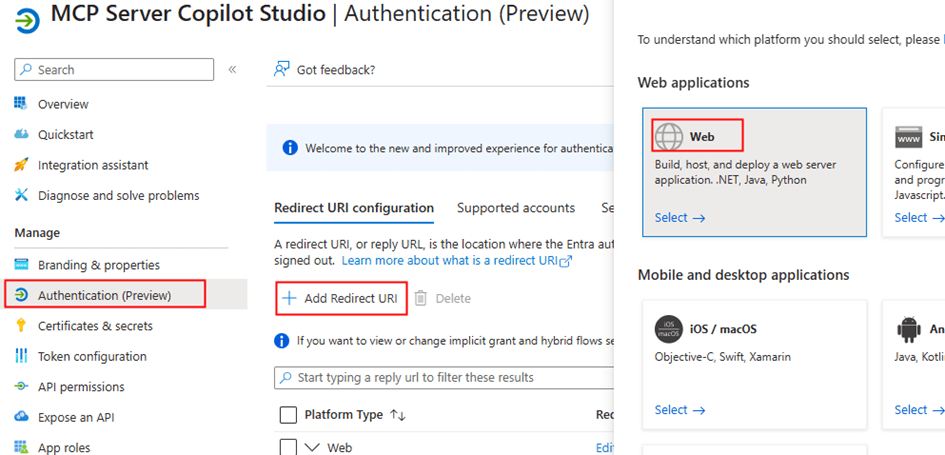
          • Add Redirect URI (important for Copilot Studio custom connector)
            • Example:

          https://global.consent.azure-apim.net/redirect/xxxx

          Step 5: Create the Connection

          Once the MCP server is added:

          1. Create new connection
          2. Copilot Studio prompts for authentication
          3. Sign in using Entra ID
          4. Consent to permissions

          This creates a connection instance tied to the user

          Now every MCP call:

          • Uses delegated access
          • Runs under the signed-in user context

          Step 6: Test in Copilot Agent

          • Add MCP tool to your agent
          • Invoke a tool (e.g., get users, groups, etc.) with a prompt
          • Verify:
            • Authentication prompt
            • Successful execution
            • User-context data

          Delegated Permissions – Why It Matters

          This setup uses delegated permissions, meaning:

          • The MCP server acts on behalf of the user
          • Access is limited to what the user is allowed to do
          • No over-permissioning (unlike app-only access)

          This is critical for:

          • Enterprise governance
          • Least privilege access
          • Auditability

          Summary:

          In this post, we covered:

          • Why MCP servers must be secured
          • How OAuth + Entra ID fits into MCP architecture
          • Creating two app registrations:
            • MCP Server (resource)
            • Copilot Studio (client)
          • Adding MCP server in Copilot Studio
          • Automatic custom connector creation
          • Using delegated permissions for secure access

          Final Thoughts

          As MCP adoption grows, security is not optional – it’s a design requirement.

          By integrating Microsoft Entra ID with your MCP server:

          • You get enterprise-grade authentication
          • Seamless integration with Copilot Studio
          • Identity-aware AI agents

          And most importantly, you stay in control of your data.

          Access  API’s in Power Platform Without Secrets Using Managed Identity in Custom Connectors

          In Power Platform, custom connectors make it easy to integrate with external APIs from Power Apps and Power Automate.

          In my earlier articles, I explained how to call APIs using custom connectors with different authentication approaches:

          While the above approach works well but it still requires client secrets or certificates to authenticate with Microsoft Entra ID.

          Managing secrets introduces challenges:

          • Secrets expire and must be rotated
          • Secure storage is required

          To address these challenges, Microsoft introduced Managed Identity authentication for custom connectors (Preview).

          With this capability, custom connectors can access APIs without storing client secrets, significantly improving security and simplifying management.

          In this article, we will explore how to configure Managed Identity authentication for a Power Platform custom connector. The approach works for any API secured with Microsoft Entra ID, and we will use Microsoft Graph as an example API.

          Why Managed Identity?

          Traditionally, Microsoft Entra Id protected APIs are accessed using:

          1. Delegated user authentication
          2. Service Principal or application user authentication

          Both require secret management.

          Managed Identity removes this requirement.

          Key advantages include:

          • No client secrets to manage
          • Reduced security risks
          • Native trust with Microsoft Entra ID

          This approach aligns with modern secretless authentication patterns widely used in Azure services.

          Authentication Architecture

          When using managed identity authentication with custom connectors, the authentication flow looks like this:

          Power Apps / Power è Custom Connector (Managed Identity Authentication) è Microsoft Entra ID
          (Federated Credential Trust) è Target API (e.g., Microsoft Graph)

          Instead of storing credentials, the connector uses federated identity trust to obtain access tokens from Microsoft Entra ID.

          Step 1: Register an Application in Microsoft Entra ID

          First, create an App Registration in Microsoft Entra ID.

          Navigate to:

          Azure Portal → Microsoft Entra ID → App registrations → New registration

          Supported account types:
          Single tenant

          After creating the app, note the following values:

          • Application (Client) ID
          • Tenant ID

          Managed identity authentication currently supports single-tenant applications.

          Step 2: Configure API Permissions

          Add the required permissions depending on the API you are accessing.

          Since we are using Microsoft Graph as an example, we have left it with the default delegated permission:

          • User.Read

          Grant Admin Consent if required depending on the permissions you have added.

          Step 3: Create a Custom Connector

          Navigate to the Power Apps or Power Automate Maker Portal.

          Create a new connector:

          Custom Connectors → New Custom Connector → Create from Blank

          Provide a connector name such as:

          Managed Identity API Connector

          In the General tab configure the API host.

          Example for Microsoft Graph:

          Host: graph.microsoft.com

          Base URL: /

          If you are connecting to another API, replace these values with that API’s endpoint.

          Step 4: Configure Managed Identity Authentication

          In the Security tab.

          Authentication Type: OAuth 2.0

          Identity Provider: Azure Active Directory

          Provide:

          Client ID → Application ID of your App Registration

          Secret Options → Managed Identity (Preview)

          Authorizations URL → https://login.microsoftonline.com

          Tenant ID → Your tenant GUID

          Resource URL → https://graph.microsoft.com/

          Scope → User.Read

          Click Create connector.

          After the connector is created, Power Platform generates two important values:

          • Redirect URL
          • Managed Identity

          These represent the identity of the connector.

          Step 5: Configure Federated Credentials

          Open the App Registration in Microsoft Entra ID. Add the Redirect url copied from the custom connector

          Then Navigate to:

          Certificates & Secrets → Federated Credentials

          Add a new credential.

          Choose: Other issuer

          Provide the values generated from the connector:

          Issuer → Issuer value from connector

          Type → Explicit subject identifier
          Subject → Subject identifier from connector

          Credentials Details:

          Name & Description: Any name representing your connector

          Federated Identity Credentials (Sample):

          Issuer: https://login.microsoftonline.com/xxxxx-yourtenand-id-xxxxxx/v2.0
          Subject: /eid1/c/pub/t/xxxxxxx/a/xxxxxx/unitedstates-002_ms-20graph-20-2d-20no-20secret-5f820e575d611694-e6ed89f31466204d
          Audience: api://AzureADTokenExchange

          This configuration establishes trust between the custom connector and the Entra ID application.

          Once this trust is established, the connector can request access tokens without using a client secret.

          Step 6: Define API Actions

          Now define actions in the Definition tab of the custom connector.

          For the Microsoft Graph example, we will create an action to retrieve the current user profile.

          HTTP Method: GET

          URL: https://graph.microsoft.com/v1.0/me

          You can define additional actions depending on the API endpoints you want to expose.

          For other APIs, configure the corresponding endpoints.

          Step 7: Create the Connection

          Navigate to the Test tab and create a new connection.

          Unlike service principal authentication, you do not need to provide client secrets.

          Power Platform will automatically authenticate using the managed identity configuration.

          Step 8: Use the Connector

          The connector can now be used from:

          • Power Apps
          • Power Automate

          Benefits of Managed Identity for Custom Connectors

          Using managed identity authentication provides several advantages:

          Improved Security

          No client secrets or certificates are stored in Power Platform.

          Reduced Operational Overhead

          No secret rotation or credential management.

          Current Limitations

          This capability is currently in preview

          Summary:

          Managed Identity authentication for Power Platform custom connectors enables secure, secretless access to APIs. Although we used Microsoft Graph as the example, the same pattern can be applied to any API secured with Microsoft Entra ID.

          This approach simplifies security management and provides a cleaner architecture for enterprise Power Platform integrations.

          Enabling Real Time Alerts using Microsoft Graph in Power Platform – Part 2

          In this section of the blog series, we’ll walk through the steps to create a Microsoft Graph subscription for Teams presence updates based on the Custom connector created on the previous post and configure a Power Automate flow to receive and process these updates through Azure Event Hub.

          Step 1: Creating a Microsoft Graph Subscription for Teams Presence

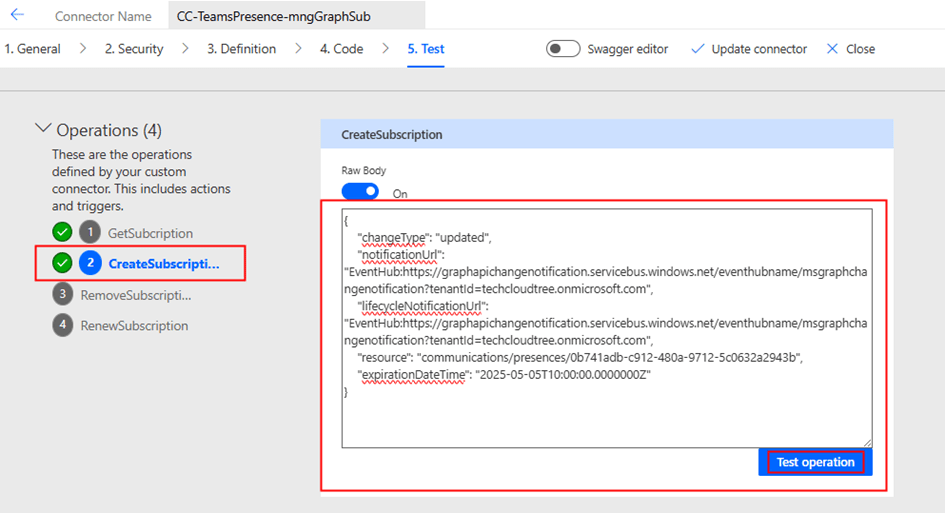
          Using the custom connector built in Part 1 of this blog series, initiate the Microsoft Graph subscription by calling the Create Subscription action

          {
              "changeType": "updated",
              "notificationUrl": "EventHub:https:// yourazureeventhubinstancename.servicebus.windows.net/eventhubname/ youreventhubname?tenantId=techcloudtree.onmicrosoft.com",
              "lifecycleNotificationUrl": "EventHub:https:// yourazureeventhubinstancename.servicebus.windows.net/eventhubname/ youreventhubname?tenantId=techcloudtree.onmicrosoft.com",
              "resource": "communications/presences/0xxxx-your-xxx-objectid-xxxxxb",
              "expirationDateTime": "2025-05-05T10:00:00.0000000Z"
          }

          When creating a Microsoft Graph subscription for Teams presence updates, make sure to update the following fields in your request payload:

          • notificationUrl
            URL where Microsoft Graph will send presence update notifications. This should point to your Azure Event Hub endpoint configured to receive events.
          • lifecycleNotificationUrl
            URL to handle lifecycle events such as validation and subscription expiration. This should point to an endpoint capable of processing these system-level callbacks (optional but recommended).
          • resource
            This defines the target of the subscription.
            Format: /communications/presences/{userId}
            • Replace {userId} with the Object ID (GUID) of the Azure AD user whose presence updates you want to track.
          • expirationDateTime
            Timestamp defining when the subscription expires.
            • For presence, the maximum allowed duration is 1 hour.
            • Use ISO 8601 format: YYYY-MM-DDTHH:MM:SSZ

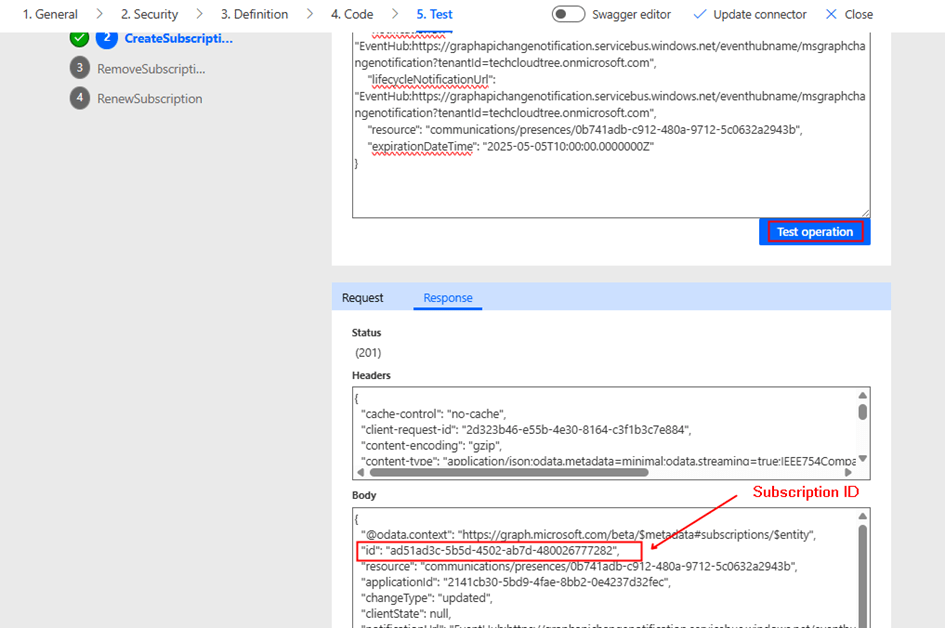
          Tip: After the subscription is successfully created, make sure to note down the Subscription ID, as it is required to renew the presence subscription— which must be refreshed every hour. This renewal process can be automated using a scheduled Power Automate flow.

          Step 2: Receiving Notifications via Azure Event Hub

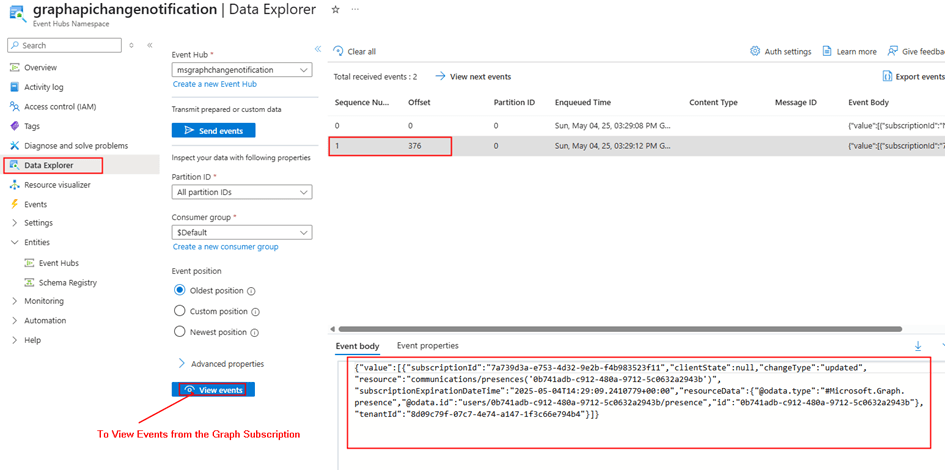
          Azure Event Hub serves as a high-throughput ingestion pipeline for Microsoft Graph notifications. After the subscription is created, presence change events are pushed into the specified Event Hub.

          Each event includes metadata such as the subscription ID, resource details containing user information, and a timestamp—enabling you to respond effectively to presence status changes in real time.

          As seen in the payload above, user availability or activity changes in Microsoft Teams are not directly visible—this data is encrypted. To access it, you’ll need to configure certificate-based encryption and decrypt the payload accordingly. We’ll cover this process in detail in the next blog post.

          Step 3: Creating a Power Automate Flow to Process Presence Updates

          Now that presence updates are routed into Azure Event Hub, we’ll use Power Automate to process these updates.

          Steps to Configure:

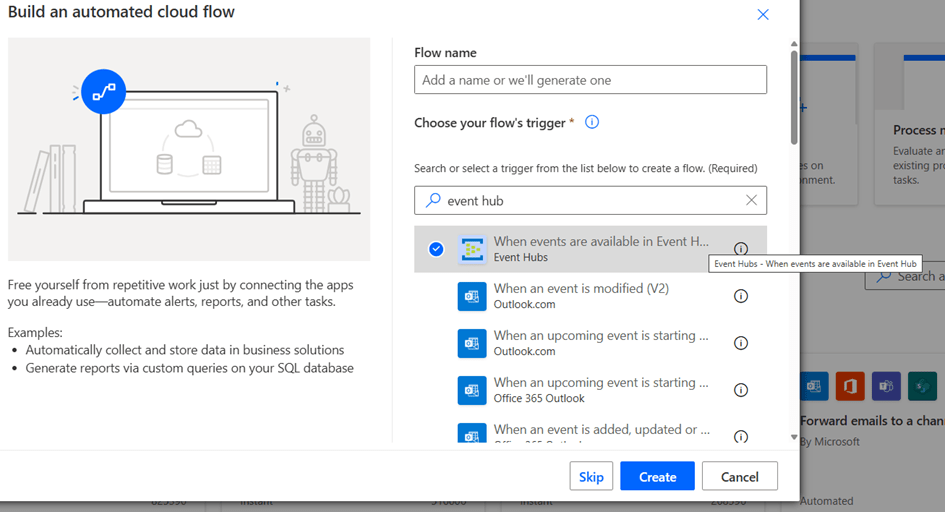
          1. Trigger:
            • Use the “When events are available in Event Hub” trigger (premium connector).

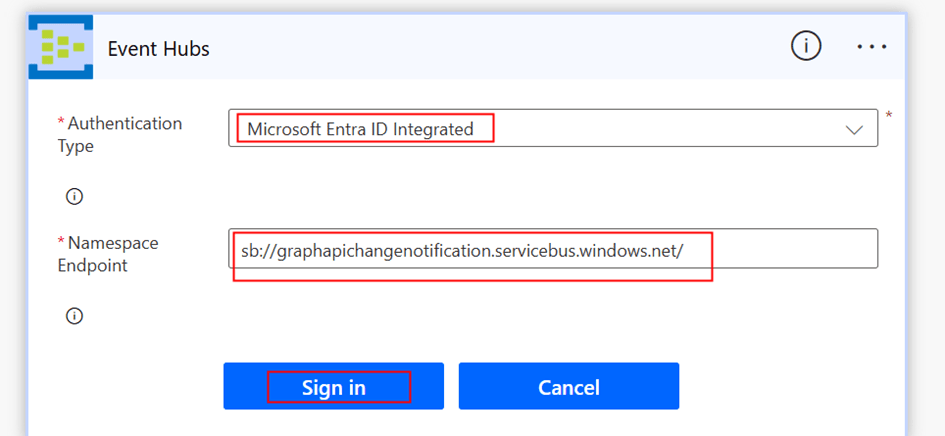
          Create a New connection using the Authentication type Microsoft Entra ID Integrated

          Namespace Endpoint: Example: sb://graphapichangenotification.servicebus.windows.net/

          After the Connection is created, you would be able to select the Event hub from the dropdown to complete the trigger configuration.

          1. Parse Event Data:
            • Use a Parse JSON action to extract userId, subscriptionId, and changeType from the incoming event schema.
            • You can get the payload which is in Base64 format by using the expression base64ToString(triggerOutputs()?[‘body/ContentData’])
          2. Act on Status Change:
            • Act of the notification by making a another query to the presence endpoint or subscription to rich notications by using certificate which we will discuss in our next blog post

          Note: Once the Power Automate flow is configured to receive events from the Event Hub, the Data Explorer in the Azure Portal will no longer display events, as the Event Hub allows only one active consumer per consumer group. There would be an Error message like: At least one receiver for the endpoint is created with epoch of ‘638819602939505217’, and so non-epoch receiver is not allowed.

          What’s Next?

          In the next part, we will explore how to receive rich presence notifications from Microsoft Teams users, including availability and activity details. Specifically, we will cover:

          • How to configure certificate-based encryption to enable rich notifications
          • How to retrieve availability information from the encrypted payload

           Do you like this article?

          Subscribe to my blog with your email address using the widget on the right side or on the bottom of this page to have new articles sent directly to your inbox the moment I publish them.
          Do you like this article?

          Subscribe to my blog with your email address using the widget on the right side or on the bottom of this page to have new articles sent directly to your inbox the moment I publish them.
          Enabling Real Time Alerts using Microsoft Graph in Power Platform – Part 1

          Real-time notifications on system changes are crucial for proactive monitoring and automation. Microsoft Graph allows us to receive change notifications across multiple Microsoft 365 resources. In this blog series, we will explore how to set up Microsoft Graph change notifications for Teams presence status changes, with alerts delivered to Azure Event Hub. As part of this process, we will create a custom connector to manage the lifecycle of a change notification subscription and a Power Automate flow to receive alerts from Azure Event Hub. Other delivery channels, such as Webhooks, are supported for Microsoft Graph change notifications. However, they are not ideal for high-throughput scenarios and they require a publicly available notification URL. This approach offers flexibility compared to standard connectors for triggers, enabling alert handling across various Microsoft resources.

          Solution Architecture

          1. Microsoft Graph Subscription – Creates a subscription for Teams presence updates.
          2. Azure Event Hub – Receives change notifications from Microsoft Graph.
          3. Custom Connector in Power Platform – Handle Lifecycle [Create, Update/Renew] of the Microsoft Graph Subscription.
          4. Power Automate Flow – Processes event [Teams Presence Update] data.

          Set Up Permissions in Entra ID for creating Microsoft Graph Subscription:

          To create a Microsoft Graph subscription for Teams presence change notifications, you must first register an Entra ID app with the appropriate Microsoft Graph permissions based on the resources you want to get alerts. In this case, the resource will be Microsoft Teams presence. This app is then used in a custom connector to manage the subscription lifecycle including creation, renewal, and may be deletion. Since Microsoft Graph subscriptions are not permanent, they must be renewed periodically. Specifically, a Teams presence subscription is valid for a maximum of 1 hour before requiring renewal.

          Entra ID App registration for Signed In user (Delegated Access) – Custom Connector:

          1. Navigate to Microsoft Entra ID.
          2. Create a new App Registration and note the Application (Client) ID, Tenant ID & Client Secret.
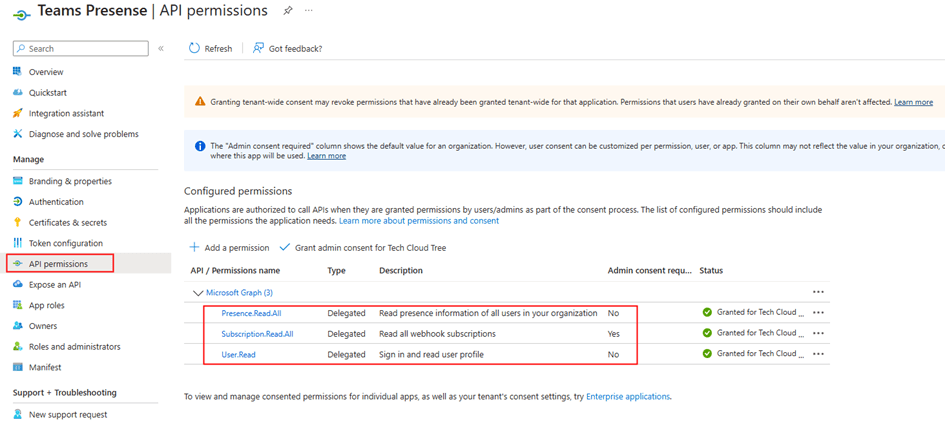
          3. Under API Permissions, add the following Delegated permissions:
            • Presence.Read.All
            • Subscription.Read.All – Admin Consent
            • User.Read
          1. Generate a Client Secret under Certificates & Secrets.
          2. Copy Client ID and Client Secret for authentication.

          Setting Up Azure Event Hub

          Azure Event Hub acts as a high-throughput messaging service that enables the real-time processing of Microsoft Graph notifications.

          1. Create an Azure Event Hub

          Create the Azure Event hub according to the instructions given in this MS Learn documentation.

          The recommendation is to use Microsoft Entra ID RBAC instead of SAS. The Notification URL, which will be used when creating the Microsoft Graph subscription, would look like the example below:

          EventHub:https://yourazureeventhubinstancename.servicebus.windows.net/eventhubname/youreventhubname?tenantId=yourtenantdomainname.onmicrosoft.com

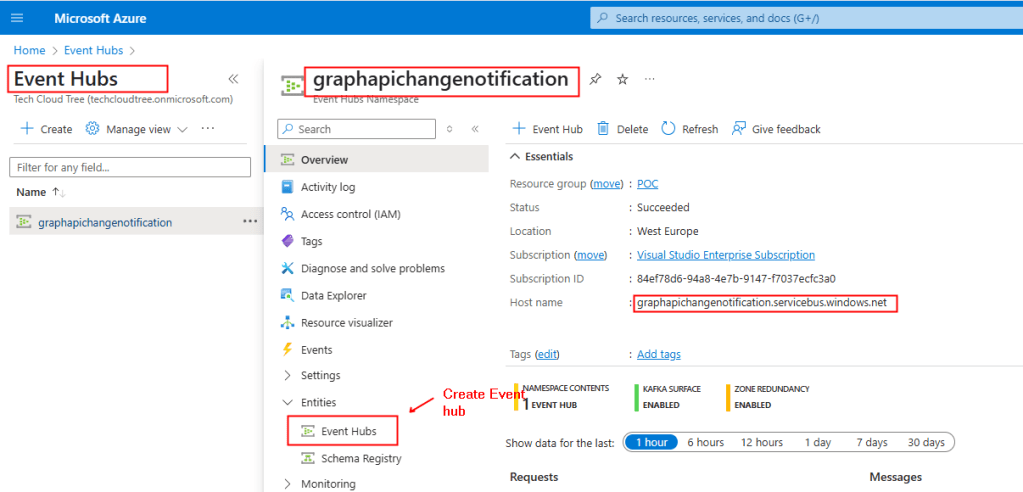
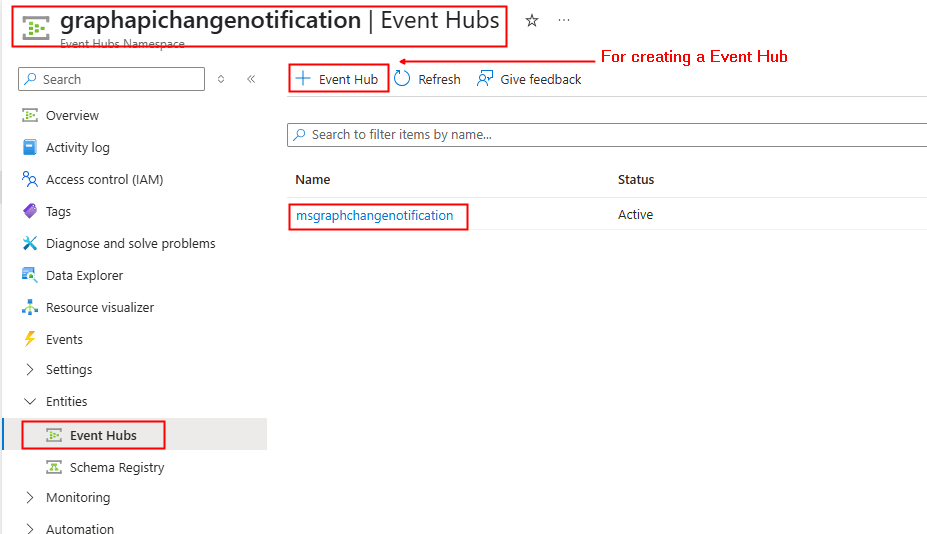
          To construct the above URL, In the Overview section of the Event Hubs Namespace copy the Host Name as shown below from the screenshot and the name of your event hub as shown in the screenshot 2.

          Screenshot 2:


          Creating a Custom Connector in Power Platform

          A custom connector is used to manage the lifecycle of the Microsoft Graph subscription, including creating the subscription and updating/renewing it before it expires, as the duration of a subscription is not infinite.

          3.1 Create a Custom Connector

          The Entra ID app is registered with required permissions, the next step is to create the custom connector. To create the connector, go to Power Automate or Power Apps portal → Custom Connectors → New Custom Connector – Create from blank.

          In the General Tab, Provide graph.microsoft.com under Host.

          1. In the Security tab, set Authentication type:
          • Select OAuth 2.0
          • Enter the Client ID, Client Secret from the Entra Id app registration
          • Set the Resource URL to your Dataverse environment Url: https://graph.microsoft.com/
          1. Click Create connector. After this, the Redirect URL will be generated – Copy it. Next in the Entra ID App registration create earlier, navigate to the Authentication section under the Manage, add the copied Redirect URL by clicking + Add a platform and selecting Web.

          You can download the Swagger definition of the custom connector from here.  After importing the file into your environment, replace the client ID and client secret in the security settings.

          The Microsoft Graph API endpoints for creating, renewing / updating subscriptions for change notifications, utilized in connector definitions are thoroughly documented in this Microsoft Learn link. The action in the custom connector for renewing the subscription can be used in a scheduled Power Automate flow.

          Summary:

          So far, we have set up the foundational components required for enabling real-time notifications. This includes configuring an App Registration with the necessary permissions to create and manage subscriptions via a custom connector. We have also set up Azure Event Hub to receive alerts from Microsoft Graph.

          In the next part, we will focus on creating the subscription and configuring a Power Automate flow to process and act on presence updates received from Azure Event Hub. Stay tuned! Hope you have found this informational & thanks for reading. If you are visiting my blog for the first time, please do look at my other blogposts.

          Do you like this article?

          Subscribe to my blog with your email address using the widget on the right side or on the bottom of this page to have new articles sent directly to your inbox the moment I publish them.
          Calling Dataverse Web API using Delegated Permissions in a Custom Connector

          When integrating with Microsoft Dataverse, developers may need to interact with the Web API to perform advanced operations such as impersonating users, batching etc. While Power Automate provides the “Invoke an HTTP request” action to call Dataverse API, this approach has limitations, such as lack of reusability and maintainability. A better alternative is using a custom connector allowing secure and scalable Dataverse Web API interactions. This blog explores how to set up a custom connector that calls the Dataverse Web API as the signed in user.

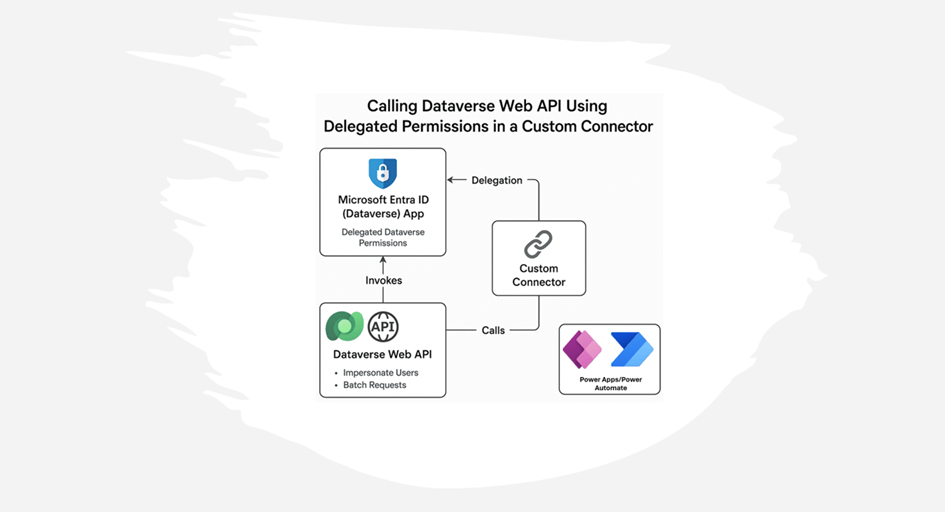
          Using the Dataverse Web API with a custom connector has advantages over the built-in Invoke an HTTP request connector, such as reusability and ensuring controlled access without exposing application user credentials, which is another way to call a Web API. Please see the picture below, which illustrates how to use the Web API with the connector

          Use Cases of Dataverse Web API

          The Dataverse Web API is powerful and enables many scenarios, such as:

          • User Impersonation: Perform operations as another user (e.g. approvals, data updates).
          • Batch Processing: Combine multiple operations in a single request to improve performance & to overcome API Request limits.
          • Advanced Querying: Use OData queries for complex filtering and joins.
          • Custom Business Logic: Extend functionality with plugin-like behavior through API calls.

          Registering an App in Microsoft Entra ID (Azure AD) for Delegated Dataverse Web API Access

          To access Dataverse Web API endpoints with a custom connector in Power Automate or Power Apps, there has to be Entra ID App registrations created for Delegated (Signed-In user) access.

          Entra ID App registration for Signed In user (Delegated Access):

          1. Navigate to Microsoft Entra ID.
          2. Create a new App Registration and note the Application (Client) ID, Tenant ID & Client Secret.
          3. Under API Permissions, click + Add a permission and search dataverse under APIs my organization uses as shown below
          1. Click user_impersonation under Delegated permissions
          1. Create a secret key under the Certificates & Secrets section and make a note of it. This key will be used when creating the custom connector

          Creating the Custom Connector:

          With the Entra ID app registered, the next step is to create the custom connector. This connector can be used in either a Power Automate flow or Power Apps to call the Dataverse Web API. To create the connector, go to Power Automate or Power Apps portal → Custom Connectors → New Custom Connector – Create from blank.

          1. In the General Tab, Provide the Organization URL (Dataverse Environment URL) of your Dataverse environment under Host. It typically follows the format: orgxxxxxx.crm4.dynamics.com.
          1. In the Security tab, set Authentication type:
            • Select OAuth 2.0
            • Enter the Client ID, Client Secret from the Entra Id app registration
            • Set the Resource URL to your Dataverse environment Url: https://orgxxxxx.crm4.dynamics.com/
          1. Click Create connector. After this, the Redirect URL will be generated – Copy it. Next in the Entra ID App registration, navigate to the Authentication section under the Manage, add the copied Redirect URL by clicking + Add a platform and selecting Web, as shown below
          1. Let’s add a simple Dataverse Web API endpoint /api/data/v9.2/WhoAmI, which provides information on the signed-in user’s Dataverse user ID. In the Definition tab, click + New action and provide an Operation id of your choice. Then click + Import from sample to enter the Verb as GET and the URL as /api/data/v9.2/WhoAmI and then click Import.
          1. All set now – it’s time to test the connector. In the Test tab, create a new connection and then select the action (WhoAmI-Operation Id) to test. As shown below, it provides my signed-in Dataverse user ID for the Dataverse environment

          Summary:

          Using a custom connector provides a scalable and secure way to interact with Dataverse Web API. This approach improves maintainability compared to using Invoke an HTTP request directly. It also unlocks powerful capabilities like impersonation, batch processing etc. These are just a few examples of what can be achieved through the Dataverse Web API. If you are visiting my blog for the first time, please do look at my other blogposts.

          Do you like this article?

          Subscribe to my blog with your email address using the widget on the right side or on the bottom of this page to have new articles sent directly to your inbox the moment I publish them.
          Automating Meeting Notes with Microsoft Graph API and Azure OpenAI in Power Platform – Part 2

          In Part 1 of this blog series, we explored how to set up Entra ID apps for both custom connectors (signed-in users) and daemon apps (sign-in on behalf of users). We also explored various Microsoft Graph API endpoints required to retrieve meeting transcription content.

          In this post, we’ll explore how to retrieve transcription content using Microsoft Graph API endpoints. We’ll cover two approaches: a Custom Connector in Power Apps or Power Automate for signed-in users and an HTTP Connector in Power Automate to fetch data on behalf of a signed-in user.

          Setting Up a Custom Connector:

          The custom connector acts as a bridge between Power Apps or Power Automate and the Microsoft Graph API, enabling communication. I have already built the custom connector with all necessary actions to generate meeting transcripts using the Microsoft Graph API. You can download it from the link provided. After importing the solution into your environment, navigate to the Security tab in the custom connector and copy the Redirect URL.

          Next, navigate to the Authentication section under the Manage blade of the Entra ID app registration and add the copied Redirect URL, as shown below

          Configuring Authentication:

          In the Security tab of the custom connector, enter the details from the Entra ID app registration, as configured in Part 1 of this blog series. Refer to the section Entra ID App registration for Signed In user (Delegated Access) – Custom Connector for retrieving these details:

          • Make sure OAuth 2.0 is selected as the authentication type.
          • Enter Entra ID (Azure AD) credentials:
          • Save and test authentication.

          Defining the API Request:

          1. Fetching User Events

          To retrieve a user’s upcoming or past Teams meetings within a specified date range, use the following API request:

          Endpoint:

          GET https://graph.microsoft.com/v1.0/me/events?$select=id,subject,organizer,attendees,start,end,location,onlineMeeting&$orderby=start/dateTime desc&$top=3&$filter=start/dateTime ge '2025-02-03' and end/dateTime le '2025-03-07'

          This request fetches the latest three events, including their ID, subject, organizer, attendees, start and end times, location, and online meeting details, filtered by a specific date range. This could changed based on your requirement

          2. Retrieving a Meeting ID Using Join URL

          If you have a meeting join URL from the above request and need to find its corresponding Meeting ID, use this API call:

          Endpoint:

          GET https://graph.microsoft.com/v1.0/me/onlineMeetings?$filter=JoinWebUrl eq {OnlineJoinURL}

          This allows you to extract the unique identifier (meetingId) for a Teams meeting, which is required for fetching transcripts.

          3. Retrieving Available Meeting Transcripts

          Once you have the meetingId, you can list all available transcripts for that meeting using:

          Endpoint:

          GET https://graph.microsoft.com/v1.0/me/onlineMeetings/{meetingId}/transcripts

          This response will include transcript details such as their unique transcriptId.

          4. Fetching Meeting Transcript Content

          To retrieve the actual transcript content in text/VTT (Web Video Text Tracks) format, use:

          Endpoint:

          GET https://graph.microsoft.com/v1.0/me/onlineMeetings/{meetingId}/transcripts/{transcriptId}/content?$format=text/vtt

          This will return the full meeting transcript, which can be further processed for AI-driven summarization or note generation.

          Testing the Custom Connector:

          Authenticate and run a test request from the custom connector test interface after creating the connection. Verify that the transcription content is retrieved by testing all the different actions.

          Using an HTTP Connector in Power Automate to get the Meeting transcriptions:

          To obtain the transcription using Application permissions or on behalf of the user, use the details from the Entra ID app registration as configured in Part 1 of this blog series on the HTTP connector. This section covers from Part 1 Entra ID App registration for on-behalf-of signed-in users (Application Access) has the Client Id, Secret, Tenant Id for retrieving meeting transcriptions via the different Microsoft Graph API endpoints. Find below screenshot for getting the meeting transcriptions directly using the transcript URL

          Enhancing Meeting Transcriptions with Azure OpenAI LLM

          Azure Open AI models converts raw transcripts into structured, easy-to-read meeting notes, highlighting key discussion points, decisions, and action items. I have deployed gpt-4o-mini model in Azure OpenAI. API endpoint and Key for the model can be obtained from the Azure AI Foundary portal once after the model is deployed. Find the below the screenshot for calling the OpenAI LLM model using the HTTP Connector

          You can also build a custom connector

          Request Body:

          {
            "model": "gpt-4o-mini",
            "messages": [
              {
                "role": "user",
                "content": "Create a short meeting summary and action items in bullet points from the following transcript:@{body('GETMeetingTranscript')}"
              }
            ]
          }

          Reference:

          https://learn.microsoft.com/en-us/azure/ai-services/openai/how-to/create-resource?pivots=web-portal

          Storing and Sharing the AI-Generated Notes

          You can also save the AI-generated summary in for an end-end solution:

          • SharePoint List.
          • Dataverse

          Workflow Summary

          1. Retrieve transcription using Graph API (via Custom Connector or HTTP Connector).
          2. Send transcription to Azure OpenAI for summarization.
          3. Store or share the AI-generated meeting notes.

          The Power Automate flow solution which uses the different custom connector actions to generate the meeting notes can be downloaded from

          https://ashiqf.com/wp-content/uploads/2025/03/meetingnotesgenerationpowerautomateflow_1_0_0_1.zip

          Meeting Notes generated from OpenAI model

          Summary:

          This solution utilizes a Power Automate flow with Graph API to retrieve Teams meeting transcripts and Azure AI LLM to generate meeting notes based on delegated and application permission. While this is a basic implementation, it can be expanded into a comprehensive solution by integrating with Power Apps for a user-friendly interface, enabling access to meeting summaries and insights with minimal investment. By combining Power Automate, Graph API, and Azure OpenAI organizations can automate meeting documentation, enhancing productivity.

          Do you like this article?

          Subscribe to my blog with your email address using the widget on the right side or on the bottom of this page to have new articles sent directly to your inbox the moment I publish them.
          Automating Meeting Notes with Microsoft Graph API and Azure OpenAI in Power Platform – Part 1

          Microsoft 365 Copilot offers Teams meeting note generation, but its licensing costs can be a significant investment for organizations. For those looking for a more cost effective alternative, using Power Automate or Power Apps with Microsoft Graph API and Azure OpenAI provides a scalable and budget friendly solution.

          In this series, we will explore how to automate the process of generating meeting notes by leveraging the Microsoft Graph API to retrieve meeting transcriptions and summarizing them using Azure OpenAI’s language models. We will cover both delegated permissions (retrieving transcriptions as the signed-in user) and application permissions (retrieving transcriptions on behalf of a user).

          In Part 1, we will explore the Microsoft Graph API endpoints required to access Teams meeting transcriptions and the setup of Entra ID app registrations. In Part 2, we will look at how to integrate these APIs into Power Automate using a Custom Connector (for signed-in users) and the HTTP Connector (for application-level access) to fetch meeting transcriptions

          Retrieving Meeting Transcriptions with Microsoft Graph API

          To start, we need to extract meeting transcriptions from Microsoft Teams using Microsoft Graph API. Microsoft provides endpoints for accessing recorded meeting transcriptions, but there are specific permissions and configurations required.

          Prerequisites

          Before proceeding, ensure that you have:

          • Access to Register app registration in Entra ID Portal
          • Power Automate / Power Apps premium license. To test the custom connector you can also get a community plan if you do not have a premium plan.
          • An Azure OpenAI service instance for text processing.

          Step 1: Set Up Permissions in Azure AD

          To access Microsoft Graph API endpoints with a custom connector and HTTP connector in Power Automate, there has to be Entra ID App registrations created for Delegated and Application access.

          Entra ID App registration for Signed In user (Delegated Access) – Custom Connector:

          1. Navigate to Microsoft Entra ID.
          2. Create a new App Registration and note the Application (Client) ID, Tenant ID & Client Secret.
          3. Under API Permissions, add the following Delegated permissions:
            • OnlineMeetings.Read
            • OnlineMeetingTranscript.Read.All
            • Calendars.Read
            • User.Read
          1. Grant admin consent to apply the permissions.

          Entra ID App registration for on behalf of Signed In user (Application Access) – HTTP Connector:

          1. Navigate to Microsoft Entra ID.
          2. Create a new App Registration and note the Application (Client) ID, Tenant ID & Client Secret.
          3. Under API Permissions, add the following Application permissions:
            • OnlineMeetings.Read.All
            • OnlineMeetingTranscript.Read.All
            • Calendars.Read
            • User.Read.All

          Allow applications to access online meetings on behalf of a user:

          To access Graph API endpoints for retrieving meeting transcriptions on behalf of the signed-in user, an Application Access Policy must be configured for the Entra ID app registration created earlier using the Client ID. Execute the Power Shell script as below

          New-CsApplicationAccessPolicy -Identity AAP-policy -AppIds "ReplaceClientIdfromEntraIDAppRegforApplicationAccess" -Description "To grant the Application access to MS Graph API Endpoints for Transcription"
          Grant-CsApplicationAccessPolicy -PolicyName AAP-policy -Global

          There is also a Power Shell command which can be used to provide access to the application for a specific user.

          Reference: Configure application access policy

          Note: If the app registration is not granted access through the application access policy, attempting to access the Graph API endpoint for transcription content will result in the following error.

          Application is not allowed to perform operations on the user ‘xxxx-xxxxx-xxx-xxx-xxxx’, neither is allowed access through RSC permission evaluation.

          Step 2: Retrieve Transcriptions with Microsoft Graph API

          Microsoft Graph API provides endpoints for accessing and managing Teams calendar events and transcripts. We’ll explore how to retrieve user events, extract meeting IDs, and obtain transcript content URLs.

          1. Retrieving User Events

          To fetch a list of calendar events for a user:

          GET https://graph.microsoft.com/v1.0/me/calendar/events

          This request returns details about the user’s scheduled events, including subject, start and end times, location, and attendees.

          Reference: Microsoft Graph API – Get User Events

          2. Retrieving a Meeting ID

          To retrieve a meeting ID using the join URL:

          GET https://graph.microsoft.com/v1.0/me/onlineMeetings?$filter=JoinWebUrl eq ‘joinURL’

          This request filters online meetings based on the provided join URL obtained from the previous API endpoint call and returns the meeting ID.

          Reference: Microsoft Graph API – Get Online Meeting

          https://learn.microsoft.com/en-us/microsoftteams/platform/graph-api/meeting-transcripts/fetch-id

          Snapshot from Graph Explorer

          Retrieving Transcript Content URL

          To access the transcript content URL for a specific meeting that has been recorded or is configured to generate transcriptions:

          GET https://graph.microsoft.com/v1.0/me/onlineMeetings/{online-meeting-id}/transcripts

          This request fetches the transcripts associated with a Teams meeting

          References:

          Note: There are change notification which could be configured to get notified whenever a transcript is available after a meeting.

          https://learn.microsoft.com/en-us/graph/teams-changenotifications-callrecording-and-calltranscript

          Next Steps

          In Part 2, we will create custom connector / HTTP connector and use them in Power Automate with Azure OpenAI’s GPT model to summarize the transcription and generate structured meeting notes. Stay tuned!

          Do you like this article?

          Subscribe to my blog with your email address using the widget on the right side or on the bottom of this page to have new articles sent directly to your inbox the moment I publish them.
          Unlocking Snowflake Data Integration in Power Platform: Out of the box Snowflake connector – Part 3

          In both Part 1 and Part 2 of this blog series, we explored integration techniques using the Snowflake REST API through a custom connector. There is a Snowflake connector in Preview for an extended period, featuring actions for submitting, monitoring status, and cancelling SQL statements. In this post, we’ll delve into how you can leverage this connector within a Power Automate flow to execute a SQL statement

          There is a prerequisite to be done within the Snowflake environment by executing the following SQL script to make modifications to the security integration created in the Part 1 of the blog series.

          ALTER SECURITY INTEGRATION connector
          SET EXTERNAL_OAUTH_AUDIENCE_LIST = ('https://analysis.windows.net/powerbi/connector/snowflake', 'api://8a3865da-e301-46c6-801f-7417a75a8271');

          The OOB Snowflake connector uses Power BI Analysis service API.

          Enter the necessary details related to the Snowflake instance you intend to connect to and the SQL statement you aim to execute, you are prepared to test the connector.

          The Select action is make the data transformation.

          Reference:

          https://learn.microsoft.com/en-us/connectors/snowflakeip

          https://www.snowflake.com/blog/microsoft-power-platform-connector

          Summary:

          Hope you have found this informational & thanks for reading. If you are visiting my blog for the first time, please do look at my other blogposts.

          Do you like this article?

          Subscribe to my blog with your email address using the widget on the right side or on the bottom of this page to have new articles sent directly to your inbox the moment I publish them.
          Unlocking Snowflake Data Integration in Power Platform: Manipulating Snowflake REST API response in Custom Connector – Part 2

          In Part 1 of the blog series, we covered the setup and configuration necessary for Snowflake integration using the Snowflake REST API with a custom connector. The API response isn’t directly usable in Power Apps if the action is directly called within Power Apps instead of Power Automate flow leveraging Data operations (Select) connector. In this blog post, let’s explore how to manipulate the Snowflake API response using custom code with C# to transform the response payload. Find below the response from the API, without transformation, appears as follows for the SQL statement select name, age from rockers_table.
          {
            "resultSetMetaData": {
              "numRows": 10,
              "format": "jsonv2",
              "partitionInfo": [
                {
                  "rowCount": 10,
                  "uncompressedSize": 243
                }
              ]
            },
            "data": [
              [
                "Mohamed Ashiq",
                "27"
              ]
            ],
            "code": "090001",
            ....
          }

          Update Custom Connector:

          Revise the custom connector created in the previous blog post by clicking “Code” to add the C# code for transforming the data. The required response to the SQL query is under the key named data, and the value before and after transformation, is shown below.

          Before ManipulationAfter Manipulation
          “data”: [     [       “Mohamed Ashiq”,       “27”     ]   ]  “data”: [     {       “Name”:”Mohamed Ashiq”,       “Age”:”27″     }   ]  

          The following C# code transforms the response in the required format:

          public class script: ScriptBase
          {
          public override async Task < HttpResponseMessage > ExecuteAsync()
          {
              // Check which operation ID was used
              if (this.Context.OperationId == "GETSFData") 
              {
                  return await this.ManipulateResponse().ConfigureAwait(false);
              }
          
              // Handle an invalid operation ID
              HttpResponseMessage response = new HttpResponseMessage(
                  HttpStatusCode.BadRequest
              );
              response.Content = CreateJsonContent(
                  $"Unknown operation ID '{this.Context.OperationId}'"
              );
              return response;
          }
          
          private async Task < HttpResponseMessage > ManipulateResponse()
          {
              // Use the context to forward/send an HTTP request
              HttpResponseMessage response = await this.Context.SendAsync(
                  this.Context.Request,
                  this.CancellationToken
              ).ConfigureAwait(continueOnCapturedContext: false);
          
              // Do the transformation if the response was successful
              if (response.IsSuccessStatusCode)
              {
                  var responseString = await response.Content.ReadAsStringAsync().ConfigureAwait(
                  continueOnCapturedContext: false
                  );
           
                  // Example case: response string is some JSON object
                  var result = JObject.Parse(responseString); 
          
                  // Initialize an empty array to store the new formatted data
                  var newDataArray = new JArray();
          
                  // Iterate over the original "data" array
                  foreach (var item in result["data"])
                  {
                      // Create a new JObject for each inner array
                      var newItem = new JObject
                      {
                          ["Name"] = item[0], // Set the "Name" property
                          ["Age"] = item[1]   // Set the "Age" property
                      };
          
                      // Add the new JObject to the new data array
                      newDataArray.Add(newItem);
                  }
          
                  // Create a new JObject to hold the formatted data
                  var newResult = new JObject
                  {
                      ["data"] = newDataArray // Set the "data" property to the new formatted data array
                  };
          
                  response.Content = CreateJsonContent(newResult.ToString());
              }
               return response;
          }
          }

          In the Power Apps, the PowerFX to execute the SQL query is

          Set(sfData, 'CC-SnowFlake-AWS'.GETSFData({database: "HOL_DB",role:"PUBLIC",schema:"PUBLIC",statement:"select name, age from rockers_table;",warehouse:"HOL_WH"}))

          To display the value in the gallery control, the Power FX is sfData.data

          Reference:

          https://learn.microsoft.com/en-us/connectors/custom-connectors/write-code

          https://learn.microsoft.com/en-us/connectors/custom-connectors/policy-templates/convertarraytoobject/convertarraytoobject

          Summary:

          The scenario provided above serves as just one example of data transformation. While Power Automate offers data operations that can assist in such tasks, the method described above facilitates using the connector action directly within Power Apps. Hope you have found this informational & thanks for reading. If you are visiting my blog for the first time, please do look at my other blogposts.

          Do you like this article?

          Subscribe to my blog with your email address using the widget on the right side or on the bottom of this page to have new articles sent directly to your inbox the moment I publish them.