With this capability, custom connectors can access APIs without storing client secrets, significantly improving security and simplifying management.
In this article, we will explore how to configure Managed Identity authentication for a Power Platform custom connector. The approach works for any API secured with Microsoft Entra ID, and we will use Microsoft Graph as an example API.
Why Managed Identity?
Traditionally, Microsoft Entra Id protected APIs are accessed using:
Delegated user authentication
Service Principal or application user authentication
Both require secret management.
Managed Identity removes this requirement.
Key advantages include:
No client secrets to manage
Reduced security risks
Native trust with Microsoft Entra ID
This approach aligns with modern secretless authentication patterns widely used in Azure services.
Authentication Architecture
When using managed identity authentication with custom connectors, the authentication flow looks like this:
Power Apps / Power è Custom Connector (Managed Identity Authentication) è Microsoft Entra ID (Federated Credential Trust) è Target API (e.g., Microsoft Graph)
Instead of storing credentials, the connector uses federated identity trust to obtain access tokens from Microsoft Entra ID.
Step 1: Register an Application in Microsoft Entra ID
First, create an App Registration in Microsoft Entra ID.
Navigate to:
Azure Portal → Microsoft Entra ID → App registrations → New registration
Supported account types: Single tenant
After creating the app, note the following values:
Application (Client) ID
Tenant ID
Managed identity authentication currently supports single-tenant applications.
Step 2: Configure API Permissions
Add the required permissions depending on the API you are accessing.
Since we are using Microsoft Graph as an example, we have left it with the default delegated permission:
User.Read
Grant Admin Consent if required depending on the permissions you have added.
Step 3: Create a Custom Connector
Navigate to the Power Apps or Power Automate Maker Portal.
Create a new connector:
Custom Connectors → New Custom Connector → Create from Blank
Provide a connector name such as:
Managed Identity API Connector
In the General tab configure the API host.
Example for Microsoft Graph:
Host: graph.microsoft.com
Base URL: /
If you are connecting to another API, replace these values with that API’s endpoint.
Step 4: Configure Managed Identity Authentication
In the Security tab.
Authentication Type: OAuth 2.0
Identity Provider: Azure Active Directory
Provide:
Client ID → Application ID of your App Registration
You can define additional actions depending on the API endpoints you want to expose.
For other APIs, configure the corresponding endpoints.
Step 7: Create the Connection
Navigate to the Test tab and create a new connection.
Unlike service principal authentication, you do not need to provide client secrets.
Power Platform will automatically authenticate using the managed identity configuration.
Step 8: Use the Connector
The connector can now be used from:
Power Apps
Power Automate
Benefits of Managed Identity for Custom Connectors
Using managed identity authentication provides several advantages:
Improved Security
No client secrets or certificates are stored in Power Platform.
Reduced Operational Overhead
No secret rotation or credential management.
Current Limitations
This capability is currently in preview
Summary:
Managed Identity authentication for Power Platform custom connectors enables secure, secretless access to APIs. Although we used Microsoft Graph as the example, the same pattern can be applied to any API secured with Microsoft Entra ID.
This approach simplifies security management and provides a cleaner architecture for enterprise Power Platform integrations.
In both Part 1 and Part 2 of the blog series, I’ve covered the utilization of Managed Identities in Power Apps and Power Automate for secure access to Microsoft Graph API. This included a deep dive into setting up and configuring the Azure API Management service with the Microsoft Graph permissions for the managed identity. In Part 2, I’ve explored the process of exporting the API as a connector in Power Platform, securing it with API key authentication.
To enhance the security of the custom connector published from Azure API Management for Microsoft Graph APIs using Entra ID OAuth authentication instead of Subscription key, it is essential to create two Entra ID applications. One application should represent the API from API Management, while the other should represent the client application to be utilized in the Entra ID OAuth authentication for the custom connector.
Registering an Application in Microsoft Entra ID for API Representation:
In the Entra ID portal, navigate to App registrations and click + New registration. Enter a name, such as APIM PP Resource, and proceed by clicking the Register button, leaving all settings as default. This app represents the APIs added in the Azure API management instance.
Under the Manage section in the side menu, select Expose an API. Set the Application ID URI with the default value and remember to copy this value for future use.
Click on theAdd a scope button to access the Add a scope panel:
Enter a new Scope name as APIM.MSGraphAPI
Set Admin consent display name to APIM MSGraph API
Provide Admin consent description as “Grants access to the API in APIM.”
Ensure the Enabled scope state is selected.
Complete the process by selecting the Add scope button to create the scope.
Registering an Application in Microsoft Entra ID for Client Representation:
Create another Entra ID app to be used in the custom connector for securing with Entra ID OAuth Authentication. In the Entra ID portal, navigate to App registrations and click + New registration. Enter a name, such as APIM PP Client, and proceed by clicking the Register button, leaving all settings as default.
Retrieve the Client ID, Tenant Id from the Overview section of the Entra ID app and generate a secret through the Certificates & secrets under the Manage blade. Once the secret is successfully created, copy its value for use in configuring the custom connector OAuth Authentication.
Go to the Entra ID app APIM PP Resource created earlier. In the Manage section, click on Expose an API and then Add a client application by selecting + Add a client application in the popout panel. Enter the Client ID of the APIM PP Client app registered now. Select the authorized scope created in the previous section, then proceed by clicking Add Application. This ensures the application APIM PP Resource trusts the client application APIM PP Client and users should not be asked to consent when the client calls the APIs published API Management instance.
Note: If you prefer users/admins to provide consent for the permission while creating a connection for the custom connector, add the APIM.MSGraphAPI Scope to the APIM PP Client app, as shown below. In this scenario, the step mentioned in bullet no 2 becomes unnecessary.
Configuring Custom Connector Authentication to Entra ID OAuth:
Following the export of the API from the Azure API Management as a custom connector in Power Platform in Part 2 of this blog series, proceed to the Power Apps or Power Automate maker portal to edit the connector.
Access the custom connectors, locate the exported connector in the Power Platform Environment where the connector was exported from API Management
Within the Authentication type settings, originally set to API Key, click Edit, and modify it to OAuth 2.0.
Choose the Identity provider as Azure Active Directory. Enter the Client ID and Client secret obtained from the APIM PP Client app copied earlier. Set the resource URL to the Application ID URI generated from the APIM PP Resource app.
Click Update connector to generate a Redirect URL on the same screen—ensure to copy this URL.
Navigate to the APIM PP Client app in the Entra ID portal and add a Web Redirect URI, paste the copied Redirect URL.
Azure API Management: Configure JWT validation policy to Authorize requests from Custom connector:
The JWT validation policy pre-authorizes requests from the Power Platform Custom connector as it adds the layer of security to ensure that incoming access tokens are valid and meet specific criteria before the APIM starts processing requests to the added MS Graph API endpoints. The policy checks the value of the audience claim in an access token obtained from Microsoft Entra ID with in the custom connector. The audience claim typically specifies the intended recipient of the token, ensuring that the token is meant for the intended API.
By configuring the following JWT validation policy in the <inbound> policy section below the node <base />, you enforce the validation of the access token, and if the token is invalid, an error message is returned. Don’t forget to replace the TenantId and the required claims value to the client id of the app APIM PP Resource.
Note: If you attempt to establish the connection from the Test Tab and subsequently execute the action, you will encounter the following error “Access denied due to missing subscription key. Make sure to include subscription key when making requests to an API.
Creating a Product:
To enable the custom connector to generate tokens for API access from API Management, it’s necessary to associate the APIs with a Product that doesn’t require a subscription key. Follow these steps:
In the left navigation pane, go to Products and click on + Add.
Provide the Product Name, Description, uncheck the box Require subscription option, select the relevant API, and proceed to create the Product.
Testing the Custom connector:
Navigate to the Power Platform Maker portal and access the custom connector interface. Edit the connector to initiate the creation of a connection within the Test tab. Click on + New connection and click Create. Notably, you’ll observe that it doesn’t prompt for the API Subscription key, as discussed in the Part 2 of the article.
Once the connection is created, return to the edit mode of the custom connector to initiate testing of the actions. Navigate to the Test tab, where you can select the specific connection and choose the operation you wish to test. Test the operation and validate the results of the custom connector action.
Summary:
This concludes the blog series, where we delved into the secure access of Microsoft Graph APIs in Power Platform with the help of Azure API management, employing both Subscription keys and Entra ID OAuth authentication. Demonstrated the usage of managed identities in Power Platform, the methods explored here, particularly for securing Microsoft Graph API with application permissions, are adaptable for various services. Addressing the significant security risk of Broken Access Control, I have highlighted the importance of correctly implementing authentication mechanisms to prevent potential exploitation by attackers.
For those with existing Entra ID app registrations seeking to enhance security with API Management, the credential manager feature offers a solution. Utilizing the Grant Type Authorization code for Delegated Permission and Client Credentials for Application Permission ensures a comprehensive approach to safeguarding your applications and APIs. Hope you have found this informational & thanks for reading. If you are visiting my blog for the first time, please do look at my other blogposts.
Do you like this article?
Subscribe to my blog with your email address using the widget on the right side or on the bottom of this page to have new articles sent directly to your inbox the moment I publish them.
In Part 1 of the blog series on using Managed identities in Power Apps and Power Automate to access Microsoft Graph API securely, I have delved into the setup and configuration of the Azure API management service with the necessary Microsoft Graph permissions for the managed identity. Building upon that foundation, Part 2 aims to take it further your integration journey in making the API’s available as a connector in Power Apps and Power Automate secured with API key Authentication.
Azure API Management Instance: Managing API Subscription Keys
APIs published through the Azure API Management instance are by default secured by Subscription keys. These keys play a crucial role in establishing connections in Power Apps or Power Automate after exporting APIs as custom connectors.
To manage these keys, navigate to the left navigation menu under the “Subscriptions” blade in the Azure portal within your API Management (APIM) instance. Here, you have the option to generate a new key or utilize an existing one. Copy the key from the portal to create the connection in the later section.
You can test the API by using the Subscription key from Postman as shown below:
Exporting API as a Connector in Power Platform:
To harness the capabilities of the APIs within your API Management instance secured with the Managed identities, exporting them as connectors in Power Platform is a major step in order to be used in Power Apps and Power Automate. Follow these simple steps for a seamless integration:
In the left navigation menu, navigate to Power Platform under the APIs blade.
Click on Create a connector to initiate the connector creation process.
Choose the specific API (e.g., msgraph) that you wish to export as a connector.
Select the Power Platform environment where you have Maker/Admin role access.
Under API Display Name, enter a name for the connector. This will be the identifier for your connector within Power Platform.
Click on the “Create” button to complete the process.
Once the connector is created, navigate to your Power Apps or Power Automate portal. You’ll see the API listed under Custom Connectors on the left navigation bar in Environment where the connector has been created from the API Management instance.
Click on the Edit icon to initiate the analysis and testing of connector actions.
Explore the Definition tab to view the view the API operations within the APIM instance now listed as Actions.
Verify the Authentication type of the connector by navigating to the Security tab, where the setting is configured to API key for streamlined validation.
Begin by creating a connection in the Test tab. Click on + New connection to start testing.
Enter the Subscription key, which you previously copied from the Azure portal for the API Management (APIM) instance. This key establishes the secure link between your connector and the APIM services. If there is no error, the connection will be created.
In the event of encountering below error message indicating that connection creation has been blocked by Data Loss Prevention (DLP) policy
Add the Gateway URL copied from the API management instance under the Overview section on the portal as a connector pattern allowed in the Business/Non Business category of the DLP policy.
Note: Please be aware that in the API Management instance, within the APIs Policies section, if you haven’t included the wildcard (*) as I did for CORS, and have instead specified particular URLs like https://make.powerapps.com, an additional policy in the Custom connector is required to be added under the Definitions tab. Specifically, you need to add a policy to set the request Origin header.
Testing the Custom Connector:
Once the connection is created, return to the edit mode of the custom connector to initiate testing of the actions. Navigate to the Test tab, where you can select the specific connection and choose the operation you wish to test. Test the operation and validate the results of the custom connector action.
Summary:
This completes the Part 2 of the blog series where we have explored the process of accessing Microsoft Graph APIs securely within the API management with Subscription key authentication using managed identities (System and User) as a connector in Power Platform. In our next article, we will delve into the enhancing security further by implementing OAuth authentication within the custom connector for API management APIs. Stay tuned. Hope you have found this informational & thanks for reading. If you are visiting my blog for the first time, please do look at my other blogposts.
Do you like this article?
Subscribe to my blog with your email address using the widget on the right side or on the bottom of this page to have new articles sent directly to your inbox the moment I publish them.
Using Microsoft Graph in Power Apps and Power Automate offers several advantages for streamlining integration with various Microsoft 365 services and applications. Additionally, securing these integrations with Azure Managed Identities significantly enhances the overall security of the solution. Azure Managed Identities enable applications and services to authenticate with Azure services seamlessly and securely. When it comes to using Microsoft Graph API, you don’t need a client secret anymore. This makes it simpler to manage and keeps everything more secure. This blog series, divided into multiple articles, is dedicated to utilizing managed identities either System Assigned or User Assigned in Power Platform to access MS Graph API endpoints. It leverages Azure API Management service with the support of a custom connector. The focus of this particular article is on configuring the Azure API management service with the necessary Microsoft Graph permissions for the managed identity.
Pre-requisites & permissions:
Here are the resources and permissions required to follow along this blogpost:
Azure Subscription/Entra ID:
You need an Azure subscription to create and manage Azure API Management instances.
Azure Managed Identity – User or System Assigned:
Create or use an existing Azure Managed Identity. This can be either a user-assigned identity or a system-assigned identity of the APIM resource, depending on your requirements.
Global Admin or Privileged Administrator Role:
The user should have Global Administrator or Privileged Administrator role in the Microsoft Entra ID to grant Admin consent for the MS graph permissions on the Managed Identity using Microsoft Graph PowerShell SDK.
Power Platform Environment:
Set up a Power Platform Environment where you plan to create and use custom connectors.
Role:
Ensure that the user/maker has the System Administrator/Customizer/Maker role on the Power Platform Environment. This role is required to create custom connectors.
DLP Policy:
Make adjustments to allow custom connector endpoints, especially in cases where endpoints are blocked by the tenant scoped DLP policy.
License:
A Power Apps or Power Automate Premium license is necessary for creating and using custom connectors. Ensure that the user has the required premium license assigned.
Azure API Management Setup with Microsoft Graph Permissions:
Create a Azure API Management resource and turn on System assigned managed identity and if available, add a User Assigned Managed Identity in the Security section of the API Management instance. Execute the following PowerShell script which user Microsoft Graph SDK to add the permission User.Read.All to either the System or User assigned managed identity. Adjust the permissions as needed for your specific requirements. Before executing the script, replace the permission and the display name of the Managed identity depending on the managed identity you have used. If you have used a System Assigned managed identity, ensure that it corresponds to the display name of the API Management instance.
# Install Microsoft Graph PowerShell module if not already installed
# Connect to Microsoft Graph Connect-MgGraph -Scopes "Directory.ReadWrite.All","AppRoleAssignment.ReadWrite.All"
# Get Managed Identity Service Principal
$MSI = (Get-MgServicePrincipal -Filter "displayName eq '$DisplayNameOfMSI'") # Sleep for a while to allow time for service principal creation if needed
Start-Sleep -Seconds 10 # Get Microsoft Graph Service Principal $GraphServicePrincipal = Get-MgServicePrincipal -Filter "AppId eq '$GraphAppId'"
# Retrieve the App Role from the Microsoft Graph Service Principal based on the specified Permission Name $Role = $GraphServicePrincipal.AppRoles | Where-Object {$_.Value -eq $PermissionName}
# Create an App Role Assignment HashTable for assigning the role to the Managed Identity $AppRoleAssignment = @{
principalId = $MSI.Id
resourceId = $GraphServicePrincipal.Id
appRoleId = $Role.Id }
# Assign the Graph permission New-MgServicePrincipalAppRoleAssignment -ServicePrincipalId $MSI.Id -BodyParameter $AppRoleAssignment
You can download the above script from this link. If you prefer using the Azure AD PowerShell module, keep in mind that it is planned for deprecation. In such a case, you can get the script from this link.
Note: You’ll discover equivalent commands for Microsoft Graph PowerShell as opposed to the Azure AD PowerShell cmdlets on the following link
In the API Management instance, on the left menu select APIs > + Add API. Select HTTP and enter the following settings. Then select Create.
System Assigned Managed Identity:
Navigate to the newly created API and select Add Operation. Enter the following settings for accessing the API through System Assigned Managed Identity (SAMI) and select Save.
Setting
Value
Display name
getUsrProfileSAMI
URL for GET
/users/{User (UPN)}
Select the Operation getUserProfile. In the Inbound processing section, select the (</>) (code editor) icon to use the authentication-managed-identity policy to authenticate with the Microsoft Graph API endpoint using the Managed Identity. This policy uses the managed identity to obtain an access token from Microsoft Entra ID for accessing the specified graph resource.
Replace with the following code in the inbound node:
If you prefer to utilize a user-assigned managed identity, click on Add Operation, input the specified settings for accessing the API via User Assigned Managed Identity (SAMI), and then click Save
Setting
Value
Display name
getUsrManagerUAMI
URL for GET
/users/{User (UPN)}/manager
The Inbound processing section should have the following code
You would now be able to test the Graph API endpoint for both the identities from the Test tab.
Add CORS Policy to API in API Management:
CORS settings allow or restrict web applications or services hosted on different domains from making requests to your API. If you want to enable cross-origin requests to the configured Graph API’s from Power Platform Custom connector, you need to configure CORS settings in the API Management service. In the left menu, select APIs and select the API that you will export as a custom connector. If you want to, select only an API operation to apply the policy to.
In the Policies section, in the Inbound processing section, select + Add policy. Select Allow cross-origin resource sharing (CORS).
Up to this point, we have set up the API Management instance with Graph API endpoints for both System Assigned and User Assigned identities. In the upcoming article, we will delve into exporting the API to the Power Platform as a custom connector, implementing security through API key authentication. Hope you have found this informational & thanks for reading. If you are visiting my blog for the first time, please do look at my other blogposts.
Do you like this article?
Subscribe to my blog with your email address using the widget on the right side or on the bottom of this page to have new articles sent directly to your inbox the moment I publish them.
Microsoft recently announced a long awaited feature: support for Service Principals in Custom connectors which is currently in Public Preview. This empowers you to authenticate as a service principal instead of relying on user accounts. It’s a game-changer that paves the way for a multitude of scenarios, especially those requiring seamless, uninterrupted access for automated processes, free from the constraints of user involvement.
In one of my earlier posts, I discussed how to harness the power of Microsoft GRAPH API within custom connectors through delegated permission. In this article, I’ll delve into the step-by-step process of configuring service principal authentication in a custom connector for the Graph API with Application permissions to send emails. While I’ve chosen to focus on email communication, remember that you have the flexibility to opt for any of the supported Graph application permissions.
Setting up the Service Principal:
Let’s headover to the Microsoft Entra Admin center to register an AD App and grant the application permissions to send emails using the Graph API. Register an AD application with the following Application permission
Mail.Send: Send Mail as any user
Retrieve the Client ID & Tenant ID from the Overview section of the Azure AD app, and then proceed to generate a secret within the Certificates & secrets section under the Manage blade. Once the secret is generated, copy its value for use within the custom connector configuration. Add a Web Redirect URI https://global.consent.azure-apim.net/redirect as shown below
The Redirect URI is common and will be created while creating the custom connector.
Create Custom Connector:
With the service principal now created, let’s proceed to create the custom connector from the Power Apps maker portal. Choose the environment where you intend to create the custom connector. Navigate to Custom connectors on the left navigation menu, then click on + New custom connector and select Create from blank.
Once you’ve provided the connector name, you’ll be presented with the following screen. Enter graph.microsoft.com in the Host field and provide a brief description of the connector. Additionally, you have the option to customize the connector’s logo to your preference.
Now click Security at the lower-right corner of the above screen, which allows you to input the Azure AD application information for the service principal/App registration created earlier in the Entra Admin portal.
Here’s the step-by-step configuration:
Choose Authentication type as OAuth 2.0.
Change the Identity provider to Azure Active Directory.
Check the box Enable Service Principal support
Enter the Client ID and Client Secret from the Azure AD application.
For the Scope, specify Mail.Send based on the permissions you have added to the Azure AD app. If you have multiple permissions, separate them with spaces.
Once you’ve filled in this information, click Create connector. This action will automatically generate the Redirect URL as https://global.consent.azure-apim.net/redirect This URL should match the Redirect Web URI you previously added in the Azure AD application. With this configuration, your connector is now ready for the adding the actions based on the Graph API endpoints for sending emails.
Create Action to Send email:
With the connector successfully created, it’s time to create the action for sending emails. This action can be utilized in both Power Apps and Power Automate. The Graph API endpoint for sending emails is:
The request parameter fromEmailAddress is to collect the information from the user while using the action
Request Body:
{
  "message": {
    "subject": "Mail sent using Custom Connector",
    "body": {
      "contentType": "Text",
      "content": "This is a sample email sent using Custom Connector which uses Service prinicipal"
    },
    "toRecipients": [
      {
        "emailAddress": {
          "address": "mailboxaddress@domain.com"
        }
      }
    ]
}
}
Proceed to the Definition tab of the Custom Connector. Here, select + New action, which will generate the following screen for you to enter information about the action.
After the Summary, Description and Operation ID is entered. Click + Importfrom sample under the Request section to the enter the Graph API endpoint request details as shown below
Click Import on the screen above. You can optionally provide a sample response by entering details in the default response section in the Add Action interface which will help you identify objects in Power Apps if the request has a response. For more information, please refer to my earlier blog post, which I have referenced in the introduction section. Don’t forget to update the connector.
Create Connection:
Once the connector with the Send Email action is set up, you can now proceed to test the action for sending emails. The first step is to create the connection, navigate to the below interface and click on + New connection under the section Test and then on the following popup select the Authentication Type as Service Principal Connection.
Enter the Client ID, Secret, and the Tenant ID you copied earlier to create the connection. You would now be able to test the action.
To use this in the Power Apps, after adding the connector, you would be able to call the action using the below code:
ServicePrinicpalSupport.SendEmail("fromEmailAddress@domain.com", {
        'message': {
            'subject': "Mail sent using Custom Connector from Power Apps",
            'body': {
                'contentType': "Text",
                'content': "Sample email sent from Custom Connector leveraging Service Principal"
            },
            'toRecipients': [
                {
                    'emailAddress': {
                        'address': "toUseraddrees@domain.com"
                    }
                }
            ]
        }
    });
The connections created uses the Authentication Type Explicit Authentication.
When the app is shared with the user, the user will not be prompted to create a connection; instead, the consent window below will appear to allow the connection. You can use the PowerShell command Set-AdminPowerAppsApiToBypassConsent if you want to bypass consent for the app users. The connection is shareable, allowing you to share it for editing, using, sharing, etc., with other users.
Authentication Flow:
The authentication flow for custom connectors enabled with Service Principal uses the OAuth 2.0 client credentials flow, while for the custom connectors without Service Principal authentication, the OAuth 2.0 Authorization code flow is used. Below, you’ll find the Swagger details for the custom connector, showing both scenarios for connecting to Microsoft Graph using OAuth2 with Azure Active Directory
Swagger definition for Service Principal Authentication
Swagger definition for Non Service Principal Authentication
In this blog post, I have shown you how to use Service principal authentication in custom connector with application permissions to send an email through the Graph API. You can apply this feature for any supported Microsoft Graph Application permission such as SharePoint, Exchange, Teams, Azure AD, and more. It’s a game-changer, making automated processes smooth and user-free. Hope you have found this informational & thanks for reading. If you are visiting my blog for the first time, please do look at my other blogposts.
Do you like this article?
Subscribe to my blog with your email address using the widget on the right side or on the bottom of this page to have new articles sent directly to your inbox the moment I publish them.
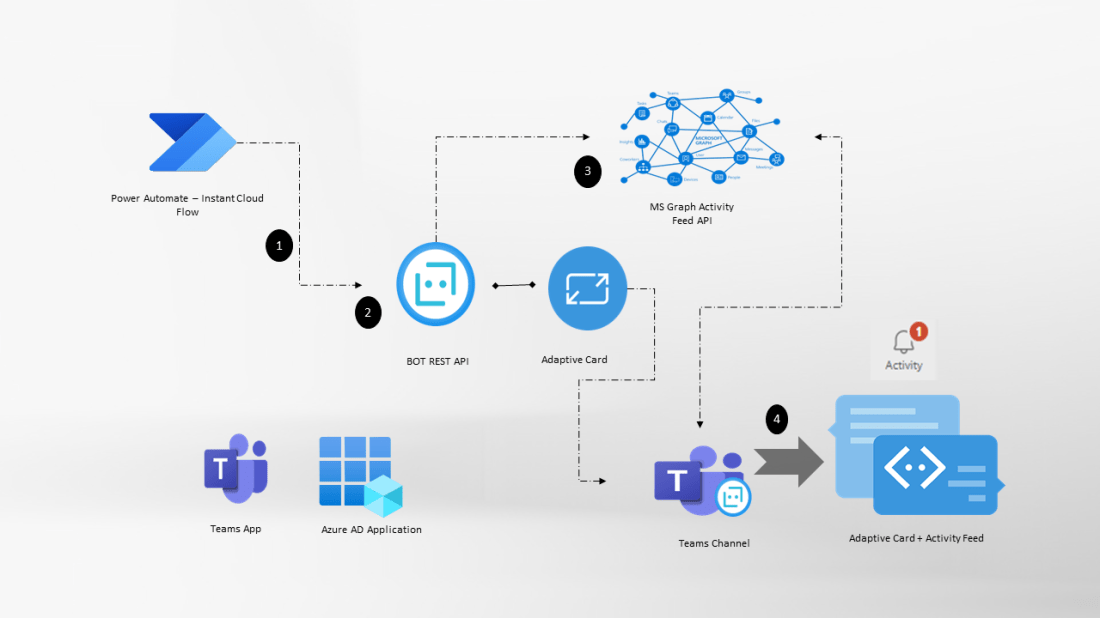
Activity feed notifications appears in the Teams activity feed panel with link to various locations thus enabling developers to build actionable content. These notifications are sent as push notifications in the Teams client. In this blogpost, let us see how to send Teams activity feed notification using
Custom Teams App with a Bot
Power Automate standard action: Post a feed notification
Pre-Requisites:
Access to HTTP Premium Connector in Power Automate
Microsoft graph has API endpoints to send activity feed notifications to Teams users. The pre-requisite to use the activity feed graph endpoint is to have a custom Teams app scoped to a Team, or in a chat or user.
Step 1: Custom Teams App scoped to Team:
For this blogpost, I have used a custom Teams app scoped to a Team. Refer to the following blogpost to create a custom Team app scoped to a Team with a Bot capable of sending an Adaptive card message on a channel
Do not install the Teams App yet before completing the other steps given below. After the Teams bot is created, a custom Azure Active directory Application must be registered.
Step 2: Azure AD Application – Microsoft Graph Activity Feed permission:
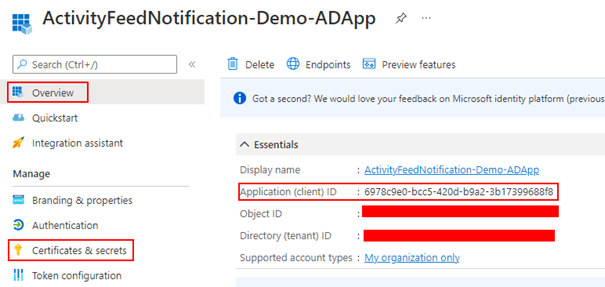
Register an Azure AD application to add the Microsoft Graph permission to be send activity feed. Copy the Application (client) ID and Tenant Id of the registered app from the Overview section and create a secret from the Certificates & secrets under Manage blade per the screenshot shown below. Once the secret is created, copy the value to be used in the Power Automate cloud flow
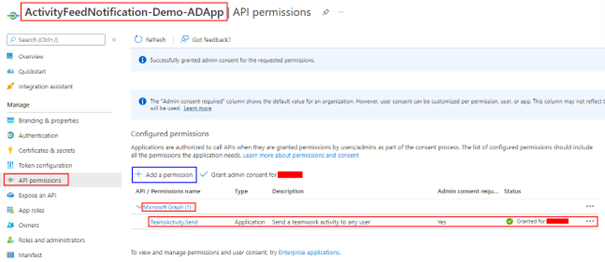
Add the application permission TeamsActivity.Send with an admin consent.
Step 3: Link the AD app to the Teams App
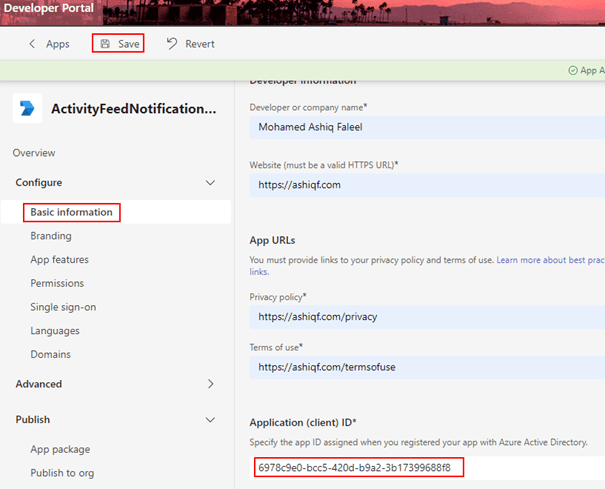
The AD application with permission to send activity feed is created, the next step is to link the Teams app created in Step 1 with the AD app. In the Teams Developer portal, enter the Application (client) ID in the apps Basic Information under the Overview section as shown in the below screen shot
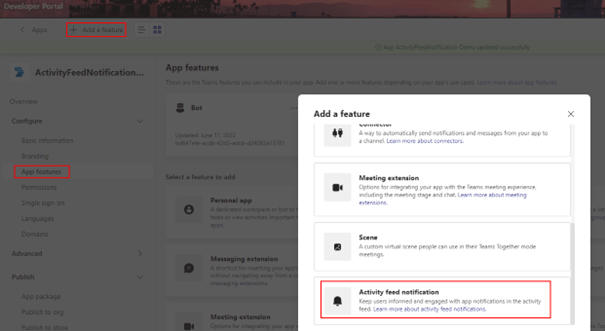
Don’t forget to Save the App in the Developer portal after the Application ID is entered. Now go to the App Features and then click Activity Feed notification as shown below
Click + Add an activity and enter the following information per the screenshot below
Type: informationBroadcasted
Description: Information Broadcasted Activity
Title: Notification from {actor} broadcasted by {broadcastedBy}
Click Save. The Teams app is now ready to be installed, follow the instructions here to install the bot in a Team for testing the Activity Feed notifications.
Power Automate Cloud Flow to send Adatpive card message and Activity Feed:
The Teams app is ready and now let’s create an Instant cloud flow with manual trigger to send an Adaptive card message to a Teams channel (General or any standard channel) and then Deep link to the adaptive card post in the Teams Channel to the activity feed notification. I have used a Premium HTTP connector action to send the adaptive card using Bot Framework REST API. Go through the following post to send the Adaptive card
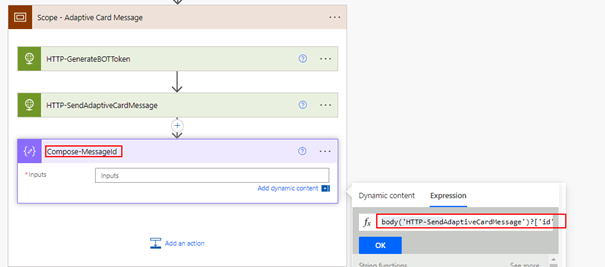
In the flow after the action HTTP-SendAdaptiveCardMessage, add a compose action with the following expression to get the Message ID of the Adaptive card channel message
body('HTTP-SendAdaptiveCardMessage')?['id']
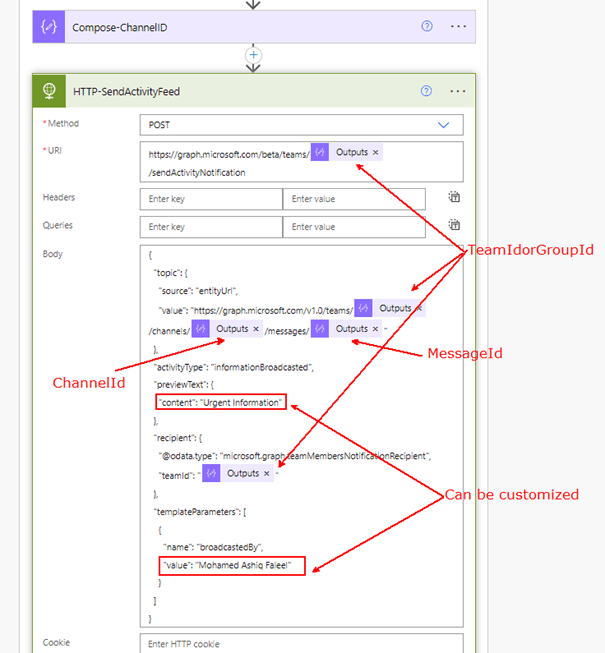
Add two compose action to store the TeamIdorGroupId and TeamChannelID as shown below
Add a HTTP action (Premium) to send the activity feed to all Team members (Beta) using the Graph Activity Feed API. Find the details below for the HTTP request
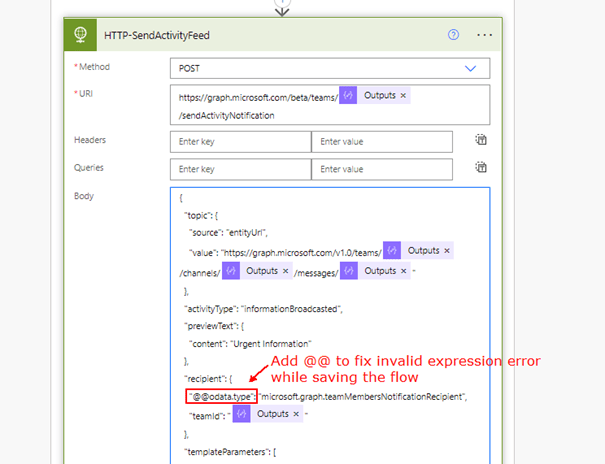
If you are having issues (Invalid Expression) while saving the flow, add additional @ keyword in the recipient as shown below
Click Show advanced options in the HTTP action to enter the Authentication details. Enter the Client (Application) ID, Secret and Tenant Id from Step 2
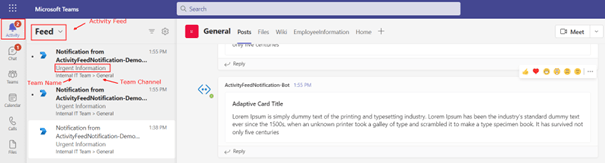
Time to test the Power Automate flow. Find below the Activity Feed message for a Teams user
Note:
The Teams app can also be enabled with Resource Specific Consent, to do so in the Teams Developer portal click Permissions on the Left bar. In the section Team Permissions select TeamsActivity.Send.Group under Application. If you have done this, Step 2 is not required. I will cover this in a different blog post.
Power Automate standard action: Post a feed notification:
There is a standard Teams action Post a feed notification which creates an activity feed with/without Deep link to a chat or Teams Channel using the Power Automate Teams Bot. Find below the action
Summary:
Isn’t this powerful to have engaging and actionable content for the users in Teams. There can be many use cases which could be applied for this setup e.g: Notify user and deep link to a Power App added in Teams channel etc. Hope you have found this informational & thanks for reading. If you are visiting my blog for the first time, please do look at my other blogposts.
Do you like this article?
Subscribe to my blog with your email address using the widget on the right side or on the bottom of this page to have new articles sent directly to your inbox the moment I publish them.
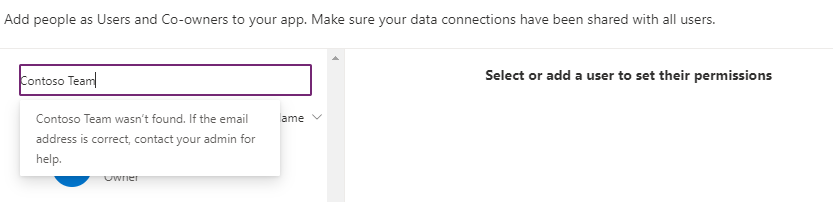
You can share an app with Microsoft Teams users since each Microsoft team also creates a Microsoft 365 group in Azure AD. The only pre-requisite is the associated Microsoft 365 group of the Microsoft Team should be securityEnabled. By default, the Microsoft team group is not security enabled. If you are trying to share a Power Apps with a Microsoft team which is not security enabled, you will not be able to add or select the group
Microsoft has documentation on how to security enable a Microsoft 365 group but you should have PowerShell installed on your computer. In this blog post, let us see how to enable securityEnabled property using Graph Explorer which is a web portal.
Pre-requisite:
Owner of the Microsoft Team
Access to Graph Explorer
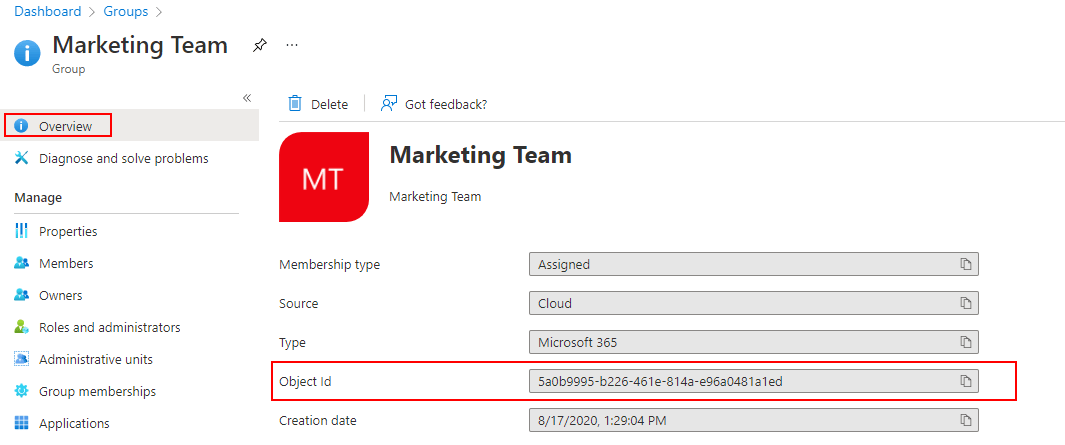
Step 1: Find the Microsoft Teams Group Object ID. Login to the Microsoft Azure Active directory admin portal. Search for the Microsoft teams group using the display name of the Team. From the overview section of the group, copy the group Object Id
Step 2: Sign in to Graph Explorer. Find below the request details
If you have consent for permissions, click Modify permissions as shown above to grant consent. Once everything is set, click Run query to enable security role. Once the property is set to True, you can share the Power App with Teams users. This setting is not required to share a Microsoft cloud flow.
Hope you have found this informational & thanks for reading. If you are visiting my blog for the first time, please do look at my other blogposts.
In this blog article, let us see how to call a Microsoft Graph API as an application in a Power Automate HTTP connector using a certificate credentials instead of a secret from the Azure Active directory application. Microsoft recommends using a certificate (instead of a client secret) as a credential for a higher level of assurance. Find below the list of actions to enable calling the Graph API using certificate credentials
Creation of Self-Signed certificate
Application Registration in Azure AD Portal
Creation of Power Automate cloud flow with the HTTP Connector
Method 1: Without using Azure Key Vault
Method 2: Azure Key Vault to store Certificate
Pre-Requisites:
Access to HTTP Premium Connector in Power Automate
The first step is to create a certificate. A self-signed certificate can be created by using the Windows PowerShell command New-SelfSignedCertificate or PnP PowerShell command New-PnPAzureCertificate. The self-signed certificate will be used in the Azure AD application. Find below PnP PowerShell command to create the certificate with the default validity of 10 years and secured with a password.
From the above screenshot, the certificate files MSFlow.pfx and MSFlow.cer will be available on C:\Users\ashiq\Desktop\Projects\PowerAutomate. Copy the PfxBase64 and the password which will be used in the HTTP connector while calling the Graph API. To get the details of an existing certificate, the PnP command
Register an application in Azure AD and obtain the client id & tenant id for the registered application. In this example I have added the Application permission with Admin Consent to access all the recent events of a user from Outlook.
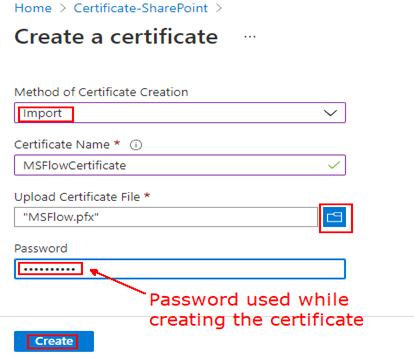
To add the above created self-signed certificate, click Certificates & secrets under the Manage blade. Click Upload certificate > Select the certificate file MSFlow.cer > Add
Once the certificate is added successfully, you would be able to see the certificate Thumbprint with the Start date & Expiry date
Creation of Power Automate cloud flow with the HTTP Connector:
Let us see below how to access a Microsoft Graph API with & without using the Azure Key Vault.
Method 1: Without using Azure Key Vault
Method 2: Azure Key Vault to store Certificate
Method 1: Without using Azure Key Vault
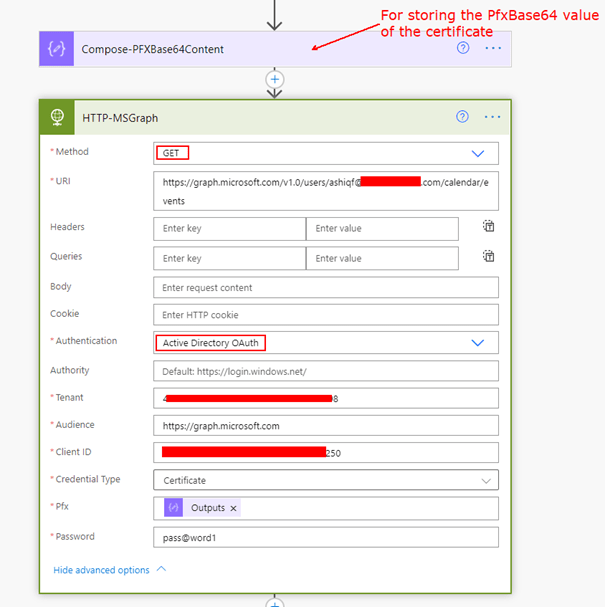
In the cloud flow, add a Compose action to store the PfxBase64 value copied during the creation of the certificate. Now add the HTTP action to get the users events from the default calendar
Password: Certificate password during the creation Find below screenshot for your reference
Find below screenshot for your reference
Run the flow, it should be able to get the outlook events as an application for the given user.
Method 2: Azure Key Vault to store Certificate
Azure Key Vault is a cloud service for storing and accessing secrets enabling your applications accessing it in a secure manner. Follow this article to upload the above generated certificate to the Azure key vault.
After the certificate is uploaded to the Azure Key Vault, with the help of the premium Azure Key Vault connector you would be able to access & use the secret in your cloud flow or logic app.
Step 1: Add the action Get secret in the flow. After entering the name of the Key Vault and the sign button is clicked, the connection would be established.
There are different authorization flows available in Microsoft Graph which could be leveraged based on needs. If you are visiting my blog for the first time, please do look at my other blogposts.
Do you like this article?
Subscribe to my blog with your email address using the widget on the right side or on the bottom of this page to have new articles sent directly to your inbox the moment I post them.
SharePoint and Microsoft teams services in Microsoft 365 makes it easier to share content or collaborate with external users who is outside your organization. A guest or external user is someone who do not have a school or work account with your organization, they can be your partner, vendor, customer etc. In this article let us see how to build a self-registration experience for external users with the help of Microsoft Forms & Power Automate to onboard them to a
SharePoint online site
Microsoft Team
Microsoft Form to collect details from External User:
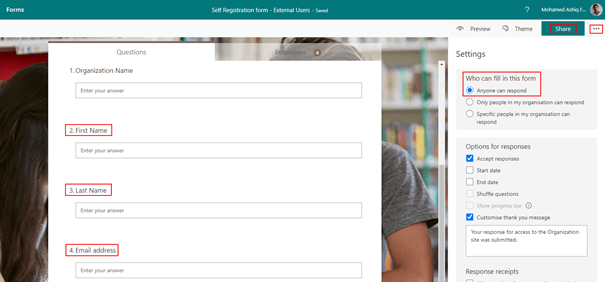
To start building this experience, create a Microsoft form with the setting Anyone can respond and with fields (Name, Email address etc) to collect information from the external user to send invitation.
Azure Active Directory Application registration:
The next step after creating the form is to register an application in Azure AD with Microsoft graph API permission to send invitation to external user. After the app is registered obtain the client id, client secret & tenant id to be used in the Power Automate flow further down this article to generate the JSON webtoken to access Microsoft Graph API for sending invitation. Find below screenshot with the permission User.Invite.All added to the app. Keep in mind the permission requires Admin consent.
There is also delegated permission available for User.Invite.All.
Onboard External users to a SharePoint online site:
Once the Microsoft form is ready, we can start building the Power Automate flow which can send the email invitation to the external user and for granting access to the SharePoint site. The external sharing features of SharePoint Online enables users in your organization share content with people outside the organization. There is no limit to the number of guests you can invite to SharePoint sites as per this SharePoint online limits documentation. Find below steps to create the Power Automate flow with a custom approval on a Microsoft Team
Power Automate Flow:
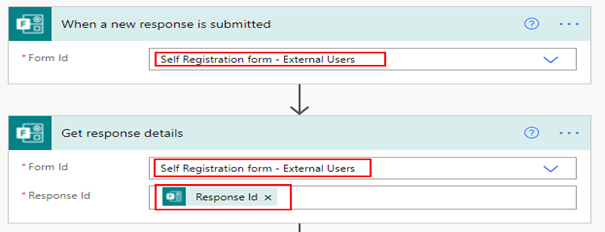
Create an Automated flow with the trigger When a new response is submitted with the above form name selected on the dropdown and then add the action Get response details with the Response Id selected from the dynamic content for the trigger to get the form details submitted in the Microsoft form by the external user. Find screenshot below
Adaptive card for Teams Approval:
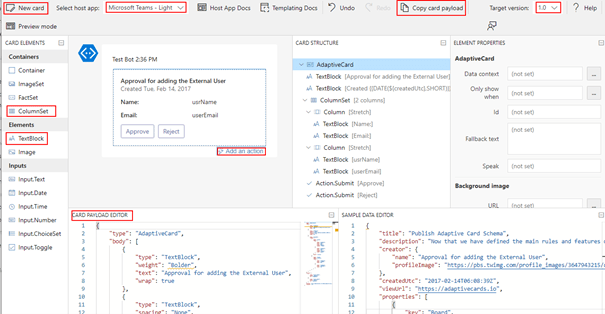
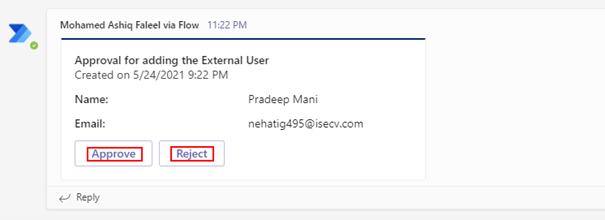
For the Approval in Microsoft Teams, I have used a custom card created from the Adaptive card designer with elements ColumnSet, TextBlock to display information submitted in the form & action button Approve and Reject to take further action by a Microsoft teams user to proceed with Invitation for the Guest account creation. Find screenshot below from the adaptive card designer
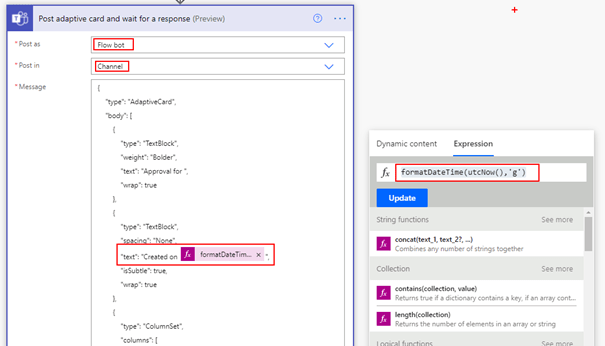
After the card is designed, copy the card payload from the designer and go to the flow and then add the action Post adaptive card and wait for a response and make appropriate selection on the available fields as shown below
Post as: Flow bot
Post in: Channel
Message: Payload copied from designer. Replace the fields for usrName & userEmail selected from the dynamic content from the outputs of the action Get response details. The created on textBlock element has the flow expression formatDateTime(utcNow(),’g’) to display the current datetime information on the card.
Update Message: Custom message which appear after an action taken in Microsoft Teams
Team: Select the Team where you would like to post the card
Channel: Select the channel from the Microsoft Team where you would like to have the approval adaptive card posted
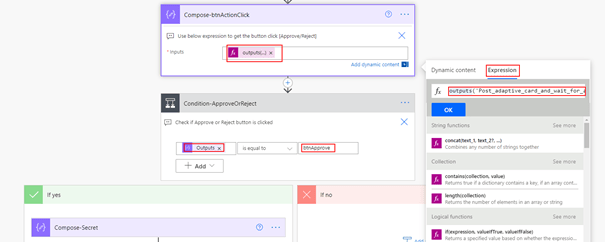
The above adaptive card is used to get approval from the Organization teams user based on the information submitted by the external user in the Microsoft form to proceed with the next steps for sending the guest account invite. Now we will have to identify if the user has clicked the button Approve or Reject. This information can be easily obtained from the Outputs of the action.
Note: Adaptive card can also be sent using a Microsoft Graph API with the card payload in Attachments field
Adaptive card for Teams – Dynamic content Missing:
As of the time I am writing this article there is an issue in getting the output as dynamic content for the Post adaptive card and wait for a response action if there is dynamic content added on the JSON Payload (Name, Email from Forms). The fix is to run the flow till the post adaptive card action and take an action on Microsoft teams by clicking either Approve or Reject and then go to the Flow run from the history as shown below
From the above screenshot, we can see if the user has clicked the Approve or Reject button from the field submitActionId. To get this value in Flow, use the expression
To get the submitActionId, enter the expression outputs(‘Post_adaptive_card_and_wait_for_a_response’).body.submitActionId in the compose action, then add a condition control to decide action based on users approval
I have observed this issue occurs in other team’s adaptive card actions as well, the above fix should work. Now we can implement the logic to send the Guest Invitation using Microsoft Graph API. To send the invite, we will use the Azure AD application registered above.
Generate JSON Web token to Access Graph API:
Be ready with the ClientId, Client Secret and Tenant Id collected from the AD app registration you have done initially. The only authentication flow to generate a access token for application permissions is Client credentials.
To generate a token
Store the Client Secret on a String variable or a compose action
Make a HTTP request using the HTTP connector with the following details. Make sure to replace the string for tenantId, azureAdAppclientId and azureAdAppclientSecret
Add a HTTP connector action to the flow for making a POST request per the following information
For the client secret make sure to URL encode using the expression encodeUriComponent(variables(‘clientSecret’)) else the request may fail due to the presence of special characters.
In the above screen, I have added a compose action to store the SharePoint site address to be used for granting the external user access to. To extract the token from the above request, add the parse JSON action with Content from the HTTP request body and the following schema
Include the access token when calling the Microsoft Graph API in the Headers section or raw as shown in the next section.
Send Invitation using Microsoft Graph API:
Before sending the invitation, validate if the user already exists in your organization AD tenant by using the email address of the external user with the help of the action Search for users as shown below
If there is null response for the action Search for users, then the user does not exist. This can be calculated using the expression length and by passing the value as a parameter, if it is equals zero then the external user does not exist. If the user already exists, we can directly proceed to granting the external user access to SharePoint.
Graph API to check if a guest user already exists:
{
  "invitedUserDisplayName": "External User Name",
  "invitedUserEmailAddress": "External User Email Address",
  "sendInvitationMessage": true,
  "inviteRedirectUrl": "SharePoint site URL or any URL",
  "invitedUserMessageInfo": {
    "messageLanguage": "en-US",
    "customizedMessageBody": "Welcome to the M365PAL SharePoint site! Click the link below and sign in."
  }
}
In HTTP request body, use the dynamic content of the form to populate the fields invitedUserDisplayName & Emailaddress. The invite redirectUri is the output of the compose action which has the SharePoint site url. I have added a delay of one minute before granting access to SharePoint site for the external user, this step is to make sure there is an entry in Azure AD for the external user/guest account.
Grant Access to SharePoint site for the external user:
As soon as the guest account invite is sent from the above Microsoft graph API request HTTP action, it is time to grant access to the SharePoint site for the external user. There is a SharePoint REST API endpoint to add a user to a SharePoint group (Owners, Member, Visitors), find below the request details
For the external user, the email address used to send the invite works.
Go back to the flow and add the action Send an HTTP request to SharePoint to call the above REST api. Find below the screenshot of the action
The above action uses delegated permission, the user of the connection should have access to the SharePoint site. As of now, there is no Graph API for adding the user to a SharePoint group but you can register an app in Active directory and add permission for SharePoint to call the above REST API. Refer to the documentation Granting access via Azure AD App-Only for calling the REST API using the registered AD app.
Testing the flow:
The whole flow can now be tested by submitting the form which sends the adaptive card on Teams first as shown below
After the card is approved, the invite is sent to the external user. After the external user accepts the invite, the user should be automatically redirected to the SharePoint site with the appropriate access. The access to the SharePoint site for the external user can be validated by the checking the membership of the SharePoint group in the site even before the user accepts the invitation. The site members can also be validated by accessing the URL for All users list:
This approach of granting access to SharePoint site for external user can be applied to internal users by turning off the access requests.
Limit External Sharing by domain:
The external sharing on SharePoint can be restricted based on domain of the external user. To enable the setting login into the SharePoint admin center > Policies > Sharing > Enable the checkbox Limit external sharing by domain > Add domain
Onboard External users to a Microsoft Team:
To onboard the external user to a Microsoft Team, the only change to the above flow is, instead of adding the user to the SharePoint group the user must be added as a Member to the Microsoft 365 group connected to the Microsoft Teams. The graph API to add a member to a Microsoft Team is
The expression to get the user object Id of the external user as per the below screenshot is
outputs(‘HTTP-SendGuestInvitation’).body.invitedUser.Id The expression can be used in a compose action to get the Object Id of the external user which can be used in the Graph API request to add the member to a Team. HTTP-SendGuestInvitation is the name of the HTTP Action.
Permission for the Azure AD App to add a member to a Microsoft Team:
The application permission Group.ReadWrite.All has to be added on the Azure AD app, if you are going to be using the same JSON webtoken generated above. There is delegated permission as well for adding members.
Summary: With this, the Power Automate flow should send the invitation as shown below to the external user.
If it is for a Microsoft Team, the external user should be licensed for teams service to open it on their teams client. The same flow can be also configured for Microsoft 365 group. If you are visiting my blog for the first time, please do look at my other blogposts.
With the assumption that you already know about Microsoft Graph and its capabilities I will directly jump in with the steps and instructions to call Microsoft graph Endpoints as a daemon app using Application permissions with the help of HTTP connector. Calling graph from a flow opens a wide range of possibilities which are not available with the prebuilt connectors. As of now you will not be able to call Microsoft graph with application permissions using a custom connector.
Pre-Requisites:
Access to HTTP Premium Connector in Power Automate
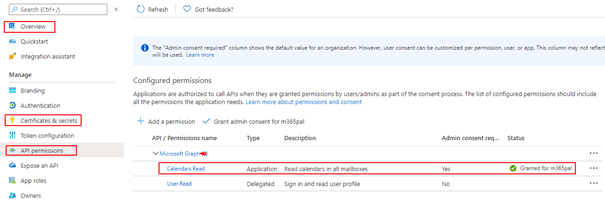
Register an application in Azure AD and obtain the client id, client secret & tenant id for the registered application. In this example I have added the Application permission Calendars.Read to access all the recent events of a user from Outlook.
It is not required in the Azure AD application to have a redirect URI.
Power Automate Flow:
It is now time to generate the graph token using the HTTP connector in flow which is a pre-requisite to call the Graph API endpoint. The only authentication flow to generate a access token for application permissions is Client credentials.
To generate a token
Store the Client Secret on a String variable
Make a HTTP request using the HTTP connector with the following details. Make sure to replace the string for tenantId, azureAdAppclientId and azureAdAppclientSecret
Method 1:
Add a HTTP connector action to the flow for making a POST request per the following information
For the client secret make sure to URL encode using the expression encodeUriComponent(variables(‘clientSecret’)) else the request will fail due to the presence of special characters.
To extract the token from the above request, add the parse JSON action with Content from the HTTP request body and the following schema
Summary: I have written a blog to get the attendee details of a meeting using this approach to Microsoft graph event endpoint API. Hope you have found this informational & thanks for reading. If you are visiting my blog for the first time, please do take a look at my other Microsoft graph in Power Automate blogposts.























 Mohamed Ashiq Faleel