Streamlining Integration: Using Service Principal authentication on Custom connectors with Microsoft Graph Application Permissions

Microsoft recently announced a long awaited feature: support for Service Principals in Custom connectors which is currently in Public Preview. This empowers you to authenticate as a service principal instead of relying on user accounts. It’s a game-changer that paves the way for a multitude of scenarios, especially those requiring seamless, uninterrupted access for automated processes, free from the constraints of user involvement.

In one of my earlier posts, I discussed how to harness the power of Microsoft GRAPH API within custom connectors through delegated permission. In this article, I’ll delve into the step-by-step process of configuring service principal authentication in a custom connector for the Graph API with Application permissions to send emails. While I’ve chosen to focus on email communication, remember that you have the flexibility to opt for any of the supported Graph application permissions.

Setting up the Service Principal:

Let’s headover to the Microsoft Entra Admin center to register an AD App and grant the application permissions to send emails using the Graph API. Register an AD application with the following Application permission

Mail.Send: Send Mail as any user

Retrieve the Client ID & Tenant ID from the Overview section of the Azure AD app, and then proceed to generate a secret within the Certificates & secrets section under the Manage blade. Once the secret is generated, copy its value for use within the custom connector configuration. Add a Web Redirect URI https://global.consent.azure-apim.net/redirect as shown below

The Redirect URI is common and will be created while creating the custom connector.

Create Custom Connector:

With the service principal now created, let’s proceed to create the custom connector from the Power Apps maker portal. Choose the environment where you intend to create the custom connector. Navigate to Custom connectors on the left navigation menu, then click on + New custom connector and select Create from blank.

Once you’ve provided the connector name, you’ll be presented with the following screen. Enter graph.microsoft.com in the Host field and provide a brief description of the connector. Additionally, you have the option to customize the connector’s logo to your preference.

Now click Security at the lower-right corner of the above screen, which allows you to input the Azure AD application information for the service principal/App registration created earlier in the Entra Admin portal.

Here’s the step-by-step configuration:

  • Choose Authentication type as OAuth 2.0.
  • Change the Identity provider to Azure Active Directory.
  • Check the box Enable Service Principal support
  • Enter the Client ID and Client Secret from the Azure AD application.
  • Keep the Authorization URL as https://login.microsoftonline.com and Tenant ID as common.
  • Enter the Resource URL as https://graph.microsoft.com
  • For the Scope, specify Mail.Send based on the permissions you have added to the Azure AD app. If you have multiple permissions, separate them with spaces.

Once you’ve filled in this information, click Create connector. This action will automatically generate the Redirect URL as https://global.consent.azure-apim.net/redirect This URL should match the Redirect Web URI you previously added in the Azure AD application. With this configuration, your connector is now ready for the adding the actions based on the Graph API endpoints for sending emails.

Create Action to Send email:

With the connector successfully created, it’s time to create the action for sending emails. This action can be utilized in both Power Apps and Power Automate. The Graph API endpoint for sending emails is:

Http Request Mode: POST

Request URI: https://graph.microsoft.com/v1.0/users/{fromEmailAddress}/sendMail

The request parameter fromEmailAddress is to collect the information from the user while using the action

Request Body:

{
  "message": {
    "subject": "Mail sent using Custom Connector",
    "body": {
      "contentType": "Text",
      "content": "This is a sample email sent using Custom Connector which uses Service prinicipal"
    },
    "toRecipients": [
      {
        "emailAddress": {
          "address": "mailboxaddress@domain.com"
        }
      }
    ]
}
}

Proceed to the Definition tab of the Custom Connector. Here, select + New action, which will generate the following screen for you to enter information about the action.

After the Summary, Description and Operation ID is entered. Click + Import from sample under the Request section to the enter the Graph API endpoint request details as shown below

Click Import on the screen above. You can optionally provide a sample response by entering details in the default response section in the Add Action interface which will help you identify objects in Power Apps if the request has a response. For more information, please refer to my earlier blog post, which I have referenced in the introduction section. Don’t forget to update the connector.

Create Connection:

Once the connector with the Send Email action is set up, you can now proceed to test the action for sending emails. The first step is to create the connection, navigate to the below interface and click on + New connection under the section Test and then on the following popup select the Authentication Type as Service Principal Connection.

Enter the Client ID, Secret, and the Tenant ID you copied earlier to create the connection. You would now be able to test the action.

To use this in the Power Apps, after adding the connector, you would be able to call the action using the below code:

ServicePrinicpalSupport.SendEmail("fromEmailAddress@domain.com", {
        'message': {
            'subject': "Mail sent using Custom Connector from Power Apps",
            'body': {
                'contentType': "Text",
                'content': "Sample email sent from Custom Connector leveraging Service Principal"
            },
            'toRecipients': [
                {
                    'emailAddress': {
                        'address': "toUseraddrees@domain.com"
                    }
                }
            ]
        }
    });

The connections created uses the Authentication Type Explicit Authentication.

https://learn.microsoft.com/en-us/power-platform/admin/security/connect-data-sources#authenticating-to-data-sources

Sharing Connector:

When the app is shared with the user, the user will not be prompted to create a connection; instead, the consent window below will appear to allow the connection. You can use the PowerShell command Set-AdminPowerAppsApiToBypassConsent if you want to bypass consent for the app users. The connection is shareable, allowing you to share it for editing, using, sharing, etc., with other users.

Authentication Flow:

The authentication flow for custom connectors enabled with Service Principal uses the OAuth 2.0 client credentials flow, while for the custom connectors without Service Principal authentication, the OAuth 2.0 Authorization code flow is used. Below, you’ll find the Swagger details for the custom connector, showing both scenarios for connecting to Microsoft Graph using OAuth2 with Azure Active Directory

Swagger definition for Service Principal AuthenticationSwagger definition for Non Service Principal Authentication
securityDefinitions:   oauth2-auth:     type: oauth2     flow: accessCode     tokenUrl: https://login.windows.net/common/oauth2/authorize     scopes:       Mail.Send: Mail.Send     authorizationUrl: https://login.microsoftonline.com/common/oauth2/authorize   oAuthClientCredentials:     type: oauth2     flow: application     tokenUrl: https://login.windows.net/common/oauth2/authorize     scopes:       Mail.Send: Mail.Send security:   – oauth2-auth:       – Mail.Send   – oAuthClientCredentials:       – Mail.SendsecurityDefinitions:   oauth2-auth:     type: oauth2     flow: accessCode     tokenUrl: https://login.windows.net/common/oauth2/authorize     scopes:       Mail.Send: Mail.Send     authorizationUrl: https://login.microsoftonline.com/common/oauth2/authorize security:   – oauth2-auth:       – Mail.Send

Summary:

In this blog post, I have shown you how to use Service principal authentication in custom connector with application permissions to send an email through the Graph API. You can apply this feature for any supported Microsoft Graph Application permission such as SharePoint, Exchange, Teams, Azure AD, and more. It’s a game-changer, making automated processes smooth and user-free. Hope you have found this informational & thanks for reading. If you are visiting my blog for the first time, please do look at my other blogposts.

Do you like this article?

Subscribe to my blog with your email address using the widget on the right side or on the bottom of this page to have new articles sent directly to your inbox the moment I publish them.

Convert Speech to Text using OpenAI Whisper in Power Apps

OpenAI has released a new neural network called Whisper, which is an open-source model that can convert speech to text with impressive accuracy. This model is specifically designed to transcribe spoken language into text with high precision and speed, making it an ideal tool for a variety of applications, such as virtual assistants and video captioning. Whisper relies on advanced machine learning algorithms to analyze audio signals from multiple languages and convert them into written text. OpenAI has recently made API endpoints available to the public since March 1, 2023, allowing developers to easily integrate this powerful technology into their own applications.

The Speech to Text Open API can

  • Transcribe audio into whatever language the audio is in.
  • Translate and transcribe the audio into English.

As of the date I am writing this post, this model is not available in Azure. In this blog post, I will cover how to use the Microphone control and File Upload control to convert speech to text using the OpenAI Whisper API in a Power Automate flow.

Download Link to the Sample App: https://github.com/ashiqf/powerplatform/blob/main/OpenAI-SpeechtoText.msapp. Replace the API Key in the Power Automate flow HTTP Action Authorization Header.

OpenAPI Speech to Text API:

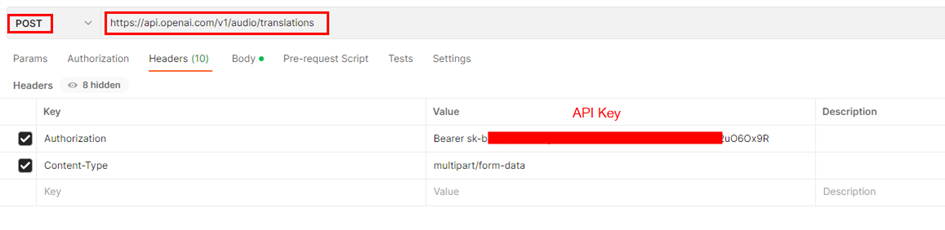
The speech to text API provides two endpoints, transcriptions and translations. At present, the maximum file size allowed for uploads is 25 MB and the supported audio formats are mp3, mp4, mpeg, mpga, m4a, wav, and webm. In this blog post, I utilized the Translation API to demonstrate its capability to convert English audio into text, it can understand other languages as well

POST https://api.openai.com/v1/audio/translations

If you have not yet created an API key, please sign up/login for OpenAI and obtain it from there.

Body:

Integration with Power Apps:

I have used a Power Automate flow with the Power Apps trigger to invoke the Speech to Text API via the HTTP connector in Power Automate. Alternatively, you can achieve the same outcome by constructing a Custom Connector. This sample app can be downloaded from this github link.

Microphone Control:

The audio control captures audio input through the device’s microphone and will be sent to the Power Automate flow for conversion into text using the Whisper API. The audio format of the recording depends on the type of device being used

  • 3gp format for Android.
  • AAC format for iOS.
  • Webm format for web browsers.

I’ve tested this control from the app accessed through the web browser. If you encounter an unsupported audio format for OpenAI, you can use utilities such as FFMpeg. Additionally, a .Net version of the control is available for download which can be used in Azure Function. John Liu (MVP) has written a sample Azure function that handles the conversion of audio formats using the aforementioned utility.

Step 1: To add a microphone control to the canvas, insert the Microphone control from the command bar. To preview the recorded audio from the Microphone control, add an Audio control

Step 2: Add a button to convert and to trigger the Power Automate flow. Find below the Power FX code

//Generates a JSON Text with the binary of the Audio file or Recorded audio
Set(varJson,JSON(Microphone1.Audio,JSONFormat.IncludeBinaryData));
Set(strB64Audio, Last(Split(varJson, ",")).Value);
Set(strB64AudioContent, Left(strB64Audio, Len(strB64Audio) - 1));
//Extract Audio Format
Set(varAudioFileType,Mid(varJson,Find(":",varJson)+1,Find(";",varJson)-Find(":",varJson)-1));
//Call the Power Automate Flow
Set(audioText,'SpeechtoText-OpenAIWhisper'.Run(strB64AudioContent,varAudioFileType).audiotext);

The Power FX code performs the following task

  • Stores the audio captured by a Microphone control in a variable as JSON data, including binary data.
  • Extracts the base64-encoded audio content from the JSON data using the string manipulation functions Split, Left, Mid.
  • Determines the audio file type by parsing a string variable.
  • Uses the extracted audio content and file type to call the Power Automate flow ‘SpeechtoText-OpenAIWhisper’ to obtain the corresponding text transcription which comes in later section of this post.
  • Assigns the resulting text transcription to a variable named ‘audioText’, this is assigned to a Text Label to display the converted text from the OpenAI Whisper API.

Step 3: Add a Label control to display the converted Text set to the variable audioText

File Upload Control

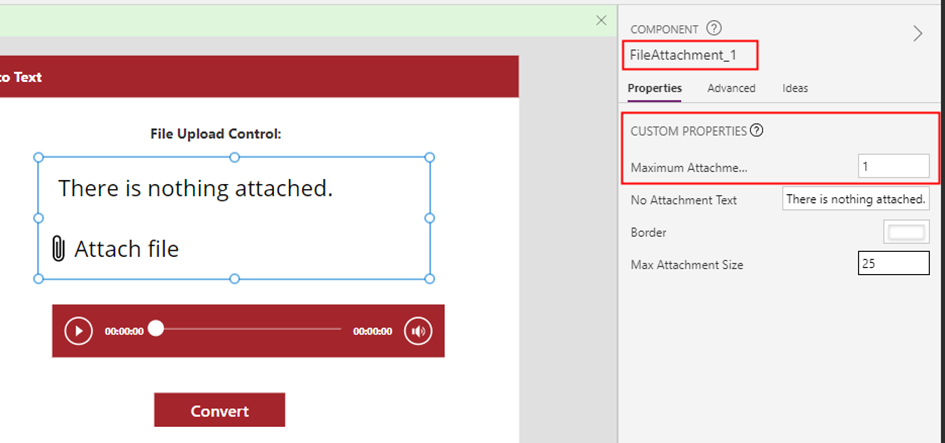
As of the day I am writing this post there is no file control that can handle all types of files in Power Apps, I have created a custom component utilizing the Attachment control to create a file attachment control. For further details, please refer to blogpost Uploading Files Made Easy: A Guide to Using the Attachment Control in Power Apps to add the control to the app.

Step 1: Add the file attachment control to the app from the component library. Set the input property for Maximum Attachments to 1 from the component.

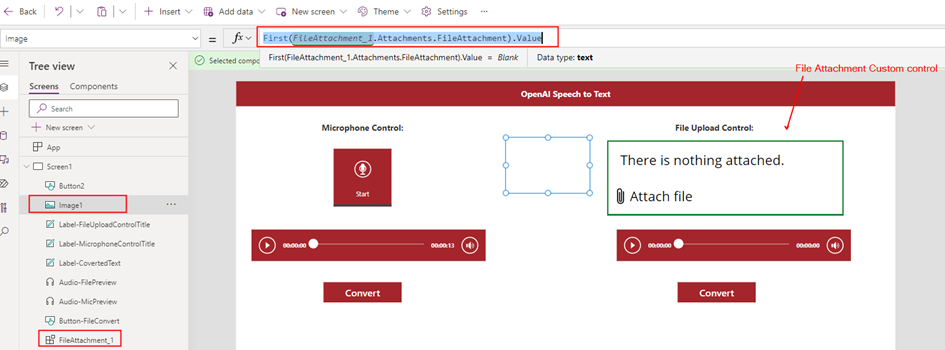
Step 2: To extract the binary content of an audio file, add an Image control to the app. The Image control is capable of working with any type of file to extract its content.

Step 3: Add a Button control to convert the Audio from the uploaded file. Find the PowerFX below

//Generates a JSON Text with the binary of the Audio file using the Image control
Set(varFileContent,JSON(Image1.Image,JSONFormat.IncludeBinaryData));
//Extract Base64 content
Set(varExtractedFileContent,Last(Split(varFileContent,",")).Value);
//Remove the last character " from the string
Set(varExtractedFileContent,Left(varExtractedFileContent,Len(varExtractedFileContent)-1));
//Extract Audio Format
Set(varAudioFileType,Mid(varFileContent,Find(":",varFileContent)+1,Find(";",varFileContent)-Find(":",varFileContent)-1));
//Call the Power Automate Flow
Set(audioText,'SpeechtoText-OpenAIWhisper'.Run(varExtractedFileContent,varAudioFileType).audiotext);

Step 4: Add a Label control to display the converted Text set to the variable audioText

Power Automate Flow

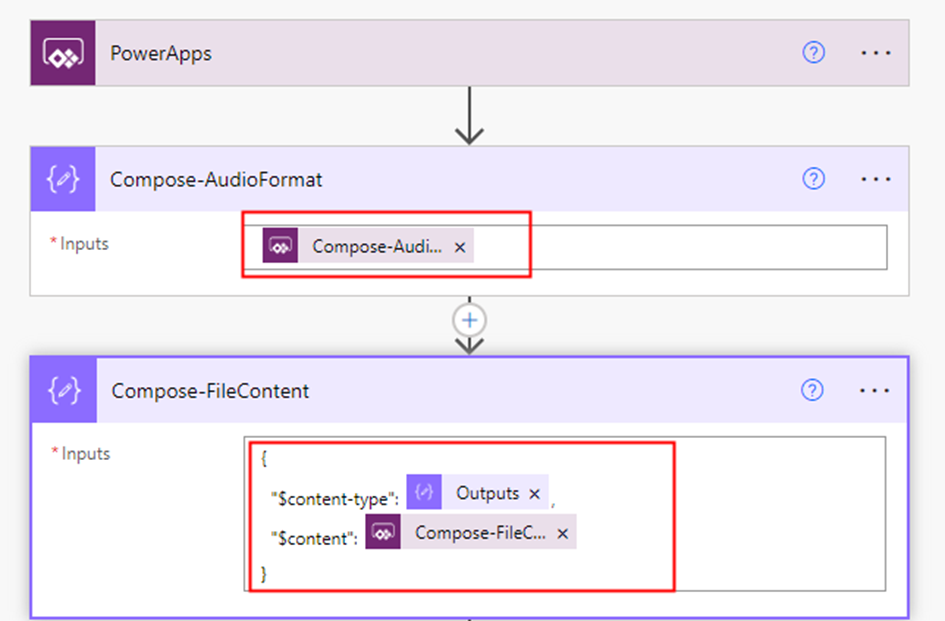
Now, let’s create a Power Automate flow with the Trigger type Power Apps to invoke the OpenAI Whisper API and convert speech to text. Step 1: Add two compose action (input parameters) to receive the audio format and content from either the recorded audio captured by the Microphone control or the uploaded audio file from the file attachment control in the Power Apps

{
  "$content-type": @{outputs('Compose-AudioFormat')},
  "$content": @{triggerBody()['Compose-FileContent_Inputs']}
}

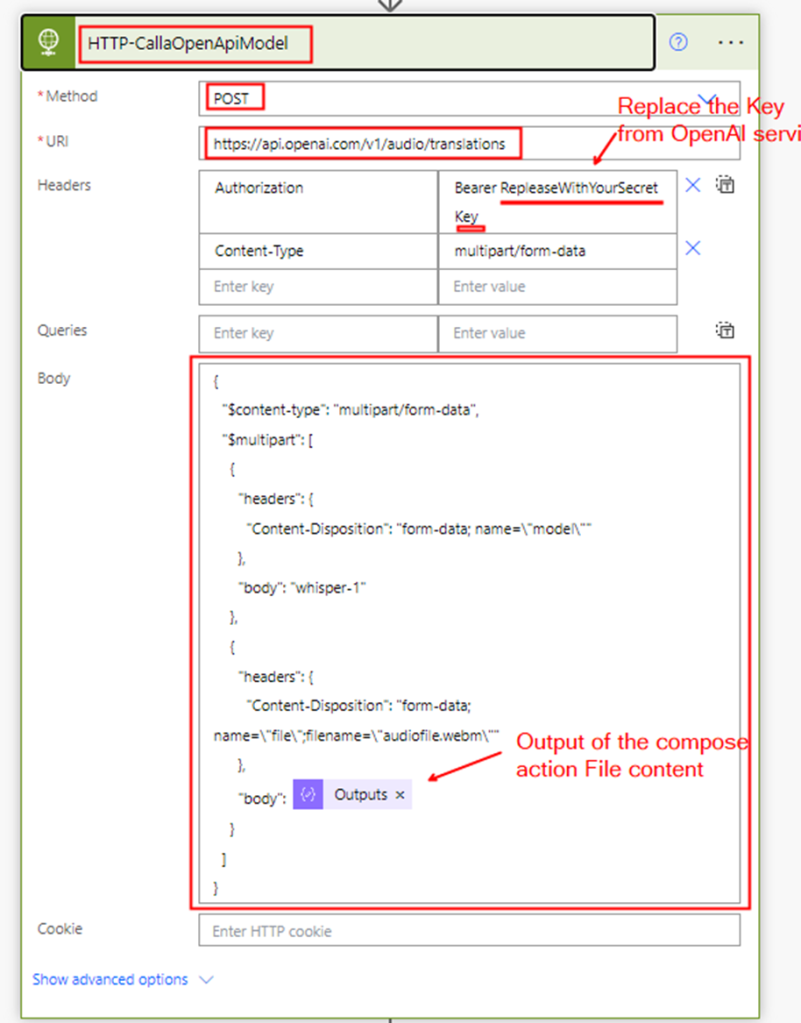
Step 2: Add a HTTP connector to make a request to the Whisper API endpoint. Refer to the blog post How to use form-data and form-urlencoded content type in Power Automate or Logic Apps HTTP action for handling multipart/form-data in the HTTP action

Request Body:

{
  "$content-type": "multipart/form-data",
  "$multipart": [
    {
      "headers": {
        "Content-Disposition": "form-data; name=\"model\""
      },
      "body": "whisper-1"
    },
    {
      "headers": {
        "Content-Disposition": "form-data; name=\"file\";filename=\"audiofile.webm\""
      },
      "body": @{outputs('Compose-FileContent')}
    }
  ]
}

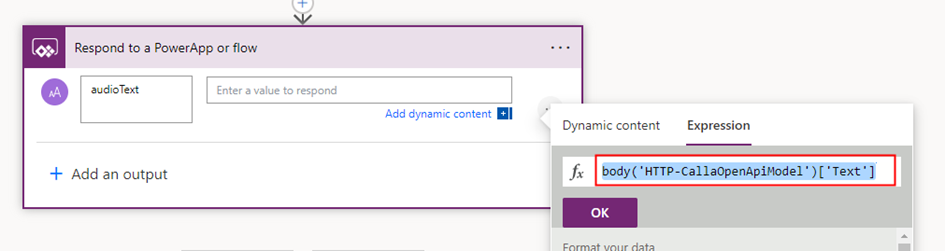
Step 3: Add the Respond to a PowerApp or a flow action to pass the converted text back to the app. To get the converted text, use the following expression

body('HTTP-CallaOpenApiModel')['Text']

The expression was constructed based on the response of the Whisper API call. In the event that the response property changes in the future, please ensure to update the expression accordingly.

Summary:

In this post, I’ve outlined a step-by-step guide on how to develop a basic app with Speech to Text functionality using Power Apps and a Power Automate flow leveraging the OpenAI’s Whisper API. The possibilities for using this technology are endless, from creating virtual assistants to generating audio captions and translations. Furthermore, the Whisper API can also be used to transcribe video files, adding even more versatility to its capabilities. It’s worth noting that while Azure offers its own Speech to Text service, it currently does not rely on the OpenAI Whisper Model. However, it’s possible that the two services will eventually integrate in the future. Hope you have found this informational & thanks for reading. If you are visiting my blog for the first time, please do look at my other blogposts.

Do you like this article?

Subscribe to my blog with your email address using the widget on the right side or on the bottom of this page to have new articles sent directly to your inbox the moment I publish them.

How to copy an existing DLP Policy in Power Platform

DLP policies are essential in ensuring that data is managed uniformly across an organization, thereby preventing critical business data from being accidentally published to social media or other connectors. These policies can be created at both the tenant and environment levels, with management handled through the Power Platform admin center. However, it is currently not possible to copy an existing DLP policy from the Admin center. This limitation can create difficulties when there is a need to create new policies based on an existing one.

In this blog post, we will explore various options for copying existing DLP policies to streamline the process. By using these options, you can save time and effort when creating new policies based on existing ones.

  • Power Automate Flow
  • DLP Editor Power Apps from CoE starter kit app
  • Power Shell

Note: To create a DLP policy at the Tenant level, you must be a Power Platform or Global Administrator role in AD.

Power Automate Flow:

The Power Platform Connector for Admins, available in both Power Automate and Power Apps, offers a range of environment lifecycle management capabilities, including DLP policy management.

To copy an existing DLP Policy, we will be utilizing the action List DLP Policies and Create DLP Policy in a Button Flow

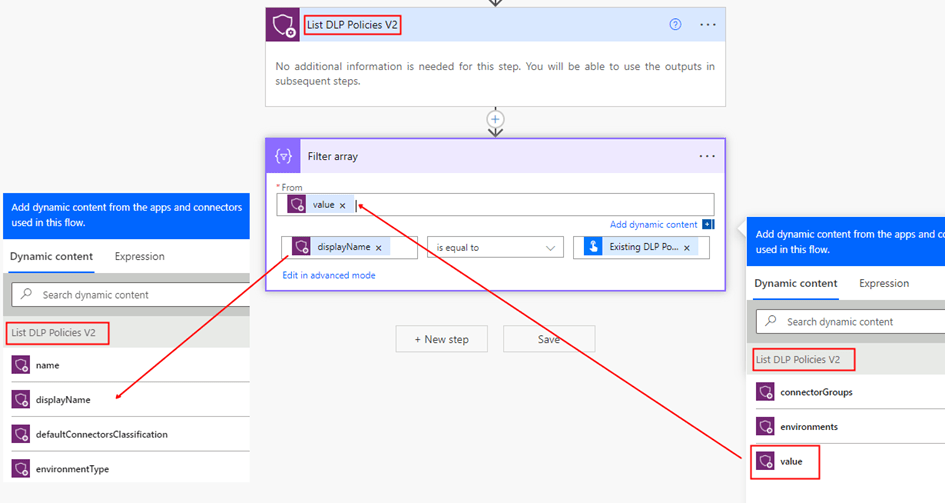
Step 1: In the trigger, create two parameters to get the input for the existing Policy Name and the New DLP Policy name followed with the action List DLP Policies from the connector Power Platform for Admins to list all the policies in the Organization

Step 2: To select the DLP policy that you want to copy in a Power Automate flow, add a Filter Array action. This action filters the DLP policies obtained from the List DLP Policies action based on a condition. Specifically, it checks whether the displayName of the DLP Policy from the DLP Policies list action matching with the trigger input Existing DLP Policy Name. Once the Filter Array action is executed, it returns a new array containing only the DLP policy that meets the condition. This filtered array can then be used as input for creating a New DLP policy

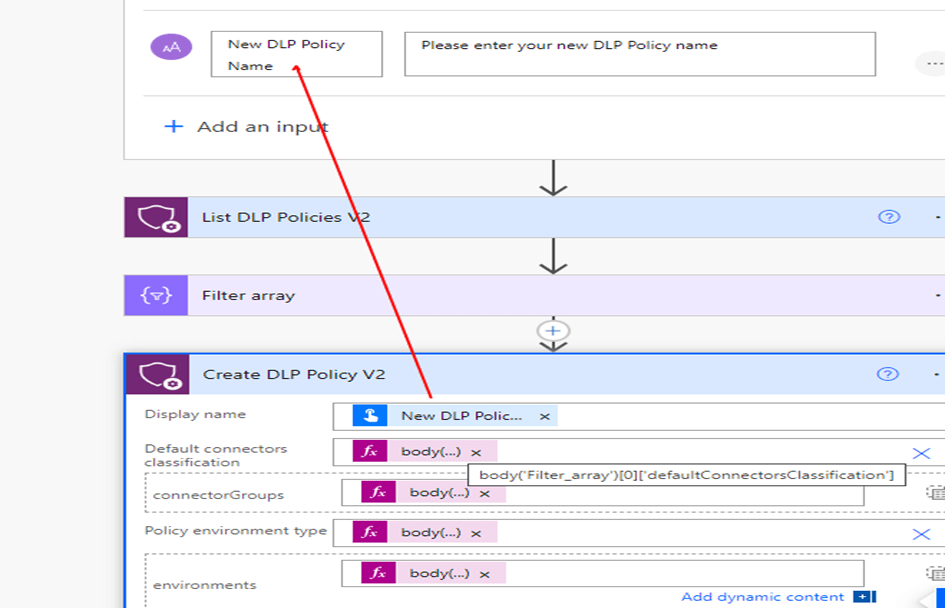
Step 3: Add the action Create DLP Policy from the Power Platform for Admins connector with the first property Display Name from the Trigger input. For the other input parameters for the action, use the expression from Output of the Filter Array action as shown below

body('Filter_array')[0]['defaultConnectorsClassification']
body('Filter_array')[0]['connectorGroups']
body('Filter_array')[0]['environmentType']
body('Filter_array')[0]['environments']

Save the changes to ensure that they are preserved. Once you have saved the flow, you can test it to make sure that it works as intended. I have the flow definition saved in my github if you wanted to take a copy of it.

CoE Starter Kit App:

The Center of Excellence (CoE) starter kit core components solution includes a Canvas app DLP Editor with a range of useful features to manage and administer DLP policies. One such feature is the ability to copy an existing Data Loss Prevention (DLP) policy, making it easy to replicate policies across multiple environments or tenants.

This app uses the Power Platform for Admins connector.

Power Shell:

Power Apps Administration PowerShell provides a convenient set of cmdlets that enable you to easily create and manage Data Loss Prevention (DLP) Policies. Microsoft has provided a helpful sample script that allows you to manage your tenant and environment policies. With this script, you can perform a wide range of tasks related to DLP policies, including creating new policies, reading existing policies, updating policies, and removing policies. The sample can be found here. By breaking down the sample script into manageable sections, you can gain a deeper understanding of how DLP policies work and how you can modify them to suit your organization’s needs with PowerShell.

Summary:

This blog post provides a overview of different methods that can be used to copy existing Data Loss Prevention (DLP) policies, which is currently not available from the Power Platform admin center. These techniques can help automate the DLP policy creation process, saving time and effort.

Do you like this article?

Subscribe to my blog with your email address using the widget on the right side or on the bottom of this page to have new articles sent directly to your inbox the moment I publish them.