Triggering Copilot Studio Agents Autonomously using Microsoft Graph Change Notifications + Power Automate

Power Platform already gives you a rich set of out-of-the-box triggers across connectors – from Outlook and Teams to SharePoint and Dataverse. For many scenarios, these built-in triggers are more than enough to automate workflows.

But what if you need finer control, broader coverage, or access to events that aren’t exposed as triggers yet?

That’s where Microsoft Graph change notifications (webhooks) come in.

Microsoft Graph unlocks an even wider universe of events across Microsoft 365, often going beyond what’s available OOB in connectors and lets you subscribe to them in a scalable, event-driven way.

Now combine that with Copilot Studio…

What if your Copilot Studio agent could wake up and act on its own, triggered by real-time events happening across Microsoft 365?

This is exactly where Microsoft Graph change notifications (webhooks) and Power Automate’s HTTP trigger + Copilot Studio connector come together beautifully.

The Big Idea

At a high level:

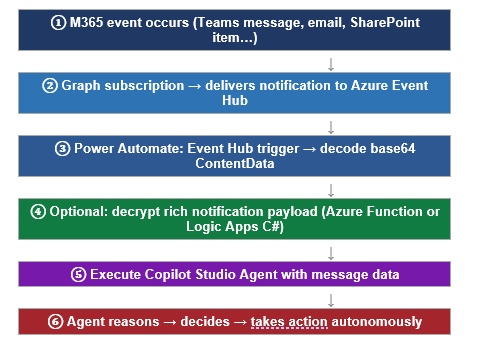
Microsoft Graph detects a change → sends a webhook → Power Automate receives it → triggers Copilot Studio agent

Instead of polling APIs, we let events drive execution.

Microsoft Graph supports change notifications via webhooks – meaning your app gets notified whenever something changes (like emails, Teams messages, SharePoint items, etc.).

Why this approach matters

Polling is expensive. Inefficient. And honestly… outdated.

With change notifications:

  • Near real-time triggers
  • No constant API calls
  • Lower cost and better performance
  • Perfect for autonomous agents

Graph sends an HTTP POST to your endpoint whenever a subscribed resource changes.

And guess what? That endpoint can be Power Automate.

Architecture Overview

Step 1: Subscribe to Microsoft Graph Change Notifications

Microsoft Graph allows you to subscribe to a wide variety of resources:

  • Outlook messages
  • Teams chats
  • SharePoint lists
  • Users / Groups
  • Calendar events

…and many more.

When you create a subscription:

  • You provide a notification URL (your webhook)
  • Graph validates it using a validation token handshake
  • Once validated, Graph starts sending change notifications

Step 2: Use Power Automate as the Webhook Endpoint

Instead of building an API, just use:

Trigger: When a HTTP request is received

Power Automate gives you:

  • A publicly accessible HTTPS endpoint
  • Built-in scaling
  • Easy JSON parsing

You can directly paste this URL into your Graph subscription.

Step 3: Execute Copilot Studio Agent

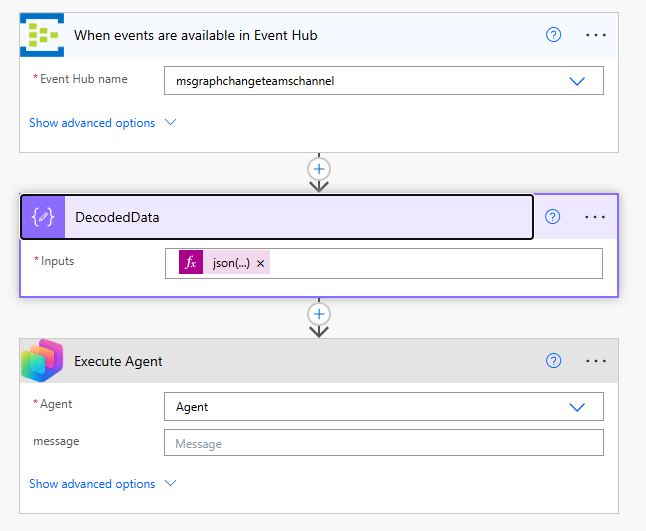
Once your flow is triggered, you can invoke your agent using:

Copilot Studio Connector → Execute Agent

(As shown in your screenshot 👇)

This action allows you to:

  • Pass dynamic input (from Graph payload)
  • Trigger reasoning
  • Let the agent decide what to do next

Putting it together

Example scenario:

A Teams message with keyword “urgent” → Agent analyzes sentiment → escalates to support queue

This is where Copilot Studio truly becomes event-driven intelligence.

Why this pattern is powerful

This approach unlocks a new design pattern:

Copilot as an event-driven micro-orchestrator

Instead of:

  • User → App → Flow → Action

You now have:

  • Event → Agent → Decision → Action

This is closer to how intelligent systems should behave.

Final Thoughts

We often think of Copilot Studio as something users interact with.

But the real power?

Agents that act without being asked

By combining:

  • Microsoft Graph change notifications
  • Power Automate HTTP trigger
  • Execute Agent action

…you move from reactive apps to autonomous, event-driven systems.

If you’re already working with Power Platform, this is a pattern worth adding to your toolbox.

Do you like this article?

Subscribe to my blog with your email address using the widget on the right side or on the bottom of this page to have new articles sent directly to your inbox the moment I publish them.
Secure Your MCP Server with Service Principal Authentication for Copilot Studio

In my previous post, we explored how to secure an MCP Server using Microsoft Entra ID delegated permissions, where the user’s identity is passed through to the API.

Secure Your MCP Server with Entra ID Authentication for Copilot Studio

But what if your scenario does not require user context?

What if you want:

  • A centralized connection
  • No per-user sign-in prompts
  • A backend service-to-service integration

In this post, we’ll walk through how to secure an MCP Server using application permissions (service principal authentication) and integrate it with Copilot Studio.

Introduction

MCP Servers exposed to Copilot Studio can be secured using different OAuth patterns:

  • Delegated permissions → user context
  • Application permissions → app-only context

This post focuses on the application permission model, where:

  • Copilot Studio uses a service principal (client credentials flow)
  • MCP Server validates app tokens instead of user tokens
  • No user interaction is required at runtime

Why Use Application Permissions?

Delegated access is great when you need user context. But in many enterprise scenarios:

  • Background operations don’t need user identity
  • Shared tools should behave consistently
  • Managing per-user connections becomes overhead

With application permissions:

  • Authentication is centralized
  • No per-user connection creation
  • Better suited for automation and shared agents

Prerequisites

Before starting:

  • Access to Microsoft Entra ID
  • Access to Copilot Studio and Power Platform
  • MCP Server implementation (you can reuse the same repo)
  • Permissions to create app registrations and custom connectors

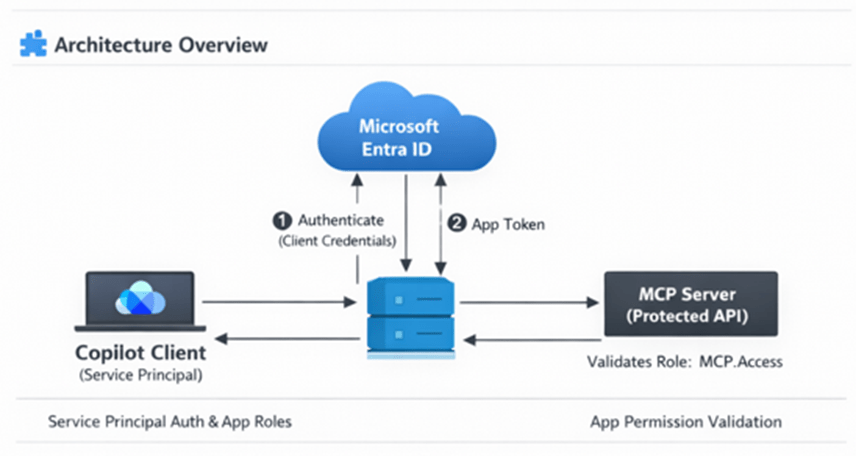
Architecture Overview

In this setup:

  • MCP Server → Protected API (App roles enabled)
  • Copilot Client → Service principal (client credentials flow)
  • Entra ID → Issues app-only tokens

Flow:

  1. Copilot (via connector) authenticates using service principal
  2. Entra ID issues app-only token
  3. Token is sent to MCP Server
  4. MCP Server validates role-based access

Step 1: Update MCP Server App Registration (Resource API)

Go to your existing MCP Server app registration created from the instructions in my other post.

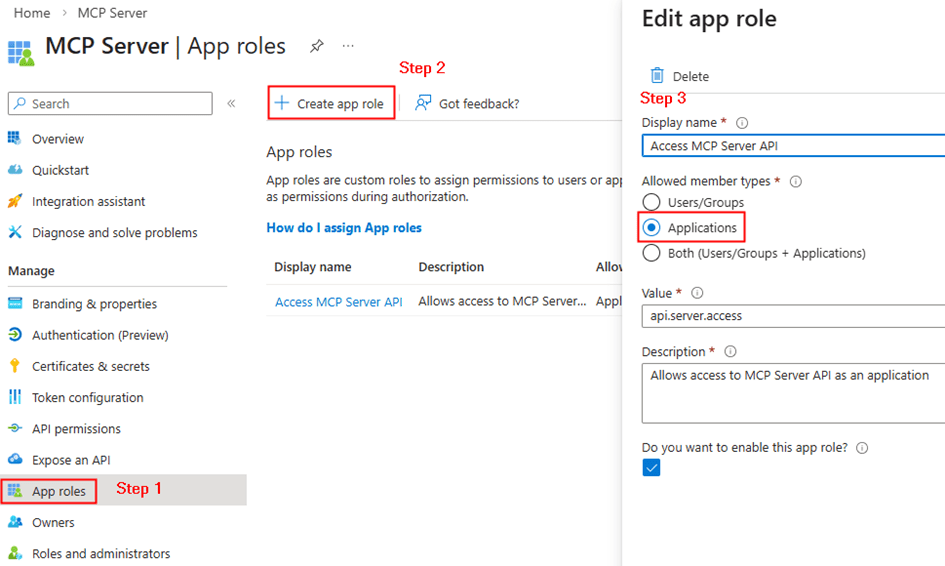
Create App Roles

Navigate to App roles → Add new role:

  • Display name: Access MCP Server API
  • Allowed member types: Applications
  • Value: api.server.access
  • Description: Allows access to MCP Server as an application

This is the key difference from delegated setup.

Instead of scopes, we have defined app roles for applications. Copy the resource url from the api permissions. E.g: api//xxxxx-xxxx-xxxx-xxx

Step 2: Configure Copilot Client App (Service Principal)

Go to your second app registration (Copilot client).

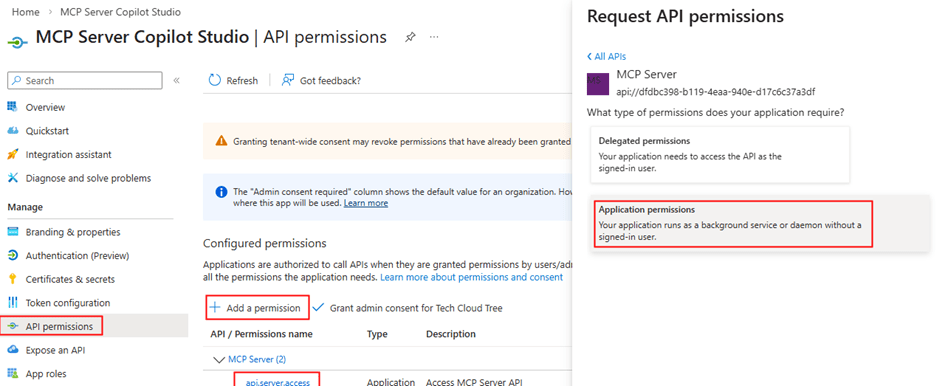
Add Application Permission

  • API permissions → Add permission
  • My APIs → Select MCP Server app
  • Choose Application permission → api.server.access

Grant Admin Consent

This allows the client app to call MCP Server without a user

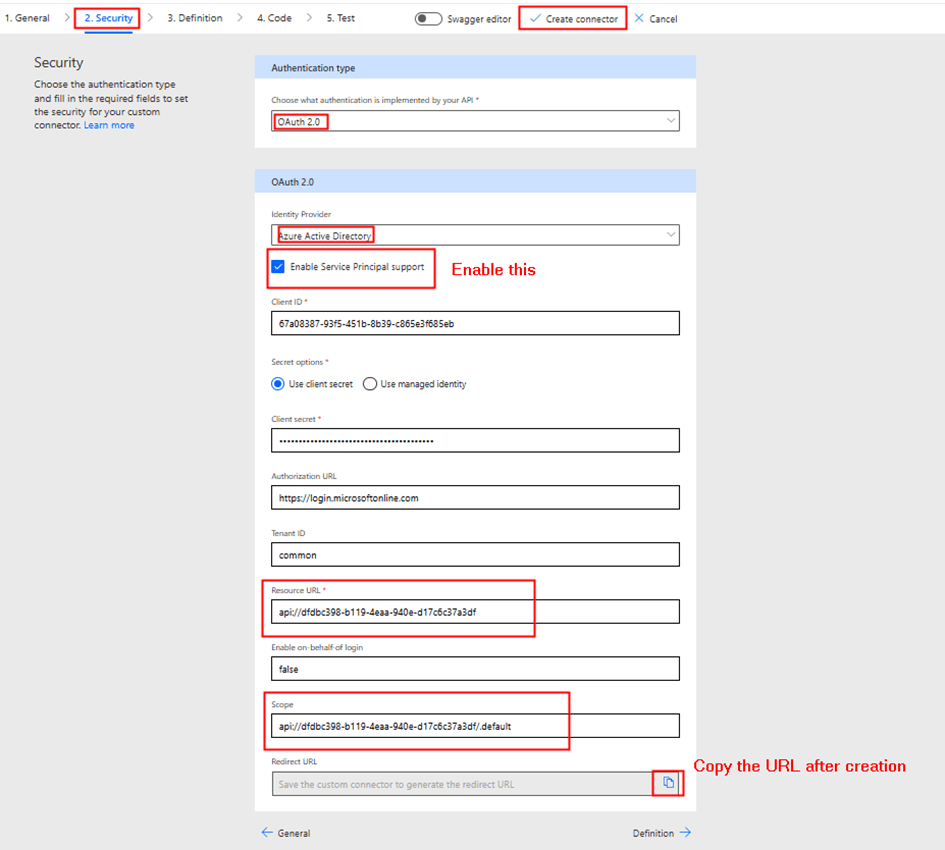
Copy the client id, client secret for entering in the security tab while creating the custom connector.

Step 3: Create Custom Connector in Power Platform

Unlike the delegated setup, this time we do not add MCP Server directly from Copilot Studio.

Instead:

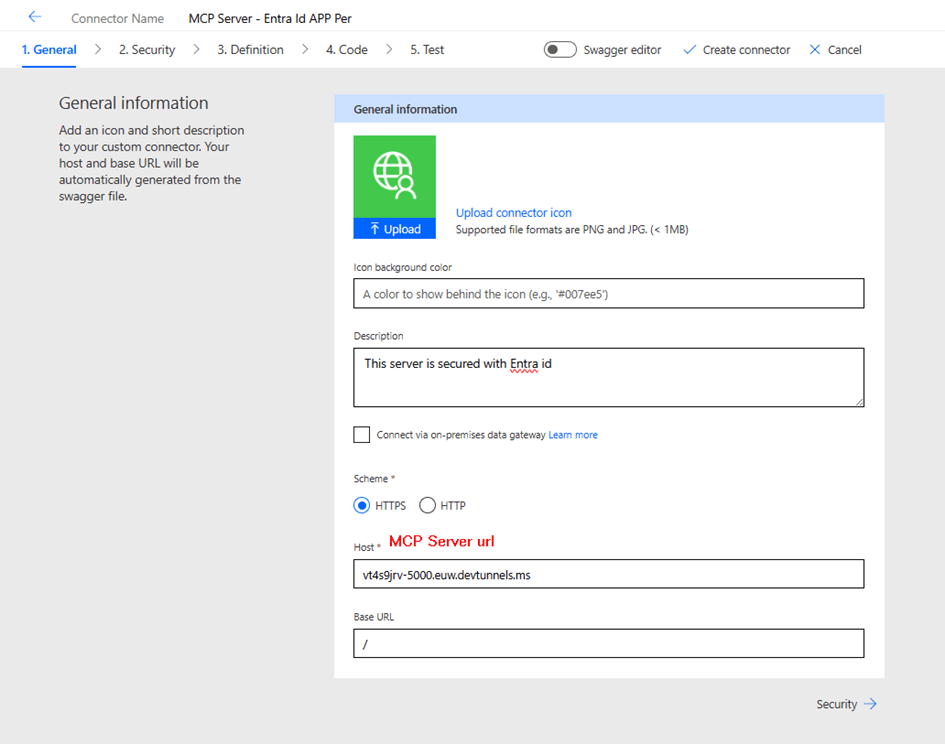
  • Go to make.powerapps.com
  • Create a Custom Connector
  • Configure:
    • Security → OAuth 2.0
      1. Enable Service Principal support

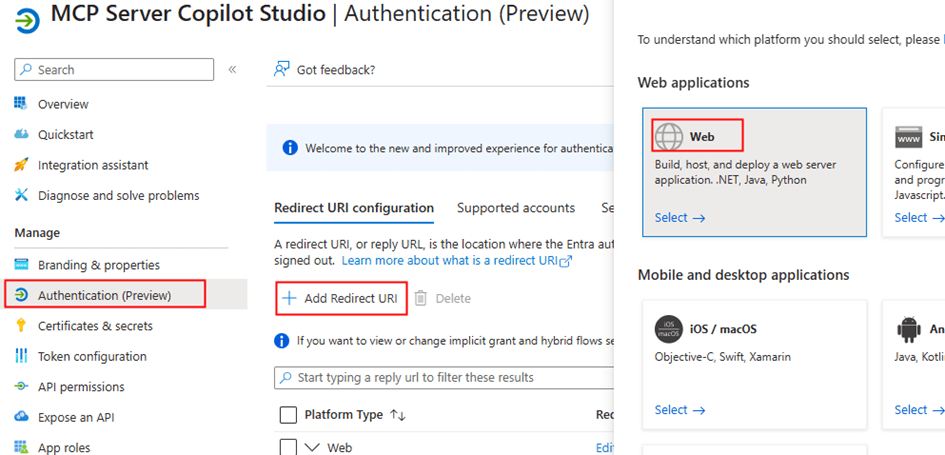
This connector uses the service principal credentials. After the entering the above details, click create connector. After the connector is created, copy the redirect URL to enter it in the Copilot studio client app registration

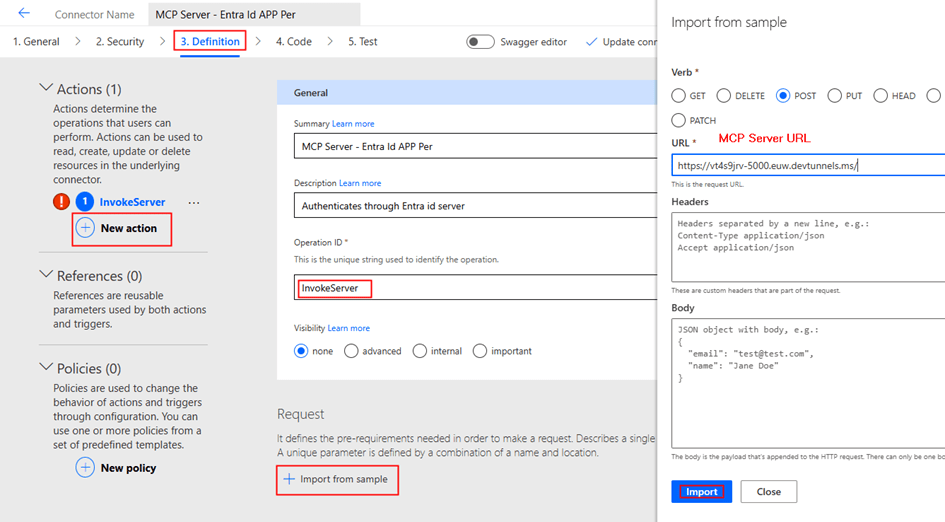
Now we can add the action Invoke server as below

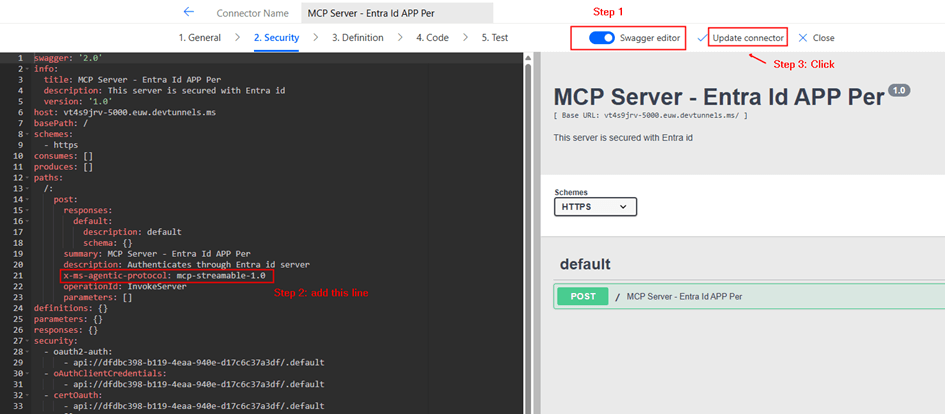
Update the connector. Now Toggle Swagger editor to add x-ms-agentic-protocol: mcp-streamable-1.0 as shown below

What It Does

Declares MCP Server Compatibility with Power Platform Agents

This extension tells Power Platform (and AI agents like Copilot) that your connector:

ComponentMeaning
x-ms-Microsoft-specific extension (not standard OpenAPI)
agentic-protocolIndicates the API supports agentic/AI agent operations
mcp-streamable-1.0Uses Model Context Protocol v1.0 with streaming support

What This Enables

  1. Agentic Discovery – Agents can discover available tools/operations
  2. Streaming Responses – Support for long-running async operations with streaming results
  3. Native MCP Integration – Direct compatibility with MCP clients and servers
  4. Agent Invocation – AI agents can invoke your MCP server endpoints intelligently

Step 4: Create Connection Using Service Principal

After updating the connector:

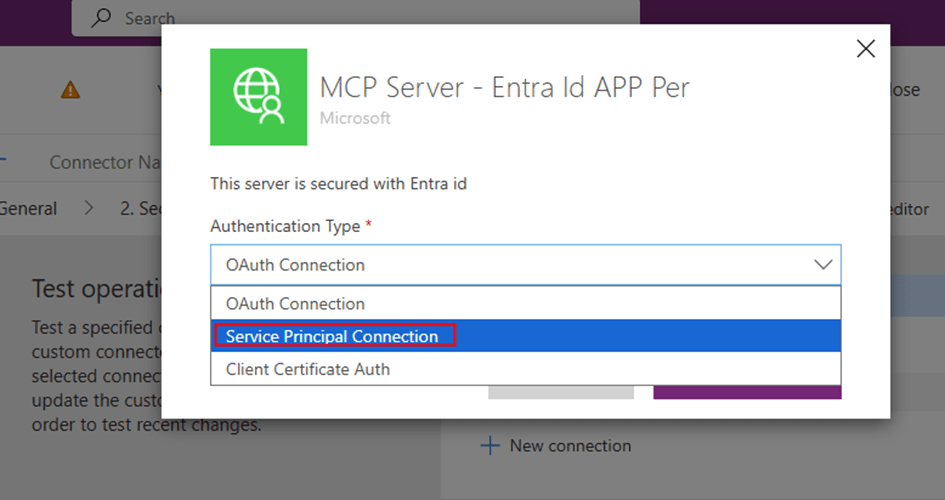
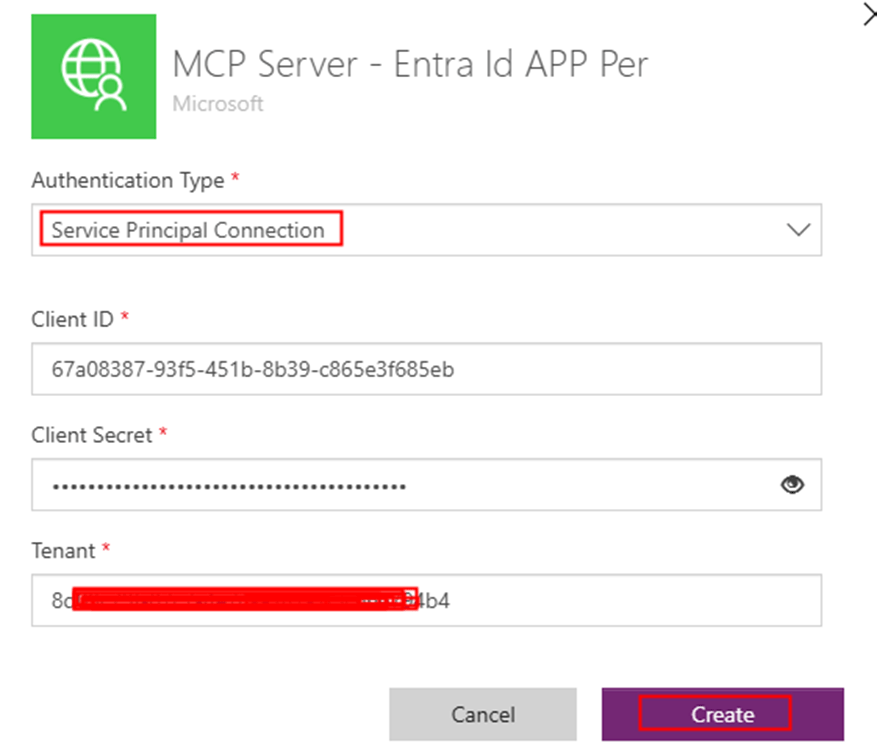
  • Create a new connection from the Test Tab in custom connector creation interface
  • Provide the below from your Copilot studio client app registration:
    • Client ID
    • Client Secret
    • Tenant ID

This creates a shared connection

Key difference:

  • No user login prompt
  • Connection is tied to service principal, not individuals

Step 5: Add MCP Server to Copilot Studio

Now go to Copilot Studio:

  • Open your agent
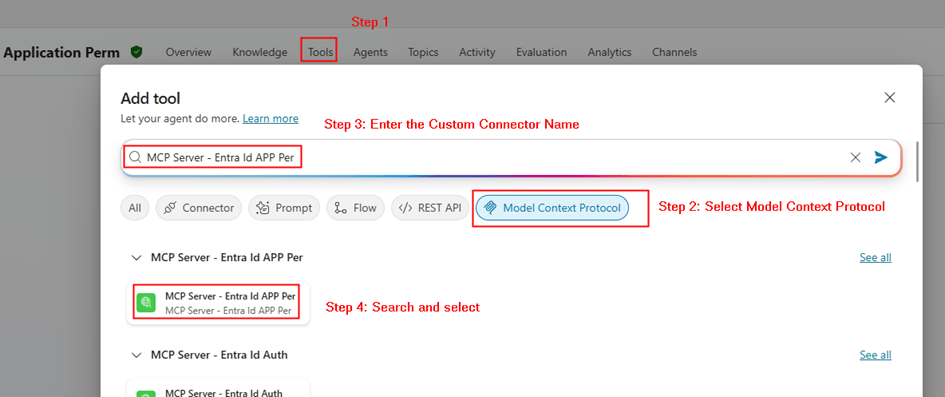
  • Add Tool → Browse existing MCP Servers
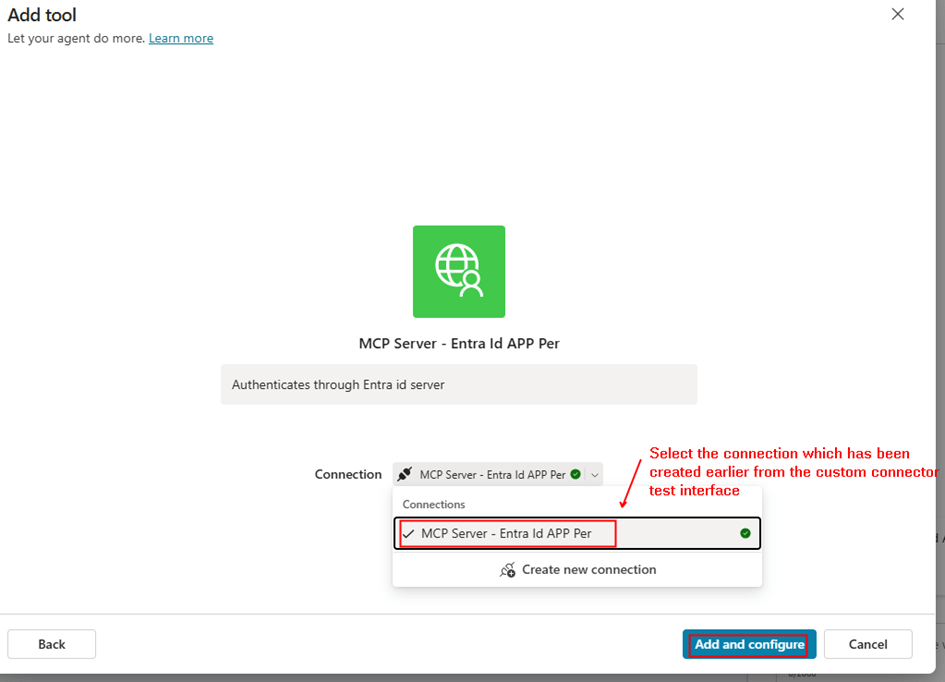
  • Select your MCP connector and the connection as below

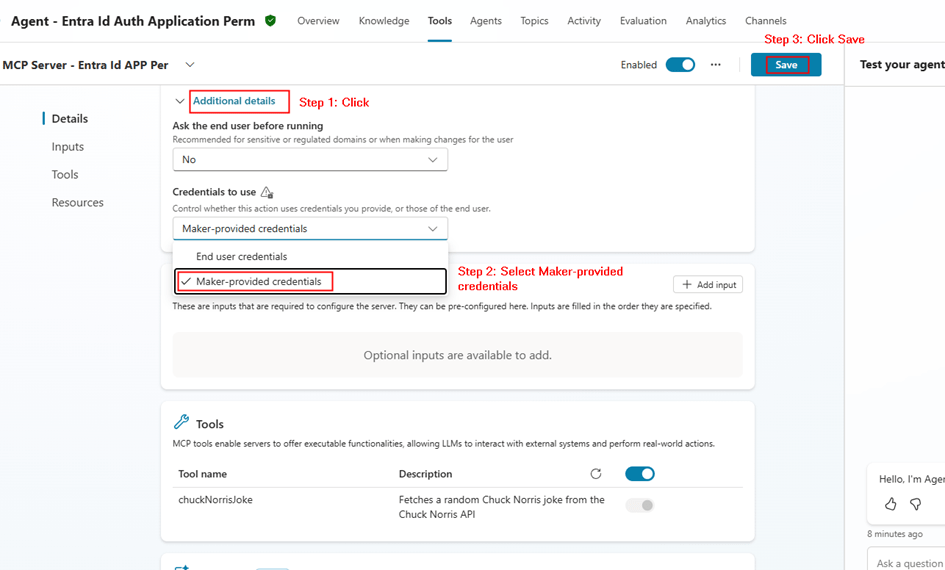
Important configuration in Copilot studio after the tool/MCP server is added:

  • Credentials to use: Maker provided
  • Save

This ensures:

  • The agent always uses the same connection
  • No per-user authentication required

Step 6: Test the MCP Agent

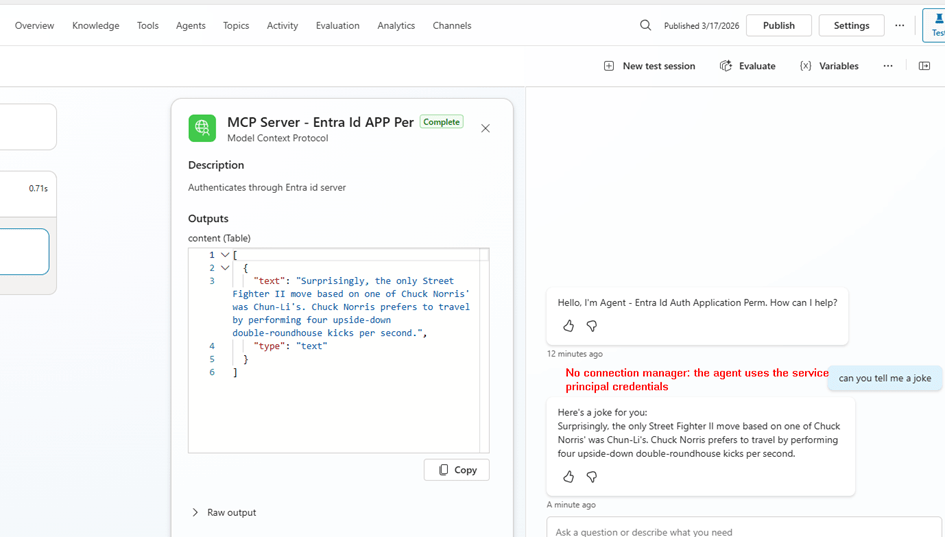
Now test your agent:

  • Invoke MCP tool
  • Verify response

You should see:

  • No login prompts
  • Consistent responses
  • Backend authentication working

Delegated vs Application Permissions

FeatureDelegatedApplication
IdentityUserApp
Token TypeUser tokenApp token
ConsentUser/AdminAdmin only
ConnectionPer userShared
Use CaseUser-specific dataBackground/shared APIs

Summary

In this post, we covered:

  • Securing MCP Server using application permissions
  • Creating app roles for application access
  • Assigning application permissions to client app
  • Creating custom connector in Power Platform
  • Using service principal connection
  • Adding MCP server to Copilot Studio via existing connector
  • Configuring maker-provided authentication

Why This Matters

Using application permissions is critical when:

  • You want centralized authentication
  • Your MCP tools don’t require user context
  • You want to avoid connection sprawl
  • You need consistent behavior across all users

This model is especially useful for:

  • Enterprise APIs
  • Shared automation tools
  • Backend integrations

Final Thoughts

Both delegated and application permission models have their place.

  • Use delegated when user identity matters
  • Use application permissions when it doesn’t

By implementing service principal authentication for your MCP Server, you enable:

  • Scalable architecture
  • Simplified connection management
  • Secure, app-driven integrations with Copilot Studio

Secure Your MCP Server with Entra ID Authentication for Copilot Studio

With the rise of AI agents and extensibility through MCP (Model Context Protocol), exposing your APIs and tools to agents like Copilot Studio is becoming increasingly common. But the catch – without proper authentication, you’re opening the doors to your enterprise data.

In this post, we’ll walk through how to secure an MCP Server using Microsoft Entra ID and consume it from Copilot Studio using delegated permissions.

We’ll be using this sample repo as a reference implementation: MCP-Server-Entra-Id-Auth

Introduction

MCP servers allow AI agents to invoke tools and APIs in a standardized way. When integrated with platforms like Microsoft Copilot Studio, they unlock powerful automation scenarios.

However, MCP servers are essentially OAuth 2.0 resource servers, and every MCP client (like Copilot Studio) acts as an OAuth client.

Why Securing Your MCP Server is Important

Without proper authentication:

  • Anyone with access to the endpoint could invoke your tools
  • Sensitive operations such as internal APIs may be exposed
  • No identity context → no auditing or governance

Modern MCP implementations rely on OAuth-based authentication, ensuring:

  • Identity-aware requests
  • Scoped access tokens
  • Secure communication between client and server

In enterprise scenarios, Entra IDbecomes the natural choice.

Prerequisites

Before we begin, make sure you have:

  • Access to a Microsoft Entra ID tenant
  • Access to Microsoft Copilot Studio
  • Basic understanding of:
    • OAuth 2.0 / Delegated permissions
    • App registrations
  • MCP server up and running (use the repo above)

Architecture Overview

We will configure:

  • MCP Server → Protected resource (API)
  • Copilot Studio → Client application
  • Entra ID → Identity provider

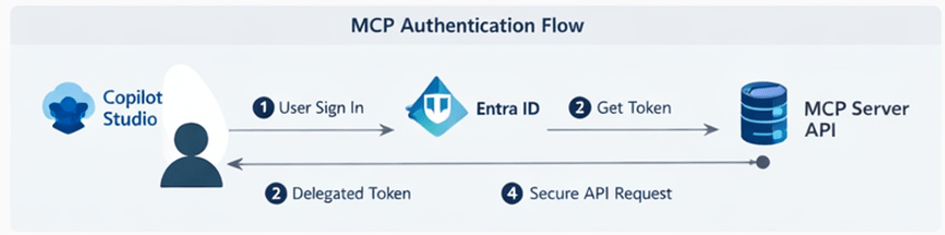
Flow:

  1. User signs in via Copilot Studio
  2. Copilot gets delegated token
  3. Token is sent to MCP Server
  4. MCP Server validates and processes request

Step 1: Create App Registration for MCP Server (Resource API)

Go to Entra ID → App registrations → New registration

Configure:

  • Name: MCP-Server-App
  • Supported account types: Single Tenant

    After creation:

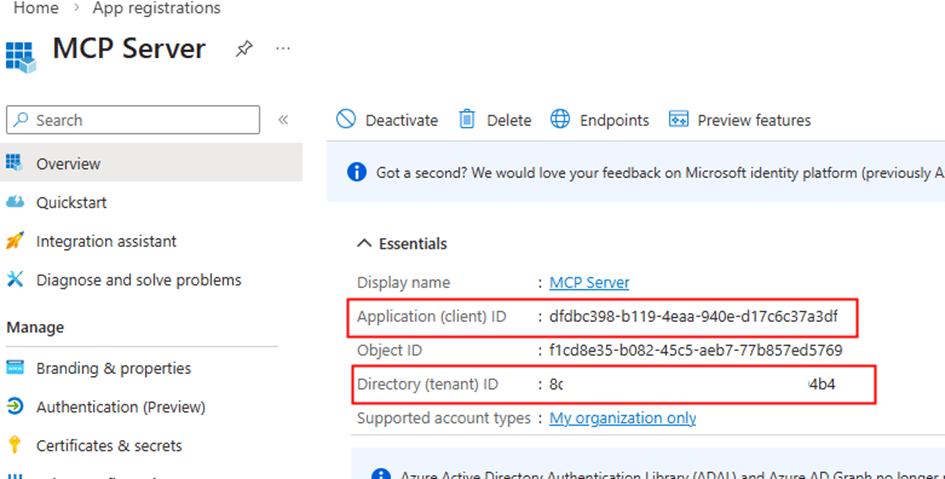
    1. Copy the Client Id, Tenant Id from the Overview section.

    Expose an API

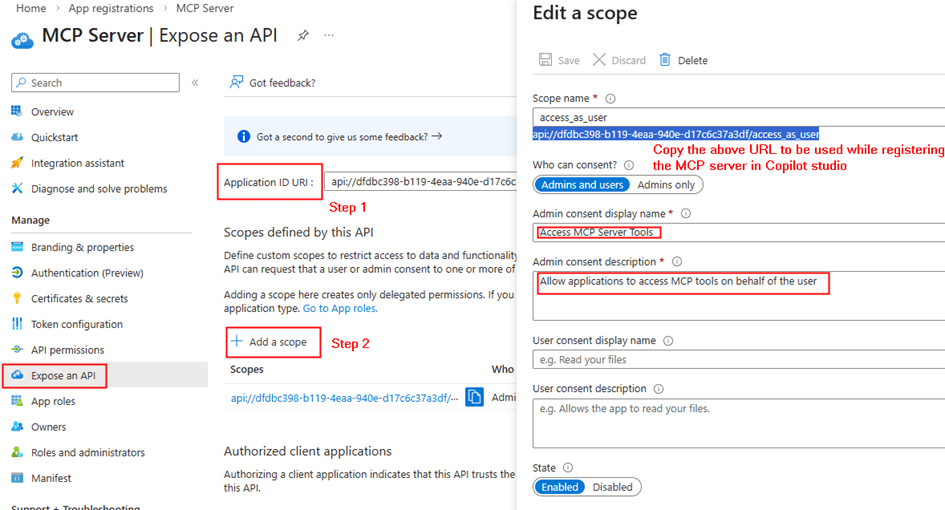
    1. Go to Expose an API
    2. Set Application ID URI (e.g., api://xxx-xxxx)
    3. Add a scope:
      • Name: access_as_user
      • Who can consent: Admins + users

      Configure Permissions

      • Add required Microsoft Graph delegated permissions (if needed) or remove it.

      This app represents your secured MCP Server

      Step 2: Configure MCP Server with Entra ID

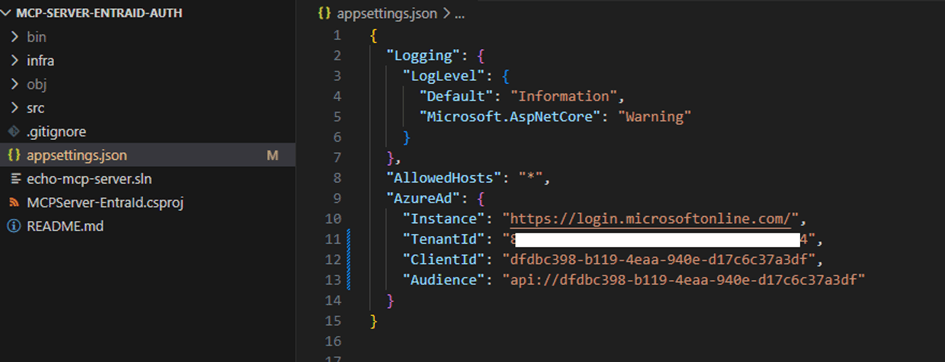
      In your MCP server, appsettings.json (from repo):

      Configure:

      • Tenant ID
      • Client ID (MCP Server app)
      • Scopes

      This allows the server to:

      • Validate incoming tokens
      • Optionally call APIs like Microsoft Graph

      Many MCP implementations use OAuth flows such as on-behalf-of (OBO)/delegates permissions to call APIs using the user’s identity.

      Step 3: Create App Registration for Copilot Studio (Client)

      Create another app:

      • Name: Copilot-MCP-Client
      • Supported Account Types: Single tenant only

      Configure:

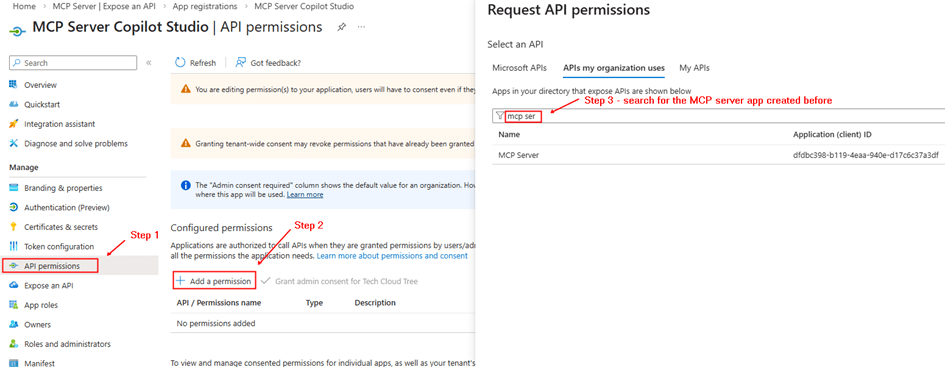
      API Permissions

      Add permission:

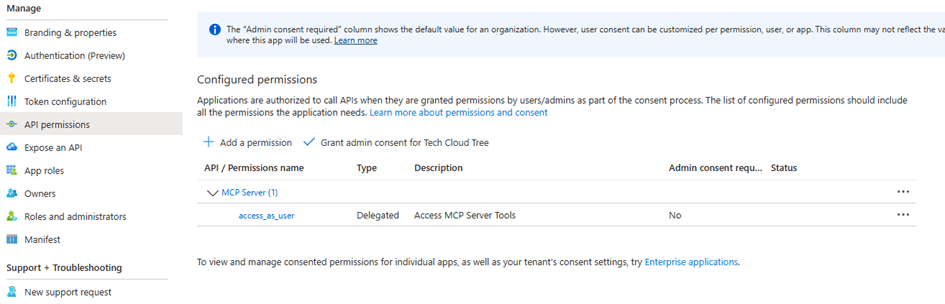
      • My APIs → MCP-Server-App
      • Select: access_as_user (delegated)

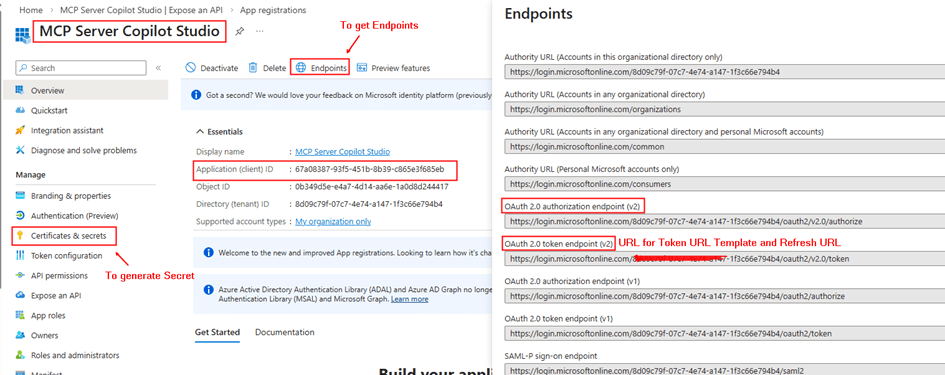
          Copy the Client Id, secret and the OAuth endpoints for adding the MCP server in Copilot studio interface.

          Grant Admin Consent

          This step is not Mandatory, if not provided an admin consent the user will asked for a consent with the permissions for the app while creating the connection to the MCP Server.

          Step 4: Add MCP Server in Copilot Studio

          Now comes the interesting part.

          In Copilot Studio:

          1. Go to Tools
          2. Click + Add a tool > Model Context Protocol
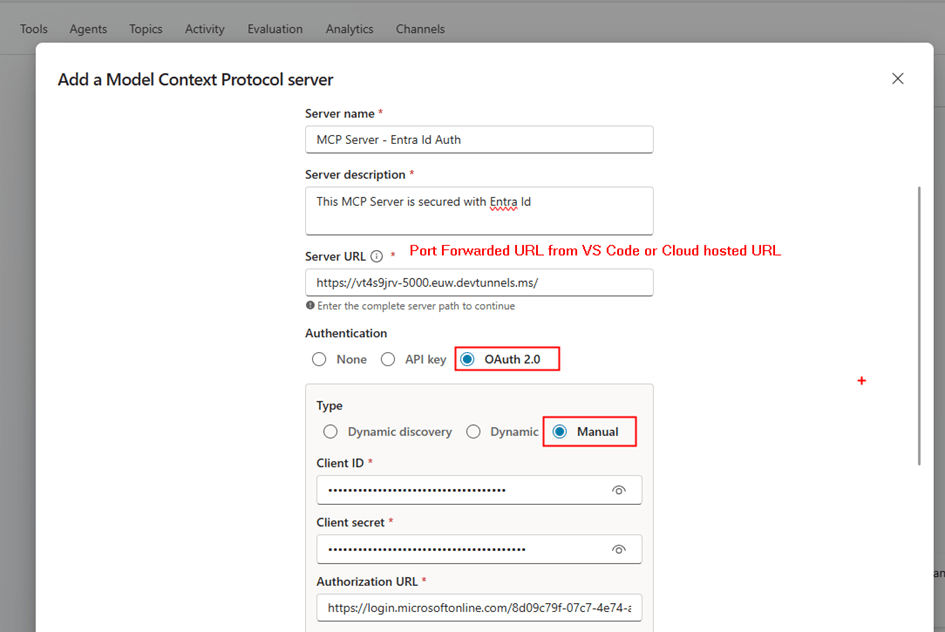
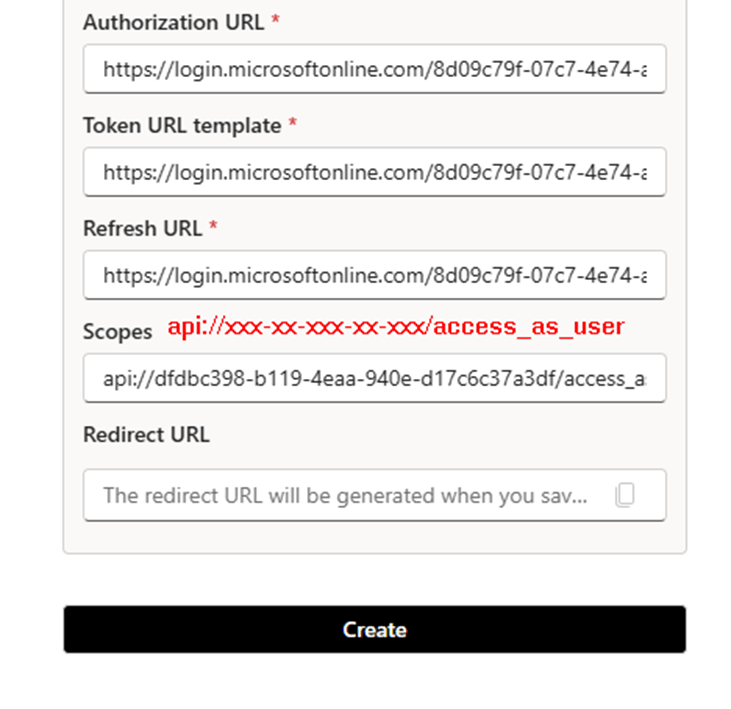
          3. Provide the details from the Copilot Studio Client app registration and MCP endpoint (e.g., /mcp or /)

          Copilot Studio will:

          • Create a custom connector behind the scenes

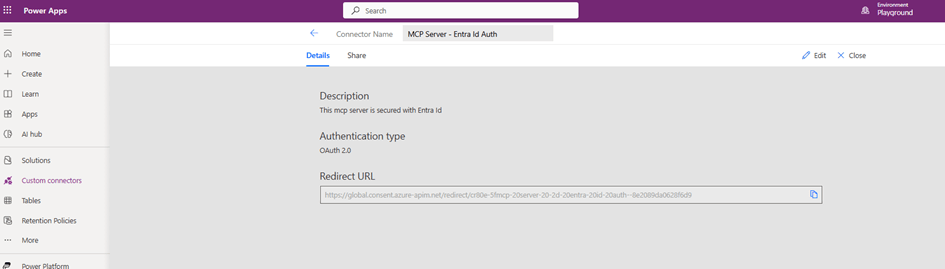
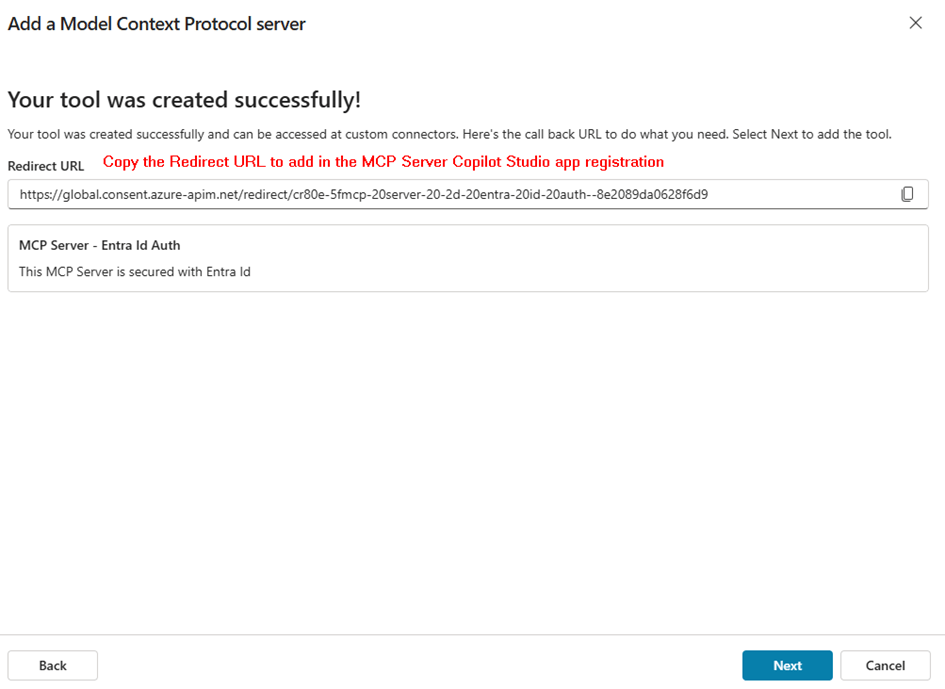
          On the next screen, you will get the link to the redirect url

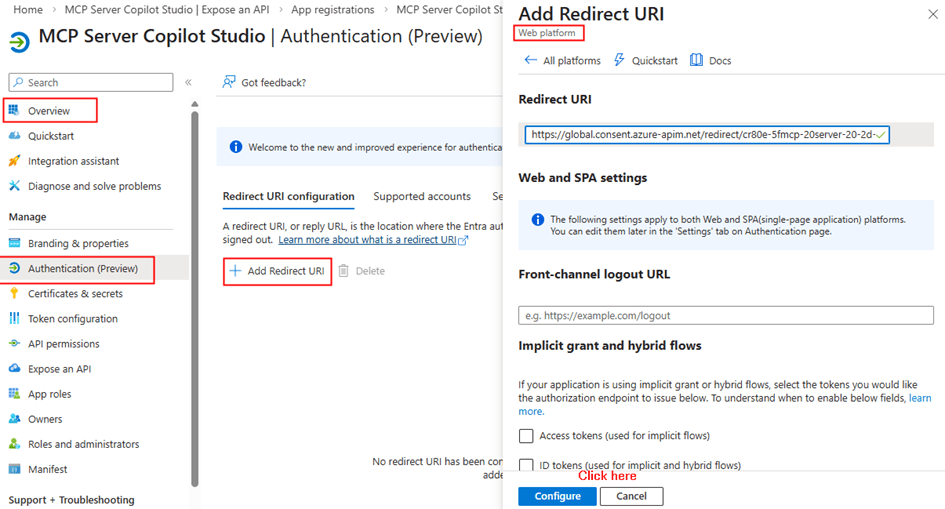
          Now go to the Copilot studio client app registration Authentication section under Manage blade

          • Add Redirect URI (important for Copilot Studio custom connector)
            • Example:

          https://global.consent.azure-apim.net/redirect/xxxx

          Step 5: Create the Connection

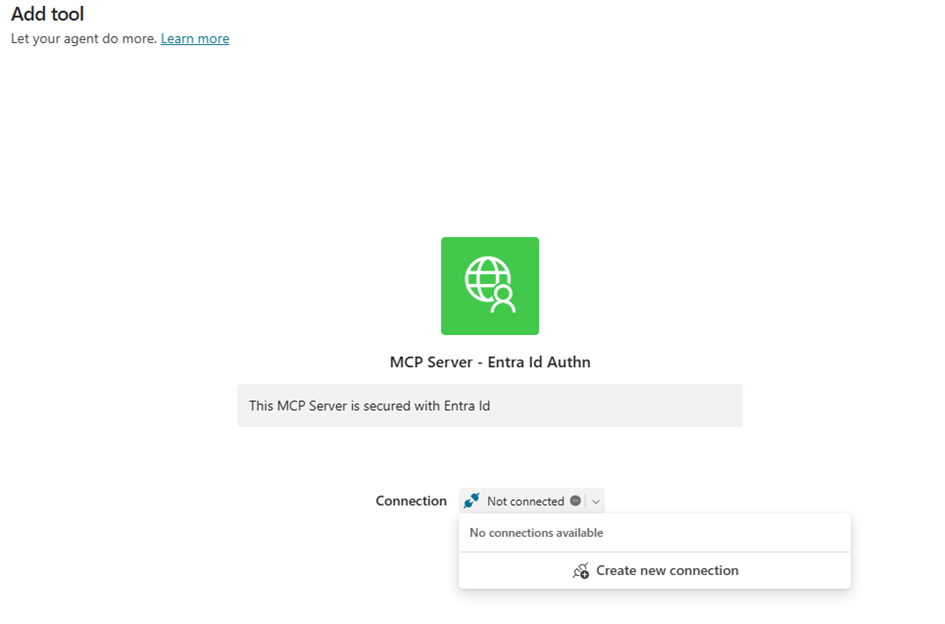
          Once the MCP server is added:

          1. Create new connection
          2. Copilot Studio prompts for authentication
          3. Sign in using Entra ID
          4. Consent to permissions

          This creates a connection instance tied to the user

          Now every MCP call:

          • Uses delegated access
          • Runs under the signed-in user context

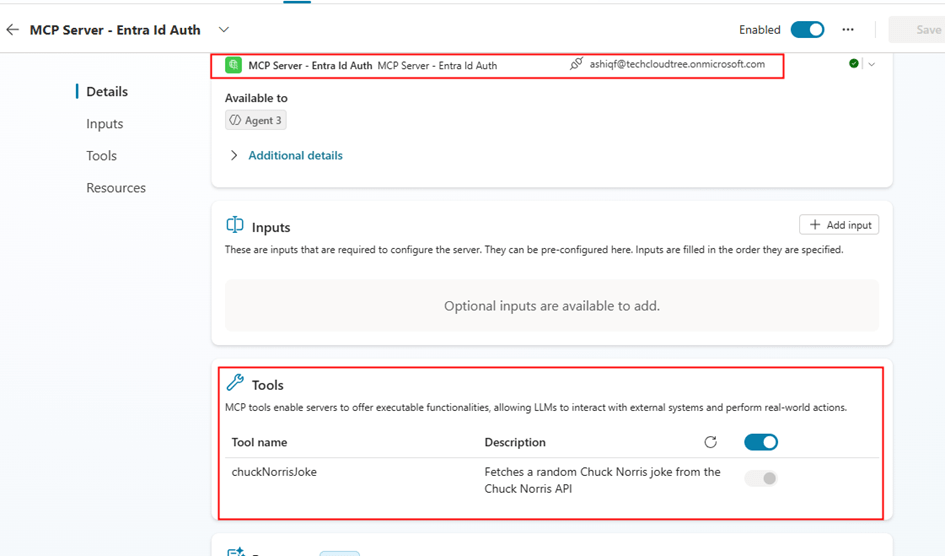
          Step 6: Test in Copilot Agent

          • Add MCP tool to your agent
          • Invoke a tool (e.g., get users, groups, etc.) with a prompt
          • Verify:
            • Authentication prompt
            • Successful execution
            • User-context data

          Delegated Permissions – Why It Matters

          This setup uses delegated permissions, meaning:

          • The MCP server acts on behalf of the user
          • Access is limited to what the user is allowed to do
          • No over-permissioning (unlike app-only access)

          This is critical for:

          • Enterprise governance
          • Least privilege access
          • Auditability

          Summary:

          In this post, we covered:

          • Why MCP servers must be secured
          • How OAuth + Entra ID fits into MCP architecture
          • Creating two app registrations:
            • MCP Server (resource)
            • Copilot Studio (client)
          • Adding MCP server in Copilot Studio
          • Automatic custom connector creation
          • Using delegated permissions for secure access

          Final Thoughts

          As MCP adoption grows, security is not optional – it’s a design requirement.

          By integrating Microsoft Entra ID with your MCP server:

          • You get enterprise-grade authentication
          • Seamless integration with Copilot Studio
          • Identity-aware AI agents

          And most importantly, you stay in control of your data.

          Text-to-Speech and Audio Playback in Power Apps using Azure and Power Automate

          Capabilities like text-to-speech (TTS) and audio playback can take your applications to new heights of user engagement and accessibility. In this blog post, we’ll look at integrating text-to-speech and audio playback functionalities into Power Apps using Power Automate and Azure Speech Services. Whether you’re looking to provide dynamic narration, streamline communication, or enhance accessibility, this post will walk you through the steps to integrate TTS capabilities into your Power Apps projects.

          Prerequisites:

          Before you begin, ensure that you have the following prerequisites in place:

          • Maker role in Power Platform environment
          • Premium License – HTTP Connector
          • Azure Subscription Access
            • Azure Speech services – Text to speech

          Creating Speech Services in Azure for Text to Speech:

          Azure provides Speech Services that enable developers to integrate advanced speech capabilities into their applications, including Text to Speech (TTS). With Azure Speech Services, you can convert text into speech in various languages and voices.

          Step 1: Create the resource Speech services in the Azure Portal

          Step 2: Copy the Key from the Keys and Endpoint section within the Resource Management blade. This Key is used for authentication when making requests to the Speech service APIs, enabling text-to-speech conversion in the Power Automate flow through the HTTP connector.

          Step 3: Go to the Speech Studio to choose a voice from the gallery provided in Text to Speech section. Alternatively, you can create a custom voice using your own audio recordings. The Speech Studio can also be accessed from the Overview section of the Speech service in the Azure portal.

          Power Automate Flow to convert the text to speech:

          The Power Automate serves as a tool in orchestrating the integration between Power Apps and Azure Speech Services, enabling communication between the components. Create an Instant Power Automate flow with the trigger “PowerApps (V2)” either from the Power Automate portal or directly from the Power Apps maker interface. Add a text input varTextInput as shown below to send the text from the Power Apps

          The next step involves converting the text to speech/audio utilizing the Text to Speech REST API through the HTTP connector action. Add the HTTP action with request details as below

          Method: POST

          URI: Depending on the region where you’ve created the Azure Speech resource, select the corresponding Rest API endpoint from the list in the Microsoft documentation. For instance, if the Speech Service resource is created in West Europe, the URL will be:

          https://westeurope.tts.speech.microsoft.com/cognitiveservices/v1

          Headers:

          Ocp-Apim-Subscription-KeyKeyCopiedEarlierfromtheAzureSpeechResource
          X-Microsoft-OutputFormatriff-24khz-16bit-mono-pcm
          User-AgentapplicationName
          Content-Typeapplication/ssml+xml

          Body:

          <speak version='1.0' xml:lang='en-US'><voice xml:lang='en-US' xml:gender='Female'
          name='en-US-JennyNeural'>
          @{triggerBody()['text']}
          </voice></speak>

          In the request body, add the varTextInput included to the Power Apps trigger. I have added the voice en-US-JennyNeural, you can select it from the voice gallery as discussed above.

          Next, add a Compose action to convert the audio generated from the HTTP action into base64 format. This will serve as the text output passed in the Respond to a PowerApp or flow action, as shown below:

          Base64AudioContent compose action expression: base64(body(‘HTTP-TexttoSpeech’))

          Save the flow.

          Power Apps for Text Narration:

          Let’s develop the app for the text narration feature, where users can input text to be converted into audio using the Power Automate flow created earlier. On the Canvas, add a Text Input control for entering the desired text, an Audio control to play the audio generated from the Azure text-to-speech service, and a button to trigger the Power Automate flow. Make sure the flow is added to the Power Apps. Add the following code to the OnSelect property of the button

          // Reset the Audio1 control to its default state, clearing any previous audio.
          Reset(Audio1);

          // Run the TexttoSpeechFlow Power Automate flow, passing the text from TextInput1 as input.
          // Store the result (converted audio) in the varconvertedAudio variable.
          Set(varconvertedAudio, TexttoSpeechFlow.Run(TextInput1.Text));

          // Set the playAudioContent variable to false, ensuring that any previous audio playback is stopped.
          Set(playAudioContent, false);

          // Set the playAudioContent variable to true, triggering playback of the newly converted audio.
          Set(playAudioContent, true);

          The variable playAudioContent will be used in Audio control Star property to play the audio automatically

          The Media property of the Audio control should have the following formula, depending on the output variable added in the ‘Respond to PowerApps or flow’ action of the Power Automate flow

          "data:audio/x-wav;base64,"&varconvertedAudio.varaudiocontent

          The x-wav is the format of the generated audio from the Text to Speech REST API in the Power Automate flow which can be validated from the output of the HTTP action HTTP-TexttoSpeech

          You are now ready to test your app.

          Summary:

          By combining the power of Power Automate and Azure Speech Services developers can quickly integrate text-to-speech and audio playback functionalities into their Power Apps. Hope you have found this informational & thanks for reading. If you are visiting my blog for the first time, please do look at my other blogposts.

          Do you like this article?

          Subscribe to my blog with your email address using the widget on the right side or on the bottom of this page to have new articles sent directly to your inbox the moment I publish them.