Call Microsoft Graph API in Power Apps and Power Automate using a Custom connector

Microsoft graph is the gateway to data and intelligence in Microsoft 365 which connects multiple services like SharePoint, Teams, Planner etc and devices. Microsoft graph has one common endpoint that is RESTful Web API enabling you to access Microsoft Cloud service resources. With that said if you want to communicate with Microsoft Graph Services or any API services, custom connectors can be used to address needs which are not available as prebuilt connectors in Power Apps and Power Automate. The purpose of this blog post is to show how to

  • Create & setup Custom Connector to call Microsoft Graph API
  • Call Microsoft Graph API in Power Apps using custom connector
  • Call Microsoft Graph API in Power Automate using custom connector

Custom connector supports the following authentication types

  • Anonymous (No Authentication)
  • Basic Authentication (UserName & Password)
  • API Key
  • OAuth 2.0

As of the time I am writing this article, custom connector supports only authentication flow Authorization code & not client credentials. If you use OAuth 2.0, it means you can use only delegated permissions & not application permissions as permission type in the custom connector. To be more precise, the logged in user from PowerApps or flow actions/trigger connection user should have access to the resource to be accessed from Microsoft Graph & cannot access the resource as a daemon app (Application Permission). Find below the pre-requisite for the custom connector

  1. Premium Plan (App/user based) for all users intended to use the custom connector in Power Apps or Power Automate. To test the custom connector you can also get a community plan if you do not have a premium plan.
  2. Access to register Application in Azure AD portal

Create & setup Custom Connector to call Microsoft Graph API:

Custom connector can be created from Power Apps maker portal or Power Automate portal. Custom connector created from any of the above-mentioned interfaces can be used in a Power App or Power Automate cloud flow. A custom connector is nothing but a wrapper around a REST API that allows Power Apps or Power Automate and Azure Logic Apps to communicate with that REST API.

Azure Active Directory Application:

To access the Microsoft Rest API there must be an Azure AD app registered with appropriate graph permission intended for the operations through a custom connector. For this example I have registered an AD application with the following delegated permissions

  1. Calendars.Read
    • To display the users recent events in Power Apps gallery control
  2. Sites.Manage.All
    • To create a New list item in SharePoint list from Power Apps and Power Automate
  3. User.Read
    • To display users profile information from an Extension Attribute in Power Apps

Obtain the Client ID from the Overview section of the Azure AD app and create a secret from the Certificates & secrets under Manage blade. Once the secret is created, copy the value to be used in the custom connector.

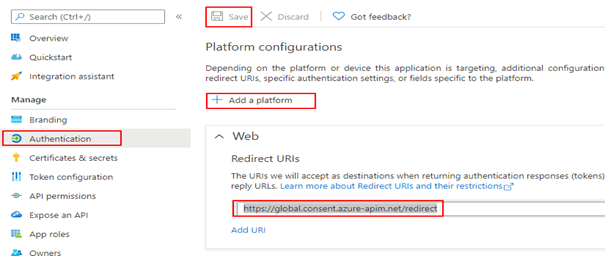
Add a Web Redirect URI https://global.consent.azure-apim.net/redirect as shown below

The Redirect URI is common and will be created while creating the custom connector. Now we are ready to create the custom connector, go to Power Automate portal and expand Data on the left panel > Custom connectors > + New custom connector > Create from blank

After entering the connector name, you will get the below screen. Do not have the word SharePoint part of your connector name to avoid issues.

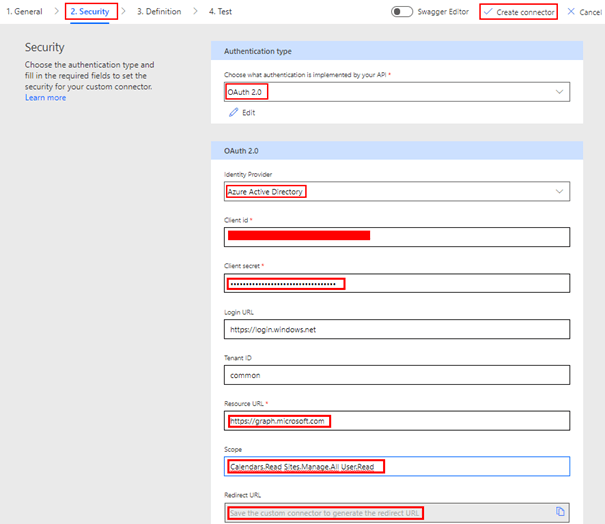
Enter graph.microsoft.com on Host and some description about the connector. You can also change the logo to a custom one. Now click Security on the right bottom corner to enter the Azure AD application information for the OAuth 2.0 authentication type. Under the section OAuth 2.0

  • Change the Identity provider to Azure Active Directory
  • Enter the Client id & Client secret of the Azure AD application
  • Leave the Login URL as https://login.windows.net & Tenant ID as common
  • Enter the Resource URL as https://graph.microsoft.com
  • Enter the Scope as Calendars.Read Sites.Manage.All User.Read based on the permissions you have added on the Azure AD app. Leave a space between each permission

After the above information is filled in, click Create connector which will autogenerate the Redirect URL https://global.consent.azure-apim.net/redirect. This is the URL we have added as a Redirect Web URI in the Azure AD application. The connector is now ready to add actions based on Graph API endpoint to

  • Get users recent events from the users default Outlook calendar
  • Create a List item in SharePoint List
  • Get users custom extension attribute from users Active directory profile

Get users recent events from the Outlook calendar:

The Graph API to get the logged in users list of recent calendar events is

Http Request Mode: GET

Request URI: https://graph.microsoft.com/v1.0/me/calendar/events

After the custom connector is created in the above step, now click the Definition tab of the Custom Connector > click + New action which will create the following screen to enter information about the action

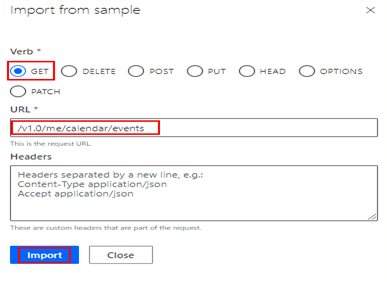
After the Summary, Description and Operation ID is entered. Click + Import from sample under the Request section to the enter the Graph API endpoint url https://graph.microsoft.com/v1.0/me/calendar/events.

It is Okay to exclude the url https://graph.microsoft.com since we have provided the information in the Security tab.

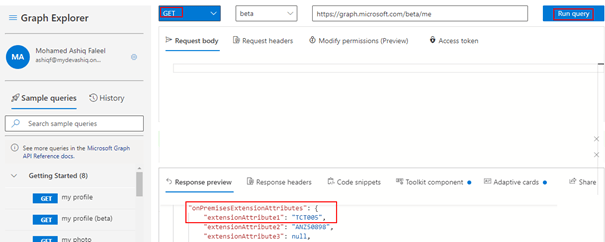
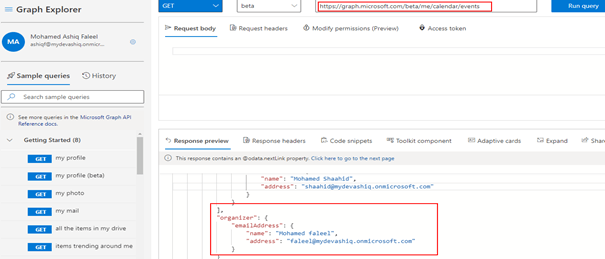
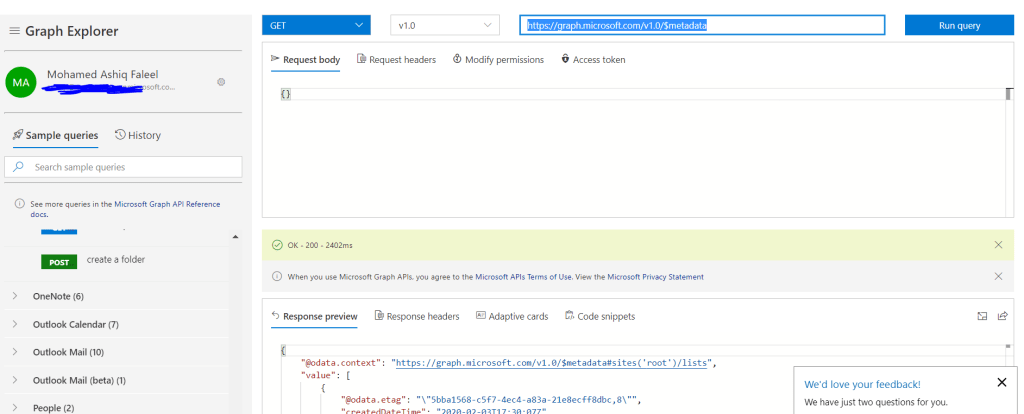
Now we are ready to provide default response for the action. To get the request response sample for the graph api endpoint, SignIn to the Graph Explorer with your organizational ID to copy the response of the API request to be used in the custom connector action

After running the query in the graph explorer tool, copy the whole content (CTRL+A) from the Response preview section as shown on the above screenshot. If there is any error related to permissions while executing the http request in the explorer tool, make sure you have consented to the permissions in the Modify permissions tab.

Click + Add default response and then paste the content copied from the graph explorer tool on Body as shown below

Click Import and then click Update connector. Let us add the second action to create a list item in a SharePoint list

Create a List item in SharePoint List:

The graph API to create a List item in a SharePoint List is

Http Request Mode: POST

Request URI: https://graph.microsoft.com/v1.0/sites/siteId/lists/listId/items

You should replace the SiteId and listId in the above URL. Easy way to get the ListId and SiteId is by viewing the Viewing the page source of the SharePoint site with the list open

Request Body:

For this example I have a SharePoint list with a default column Title and a single line of text column by the name Location.

{
  "fields": {
    "Title": "Widget",
    "Location": "Stockholm"
  }
}

Once again click + New action on the Definition tab to add an action for creating a new list item.

After the Summary, Description and Operation ID is entered click + Import from sample under the Request section to the enter the Graph API endpoint url with the Verb now selected as POST and the request body or payload

Click Import. To get the request response sample for the graph api endpoint, go to the graph explorer to copy the request response as shown below for the above POST request to create the list item

Click + Add default response and then add the response copied from the graph explorer tool on the Body section as shown below

Click Import button and then click Update connector. Let us add the second action to read the users active directory profile to extract extension attribute information

Get users custom extension attribute from users Active directory profile:

On my tenant I have added additional properties on extension attribute in Azure AD profile of the user & displayed them on the User profile card using the profile card graph API. The graph API to get the extension attribute information of the user is in Beta as of now

Http Request Mode: GET

Request URI: https://graph.microsoft.com/beta/me

Once again click + New action on the Definition tab to add the third action for getting the users profile information from Azure active directory.

After the Summary, Description and Operation ID is entered click + Import from sample under the Request section to the enter the Graph API endpoint url with the Verb selected as GET

Click Import. Go to the graph explorer to copy the request response for the GET request for https://graph.microsoft.com/beta/me and then click + Add default response to paste the request response copied from the graph explorer tool. Click Import button and then click Update connector. We have till now added three actions which can be tested in the same interface

Test the Action:

To test the different actions added in the connector, click the Test tab and then click + New connection.

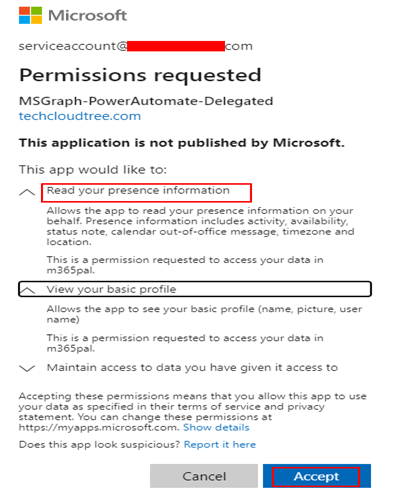
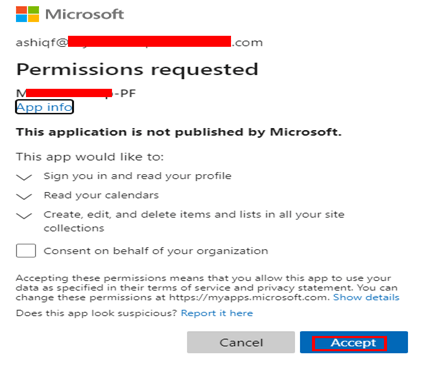
You will be prompted to sign in using the Organization ID and provide a consent for the permissions requested as a scope on the custom connector.

After the connection is created, you can test the different actions available as shown below for one of the action CreateListItem in SharePoint

The custom connector creates the Swagger definition, you can also view and update the Swagger definition by turning on Swagger Editor

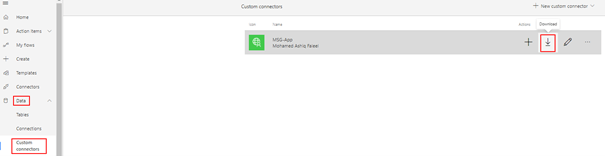
If you look at the security definitions in the above screenshot for the connector we have created till now, the authentication flow used to authenticate the user is Authorization code which supports only delegated permissions and not application permissions in MS Graph. The Swagger definition file can be downloaded from interface shown below

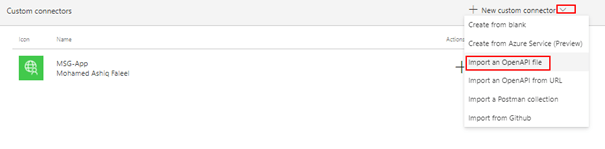
The Swagger definition file can be used to re-create the custom connector by clicking the Down arrow and then by clicking Import an OpenAPI file. On the popup window enter the Connector Name and select the downloaded Swagger file to recreate the connector after filling in information on the Security tab.

You download the Swagger definition file of the custom connector with the above mentioned actions from this github link.

Call Microsoft Graph API in Power Apps using custom connector:

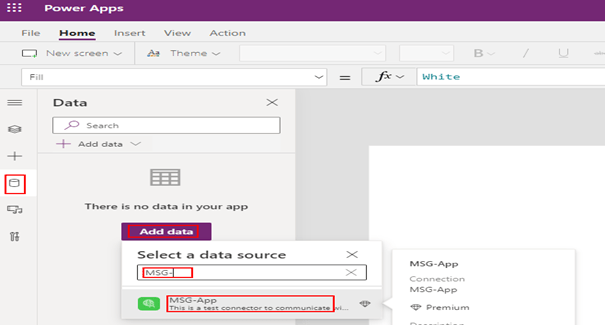
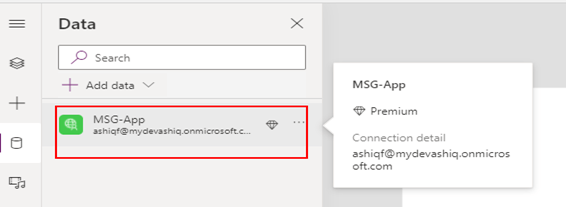
To call a custom connector in Power Apps, the first step is to add the connector to the Power App by the app maker. Click Data on the left panel and then click the button Add data > look for the connector by the name > Click the connector name to create a connection.

Once the connection is created & added, you will be able to use it in the different controls added to the app

I added the following controls to

  1. Label – To display the Extension attribute of the user from the action GetUserProfile
  2. Gallery – To display the users recent calendar events from the action
  3. Button – To create new item on the list and to get information from Graph about the user calendar events and to get the users AD profile

A Button control to load the data from Microsoft Graph GET actions GetUserProfile &  GetMyEvents on a context variable.

UpdateContext({userProfileData:'NameoftheConnector'.GetUserProfile(),userCalendarEvents:'NameoftheConnector'.GetMyEvents().value})

Once we have the data loaded on the context variable using the OnSelect button click event, the data can be displayed on different controls. Use the graph explorer tool to validate the response of the request and to help with display the data on a control. Find below the response for the me endpoint which provides the profile information of user including the extension attribute.

To display the Extension attribute1 information on a label control, the code is

userProfileData.onPremisesExtensionAttributes.extensionAttribute1

I have added a gallery control to display the calendar events. First step is to bind the gallery control to the context variable (userCalendarEvents) using Items property of the control

Items: userCalendarEvents

On the gallery control fields

field1: ThisItem.subject

field2: ThisItem.organizer.emailAddress.name

For constructing the above formula (Field1 and Field2) for displaying the information on the different fields in the control, graph explorer response preview will help you

I have added a button control to create the list item using the action CreateListItem with the following formula on the OnSelect event

'NameoftheConnector'.CreateListItem({fields: {Title: "Mohamed Ashiq Faleel",Location:"Sunbyberg"}});

Reference: https://docs.microsoft.com/en-us/powerapps/maker/canvas-apps/functions/function-json

Once the Power App is shared with other users

  • Connecter will be shared along with the app
  • The user has to create a connection to the Custom Connector & provide consent for the Graph permission (User.Read Sites.Manage.All Calendars.Read) for the first time
  • The users of the app should have premium license (App/user based)

Call Microsoft Graph API in Power Automate using custom connector:

To use a custom connector by a user in a flow Instant/Scheduled/Automated, it

  • Must be shared to the user by the custom connector Owner/creator
  • Premium license for the flow user
  • Consent to be provided for the graph permissions. The consent can be individual or admin consent

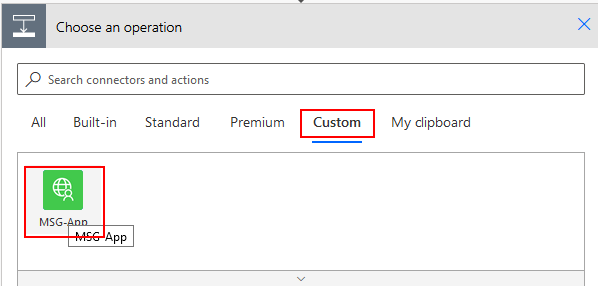
Add the action to the flow by clicking Custom and then select the custom connector as shown below

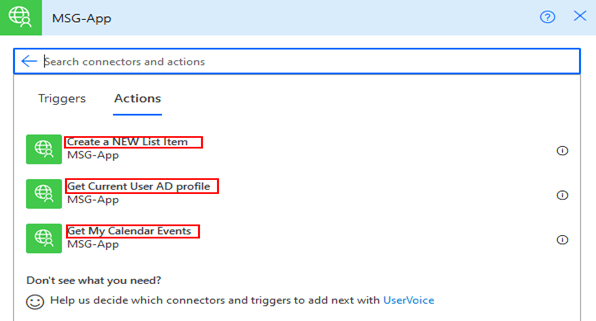
Now select the action

It will ask you to Sign In to create the connection and there will be a prompt to provide consent to the permission for the AD application for the first time as shown below

Enter the parameter values to create the list item

Summary: Microsoft Power Apps and Power Automate are great and simple to get started with no code. If you are a pro developer and want to extend the capabilities with Microsoft Graph & other external/custom RESTFul API’s you can do so with the custom connector. Hope you have found this informational & thanks for reading. If you are visiting my blog for the first time, please do take a look at my other blogposts.

How to use Microsoft graph SharePoint Sites.Selected application permission in a Azure AD application for more granular control

As per this announcement made on Feb 2021, Microsoft graph now provides option to have granular permissions level using Sites.Selected application permission for the AD application instead of granting permission for all the sites in the tenant. The permission Sites.Selected does not provide access to any SharePoint site collections for the application unless the AD application has been assigned with permission roles read or write by an Admin. On this post let us see how to grant a site permission (Read or Write) to an AD Application with Sites.Selected permission by using postman client. As of the time I am writing this post there is no user interface to assign permissions to specific site collections for the application.

Pre-Requisite:

  1. Register Azure AD Application (APP 1) in Azure AD Portal with the following permissions
    • Sites.Selected (Admin Consented)
  2. Another AD Application (APP 2) with following permission only for the admins to assign selected roles to the above App
    • Sites.FullControl.All (Admin Consented)

App Registration:

Start with registering the above said two Azure AD applications

APP 1:

Register an Azure AD application with the following permission

APP 2 (Admin App):

Another app for admins for granting roles to APP 1

Grant permission role to the SharePoint site for the Azure AD Application:

This step is grant permission for the Azure AD application with Sites.Selected application permission to a given site collection. Perform the following steps to grant the role (Read/Write or Read and Write) to the AD app (APP 1)

  1. Gather the Client ID, Tenant ID and Client secret of the admin app
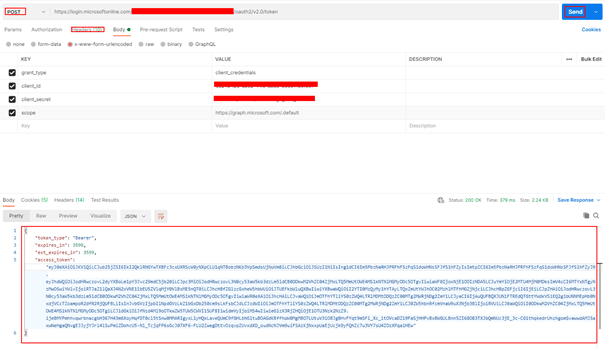
  2. In PostMan, make a HTTP request to generate the access token for the admin app – APP 2

Request Method: POST

Request URL: https://login.microsoftonline.com/yourtenantID/oauth2/v2.0/token

Request Header:

Key: Content-Type

Value: application/x-www-form-urlencoded

Request Body:

grant_type: client_credentials

scope: https://graph.microsoft.com/.default

client_id: adminappclientid

client_secret: adminappclientsecret

  1. Copy the access_token to be used for granting roles.
  2. Get the Client ID of the Azure AD Application – APP 1 with Sites.Selected permission
  3. Decide on the Role (Read or Write) for the granting the Site specific role for the APP 1 with Sites.Selected permission.
  4. Get the SiteId of the SharePoint site to be assigned permissions for the application (App 1). An easy way to get the siteId is by viewing the page source from the browser with the site open.
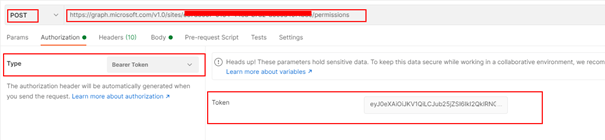
  5. In PostMan, make a HTTP request to grant the site role to the APP 1. Replace the siteId with the actual siteId which will be a guid

Request Method: POST

Request URL: https://graph.microsoft.com/v1.0/sites/siteId/permissions

Request Header:

Key: Content-Type

Value: application/json

Request Body: raw

Replace the id with APP 1 client id and the display name of the APP 1

{

  "roles": ["write"],

  "grantedToIdentities": [{

    "application": {

      "id": "xxxxxx-APP1GUID-4ad9-xxxx-4d36e68b0454",

      "displayName": "AppNamewithSelectedPermissions-App1"

    }

  }]

}
  1. Paste the access token on the token box as shown below with Authorization type selected as Bearer Token
  1. Send the request for granting the role for APP 1. After the request is made the APP 1 with the Sites.Selected permission has access to the site with write role we have granted to. The same way you can assign app access to multiple SharePoint sites.

Grant the Role using PnP PowerShell:

There is a PnP PowerShell cmdlet to grant access to SharePoint site for the registered AD application with Sites.Selected permission. The command to grant permission can be executed by the Site Collection administrator after creating a connection to the site

Connect-PnPOnline https://tenantname.sharepoint.com/sites/siteName -Interactive

You will be prompted to enter credentials including the second factor. After the connection is created, enter the following command to grant Write permission to the AD App

Grant-PnPAzureADAppSitePermission -AppId 'AzureAppIdwithSitesdotselectedpermission' -DisplayName 'App Name here' -Site 'https://tenantname.sharepoint.com/sites/sitename' -Permissions Write

To install PnP PowerShell module on the local workstation, enter the following command

Install-Module -Name PnP.PowerShell

There is also a PnP cmdlet to register an AD app in the Azure Active directory.

Grant the Role by an Admin using the Graph Explorer tool:

Role can also be assigned by an admin with out having the admin AD app (APP 2) using the graph explorer tool. This can be done only by an Admin

If there is any error related to permissions, make sure the admin consents to Sites.FullControl.All for the Graph tool. There is also an SPFx community webpart developed by a community member with User Interface for this operation

https://github.com/pnp/sp-dev-fx-webparts/tree/master/samples/react-sites-selected-admin

Reference:

Assign permission role programmatically: https://docs.microsoft.com/en-us/graph/api/site-post-permissions?view=graph-rest-1.0&tabs=csharp

Summary:

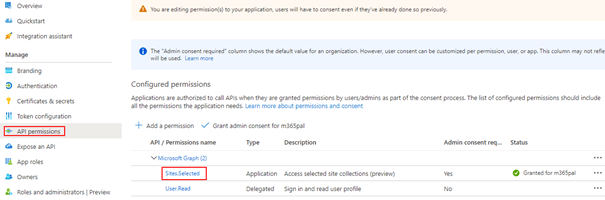
On this post we have seen how to grant access to Azure AD which has the Sites.Selected permission. You can also grant permission/role to an app with sites.selected permission programmatically. If you are using SharePoint API instead of Graph API in the Azure AD app registration, Sites.Selected is available on Application Permission as shown below

Hope you have found this informational & thanks for reading. If you are visiting my blog for the first time, please do look at my other blogposts.

Do you like this article?

Subscribe to my blog with your email address using the widget on the right side or on the bottom of this page to have new articles sent directly to your inbox the moment I publish them.

Find the Microsoft 365 account license and service details for a user using Microsoft Graph API

Is there a need to find the type of Microsoft 365 license and the different services assigned for a user to troubleshoot an issue related to the service they have been assigned? You have come to the right place, this post will help you find the details using the Microsoft Graph API endpoints. In Microsoft 365, licenses from licensing plans also known as SKUs give users access to the Microsoft 365 services that are defined for those plans. To find the details, there are endpoints in Graph which gives you those details

GET https://graph.microsoft.com/v1.0/me/licenseDetails

GET https://graph.microsoft.com/beta/me

Microsoft Graph Explorer:

There are various tools to make request against different graph endpoints but here I will be using Microsoft Graph Explorer tool.

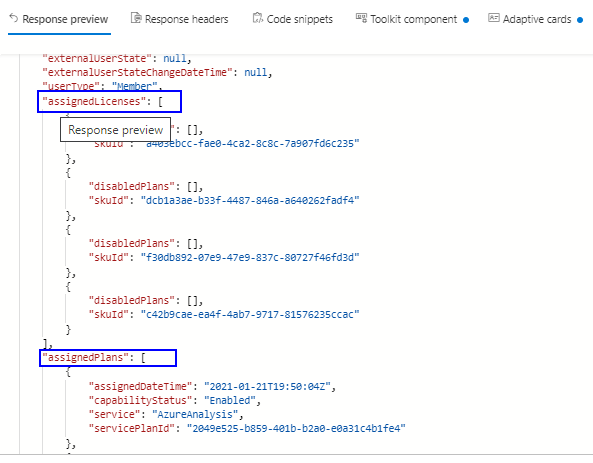
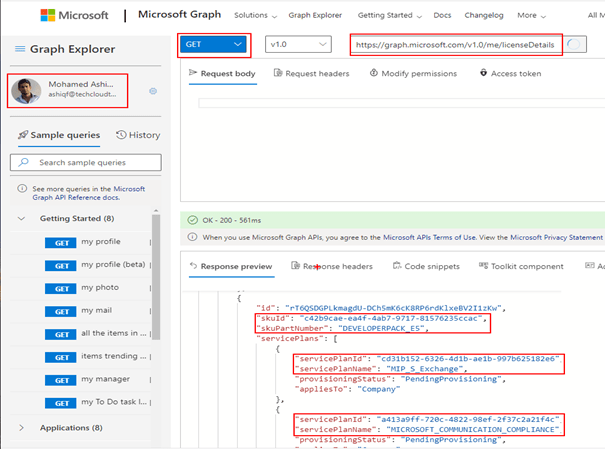
After you login to Microsoft Graph Explorer tool, make a request to any of the above given endpoints. Find below screenshot for the GET request to the endpoint me/licenseDetails

In the above picture, the sku Id is nothing but the Microsoft 365 license plan and the service plans array shows list of the Microsoft 365 Services (SharePoint, Power Apps, Power Automate, Exchange, Yammer etc) enabled for the user. If there are multiple license assigned for the same user then you get the list as an array with different skuid’s.

For reference, here are some of the most common sku id information that you might need:

NameID
Office 365 E118181a46-0d4e-45cd-891e-60aabd171b4e
Microsoft 365 E305e9a617-0261-4cee-bb44-138d3ef5d965
Microsoft 365 E506ebc4ee-1bb5-47dd-8120-11324bc54e06
E5 Developer Licensec42b9cae-ea4f-4ab7-9717-81576235ccac
Microsoft 365 F117b4a1d6-2c65-478e-a046-51cf40d25d76
Power BI (Free)a403ebcc-fae0-4ca2-8c8c-7a907fd6c235
Flow Freef30db892-07e9-47e9-837c-80727f46fd3d

Here are some of the most common Service plan Id information:

NameID
SharePoint Online5dbe027f-2339-4123-9542-606e4d348a72
Yammer7547a3fe-08ee-4ccb-b430-5077c5041653
Power Apps9c0dab89-a30c-4117-86e7-97bda240acd2
Power Automate07699545-9485-468e-95b6-2fca3738be01
AAD Premium 2eec0eb4f-6444-4f95-aba0-50c24d67f998
Exchange Onlineefb87545-963c-4e0d-99df-69c6916d9eb0

For more information on the different Microsoft 365 license & service details, refer the below link

https://docs.microsoft.com/en-us/azure/active-directory/enterprise-users/licensing-service-plan-reference

The beta/me endpoint also gives information on the licenses & service plans:

To get this information for a different user, make a get request to the following endpoint with the user ID

To get the information for all users in your tenant

https://graph.microsoft.com/beta/users?$select=id,displayName,assignedLicenses,assignedPlans

If your tenant has more users, consider looking at the following documentation

https://docs.microsoft.com/en-us/graph/paging

Office Profile:

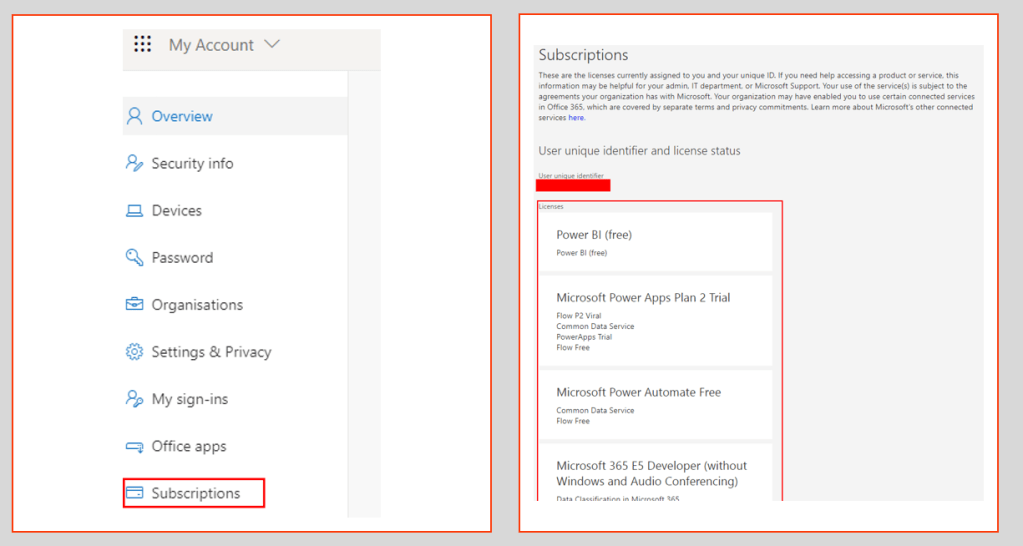
The information can also be accessed from your Office Profile, after logging in to the Office.com

  • Click the Profile icon and then click View account which will take you to the below screen shown on the left side

Now click Subscriptions which will show the all the different SKU’s assigned to you & the different service plan’s. Refer to the above picture on the right side.

PowerShell:

To access this information with PowerShell, refer the following documentation:

https://docs.microsoft.com/en-us/microsoft-365/enterprise/view-account-license-and-service-details-with-microsoft-365-powershell?view=o365-worldwide

Reference:

https://docs.microsoft.com/en-us/graph/api/user-list-licensedetails

https://docs.microsoft.com/en-us/azure/active-directory/enterprise-users/licensing-service-plan-reference

Summary: On this post we have seen how to get information on the assigned Microsoft License & services details for a user. Hope you like this article & find it informational.

Tools to call Microsoft Graph API endpoints as a User and application

This blogpost will help you to explore and interact with MS graph API endpoint’s using the following tools

  • Postman client
    • Signed in as a user/On-behalf-of API call (Delegated permission)
    • Application/daemon API call (Application permissions)
  • Graph Explorer

I have used MS graph extensively on different MS cloud services like SharePoint, PowerAutomate, PowerApps, Azure services like Azure functions and on devices like Raspberry Pi. It is a very powerful service in Microsoft 365 platform. Let start with some basics

Introduction:

MS Graph API is a RESTful web API which enables you to access different Microsoft 365 cloud service resources through its unified programmability model.

Microsoft Graph exposes REST APIs and client libraries to access data on the following Microsoft cloud services:

  • Microsoft 365 services: Delve, Excel, Microsoft Bookings, Microsoft Teams, OneDrive, OneNote, Outlook/Exchange, Planner, SharePoint, Workplace Analytics.
  • Enterprise Mobility and Security services: Advanced Threat Analytics, Advanced Threat Protection, Azure Active Directory, Identity Manager, and Intune.
  • Windows 10 services: activities, devices, notifications, Universal Print (preview).
  • Dynamics 365 Business Central.

Permission Types:

MS Graph exposes granular permissions that controls the access of the apps that has to the different resources like sites, users, groups etc. There are two types of permission

  • Delegated permissions are used by apps that have a signed-in user present. For these apps, either the user or an administrator consents to the permissions that the app requests and the app can act as the signed-in user when making calls to Microsoft Graph.
  • Application permissions are used by apps that run without a signed-in user present. For e.g Apps that run as background services or daemons. Application permissions can only be consented by an administrator.

Access token:

To call a MS Graph API all you need is an access token in the authorization header of an HTTP request.

GET https://graph.microsoft.com/v1.0/me/ HTTP/1.1

Host: graph.microsoft.com

Authorization: Bearer EwAoA8l6BAAU … 7PqHGsykYj7A0XqHCjbKKgWSkcAg==

The access tokens are issued by the Microsoft identity platform which contains information to validate if the requestor has appropriate permissions to perform the operation they are requesting. An active directory app is a pre-requisite to generate an access token to call a Graph API endpoint.

There are also Microsoft identity platform authentication libraries for .NET, JS Android, Objective-C, Python, Java, Angular facilitating validation, cookie handling, token caching and on maintaining a secure connection. Let’s now go ahead and see the tools

MS Graph Explorer:

Graph explorer is a web-based tool which can be used to build and test requests using Microsoft Graph API. The explorer can be accessed from the following URL:

https://developer.microsoft.com/en-us/graph/graph-explorer

There will be a default Active directory application on the Organizational Active directory of the M365 tenant by the name Graph Explorer with application id de8bc8b5-d9f9-48b1-a8ad-b748da725064. This app can be accessed from the Enterprise applications blade of the Active directory as shown below

Delegated permissions are used by Graph Explorer. Based on your access role & admin consent’s you would be able to call different Microsoft Graph API from this tool. After you have signed into the Graph Explorer tool, the access token will be generated automatically

To view the token information, copy the token and paste it on the utility https://jwt.ms/

If your token has a scp (Scope) claim, then it’s a user based token (Delegated permissions). It is a JSON string containing a space separated list of scope the use has access to call different graph endpoints. You can also find other information related to the issued token, token issued at (iat), expirty not before (nbf), expiry time (exp). The data is in UNIX time stamp but you can convert this information to standard time using the online URL

https://www.epochconverter.com/

More information about JWT can be found at

https://auth0.com/docs/tokens/json-web-tokens

Postman Client:

Postman is a tool that can be used to build and test requests using the Microsoft graph API’s. To use this tool for testing the Graph API endpoint’s, register an app in Azure Active directory as per the instructions from this blog post. Provide the permission (Delegated & Application) as per your need to test it using Postman.

Copy the client id, client secret & tenant ID of the registered app. To access the various endpoints like authorization and token, click on the Endpoints from the Overview section of the Active directory app.

Setting up the environment using Postman collections:

There are Postman collections with many MS graph API requests created by Microsoft for us to explore. Import the collections and setup the environment (Client ID, Client secret, tenant id) for Application API calls and on-behalf-of API calls as per the instruction from the following article

https://docs.microsoft.com/en-us/graph/use-postman

Application API Token:

To generate an application token, make a POST request to Get App-Only Access Token from the collection Microsoft Graph. The grant_type is client_credentials since it is Application permissions.

Token Validity:

The token is valid for 3599 seconds which is 1 hour. Post that the token will expire, you will have to regenerate the token by making another call.

The AccessToken (Application API call) will be generated and automatically stored on the Environment (Microsoft Graph environment) AppAccessToken with the help of a script on the Tests tab in Postman. Copy the access token value & paste it on the utility https://jwt.ms/. Find the decoded token below which has information like the Application ID/client id of the AD app, display name and roles to which the app has access to poll the graph endpoint.

Graph API call:

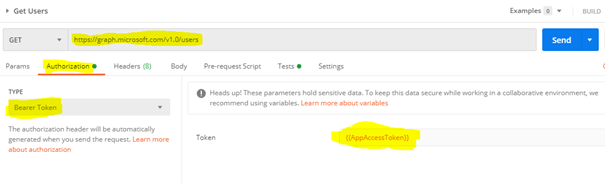
The call to the Graph should have the bearer token

Signed-in user/on-behalf-of API Token:

To generate a Signed-in user token, make a POST request to Get user Access Token from the collection Microsoft Graph. The grant_type is password since it is delegated permissions.

The AccessToken (Signed-in user API call) will be generated and automatically stored on the Environment (Microsoft Graph environment) UserAccessToken with the help of a script on the Tests tab in Postman.

Copy the access token value & paste it on the utility https://jwt.ms/. Find the decoded token below which has information like the Application ID/client id of the AD app, display name and scopes (scp) to which the app has access to poll the graph endpoint. If you remember the Application API token had roles & not scopes, so this is how you can identify the token type.

Storing the production User ID and password is not recommended on the Environmental variables since the information is stored in Postman but this can be handled by generating an access token from the request Authorization tab, set the type as OAuth 2.0 and click Get New Access Token button

Fill in all the information gathered from the App in Azure AD like Appid, Secret, Endpoints (Authorization and Token), state can be any random value

Click Request token, this will prompt the user to enter the Username and password. After authentication, it will generate the token which could be used further to make API calls.

Graph API call:

The call to the Graph should have the bearer token on the Authorization tab or on the Headers tab

Summary: On this post we have seen how to use tools like Graph explorer & Postman to test different MS graph API endpoints. You can make requests like GET, POST, PUT, PATCH, DELETE based on its availability. Refer to the Microsoft documentation for v1.0 and beta endpoints. Once you have explored & tested the API, you are ready to use on applications using the available SDK’s for different programming languages. Let me know any feedback or comments on the comment section below

Batch SharePoint requests [GET, POST, PATCH, DELETE] in PowerAutomate and MS Graph

Batching helps you in optimizing the performance of your application by combining multiple requests into a single request. SharePoint Online & MS Graph APIs supports the OData batch query option. Batch requests MUST be submitted as a single HTTP POST request to the batch endpoint of a service as below for

The request body of the above POST request must be made up of an ordered series of query operations [GET] and/or ChangeSets [POST or PATCH or DELETE]. You can have different combination of change sets.

In this blog post, I am going to show you how to batch multiple SharePoint requests for Creating, Reading, Updating & Deleting List items in

  1. PowerAutomate
  2. MS Graph

Pre-Requisites:

Have the following items ready to follow along this post

  1. SharePoint Site
    1. Site Id [GUID of the Site]
    2. Create a SharePoint List by the Name EmployeeInformation with the schema
      1. Title [Default]
      2. Location [Custom: Single Line of Text]
    3. List Id [GUID of the above list]
  2. Graph Explorer to test the Graph batching

Batch SharePoint requests in PowerAutomate:

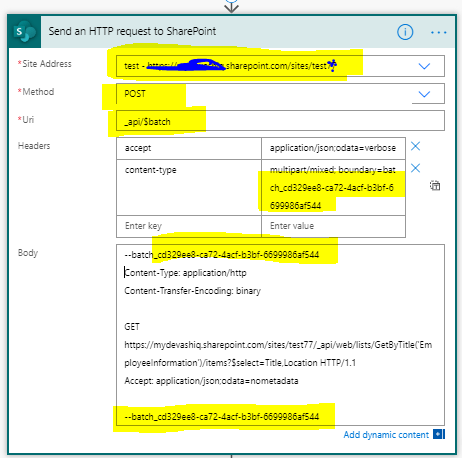
If there is a requirement for multiple requests to be performed in SharePoint from your flow, the batch request with SharePoint Online REST API helps in reducing the execution time of your flow by combining many operations into a single request to SharePoint. Create an Instant Flow with trigger “Manually trigger a Flow” and the action Send an HTTP request to SharePoint to send the batch requests.

Lets now prepare the parameters to be passed for the Send an HTTP request to SharePoint action:

Site Address: https://mydevashiq.sharepoint.com/sites/test77

Method: POST

Headers:

  • Key: accept Value: application/json;odata=verbose
  • Key: content-type Value: multipart/mixed; boundary=batch_cd329ee8-ca72-4acf-b3bf-6699986af544

The boundary specification with batch_guid used on the content type header can be any random guid. In the request body the batch_guid will be used. To understand more about the OData batch operation, go through this documentation.

Body:

The request body given below is for reading all the items [GET], creating a list item, deleting an existing item & updating an existing item on the EmployeeInformation List using REST API endpoints. A ChangeSet (random guid) is used to group one or more of the insert/update/delete operations and MUST NOT contain query operations [GET]. For the query operation there must be separate batch as per the example below

--batch_cd329ee8-ca72-4acf-b3bf-6699986af544
Content-Type: application/http
Content-Transfer-Encoding: binary

GET https://domain.sharepoint.com/sites/sitename/_api/web/lists/GetByTitle('EmployeeInformation')/items?$select=Title,Location HTTP/1.1
Accept: application/json;odata=nometadata

--batch_cd329ee8-ca72-4acf-b3bf-6699986af544
Content-Type: multipart/mixed; boundary="changeset_64c72699-6e7c-49c4-8d9b-6b16be92f7fc"
Content-Transfer-Encoding: binary

--changeset_64c72699-6e7c-49c4-8d9b-6b16be92f7fc
Content-Type: application/http
Content-Transfer-Encoding: binary

POST https://domain.sharepoint.com/sites/sitename/_api/web/lists/GetByTitle('EmployeeInformation')/items HTTP/1.1
Content-Type: application/json;odata=verbose

{
    "__metadata": {
      "type": "SP.Data.EmployeeInformationListItem"
    },
    "Title": "Mohamed Shaahid Faleel",
    "Location": "England"
}

--changeset_64c72699-6e7c-49c4-8d9b-6b16be92f7fc
Content-Type: application/http
Content-Transfer-Encoding: binary

DELETE https://domain.sharepoint.com/sites/sitename/_api/web/lists/GetByTitle('EmployeeInformation')/items(37) HTTP/1.1
If-Match: *

--changeset_64c72699-6e7c-49c4-8d9b-6b16be92f7fc
Content-Type: application/http
Content-Transfer-Encoding: binary

PATCH https://domain.sharepoint.com/sites/sitename/_api/web/lists/GetByTitle('EmployeeInformation')/items(30) HTTP/1.1
Content-Type: application/json;odata=nometadata
If-Match: *

{
    "Title": "Mohamed Faleel",
    "Location": "USA
}

--changeset_64c72699-6e7c-49c4-8d9b-6b16be92f7fc--

--batch_cd329ee8-ca72-4acf-b3bf-6699986af544--

Once the above action is executed the response can be parsed to get the required information if you’ve used a GET request as per this documentation from Microsoft. PFB the screenshot of the action

The request body can be generated dynamically based on the requirement.

Batch SharePoint requests in MS Graph:

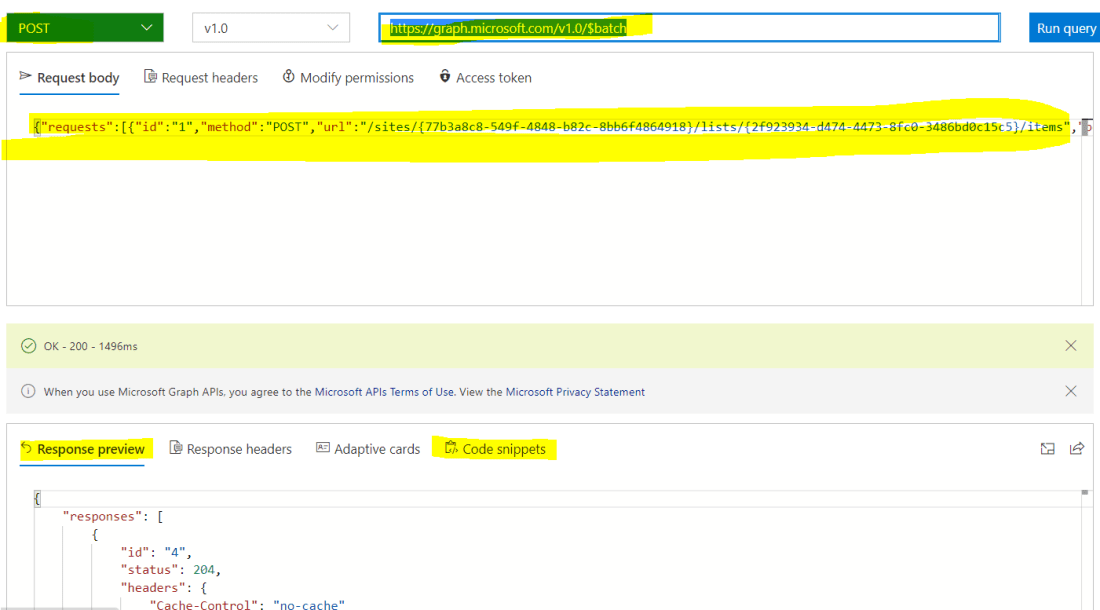
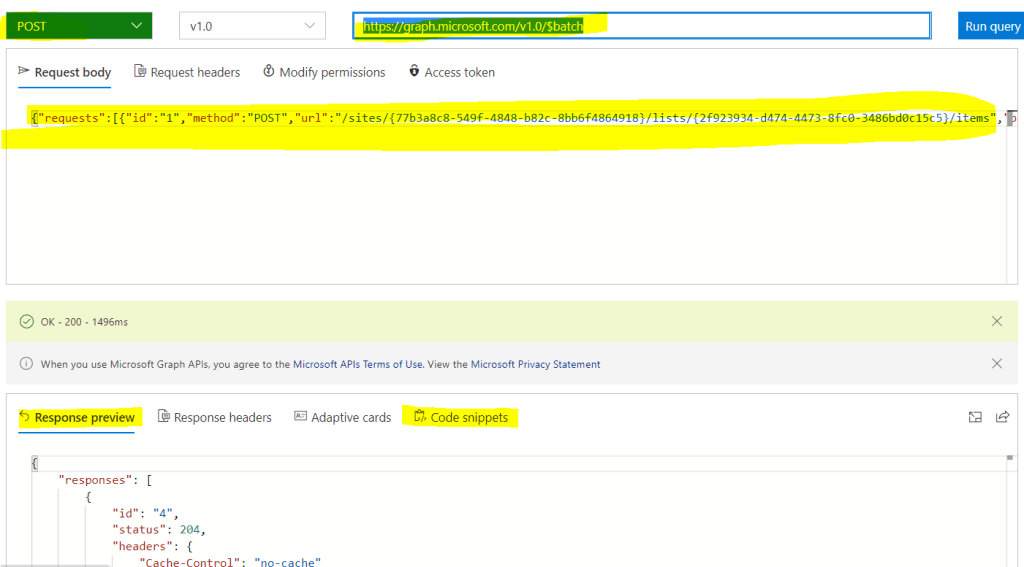
As we have done batching using the SharePoint REST APIs, in a similar manner you can combine multiple requests in one HTTP call using JSON batching for MS Graph. Here I will use the MS Graph explorer to test the batch request. Find the request parameters

Endpoint URL: https://graph.microsoft.com/v1.0/$batch

Method: POST

Body:

I’ve used the Site Id and List Id for the EmployeeInformation list to construct the SP endpoint URL’s as per the documentation for Creating, Reading, Updating & Deleting SP list items.

{
    "requests": [
      {
        "id": "1",
        "method": "POST",
        "url": "/sites/{77b3a8c8-549f-4848-b82c-8bb6f4864918}/lists/{2f923934-d474-4473-8fc0-3486bd0c15c5}/items",
         "body": {
          "fields":{"Title":"Test from Graph","Location":"Oslo"}
        },
        "headers": {
          "Content-Type": "application/json"
        }
      },
      {
        "id": "2",
        "method": "GET",
        "url": "/sites/{77b3a8c8-549f-4848-b82c-8bb6f4864918}/lists/{2f923934-d474-4473-8fc0-3486bd0c15c5}/items"
      },
      {
        "id": "3",
        "url": "/sites/{77b3a8c8-549f-4848-b82c-8bb6f4864918}/lists/{2f923934-d474-4473-8fc0-3486bd0c15c5}/items/44",
        "method": "PATCH",
        "body": {
            "fields":{"Title":"Mohamed Ashiq Faleel","Location":"Stockholm"}
        },
        "headers": {
          "Content-Type": "application/json"
        }
      },
      {
        "id": "4",
        "url": "/sites/{77b3a8c8-549f-4848-b82c-8bb6f4864918}/lists/{2f923934-d474-4473-8fc0-3486bd0c15c5}/items/50",
        "method": "DELETE"
      }
    ]
  }

On a same way you can batch different APIs endpoint from MS Graph. JSON batching also allows you to sequence the requests. Find below the screenshot from Graph explorer
Graph explorer also generates code snippets for the different programming languages

JavaScript Code snippet

Summary: On this post we have seen how to batch SharePoint requests using PowerAutomate & MS Graph. Microsoft has used request batching on many first party features. Hope you have found this informational & helpful in some way. Let me know any feedback or comments on the comment section below

Access Active Directory user profile attributes using Graph API

Using graph API you can access all the Active directory attributes. The me endpoint gives your profile information https://graph.microsoft.com/v1.0/me. To get a specific user’s information the endpoint should be https://graph.microsoft.com/v1.0/users/useremailaddress

For getting any specific AD attribute you can pass the required attribute as a query string https://graph.microsoft.com/v1.0/me?$select=jobTitle,department,displayName

In bigger active directory implementation, there will also be information stored on the Extension attributes, to get the information you will have to pass the name of the attribute “OnPremisesExtensionattributes” as a query string in the format as

 https://graph.microsoft.com/v1.0/me?$select=jobTitle,department,displayName, OnPremisesExtensionattributes

Graph explorer is a nice tool to test the Graph endpoints. Refer the documentation from Microsoft on the different available AD endpoints

Graph Explorer

The beta ME endpoint https://graph.microsoft.com/beta/me gives more information of the user

The User profile service Rest API endpoint in SharePoint http://siteurl/_api/SP.UserProfiles.PeopleManager/GetMyProperties does not provide all the active directory information. For e.g Location, OnPremisesextensionAttributes etc information is not available. SharePoint UPS synchronizes the AD data of all users in schedule basis. So the other option is to use the Graph Endpoint if you need those information for your application customization.

Endpoint point to get a specific attribute is

https://siteURL/_api/SP.UserProfiles.PeopleManager/GetMyProperties?$select=PictureUrl,AccountName

For more information about different endpoint, refer this documentation from Microsoft.

@ mention user & channel in Teams using MS Graph API

There are ways to @mention a user while posting a conversation in Teams channel using flow action but as far as I know its not possible as of now to @mention a Teams channel using Flow actions. In this post, I will show you how to @mention a channel & user using a POST call to a MS Graph beta endpoint. To construct the endpoint URL you will need to know the TeamID & ChannelID, to get the information go to Teams > click the three dots > click Get link to channel > Copy the URL

Now decode the copied url, I’ve used Meyerweb Decoder. Your url will look something like below

End Point URL: https://graph.microsoft.com/beta/teams/groupIDorTeamID/channels/Channel ID/messages

Method: POST

Request Body:

{
 "importance": "high",
  "subject": "@Mention in Teams channel post!",
  "body": 
  {
    "content": "Hello <at id ='0'>Channel Name</at>, Test message on the channel with at mention.",
    "contentType": "html"
  },
  "mentions": [
    {
      "id": 0,
      "mentionText": "Channel Name",
      "mentioned": {
                        "conversation": {
                            "id": "ChannelID",
                            "displayName": "Channel Name",
                            "conversationIdentityType@odata.type": "#Microsoft.Teams.GraphSvc.conversationIdentityType",
                            "conversationIdentityType": "channel"
                        }
      }
    }
  ]
}

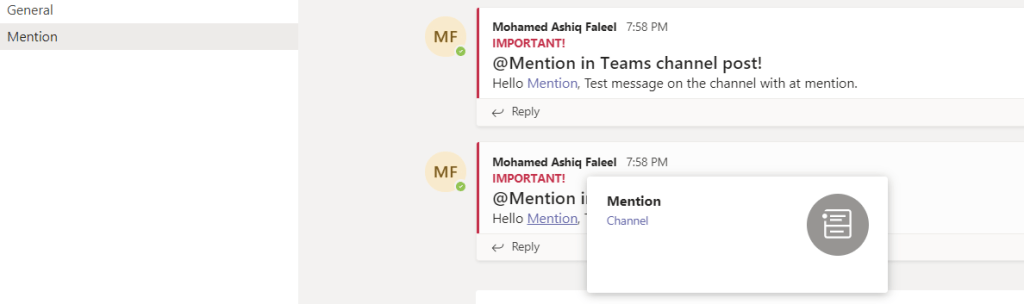
I’ve used Graph explorer to test the endpoint, if you have not signed in do sign in

Once you run the query on the explorer, you will see the Post in Channel with at mention as shown below

To @mention a user using Graph API, the endpoint is same as before but the request body has some changes as shown below

Request Body:

{
  "body": {
    "contentType": "html",
    "content": "Hello World User Display Name"
  },
  "mentions": [
    {
      "id": 0,
      "mentionText": "User Display Name",
      "mentioned": {
        "user": {
          "displayName": "User Display Name",
          "id": "UserID",
          "userIdentityType": "aadUser"
        }
      }
    }
  ]
}

To get your UserID, you can use the endpoint https://graph.microsoft.com/v1.0/me/

Reference: https://docs.microsoft.com/en-us/graph/api/channel-post-messages?view=graph-rest-beta&tabs=http

Summary: The endpoint which has been used in this post are beta endpoints. Graph API can be easily called using Power Automate, if you need some example on using a Graph API refer this post. Hope you find this post useful & informational. Let me know if there is any comments or feedback below.

Get attendees details of a meeting event using Power Automate/MS Flow

Its fairly easy to create an event using Power automate in Office 365 Outlook using the action Create Event but there is no action to get the attendees details on who has Accepted, tentatively accepted, Declined & No response if you are trying to automate.

MS Graph comes to the rescue to get the attendees details, there is an endpoint available to fetch the attendee’s details of an outlook event.

Let’s assume you are creating Outlook Event using flow action Create Event which has a connection using a different account (For e.g a service account with mailbox enabled). After the event is created the Event ID (Unique ID of an Event) is stored on a SharePoint Custom list or SQL etc to get the attendees information.

Before you start, you need to make sure you have the following:

  • Access to an Office 365 tenant with administrative access to Azure AD
  • Access to create flows in Microsoft Flow

Step 1 – Create an Application in Azure AD with API permissions to Calendar

You will need to register an application within Azure AD.

Navigate to Azure Active Directory from https://portal.azure.com and select App registrations. Select New registration. I am not going to list the steps required to create an Application in Azure AD, there are lot of blog posts & Microsoft articles which covers the steps. For this requirement, Redirect URI is not required to filled on the Azure app.

To get authorized to call Microsoft Graph in Power Automate/MS Flow, we’ll need the following information:

  • Tenant ID
  • Client ID
  • Client secret
  • API Permission to Read Calendar
  • Token Endpoint

Once the application is created, go to the API Permissions. To configure application permissions for the AD app to get the event information, API permission to the Calendar is required. Find the steps below to grant read permission to the calendar

  1. Click on the API Permissions menu item in the navigation panel.
  2. Click on the Add a Permission button.
  3. Click Microsoft Graph under the tab Microsoft APIs.
  4. Click on the Application Permissions button.
  5. Expand the Calendars section.
  6. Select the Calendars.Read option. This step gives access to the app for reading all the calendars in the mailboxes across the tenant.
  7. Click on the Add Permissions button.
  8. Click on the Grant Admin Consent button.
  9. Click on the Yes button to confirm consent.
API Permissions on the AD App

I use the Graph Explorer https://developer.microsoft.com/en-us/graph/graph-explorer# to test & explore different endpoints.

This explorer will not work for delegated permissions since it uses your permissions to access the API endpoint but you can use Postman to test the graph endpoint with the Oauth authentication.

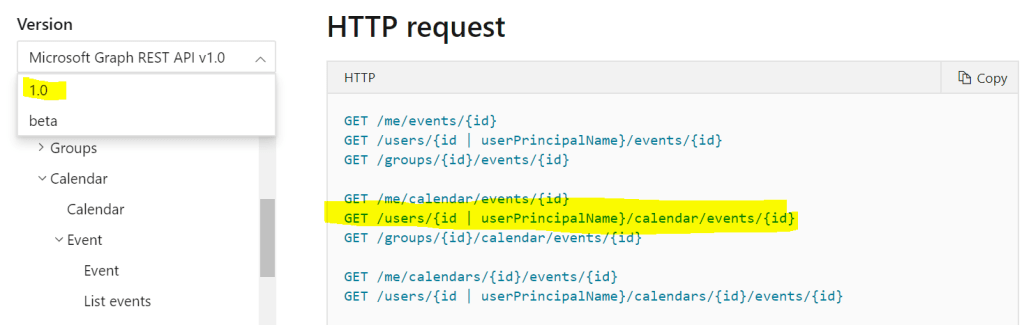
Find the documentation for the different endpoints available for Calendar in the link

For this requirement we are interested in the following HTTP request/endpoint to the get details of a different user using the version 1.0

GET /users/{id | userPrincipalName}/calendar/events/{id}

Step 2 – Create a Flow

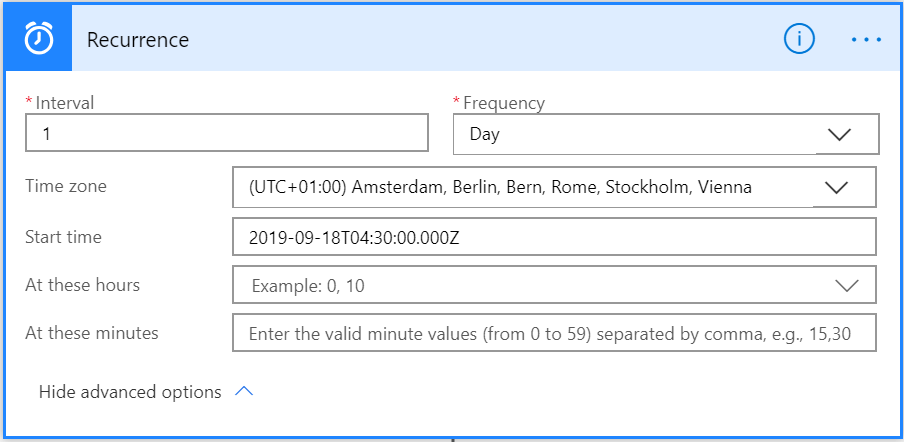
With the Azure AD application created, you have to create a flow using it. You could even create a Azure logic Apps. Find the steps below to create a scheduled flow

First, go to https://flow.microsoft.com and go to My flows. Select New > Create Scheduled-from blank to create a new flowThis flow will be running on scheduled basis to get the attendees details.

Flow Trigger

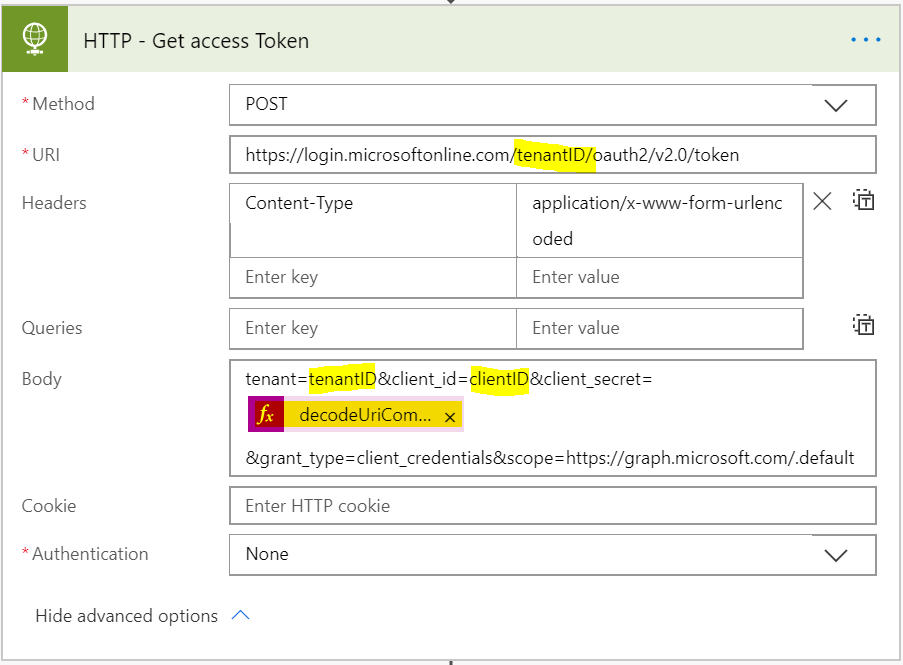
Call the token endpoint of the tenant’s Azure AD which will provide us an access token for Microsoft Graph in return for the information contained in the request body. Use the Flow action HTTP which is premium action to make a HTTP post request for getting a token.

Before we construct the HTTP request, we need encode the client secret to avoid having URL unsafe characters:

encodeUriComponent(variables('ClientSecret'))
The HTTP methodPOST
The request URLhttps://login.microsoftonline.com/your tenant id/oauth2/v2.0/token
The Content-Type headerapplication/x-www-form-urlencoded
The request bodytenant=tenantID&client_id=clientID&client_secret=@{decodeUriComponent(variables(‘ClientSecret’))}&grant_type=client_credentials&scope=https://graph.microsoft.com/.default

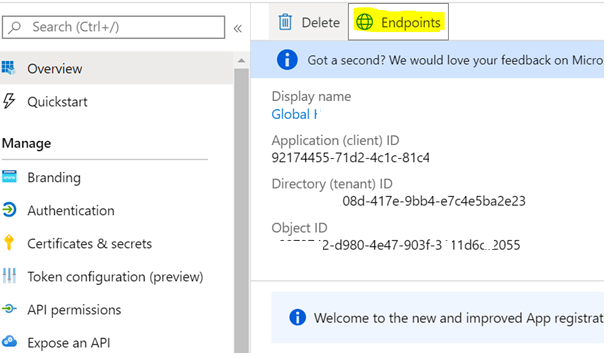
The token endpoint URL can be obtained from the AD App by clicking on the Endpoint link as shown below

Active Directory App – Overview
HTTP Action

When the above HTTP request is made, we get authenticated, and in the response, we’ll receive the access token for calling Microsoft Graph. Before we can use the access token, we need to parse the JSON in the response body to make the token available to us in the dynamic content panel

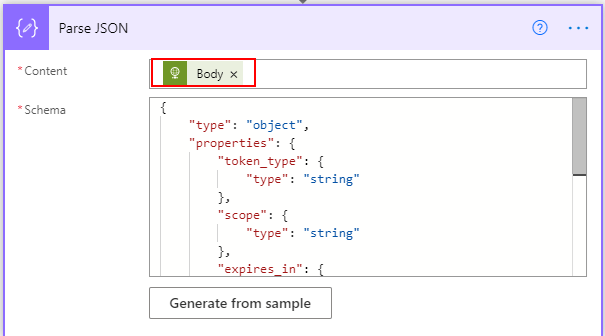
The next step is to the parse the JSON response of the HTTP – Get Access token action and get the token type and access token to make a call to the Graph endpoint. To do this Add the action Parse JSON

  • The Content has to be the Body of the action HTTP – Get Access token and to build the schema.
  • Run the flow, copy the outputs [Body] of the action HTTP – Get Access token
  • Click the button Generate from Sample, paste the Body and click Done. These steps will generate the schema automatically
Parse JSON Action

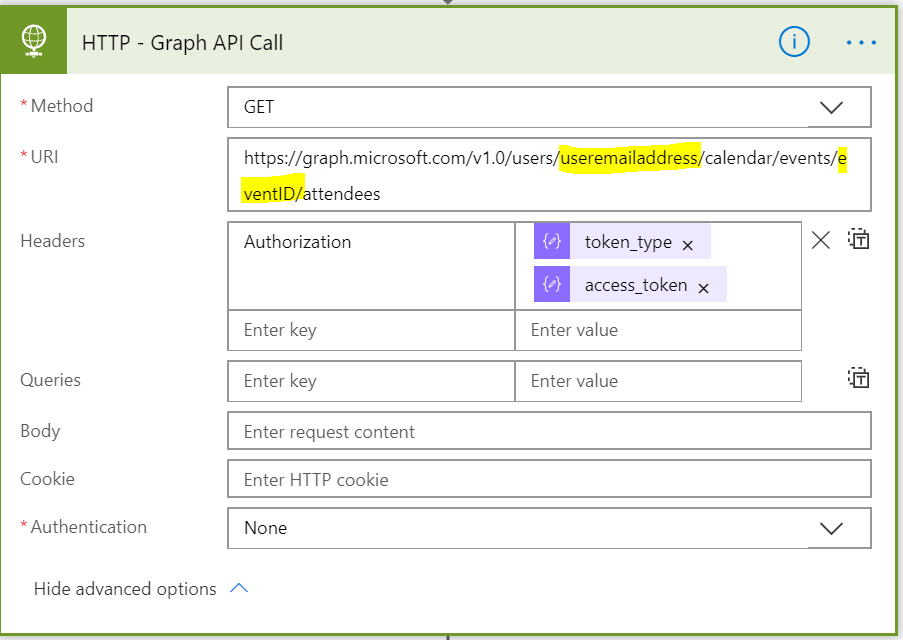
The next step is to call the Graph endpoint using the HTTP action with the token type & access token on the Headers obtained from the above method

GET URI: https://graph.microsoft.com/v1.0/users/useremailaddress/calendar/events/eventID/attendees

Event ID should be the ID of the event you would like to get the attendees information and Headers information is constructed from the Parse JSON – Access token.

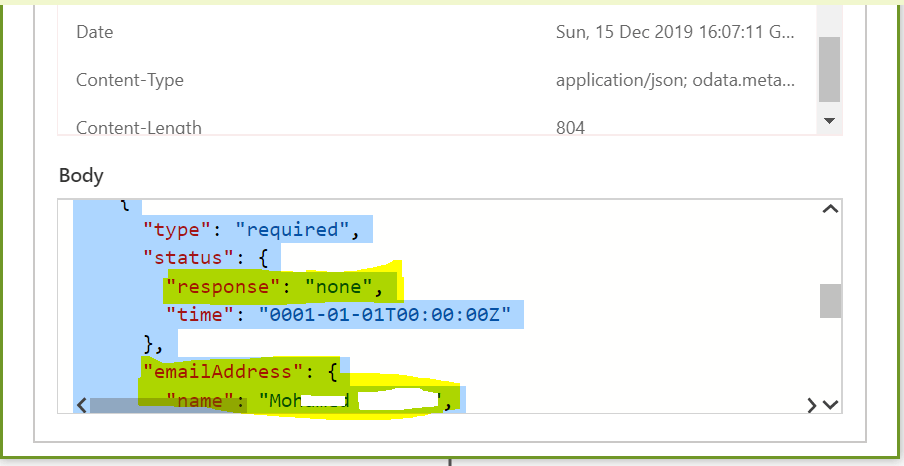
Run the Flow, you will now have the attendee’s information in the JSON format as shown below. The JSON will have information about the users details and the responses. JSON Parse action could be used to parse the JSON and get the information as per the requirement

Hopefully you enjoyed reading this article and find it useful.