Enabling Real Time Alerts using Microsoft Graph in Power Platform – Part 2

In this section of the blog series, we’ll walk through the steps to create a Microsoft Graph subscription for Teams presence updates based on the Custom connector created on the previous post and configure a Power Automate flow to receive and process these updates through Azure Event Hub.

Step 1: Creating a Microsoft Graph Subscription for Teams Presence

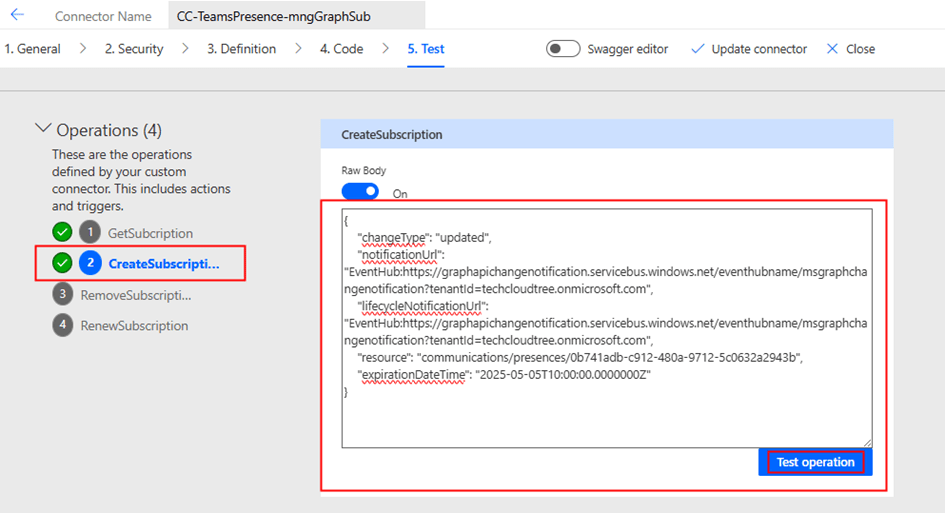
Using the custom connector built in Part 1 of this blog series, initiate the Microsoft Graph subscription by calling the Create Subscription action

{
    "changeType": "updated",
    "notificationUrl": "EventHub:https:// yourazureeventhubinstancename.servicebus.windows.net/eventhubname/ youreventhubname?tenantId=techcloudtree.onmicrosoft.com",
    "lifecycleNotificationUrl": "EventHub:https:// yourazureeventhubinstancename.servicebus.windows.net/eventhubname/ youreventhubname?tenantId=techcloudtree.onmicrosoft.com",
    "resource": "communications/presences/0xxxx-your-xxx-objectid-xxxxxb",
    "expirationDateTime": "2025-05-05T10:00:00.0000000Z"
}

When creating a Microsoft Graph subscription for Teams presence updates, make sure to update the following fields in your request payload:

  • notificationUrl
    URL where Microsoft Graph will send presence update notifications. This should point to your Azure Event Hub endpoint configured to receive events.
  • lifecycleNotificationUrl
    URL to handle lifecycle events such as validation and subscription expiration. This should point to an endpoint capable of processing these system-level callbacks (optional but recommended).
  • resource
    This defines the target of the subscription.
    Format: /communications/presences/{userId}
    • Replace {userId} with the Object ID (GUID) of the Azure AD user whose presence updates you want to track.
  • expirationDateTime
    Timestamp defining when the subscription expires.
    • For presence, the maximum allowed duration is 1 hour.
    • Use ISO 8601 format: YYYY-MM-DDTHH:MM:SSZ

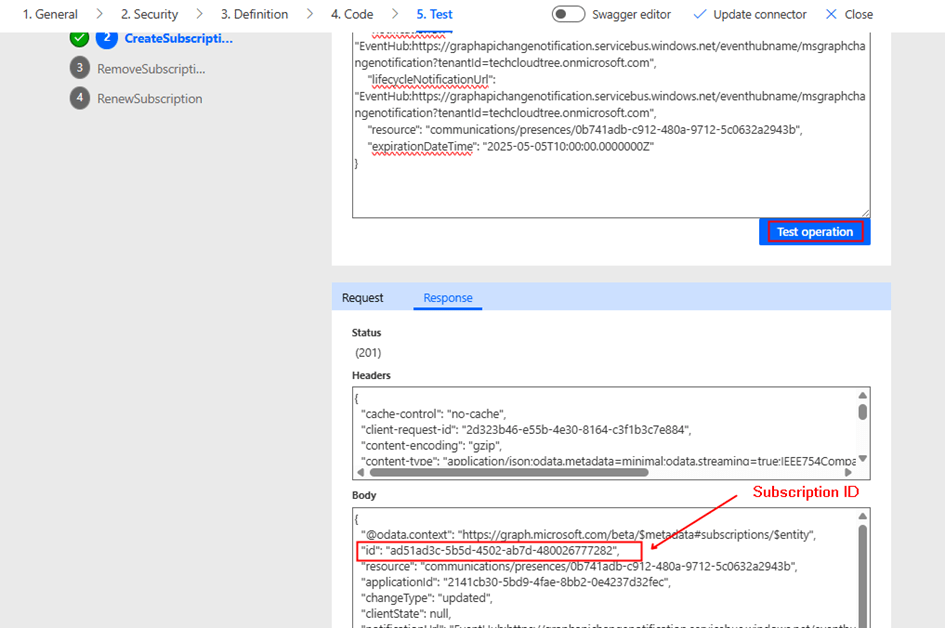
Tip: After the subscription is successfully created, make sure to note down the Subscription ID, as it is required to renew the presence subscription— which must be refreshed every hour. This renewal process can be automated using a scheduled Power Automate flow.

Step 2: Receiving Notifications via Azure Event Hub

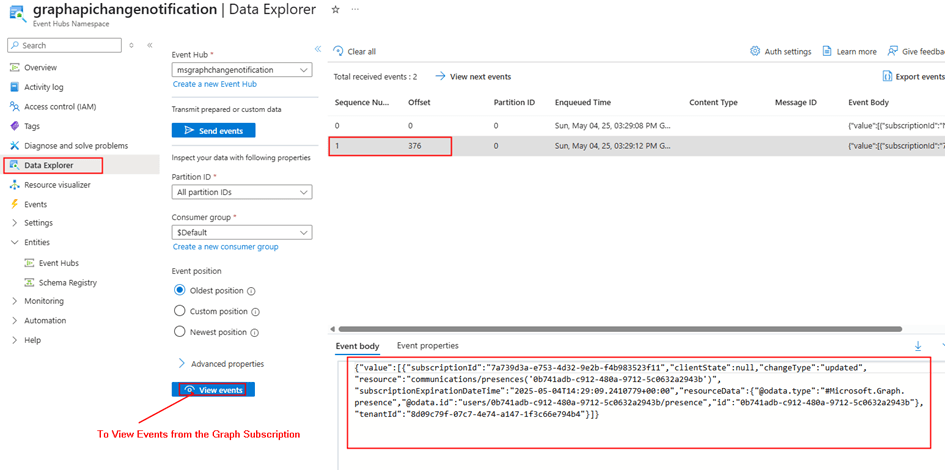
Azure Event Hub serves as a high-throughput ingestion pipeline for Microsoft Graph notifications. After the subscription is created, presence change events are pushed into the specified Event Hub.

Each event includes metadata such as the subscription ID, resource details containing user information, and a timestamp—enabling you to respond effectively to presence status changes in real time.

As seen in the payload above, user availability or activity changes in Microsoft Teams are not directly visible—this data is encrypted. To access it, you’ll need to configure certificate-based encryption and decrypt the payload accordingly. We’ll cover this process in detail in the next blog post.

Step 3: Creating a Power Automate Flow to Process Presence Updates

Now that presence updates are routed into Azure Event Hub, we’ll use Power Automate to process these updates.

Steps to Configure:

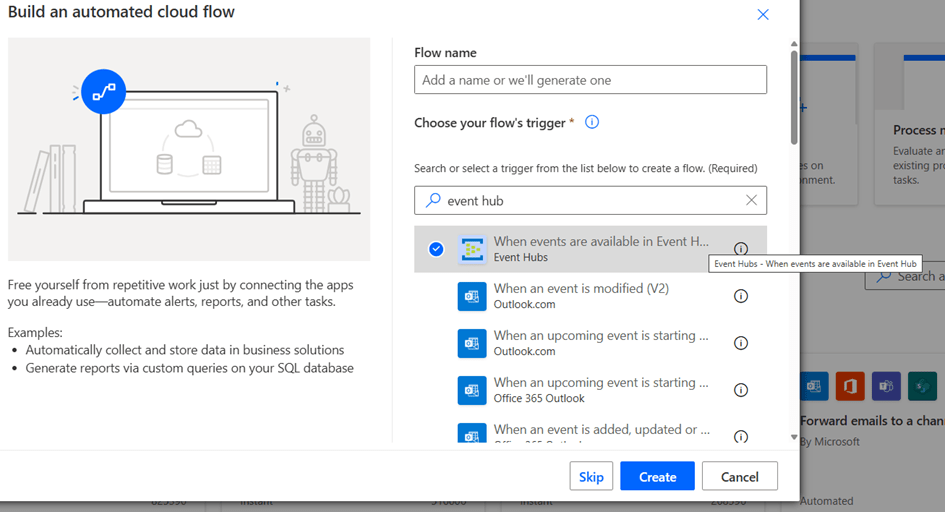
  1. Trigger:
    • Use the “When events are available in Event Hub” trigger (premium connector).

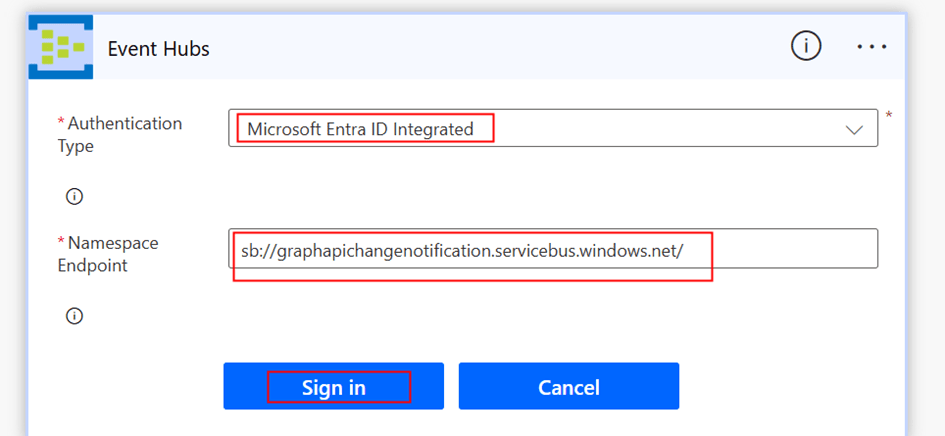
Create a New connection using the Authentication type Microsoft Entra ID Integrated

Namespace Endpoint: Example: sb://graphapichangenotification.servicebus.windows.net/

After the Connection is created, you would be able to select the Event hub from the dropdown to complete the trigger configuration.

  1. Parse Event Data:
    • Use a Parse JSON action to extract userId, subscriptionId, and changeType from the incoming event schema.
    • You can get the payload which is in Base64 format by using the expression base64ToString(triggerOutputs()?[‘body/ContentData’])
  2. Act on Status Change:
    • Act of the notification by making a another query to the presence endpoint or subscription to rich notications by using certificate which we will discuss in our next blog post

Note: Once the Power Automate flow is configured to receive events from the Event Hub, the Data Explorer in the Azure Portal will no longer display events, as the Event Hub allows only one active consumer per consumer group. There would be an Error message like: At least one receiver for the endpoint is created with epoch of ‘638819602939505217’, and so non-epoch receiver is not allowed.

What’s Next?

In the next part, we will explore how to receive rich presence notifications from Microsoft Teams users, including availability and activity details. Specifically, we will cover:

  • How to configure certificate-based encryption to enable rich notifications
  • How to retrieve availability information from the encrypted payload

 Do you like this article?

Subscribe to my blog with your email address using the widget on the right side or on the bottom of this page to have new articles sent directly to your inbox the moment I publish them.

Do you like this article?

Subscribe to my blog with your email address using the widget on the right side or on the bottom of this page to have new articles sent directly to your inbox the moment I publish them.

Enabling Real Time Alerts using Microsoft Graph in Power Platform – Part 1

Real-time notifications on system changes are crucial for proactive monitoring and automation. Microsoft Graph allows us to receive change notifications across multiple Microsoft 365 resources. In this blog series, we will explore how to set up Microsoft Graph change notifications for Teams presence status changes, with alerts delivered to Azure Event Hub. As part of this process, we will create a custom connector to manage the lifecycle of a change notification subscription and a Power Automate flow to receive alerts from Azure Event Hub. Other delivery channels, such as Webhooks, are supported for Microsoft Graph change notifications. However, they are not ideal for high-throughput scenarios and they require a publicly available notification URL. This approach offers flexibility compared to standard connectors for triggers, enabling alert handling across various Microsoft resources.

Solution Architecture

  1. Microsoft Graph Subscription – Creates a subscription for Teams presence updates.
  2. Azure Event Hub – Receives change notifications from Microsoft Graph.
  3. Custom Connector in Power Platform – Handle Lifecycle [Create, Update/Renew] of the Microsoft Graph Subscription.
  4. Power Automate Flow – Processes event [Teams Presence Update] data.

Set Up Permissions in Entra ID for creating Microsoft Graph Subscription:

To create a Microsoft Graph subscription for Teams presence change notifications, you must first register an Entra ID app with the appropriate Microsoft Graph permissions based on the resources you want to get alerts. In this case, the resource will be Microsoft Teams presence. This app is then used in a custom connector to manage the subscription lifecycle including creation, renewal, and may be deletion. Since Microsoft Graph subscriptions are not permanent, they must be renewed periodically. Specifically, a Teams presence subscription is valid for a maximum of 1 hour before requiring renewal.

Entra ID App registration for Signed In user (Delegated Access) – Custom Connector:

  1. Navigate to Microsoft Entra ID.
  2. Create a new App Registration and note the Application (Client) ID, Tenant ID & Client Secret.
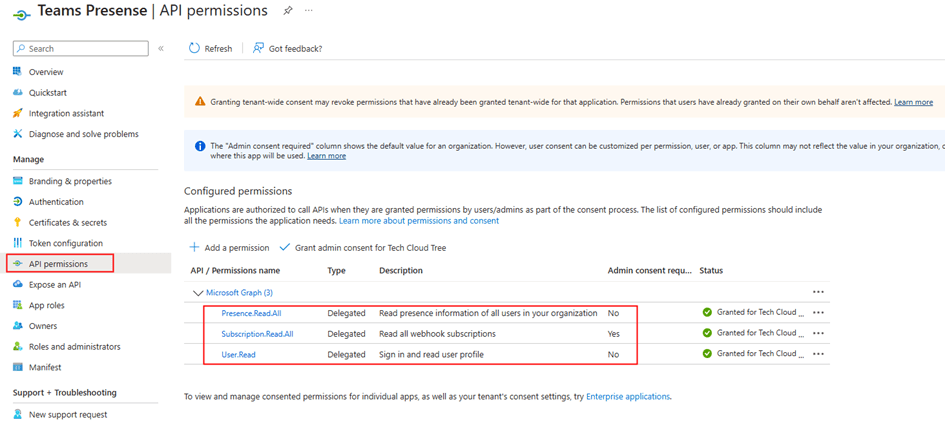
  3. Under API Permissions, add the following Delegated permissions:
    • Presence.Read.All
    • Subscription.Read.All – Admin Consent
    • User.Read
  1. Generate a Client Secret under Certificates & Secrets.
  2. Copy Client ID and Client Secret for authentication.

Setting Up Azure Event Hub

Azure Event Hub acts as a high-throughput messaging service that enables the real-time processing of Microsoft Graph notifications.

  1. Create an Azure Event Hub

Create the Azure Event hub according to the instructions given in this MS Learn documentation.

The recommendation is to use Microsoft Entra ID RBAC instead of SAS. The Notification URL, which will be used when creating the Microsoft Graph subscription, would look like the example below:

EventHub:https://yourazureeventhubinstancename.servicebus.windows.net/eventhubname/youreventhubname?tenantId=yourtenantdomainname.onmicrosoft.com

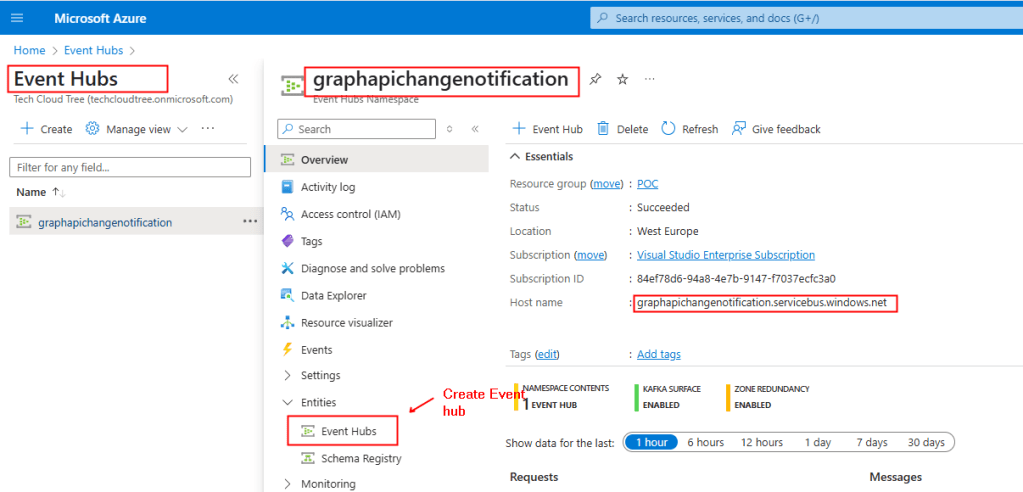
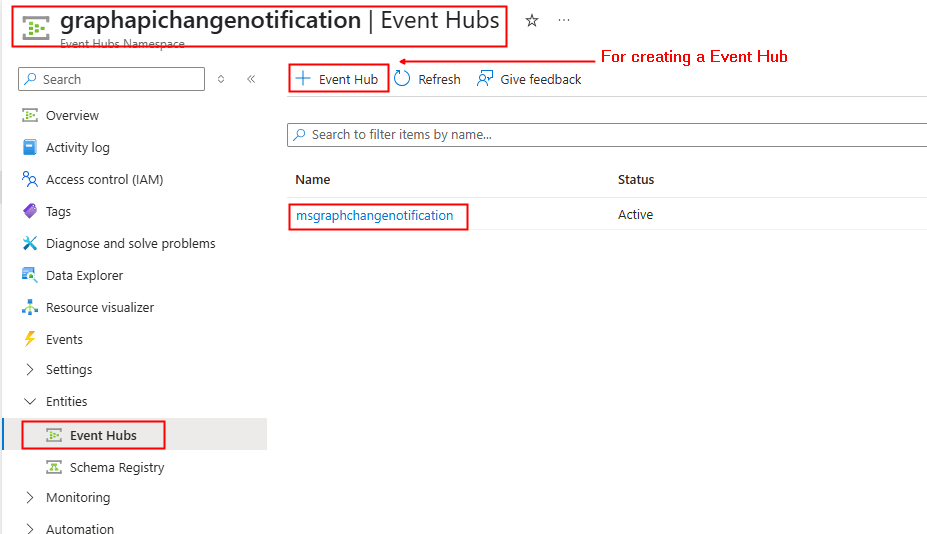
To construct the above URL, In the Overview section of the Event Hubs Namespace copy the Host Name as shown below from the screenshot and the name of your event hub as shown in the screenshot 2.

Screenshot 2:


Creating a Custom Connector in Power Platform

A custom connector is used to manage the lifecycle of the Microsoft Graph subscription, including creating the subscription and updating/renewing it before it expires, as the duration of a subscription is not infinite.

3.1 Create a Custom Connector

The Entra ID app is registered with required permissions, the next step is to create the custom connector. To create the connector, go to Power Automate or Power Apps portal → Custom Connectors → New Custom Connector – Create from blank.

In the General Tab, Provide graph.microsoft.com under Host.

  1. In the Security tab, set Authentication type:
  • Select OAuth 2.0
  • Enter the Client ID, Client Secret from the Entra Id app registration
  • Set the Resource URL to your Dataverse environment Url: https://graph.microsoft.com/
  1. Click Create connector. After this, the Redirect URL will be generated – Copy it. Next in the Entra ID App registration create earlier, navigate to the Authentication section under the Manage, add the copied Redirect URL by clicking + Add a platform and selecting Web.

You can download the Swagger definition of the custom connector from here.  After importing the file into your environment, replace the client ID and client secret in the security settings.

The Microsoft Graph API endpoints for creating, renewing / updating subscriptions for change notifications, utilized in connector definitions are thoroughly documented in this Microsoft Learn link. The action in the custom connector for renewing the subscription can be used in a scheduled Power Automate flow.

Summary:

So far, we have set up the foundational components required for enabling real-time notifications. This includes configuring an App Registration with the necessary permissions to create and manage subscriptions via a custom connector. We have also set up Azure Event Hub to receive alerts from Microsoft Graph.

In the next part, we will focus on creating the subscription and configuring a Power Automate flow to process and act on presence updates received from Azure Event Hub. Stay tuned! Hope you have found this informational & thanks for reading. If you are visiting my blog for the first time, please do look at my other blogposts.

Do you like this article?

Subscribe to my blog with your email address using the widget on the right side or on the bottom of this page to have new articles sent directly to your inbox the moment I publish them.

Calling Dataverse Web API using Delegated Permissions in a Custom Connector

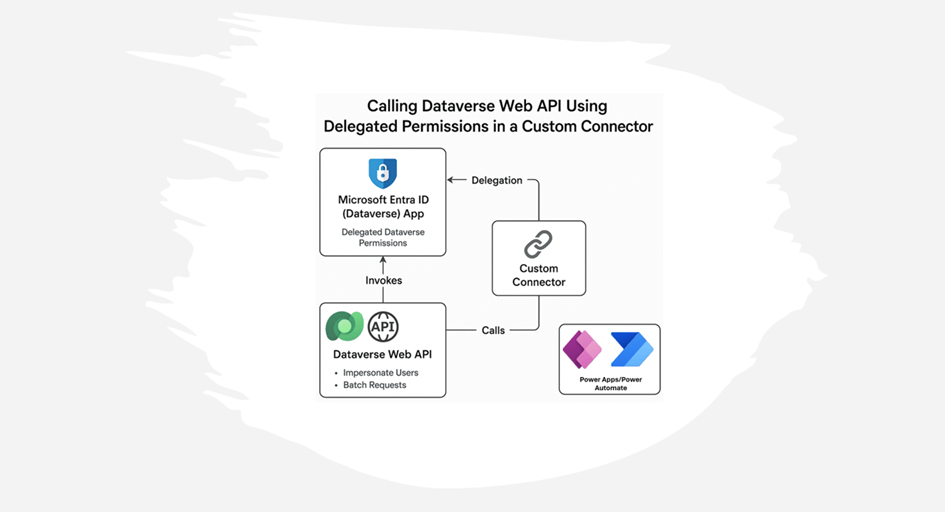
When integrating with Microsoft Dataverse, developers may need to interact with the Web API to perform advanced operations such as impersonating users, batching etc. While Power Automate provides the “Invoke an HTTP request” action to call Dataverse API, this approach has limitations, such as lack of reusability and maintainability. A better alternative is using a custom connector allowing secure and scalable Dataverse Web API interactions. This blog explores how to set up a custom connector that calls the Dataverse Web API as the signed in user.

Using the Dataverse Web API with a custom connector has advantages over the built-in Invoke an HTTP request connector, such as reusability and ensuring controlled access without exposing application user credentials, which is another way to call a Web API. Please see the picture below, which illustrates how to use the Web API with the connector

Use Cases of Dataverse Web API

The Dataverse Web API is powerful and enables many scenarios, such as:

  • User Impersonation: Perform operations as another user (e.g. approvals, data updates).
  • Batch Processing: Combine multiple operations in a single request to improve performance & to overcome API Request limits.
  • Advanced Querying: Use OData queries for complex filtering and joins.
  • Custom Business Logic: Extend functionality with plugin-like behavior through API calls.

Registering an App in Microsoft Entra ID (Azure AD) for Delegated Dataverse Web API Access

To access Dataverse Web API endpoints with a custom connector in Power Automate or Power Apps, there has to be Entra ID App registrations created for Delegated (Signed-In user) access.

Entra ID App registration for Signed In user (Delegated Access):

  1. Navigate to Microsoft Entra ID.
  2. Create a new App Registration and note the Application (Client) ID, Tenant ID & Client Secret.
  3. Under API Permissions, click + Add a permission and search dataverse under APIs my organization uses as shown below
  1. Click user_impersonation under Delegated permissions
  1. Create a secret key under the Certificates & Secrets section and make a note of it. This key will be used when creating the custom connector

Creating the Custom Connector:

With the Entra ID app registered, the next step is to create the custom connector. This connector can be used in either a Power Automate flow or Power Apps to call the Dataverse Web API. To create the connector, go to Power Automate or Power Apps portal → Custom Connectors → New Custom Connector – Create from blank.

  1. In the General Tab, Provide the Organization URL (Dataverse Environment URL) of your Dataverse environment under Host. It typically follows the format: orgxxxxxx.crm4.dynamics.com.
  1. In the Security tab, set Authentication type:
    • Select OAuth 2.0
    • Enter the Client ID, Client Secret from the Entra Id app registration
    • Set the Resource URL to your Dataverse environment Url: https://orgxxxxx.crm4.dynamics.com/
  1. Click Create connector. After this, the Redirect URL will be generated – Copy it. Next in the Entra ID App registration, navigate to the Authentication section under the Manage, add the copied Redirect URL by clicking + Add a platform and selecting Web, as shown below
  1. Let’s add a simple Dataverse Web API endpoint /api/data/v9.2/WhoAmI, which provides information on the signed-in user’s Dataverse user ID. In the Definition tab, click + New action and provide an Operation id of your choice. Then click + Import from sample to enter the Verb as GET and the URL as /api/data/v9.2/WhoAmI and then click Import.
  1. All set now – it’s time to test the connector. In the Test tab, create a new connection and then select the action (WhoAmI-Operation Id) to test. As shown below, it provides my signed-in Dataverse user ID for the Dataverse environment

Summary:

Using a custom connector provides a scalable and secure way to interact with Dataverse Web API. This approach improves maintainability compared to using Invoke an HTTP request directly. It also unlocks powerful capabilities like impersonation, batch processing etc. These are just a few examples of what can be achieved through the Dataverse Web API. If you are visiting my blog for the first time, please do look at my other blogposts.

Do you like this article?

Subscribe to my blog with your email address using the widget on the right side or on the bottom of this page to have new articles sent directly to your inbox the moment I publish them.

Automating Meeting Notes with Microsoft Graph API and Azure OpenAI in Power Platform – Part 2

In Part 1 of this blog series, we explored how to set up Entra ID apps for both custom connectors (signed-in users) and daemon apps (sign-in on behalf of users). We also explored various Microsoft Graph API endpoints required to retrieve meeting transcription content.

In this post, we’ll explore how to retrieve transcription content using Microsoft Graph API endpoints. We’ll cover two approaches: a Custom Connector in Power Apps or Power Automate for signed-in users and an HTTP Connector in Power Automate to fetch data on behalf of a signed-in user.

Setting Up a Custom Connector:

The custom connector acts as a bridge between Power Apps or Power Automate and the Microsoft Graph API, enabling communication. I have already built the custom connector with all necessary actions to generate meeting transcripts using the Microsoft Graph API. You can download it from the link provided. After importing the solution into your environment, navigate to the Security tab in the custom connector and copy the Redirect URL.

Next, navigate to the Authentication section under the Manage blade of the Entra ID app registration and add the copied Redirect URL, as shown below

Configuring Authentication:

In the Security tab of the custom connector, enter the details from the Entra ID app registration, as configured in Part 1 of this blog series. Refer to the section Entra ID App registration for Signed In user (Delegated Access) – Custom Connector for retrieving these details:

  • Make sure OAuth 2.0 is selected as the authentication type.
  • Enter Entra ID (Azure AD) credentials:
  • Save and test authentication.

Defining the API Request:

1. Fetching User Events

To retrieve a user’s upcoming or past Teams meetings within a specified date range, use the following API request:

Endpoint:

GET https://graph.microsoft.com/v1.0/me/events?$select=id,subject,organizer,attendees,start,end,location,onlineMeeting&$orderby=start/dateTime desc&$top=3&$filter=start/dateTime ge '2025-02-03' and end/dateTime le '2025-03-07'

This request fetches the latest three events, including their ID, subject, organizer, attendees, start and end times, location, and online meeting details, filtered by a specific date range. This could changed based on your requirement

2. Retrieving a Meeting ID Using Join URL

If you have a meeting join URL from the above request and need to find its corresponding Meeting ID, use this API call:

Endpoint:

GET https://graph.microsoft.com/v1.0/me/onlineMeetings?$filter=JoinWebUrl eq {OnlineJoinURL}

This allows you to extract the unique identifier (meetingId) for a Teams meeting, which is required for fetching transcripts.

3. Retrieving Available Meeting Transcripts

Once you have the meetingId, you can list all available transcripts for that meeting using:

Endpoint:

GET https://graph.microsoft.com/v1.0/me/onlineMeetings/{meetingId}/transcripts

This response will include transcript details such as their unique transcriptId.

4. Fetching Meeting Transcript Content

To retrieve the actual transcript content in text/VTT (Web Video Text Tracks) format, use:

Endpoint:

GET https://graph.microsoft.com/v1.0/me/onlineMeetings/{meetingId}/transcripts/{transcriptId}/content?$format=text/vtt

This will return the full meeting transcript, which can be further processed for AI-driven summarization or note generation.

Testing the Custom Connector:

Authenticate and run a test request from the custom connector test interface after creating the connection. Verify that the transcription content is retrieved by testing all the different actions.

Using an HTTP Connector in Power Automate to get the Meeting transcriptions:

To obtain the transcription using Application permissions or on behalf of the user, use the details from the Entra ID app registration as configured in Part 1 of this blog series on the HTTP connector. This section covers from Part 1 Entra ID App registration for on-behalf-of signed-in users (Application Access) has the Client Id, Secret, Tenant Id for retrieving meeting transcriptions via the different Microsoft Graph API endpoints. Find below screenshot for getting the meeting transcriptions directly using the transcript URL

Enhancing Meeting Transcriptions with Azure OpenAI LLM

Azure Open AI models converts raw transcripts into structured, easy-to-read meeting notes, highlighting key discussion points, decisions, and action items. I have deployed gpt-4o-mini model in Azure OpenAI. API endpoint and Key for the model can be obtained from the Azure AI Foundary portal once after the model is deployed. Find the below the screenshot for calling the OpenAI LLM model using the HTTP Connector

You can also build a custom connector

Request Body:

{
  "model": "gpt-4o-mini",
  "messages": [
    {
      "role": "user",
      "content": "Create a short meeting summary and action items in bullet points from the following transcript:@{body('GETMeetingTranscript')}"
    }
  ]
}

Reference:

https://learn.microsoft.com/en-us/azure/ai-services/openai/how-to/create-resource?pivots=web-portal

Storing and Sharing the AI-Generated Notes

You can also save the AI-generated summary in for an end-end solution:

  • SharePoint List.
  • Dataverse

Workflow Summary

  1. Retrieve transcription using Graph API (via Custom Connector or HTTP Connector).
  2. Send transcription to Azure OpenAI for summarization.
  3. Store or share the AI-generated meeting notes.

The Power Automate flow solution which uses the different custom connector actions to generate the meeting notes can be downloaded from

https://ashiqf.com/wp-content/uploads/2025/03/meetingnotesgenerationpowerautomateflow_1_0_0_1.zip

Meeting Notes generated from OpenAI model

Summary:

This solution utilizes a Power Automate flow with Graph API to retrieve Teams meeting transcripts and Azure AI LLM to generate meeting notes based on delegated and application permission. While this is a basic implementation, it can be expanded into a comprehensive solution by integrating with Power Apps for a user-friendly interface, enabling access to meeting summaries and insights with minimal investment. By combining Power Automate, Graph API, and Azure OpenAI organizations can automate meeting documentation, enhancing productivity.

Do you like this article?

Subscribe to my blog with your email address using the widget on the right side or on the bottom of this page to have new articles sent directly to your inbox the moment I publish them.

Automating Meeting Notes with Microsoft Graph API and Azure OpenAI in Power Platform – Part 1

Microsoft 365 Copilot offers Teams meeting note generation, but its licensing costs can be a significant investment for organizations. For those looking for a more cost effective alternative, using Power Automate or Power Apps with Microsoft Graph API and Azure OpenAI provides a scalable and budget friendly solution.

In this series, we will explore how to automate the process of generating meeting notes by leveraging the Microsoft Graph API to retrieve meeting transcriptions and summarizing them using Azure OpenAI’s language models. We will cover both delegated permissions (retrieving transcriptions as the signed-in user) and application permissions (retrieving transcriptions on behalf of a user).

In Part 1, we will explore the Microsoft Graph API endpoints required to access Teams meeting transcriptions and the setup of Entra ID app registrations. In Part 2, we will look at how to integrate these APIs into Power Automate using a Custom Connector (for signed-in users) and the HTTP Connector (for application-level access) to fetch meeting transcriptions

Retrieving Meeting Transcriptions with Microsoft Graph API

To start, we need to extract meeting transcriptions from Microsoft Teams using Microsoft Graph API. Microsoft provides endpoints for accessing recorded meeting transcriptions, but there are specific permissions and configurations required.

Prerequisites

Before proceeding, ensure that you have:

  • Access to Register app registration in Entra ID Portal
  • Power Automate / Power Apps premium license. To test the custom connector you can also get a community plan if you do not have a premium plan.
  • An Azure OpenAI service instance for text processing.

Step 1: Set Up Permissions in Azure AD

To access Microsoft Graph API endpoints with a custom connector and HTTP connector in Power Automate, there has to be Entra ID App registrations created for Delegated and Application access.

Entra ID App registration for Signed In user (Delegated Access) – Custom Connector:

  1. Navigate to Microsoft Entra ID.
  2. Create a new App Registration and note the Application (Client) ID, Tenant ID & Client Secret.
  3. Under API Permissions, add the following Delegated permissions:
    • OnlineMeetings.Read
    • OnlineMeetingTranscript.Read.All
    • Calendars.Read
    • User.Read
  1. Grant admin consent to apply the permissions.

Entra ID App registration for on behalf of Signed In user (Application Access) – HTTP Connector:

  1. Navigate to Microsoft Entra ID.
  2. Create a new App Registration and note the Application (Client) ID, Tenant ID & Client Secret.
  3. Under API Permissions, add the following Application permissions:
    • OnlineMeetings.Read.All
    • OnlineMeetingTranscript.Read.All
    • Calendars.Read
    • User.Read.All

Allow applications to access online meetings on behalf of a user:

To access Graph API endpoints for retrieving meeting transcriptions on behalf of the signed-in user, an Application Access Policy must be configured for the Entra ID app registration created earlier using the Client ID. Execute the Power Shell script as below

New-CsApplicationAccessPolicy -Identity AAP-policy -AppIds "ReplaceClientIdfromEntraIDAppRegforApplicationAccess" -Description "To grant the Application access to MS Graph API Endpoints for Transcription"
Grant-CsApplicationAccessPolicy -PolicyName AAP-policy -Global

There is also a Power Shell command which can be used to provide access to the application for a specific user.

Reference: Configure application access policy

Note: If the app registration is not granted access through the application access policy, attempting to access the Graph API endpoint for transcription content will result in the following error.

Application is not allowed to perform operations on the user ‘xxxx-xxxxx-xxx-xxx-xxxx’, neither is allowed access through RSC permission evaluation.

Step 2: Retrieve Transcriptions with Microsoft Graph API

Microsoft Graph API provides endpoints for accessing and managing Teams calendar events and transcripts. We’ll explore how to retrieve user events, extract meeting IDs, and obtain transcript content URLs.

1. Retrieving User Events

To fetch a list of calendar events for a user:

GET https://graph.microsoft.com/v1.0/me/calendar/events

This request returns details about the user’s scheduled events, including subject, start and end times, location, and attendees.

Reference: Microsoft Graph API – Get User Events

2. Retrieving a Meeting ID

To retrieve a meeting ID using the join URL:

GET https://graph.microsoft.com/v1.0/me/onlineMeetings?$filter=JoinWebUrl eq ‘joinURL’

This request filters online meetings based on the provided join URL obtained from the previous API endpoint call and returns the meeting ID.

Reference: Microsoft Graph API – Get Online Meeting

https://learn.microsoft.com/en-us/microsoftteams/platform/graph-api/meeting-transcripts/fetch-id

Snapshot from Graph Explorer

Retrieving Transcript Content URL

To access the transcript content URL for a specific meeting that has been recorded or is configured to generate transcriptions:

GET https://graph.microsoft.com/v1.0/me/onlineMeetings/{online-meeting-id}/transcripts

This request fetches the transcripts associated with a Teams meeting

References:

Note: There are change notification which could be configured to get notified whenever a transcript is available after a meeting.

https://learn.microsoft.com/en-us/graph/teams-changenotifications-callrecording-and-calltranscript

Next Steps

In Part 2, we will create custom connector / HTTP connector and use them in Power Automate with Azure OpenAI’s GPT model to summarize the transcription and generate structured meeting notes. Stay tuned!

Do you like this article?

Subscribe to my blog with your email address using the widget on the right side or on the bottom of this page to have new articles sent directly to your inbox the moment I publish them.

Unlocking Snowflake Data Integration in Power Platform: Out of the box Snowflake connector – Part 3

In both Part 1 and Part 2 of this blog series, we explored integration techniques using the Snowflake REST API through a custom connector. There is a Snowflake connector in Preview for an extended period, featuring actions for submitting, monitoring status, and cancelling SQL statements. In this post, we’ll delve into how you can leverage this connector within a Power Automate flow to execute a SQL statement

There is a prerequisite to be done within the Snowflake environment by executing the following SQL script to make modifications to the security integration created in the Part 1 of the blog series.

ALTER SECURITY INTEGRATION connector
SET EXTERNAL_OAUTH_AUDIENCE_LIST = ('https://analysis.windows.net/powerbi/connector/snowflake', 'api://8a3865da-e301-46c6-801f-7417a75a8271');

The OOB Snowflake connector uses Power BI Analysis service API.

Enter the necessary details related to the Snowflake instance you intend to connect to and the SQL statement you aim to execute, you are prepared to test the connector.

The Select action is make the data transformation.

Reference:

https://learn.microsoft.com/en-us/connectors/snowflakeip

https://www.snowflake.com/blog/microsoft-power-platform-connector

Summary:

Hope you have found this informational & thanks for reading. If you are visiting my blog for the first time, please do look at my other blogposts.

Do you like this article?

Subscribe to my blog with your email address using the widget on the right side or on the bottom of this page to have new articles sent directly to your inbox the moment I publish them.

Unlocking Snowflake Data Integration in Power Platform: Manipulating Snowflake REST API response in Custom Connector – Part 2

In Part 1 of the blog series, we covered the setup and configuration necessary for Snowflake integration using the Snowflake REST API with a custom connector. The API response isn’t directly usable in Power Apps if the action is directly called within Power Apps instead of Power Automate flow leveraging Data operations (Select) connector. In this blog post, let’s explore how to manipulate the Snowflake API response using custom code with C# to transform the response payload. Find below the response from the API, without transformation, appears as follows for the SQL statement select name, age from rockers_table.

{
  "resultSetMetaData": {
    "numRows": 10,
    "format": "jsonv2",
    "partitionInfo": [
      {
        "rowCount": 10,
        "uncompressedSize": 243
      }
    ]
  },
  "data": [
    [
      "Mohamed Ashiq",
      "27"
    ]
  ],
  "code": "090001",
  ....
}

Update Custom Connector:

Revise the custom connector created in the previous blog post by clicking “Code” to add the C# code for transforming the data. The required response to the SQL query is under the key named data, and the value before and after transformation, is shown below.

Before ManipulationAfter Manipulation
“data”: [     [       “Mohamed Ashiq”,       “27”     ]   ]  “data”: [     {       “Name”:”Mohamed Ashiq”,       “Age”:”27″     }   ]  

The following C# code transforms the response in the required format:

public class script: ScriptBase
{
public override async Task < HttpResponseMessage > ExecuteAsync()
{
    // Check which operation ID was used
    if (this.Context.OperationId == "GETSFData") 
    {
        return await this.ManipulateResponse().ConfigureAwait(false);
    }

    // Handle an invalid operation ID
    HttpResponseMessage response = new HttpResponseMessage(
        HttpStatusCode.BadRequest
    );
    response.Content = CreateJsonContent(
        $"Unknown operation ID '{this.Context.OperationId}'"
    );
    return response;
}

private async Task < HttpResponseMessage > ManipulateResponse()
{
    // Use the context to forward/send an HTTP request
    HttpResponseMessage response = await this.Context.SendAsync(
        this.Context.Request,
        this.CancellationToken
    ).ConfigureAwait(continueOnCapturedContext: false);

    // Do the transformation if the response was successful
    if (response.IsSuccessStatusCode)
    {
        var responseString = await response.Content.ReadAsStringAsync().ConfigureAwait(
        continueOnCapturedContext: false
        );
 
        // Example case: response string is some JSON object
        var result = JObject.Parse(responseString); 

        // Initialize an empty array to store the new formatted data
        var newDataArray = new JArray();

        // Iterate over the original "data" array
        foreach (var item in result["data"])
        {
            // Create a new JObject for each inner array
            var newItem = new JObject
            {
                ["Name"] = item[0], // Set the "Name" property
                ["Age"] = item[1]   // Set the "Age" property
            };

            // Add the new JObject to the new data array
            newDataArray.Add(newItem);
        }

        // Create a new JObject to hold the formatted data
        var newResult = new JObject
        {
            ["data"] = newDataArray // Set the "data" property to the new formatted data array
        };

        response.Content = CreateJsonContent(newResult.ToString());
    }
     return response;
}
}

In the Power Apps, the PowerFX to execute the SQL query is

Set(sfData, 'CC-SnowFlake-AWS'.GETSFData({database: "HOL_DB",role:"PUBLIC",schema:"PUBLIC",statement:"select name, age from rockers_table;",warehouse:"HOL_WH"}))

To display the value in the gallery control, the Power FX is sfData.data

Reference:

https://learn.microsoft.com/en-us/connectors/custom-connectors/write-code

https://learn.microsoft.com/en-us/connectors/custom-connectors/policy-templates/convertarraytoobject/convertarraytoobject

Summary:

The scenario provided above serves as just one example of data transformation. While Power Automate offers data operations that can assist in such tasks, the method described above facilitates using the connector action directly within Power Apps. Hope you have found this informational & thanks for reading. If you are visiting my blog for the first time, please do look at my other blogposts.

Do you like this article?

Subscribe to my blog with your email address using the widget on the right side or on the bottom of this page to have new articles sent directly to your inbox the moment I publish them.

Unlocking Snowflake Data Integration in Power Platform: Using Custom Connector with Snowflake REST API – Part 1

In today’s data-driven world, businesses rely on integration between their data sources and analysis platforms to derive insights and make informed decisions. One such powerful combination is leveraging Snowflake, a leading cloud-based data warehousing platform, alongside Microsoft Power Platform. In this blog series, we’ll delve into the options of integrating Snowflake data sources into Power Platform, exploring both custom and out-of-the-box connector options. In Part 1, our focus will be on setting up and configuring Snowflake, followed by creating a custom connector that leverages Snowflake’s SQL REST API. This connector facilitates the connection between Snowflake and the Power Platform services such Power Apps and Power Automate.

Pre-requisites:

  • Snowflake account with Account Admin access: Snowflake offers a 30-day trial, granting full access to explore its capabilities. You can select either Azure/AWS/GCP
  • Entra ID access (Global Admin or Privileged Administrator Role) to create App registration and grant Admin consent: Ensure you have Entra ID access to enable the creation of App registrations and to grant Admin consent for necessary permissions.
  • Power Platform Administrator Role: To make adjustments to allow custom connector endpoints for Snowflake identifier URL, especially in cases where endpoints are blocked by the tenant scoped DLP policy.
  • Maker or System Administrator access in a Power Platform Environment: Access privileges should include Maker or System Administrator rights within your Power Platform environment to register custom connector.
  • Power Apps premium license: A Power Apps premium license is required to use a custom connectors in a Power Apps or a Cloud flow.

This blog post is divided into the following sections:

  • Creation of Entra ID Apps.
  • Setup Snowflake Environment.
  • Creation of a custom connector & DLP Policy Update.

Creation of Entra ID Apps:

There are two app registrations required to facilitate the API access through Microsoft Entra ID, where one would represent the Snowflake OAuth resource and the other would represent the OAuth client application which would be in this case the custom connector

Section 1 – Registering an Application in Microsoft Entra ID for Snowflake OAuth resource:

In the Entra ID portal, navigate to App registrations and click + New registration. Enter a name, such as Snowflake OAuth resource, and proceed by clicking the Register button, leaving all settings as default.

Under the Manage section in the side menu, select Expose an API. Set the Application ID URI with the default value and remember to copy this value for future use. This will be known as external_oauth_audience_list in the section Setup and configuration in Snowflake

Click on the Add a scope button to access the panel. The Snowflake Role Public is added as an OAuth scope for OAuth flows where the Snowflake OAuth client acts on behalf of a user from the custom connector. If there is a custom Snowflake role, it should be added as a scope instead of ‘Public’:

  1. Enter a new Scope name as session:scope:PUBLIC
  2. Set Admin consent display name to Account Admin
  3. Provide Admin consent description as “Can Administer the Snowflake account”
  4. Ensure the Enabled scope state is selected.

Complete the process by selecting the Add scope button to create the scope.

Section 2 – Registering an Application in Microsoft Entra ID for Snowflake OAuth client:

In the Entra ID portal, navigate to App registrations and click + New registration. Enter a name, such as Snowflake OAuth client, and proceed by clicking the Register button, leaving all settings as default.

Retrieve the Client ID, Tenant Id from the Overview section of the Entra ID app and generate a secret through the Certificates & secrets under the Manage blade. Once the secret is successfully created, copy its value for use in configuring the custom connector OAuth Authentication.

In the API permissions section under the Manage blade, click + Add a permission and search for Snowflake OAuth resource, the application created previously.

Select the Delegated permission session:scope:PUBLIC defined in the previous section as shown below, and grant Admin consent.

Everything is configured in Entra ID. Now, let’s move on to Snowflake to set up the necessary components for this integration to function.

Reference: https://docs.snowflake.com/en/user-guide/oauth-azure

Setup Snowflake Environment:

Let’s head in to the Snowflake instance as an Account Admin. Here, you’ll create a

  • Create Database with sample data & grant roles
  • Set up security integration
  • Create a user in Snowflake synchronized with the Entra ID user

Log in to the Snowflake instance to copy the Identifier URL as shown below. This URL will be used in the custom connector to access the Snowflake REST API.

Snowflake Identifier URL: https://texxxx.eu-north-1.aws.snowflakecomputing.com

Create Database with sample data & grant role:

Create a SQL Worksheet as shown below and execute the following script to set up the Snowflake environment by creating a warehouse, database, and table named ‘rockers_table’. Sample data is inserted into the table, and permissions are granted to the ‘public’ role for accessing and updating the table:

-- Switch to the 'accountadmin' role
use role accountadmin;
-- Create the HOL_WH warehouse with size 'X-SMALL'
CREATE OR REPLACE WAREHOUSE HOL_WH WITH WAREHOUSE_SIZE='X-SMALL';
-- Create the HOL_DB database
CREATE OR REPLACE DATABASE HOL_DB;
-- Grant usage on the warehouse HOL_WH to the role 'public'
GRANT USAGE ON WAREHOUSE hol_wh TO ROLE public;
-- Grant usage on the database HOL_DB to the role 'public'
grant usage on database hol_db to role public;
-- Grant usage on the schema HOL_DB.PUBLIC to the role 'public'
grant usage on schema hol_db.public to role public;
use role accountadmin;
-- Switch to the HOL_DB database
use database HOL_DB;
use warehouse HOL_WH;
-- Create the 'rockers_table' table
CREATE TABLE rockers_table (
  id INT,
  name VARCHAR(50),
  age INT
);
-- Insert data into the 'rockers_table' table
INSERT INTO rockers_table (id, name, age)
VALUES (1, 'Jimi Hendrix', 27),
       (2, 'Janis Joplin', 27),
       (3, 'Elvis Presley', 42),
       (4, 'Freddie Mercury', 45),
       (5, 'Whitney Houston', 48),
       (6, 'Michael Jackson', 50),
       (10, 'John Lennon', 40);
-- Grant select and update permissions on the 'rockers_table' table to the role 'public'
grant select, update on table hol_db.public.rockers_table to role public;

Set up security integration:

Let’s proceed to create the Security integration, which is a Snowflake object that establishes an interface between Snowflake and Entra ID. This integration is a prerequisite for enabling Entra OAuth authentication in the custom connector. Execute the following script:

create security integration connector
       type = external_oauth
       enabled = true
       external_oauth_type = azure
       external_oauth_issuer = 'https://sts.windows.net/tenantId/'     
       external_oauth_jws_keys_url = 'https://login.microsoftonline.com/tenantId /discovery/v2.0/keys'
       external_oauth_audience_list = ('applicationIDURI')
       external_oauth_token_user_mapping_claim = 'upn'
       external_oauth_snowflake_user_mapping_attribute = 'login_name'
       external_oauth_any_role_mode = 'ENABLE';

Replace the tenantid in ‘external_oauth_issuer’ and ‘external_oauth_jws_keys_url’, and the Application ID URI in ‘external_oauth_audience_list’. These values should be copied from sections 1 and 2 of the Entra ID app creation process written above.

Reference:

https://quickstarts.snowflake.com/guide/power_apps_snowflake/#0

Create a user in Snowflake synchronized with the Entra ID user:

We’ll create a user in Snowflake that mirrors the Entra ID user upn as created in the security integration. In the User & Roles section under Admin, click + User. The login name should be the UPN (User Principal Name) from Entra ID/AD. Once the required details are entered, proceed to click on Create User.

Creation of a custom connector & DLP Policy Update:

The custom connector serves as a wrapper around the Snowflake REST API, facilitating communication between Power Apps or Power Automate and the API. To create this connector, navigate to Custom connectors in the Power Apps/Power Automate maker portal, then click on + New custom connector and select Create from blank. Enter the connector name, and on the subsequent screen, enter the Snowflake Identifier URL in the Host field and some description about the connector.

Now click Security on the right bottom corner or from the Tab to enter the Entra ID application information copied from the App registration Snowflake OAuth Client for the OAuth 2.0 authentication type. Under the section OAuth 2.0

  1. Change the Identity provider to Azure Active Directory
  2. Enter the Client id & Client secret copied from the Section 2 of the Entra ID app registration Snowflake OAuth Client
  3. Enter the Resource URL as api://applicationIDURI copied from the Section 1 of the Entra ID app registration Snowflake OAuth Resource
  4. Enter the Scope as session:scope:PUBLIC based on the permissions you have added. Leave a space between each permission if there are multiple permissions

After the above information is filled in, click Create connector which will autogenerate the Redirect URL https://global.consent.azure-apim.net/redirect/cc-2dsnowflake-xxxxxx-5f92d3264404092da9. Now go to the Entra ID App registration Snowflake OAuth Client created in Section 2 of the Entra ID apps and add the above Redirect Web URI.

The connector is now prepared to add actions based on the Snowflake REST API endpoints. Snowflake’s REST API offers functionalities such as submitting SQL statements, checking execution statuses, cancelling executions, and fetching query results concurrently. This blog post will primarily concentrate on integrating with the API to submit SQL statements. For more guidelines, it’s recommended to look at the Snowflake REST API documentation for best practices.

Let’s proceed to add an action for submitting a SQL statement. Navigate to Definitions and select + New action. Once you’ve filled in the Summary, Description, and Operation ID (e.g., GETSFData), click on + Import from sample under the Request section, and input the following details:

Verb: POST

URL: https://snowflakeidentifierURL/api/v2/statements

Replace the Snowflake Identifier URL

Headers:

Content-Type application/json

Accept application/json

Body:

{
"statement": "select name, age from rockers_table;",
"timeout": 60,
"database": "HOL_DB",
"schema": "PUBLIC",
"warehouse": "HOL_WH",
"role": "PUBLIC"
}

Click Import & Update connector then proceed to click the Test tab and create a New connection. In the event of encountering DLP error message indicating that connection creation has been blocked by Data Loss Prevention (DLP) policy. Add the Snowflake Identifier URL as a connector pattern allowed in the Business/Non Business category of the DLP policy.

VOILA, everything is set up. You can now test the action to execute a SQL statement to retrieve data from the rockers_table as shown below:

The request body for updating an existing item is

{
"statement": "UPDATE rockers_table SET Name = 'Mohamed Ashiq' WHERE ID = '1';",
"timeout": 60,
"database": "HOL_DB",
"schema": "PUBLIC",
"warehouse": "HOL_WH",
"role": "PUBLIC"
}

Summary:

In the next part of the blog series, we’ll explore how to manipulate the response from the connector action. This involves adding C# code in the custom connector to facilitate the display in Power Apps gallery control without using a Power Automate flow. Hope you have found this informational & thanks for reading. If you are visiting my blog for the first time, please do look at my other blogposts.

Do you like this article?

Subscribe to my blog with your email address using the widget on the right side or on the bottom of this page to have new articles sent directly to your inbox the moment I publish them.

Text-to-Speech and Audio Playback in Power Apps using Azure and Power Automate

Capabilities like text-to-speech (TTS) and audio playback can take your applications to new heights of user engagement and accessibility. In this blog post, we’ll look at integrating text-to-speech and audio playback functionalities into Power Apps using Power Automate and Azure Speech Services. Whether you’re looking to provide dynamic narration, streamline communication, or enhance accessibility, this post will walk you through the steps to integrate TTS capabilities into your Power Apps projects.

Prerequisites:

Before you begin, ensure that you have the following prerequisites in place:

  • Maker role in Power Platform environment
  • Premium License – HTTP Connector
  • Azure Subscription Access
    • Azure Speech services – Text to speech

Creating Speech Services in Azure for Text to Speech:

Azure provides Speech Services that enable developers to integrate advanced speech capabilities into their applications, including Text to Speech (TTS). With Azure Speech Services, you can convert text into speech in various languages and voices.

Step 1: Create the resource Speech services in the Azure Portal

Step 2: Copy the Key from the Keys and Endpoint section within the Resource Management blade. This Key is used for authentication when making requests to the Speech service APIs, enabling text-to-speech conversion in the Power Automate flow through the HTTP connector.

Step 3: Go to the Speech Studio to choose a voice from the gallery provided in Text to Speech section. Alternatively, you can create a custom voice using your own audio recordings. The Speech Studio can also be accessed from the Overview section of the Speech service in the Azure portal.

Power Automate Flow to convert the text to speech:

The Power Automate serves as a tool in orchestrating the integration between Power Apps and Azure Speech Services, enabling communication between the components. Create an Instant Power Automate flow with the trigger “PowerApps (V2)” either from the Power Automate portal or directly from the Power Apps maker interface. Add a text input varTextInput as shown below to send the text from the Power Apps

The next step involves converting the text to speech/audio utilizing the Text to Speech REST API through the HTTP connector action. Add the HTTP action with request details as below

Method: POST

URI: Depending on the region where you’ve created the Azure Speech resource, select the corresponding Rest API endpoint from the list in the Microsoft documentation. For instance, if the Speech Service resource is created in West Europe, the URL will be:

https://westeurope.tts.speech.microsoft.com/cognitiveservices/v1

Headers:

Ocp-Apim-Subscription-KeyKeyCopiedEarlierfromtheAzureSpeechResource
X-Microsoft-OutputFormatriff-24khz-16bit-mono-pcm
User-AgentapplicationName
Content-Typeapplication/ssml+xml

Body:

<speak version='1.0' xml:lang='en-US'><voice xml:lang='en-US' xml:gender='Female'
name='en-US-JennyNeural'>
@{triggerBody()['text']}
</voice></speak>

In the request body, add the varTextInput included to the Power Apps trigger. I have added the voice en-US-JennyNeural, you can select it from the voice gallery as discussed above.

Next, add a Compose action to convert the audio generated from the HTTP action into base64 format. This will serve as the text output passed in the Respond to a PowerApp or flow action, as shown below:

Base64AudioContent compose action expression: base64(body(‘HTTP-TexttoSpeech’))

Save the flow.

Power Apps for Text Narration:

Let’s develop the app for the text narration feature, where users can input text to be converted into audio using the Power Automate flow created earlier. On the Canvas, add a Text Input control for entering the desired text, an Audio control to play the audio generated from the Azure text-to-speech service, and a button to trigger the Power Automate flow. Make sure the flow is added to the Power Apps. Add the following code to the OnSelect property of the button

// Reset the Audio1 control to its default state, clearing any previous audio.
Reset(Audio1);

// Run the TexttoSpeechFlow Power Automate flow, passing the text from TextInput1 as input.
// Store the result (converted audio) in the varconvertedAudio variable.
Set(varconvertedAudio, TexttoSpeechFlow.Run(TextInput1.Text));

// Set the playAudioContent variable to false, ensuring that any previous audio playback is stopped.
Set(playAudioContent, false);

// Set the playAudioContent variable to true, triggering playback of the newly converted audio.
Set(playAudioContent, true);

The variable playAudioContent will be used in Audio control Star property to play the audio automatically

The Media property of the Audio control should have the following formula, depending on the output variable added in the ‘Respond to PowerApps or flow’ action of the Power Automate flow

"data:audio/x-wav;base64,"&varconvertedAudio.varaudiocontent

The x-wav is the format of the generated audio from the Text to Speech REST API in the Power Automate flow which can be validated from the output of the HTTP action HTTP-TexttoSpeech

You are now ready to test your app.

Summary:

By combining the power of Power Automate and Azure Speech Services developers can quickly integrate text-to-speech and audio playback functionalities into their Power Apps. Hope you have found this informational & thanks for reading. If you are visiting my blog for the first time, please do look at my other blogposts.

Do you like this article?

Subscribe to my blog with your email address using the widget on the right side or on the bottom of this page to have new articles sent directly to your inbox the moment I publish them.

Automate the assignment of Capacity Add-ons in Power Platform Environment using Power Automate Flow

In Power Platform, capacity add-ons such as AI Builder Credits, Per-App plan, Power Pages Capacity, Power Automate Per Flow, Power Automate Process, Copilot Studio messages are allocated at an environment level and are not tied to individual users, unlike the Power Apps/Power Automate Premium plan. These add-ons are assigned to an environment through the Power Platform Admin Center. However, there may be cases where the allocation of add-ons needs to be automated as part of the license assignment process, leveraging IT service management tools such as ServiceNow, BMC Remedy or any custom tools.
This blog post will explore how to automate the capacity assignment using the Power Platform API, which is currently in preview at the time of writing.

Pre-Requisites:

  • Power Platform Administrator
  • Access to create Entra ID App registration
  • Power Automate Premium – License

Authentication of Power Platform API:

To access the resources available via Power Platform API, the API must be authenticated with a token generated using an Entra ID application. This token is sent as a header along with each API request. Client credentials authentication flow is used with the Service Principal.

Active Directory App registration:

To generate a bearer token, the first step is to register an Active Directory app with the Power Platform API permission to call the API endpoints responsible for assigning capacity to an environment. Once the registration is complete, add the permission Licensing.Allocations.ReadWrite as detailed in the documentation, to assign Capacity Add-ons as shown below

Select the permission as shown below

Admin consent is not required.

Make sure to note the Client ID/Application ID, Client Secret, and Tenant ID associated with the registered application, as these details will be essential for the Power Automate flow.

Registering the Entra ID app as an Admin management Application:

Access for the registered Entra application needs to be granted by a user with the Power Platform Administrator role to be utilized as a Service Principal for calling the capacity allocation API. Use the following PowerShell command to grant the necessary permissions for the App Reg/service principal to invoke the Capacity Addon allocation API.

Add-PowerAppsAccount

New-PowerAppManagementApp -ApplicationId ClientId-EntraIDAppRegistrationClientId

Replace the EntraIDAppRegistrationClientId with the registered Entra ID App reg.

Note: The Service Principal flow doesn’t use application permissions and is instead treated as a Power Platform Administrator for all API calls that they make.

Power Automate Flow:

For testing purposes, I’ve created an Instant Flow. However, select a trigger type that aligns with your specific needs. Add a HTTP connector to generate an access token for calling the API. Find the HTTP request details as below

Request Type: POST

URI: https://login.microsoftonline.com/tenantId/oauth2/v2.0/token

Headers:

Content-Typeapplication/x-www-form-urlencoded
Acceptapplication/json

Body:

grant_type=client_credentials&client_id=clientID&client_secret=secretfromEntraIDAppReg&scope=https://api.powerplatform.com/.default

Make sure to replace the tenantId, ClientID & secretfromEntraIDAppReg in the HTTP request.

Add a compose action with the following expression to extract the access token from the above HTTP request

body('nameOfTheHTTPConnectorAction').access_token

Add another HTTP action to assign the capacity using Currency Allocation by Environment API. Find below the HTTP request details:

Request Type: PATCH

URI: https://api.powerplatform.com/licensing/environments/environmentID/allocations?api-version=2022-03-01-preview

Headers:

AuthorizationBearer Outputs(’AccessTokenComposeAction’)

Body:

{

"currencyAllocations": [
{
"currencyType": "AI",
"allocated": 150
}
],
"environmentId": " environmentID"
}

The provided http request body pertains to AI Builder credit allocation. For other capacity types like Per App plan, Copilot Studio, and Power Pages follow the currency type information outlined in the following documentation:

https://learn.microsoft.com/en-us/rest/api/power-platform/licensing/currency-allocation/patch-currency-allocation-by-environment

Make sure to replace the environmentID in both the URI and the Body accordingly.

Test the flow, the environment will have AI Builder 150 credits allocated.

To get existing capacity assignments on an environment, make a GET request to the following endpoint

https://api.powerplatform.com/licensing/environments/environmentID/allocations?api-version=2022-03-01-preview

Summary:

This capability opens doors to enhanced license assignment processes for Power Platform, offering an approach for managing and optimizing Power Platform addons through automation. Hope you have found this informational & thanks for reading. If you are visiting my blog for the first time, please do look at my other blogposts.

Do you like this article?

Subscribe to my blog with your email address using the widget on the right side or on the bottom of this page to have new articles sent directly to your inbox the moment I publish them.