Enabling Real Time Alerts using Microsoft Graph in Power Platform – Part 2

In this section of the blog series, we’ll walk through the steps to create a Microsoft Graph subscription for Teams presence updates based on the Custom connector created on the previous post and configure a Power Automate flow to receive and process these updates through Azure Event Hub.

Step 1: Creating a Microsoft Graph Subscription for Teams Presence

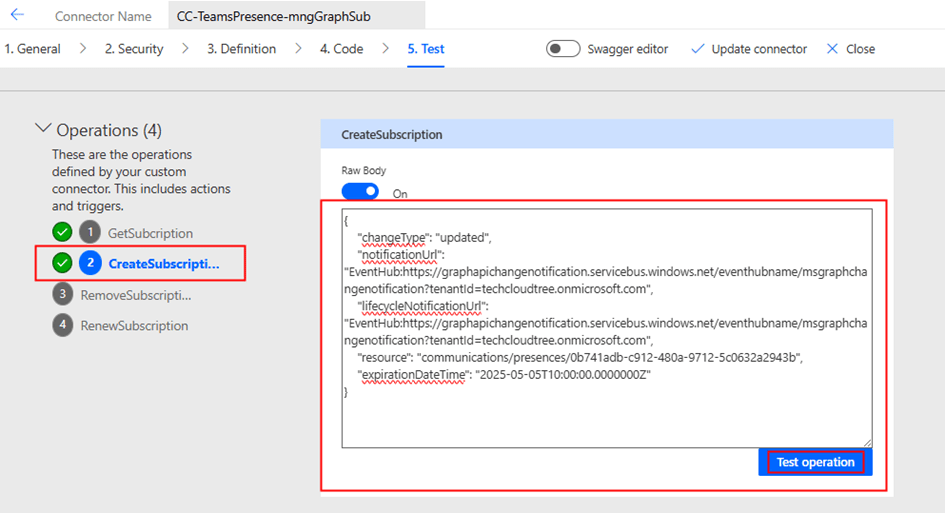
Using the custom connector built in Part 1 of this blog series, initiate the Microsoft Graph subscription by calling the Create Subscription action

{
    "changeType": "updated",
    "notificationUrl": "EventHub:https:// yourazureeventhubinstancename.servicebus.windows.net/eventhubname/ youreventhubname?tenantId=techcloudtree.onmicrosoft.com",
    "lifecycleNotificationUrl": "EventHub:https:// yourazureeventhubinstancename.servicebus.windows.net/eventhubname/ youreventhubname?tenantId=techcloudtree.onmicrosoft.com",
    "resource": "communications/presences/0xxxx-your-xxx-objectid-xxxxxb",
    "expirationDateTime": "2025-05-05T10:00:00.0000000Z"
}

When creating a Microsoft Graph subscription for Teams presence updates, make sure to update the following fields in your request payload:

  • notificationUrl
    URL where Microsoft Graph will send presence update notifications. This should point to your Azure Event Hub endpoint configured to receive events.
  • lifecycleNotificationUrl
    URL to handle lifecycle events such as validation and subscription expiration. This should point to an endpoint capable of processing these system-level callbacks (optional but recommended).
  • resource
    This defines the target of the subscription.
    Format: /communications/presences/{userId}
    • Replace {userId} with the Object ID (GUID) of the Azure AD user whose presence updates you want to track.
  • expirationDateTime
    Timestamp defining when the subscription expires.
    • For presence, the maximum allowed duration is 1 hour.
    • Use ISO 8601 format: YYYY-MM-DDTHH:MM:SSZ

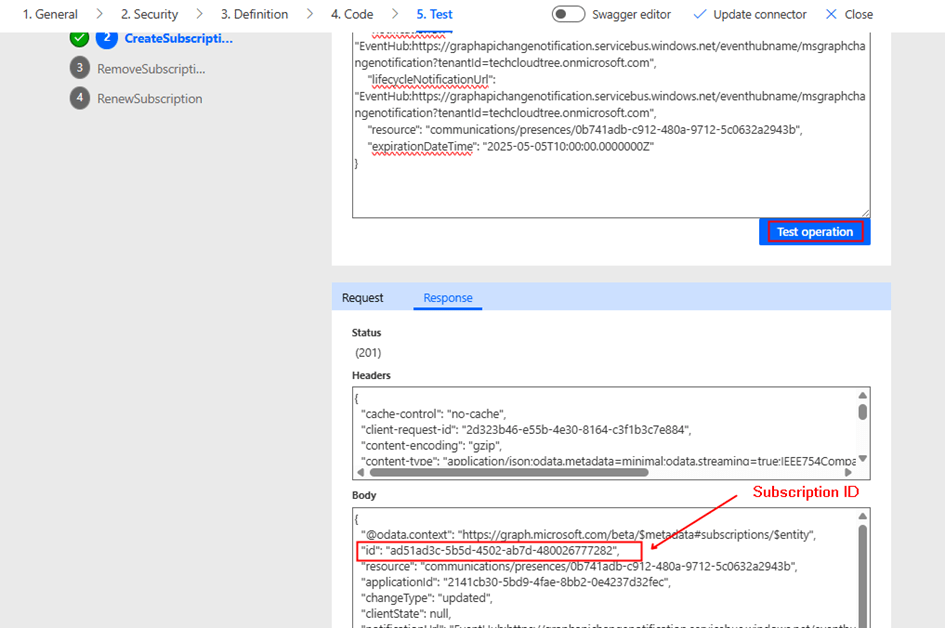
Tip: After the subscription is successfully created, make sure to note down the Subscription ID, as it is required to renew the presence subscription— which must be refreshed every hour. This renewal process can be automated using a scheduled Power Automate flow.

Step 2: Receiving Notifications via Azure Event Hub

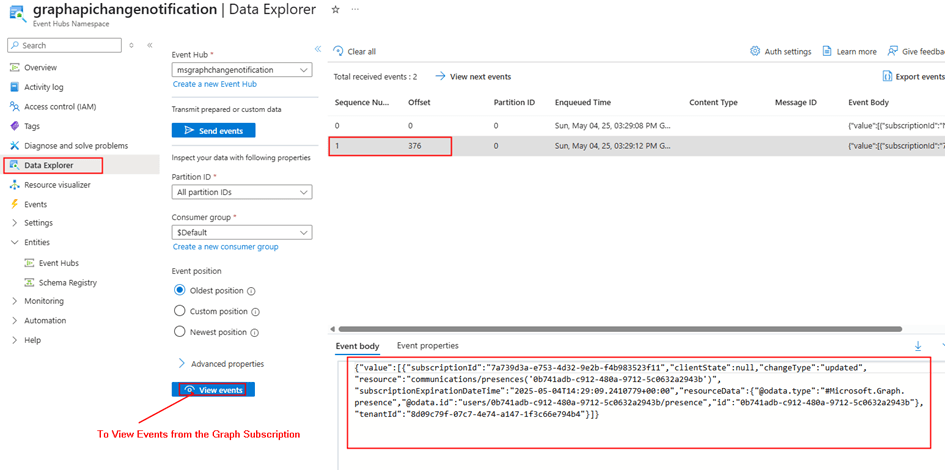
Azure Event Hub serves as a high-throughput ingestion pipeline for Microsoft Graph notifications. After the subscription is created, presence change events are pushed into the specified Event Hub.

Each event includes metadata such as the subscription ID, resource details containing user information, and a timestamp—enabling you to respond effectively to presence status changes in real time.

As seen in the payload above, user availability or activity changes in Microsoft Teams are not directly visible—this data is encrypted. To access it, you’ll need to configure certificate-based encryption and decrypt the payload accordingly. We’ll cover this process in detail in the next blog post.

Step 3: Creating a Power Automate Flow to Process Presence Updates

Now that presence updates are routed into Azure Event Hub, we’ll use Power Automate to process these updates.

Steps to Configure:

  1. Trigger:
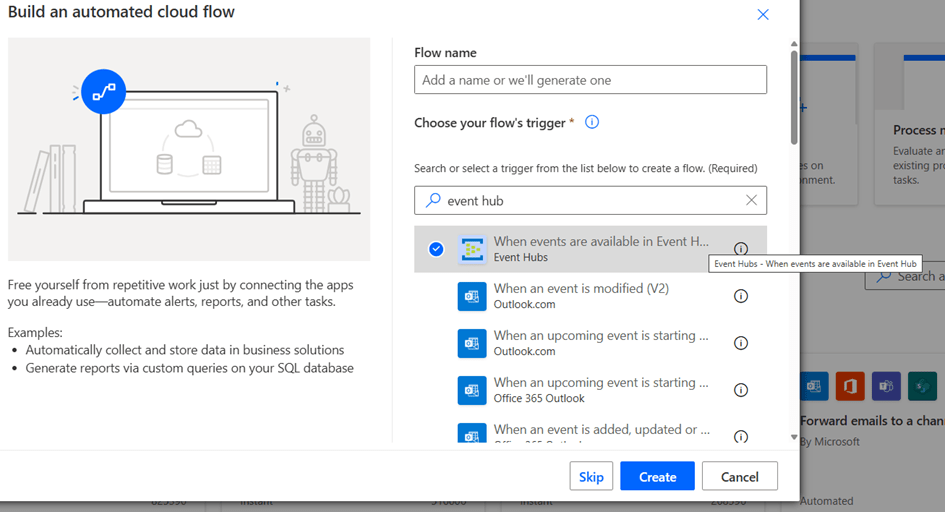
    • Use the “When events are available in Event Hub” trigger (premium connector).

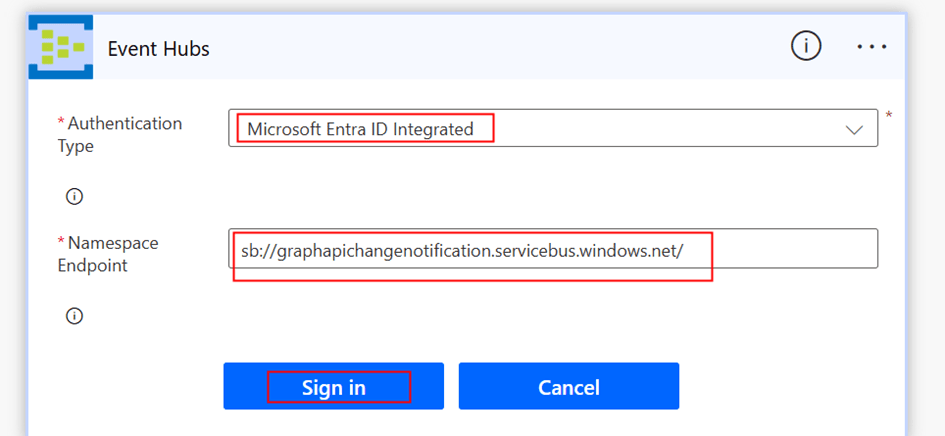
Create a New connection using the Authentication type Microsoft Entra ID Integrated

Namespace Endpoint: Example: sb://graphapichangenotification.servicebus.windows.net/

After the Connection is created, you would be able to select the Event hub from the dropdown to complete the trigger configuration.

  1. Parse Event Data:
    • Use a Parse JSON action to extract userId, subscriptionId, and changeType from the incoming event schema.
    • You can get the payload which is in Base64 format by using the expression base64ToString(triggerOutputs()?[‘body/ContentData’])
  2. Act on Status Change:
    • Act of the notification by making a another query to the presence endpoint or subscription to rich notications by using certificate which we will discuss in our next blog post

Note: Once the Power Automate flow is configured to receive events from the Event Hub, the Data Explorer in the Azure Portal will no longer display events, as the Event Hub allows only one active consumer per consumer group. There would be an Error message like: At least one receiver for the endpoint is created with epoch of ‘638819602939505217’, and so non-epoch receiver is not allowed.

What’s Next?

In the next part, we will explore how to receive rich presence notifications from Microsoft Teams users, including availability and activity details. Specifically, we will cover:

  • How to configure certificate-based encryption to enable rich notifications
  • How to retrieve availability information from the encrypted payload

 Do you like this article?

Subscribe to my blog with your email address using the widget on the right side or on the bottom of this page to have new articles sent directly to your inbox the moment I publish them.

Do you like this article?

Subscribe to my blog with your email address using the widget on the right side or on the bottom of this page to have new articles sent directly to your inbox the moment I publish them.

Enabling Real Time Alerts using Microsoft Graph in Power Platform – Part 1

Real-time notifications on system changes are crucial for proactive monitoring and automation. Microsoft Graph allows us to receive change notifications across multiple Microsoft 365 resources. In this blog series, we will explore how to set up Microsoft Graph change notifications for Teams presence status changes, with alerts delivered to Azure Event Hub. As part of this process, we will create a custom connector to manage the lifecycle of a change notification subscription and a Power Automate flow to receive alerts from Azure Event Hub. Other delivery channels, such as Webhooks, are supported for Microsoft Graph change notifications. However, they are not ideal for high-throughput scenarios and they require a publicly available notification URL. This approach offers flexibility compared to standard connectors for triggers, enabling alert handling across various Microsoft resources.

Solution Architecture

  1. Microsoft Graph Subscription – Creates a subscription for Teams presence updates.
  2. Azure Event Hub – Receives change notifications from Microsoft Graph.
  3. Custom Connector in Power Platform – Handle Lifecycle [Create, Update/Renew] of the Microsoft Graph Subscription.
  4. Power Automate Flow – Processes event [Teams Presence Update] data.

Set Up Permissions in Entra ID for creating Microsoft Graph Subscription:

To create a Microsoft Graph subscription for Teams presence change notifications, you must first register an Entra ID app with the appropriate Microsoft Graph permissions based on the resources you want to get alerts. In this case, the resource will be Microsoft Teams presence. This app is then used in a custom connector to manage the subscription lifecycle including creation, renewal, and may be deletion. Since Microsoft Graph subscriptions are not permanent, they must be renewed periodically. Specifically, a Teams presence subscription is valid for a maximum of 1 hour before requiring renewal.

Entra ID App registration for Signed In user (Delegated Access) – Custom Connector:

  1. Navigate to Microsoft Entra ID.
  2. Create a new App Registration and note the Application (Client) ID, Tenant ID & Client Secret.
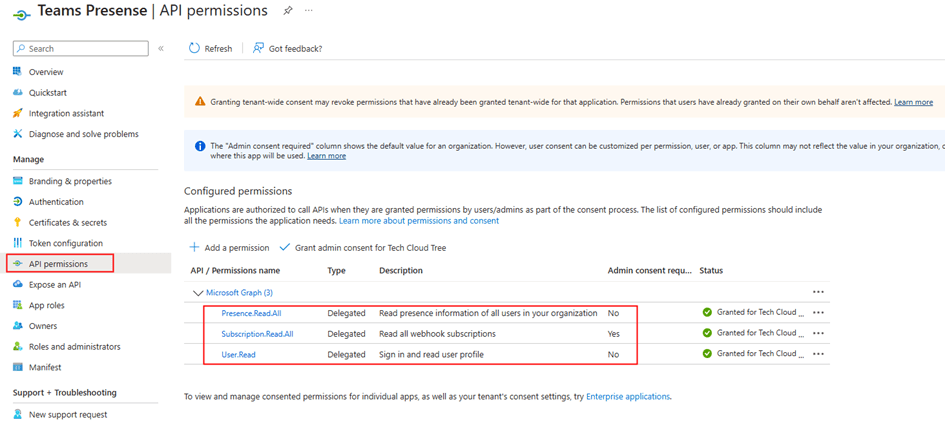
  3. Under API Permissions, add the following Delegated permissions:
    • Presence.Read.All
    • Subscription.Read.All – Admin Consent
    • User.Read
  1. Generate a Client Secret under Certificates & Secrets.
  2. Copy Client ID and Client Secret for authentication.

Setting Up Azure Event Hub

Azure Event Hub acts as a high-throughput messaging service that enables the real-time processing of Microsoft Graph notifications.

  1. Create an Azure Event Hub

Create the Azure Event hub according to the instructions given in this MS Learn documentation.

The recommendation is to use Microsoft Entra ID RBAC instead of SAS. The Notification URL, which will be used when creating the Microsoft Graph subscription, would look like the example below:

EventHub:https://yourazureeventhubinstancename.servicebus.windows.net/eventhubname/youreventhubname?tenantId=yourtenantdomainname.onmicrosoft.com

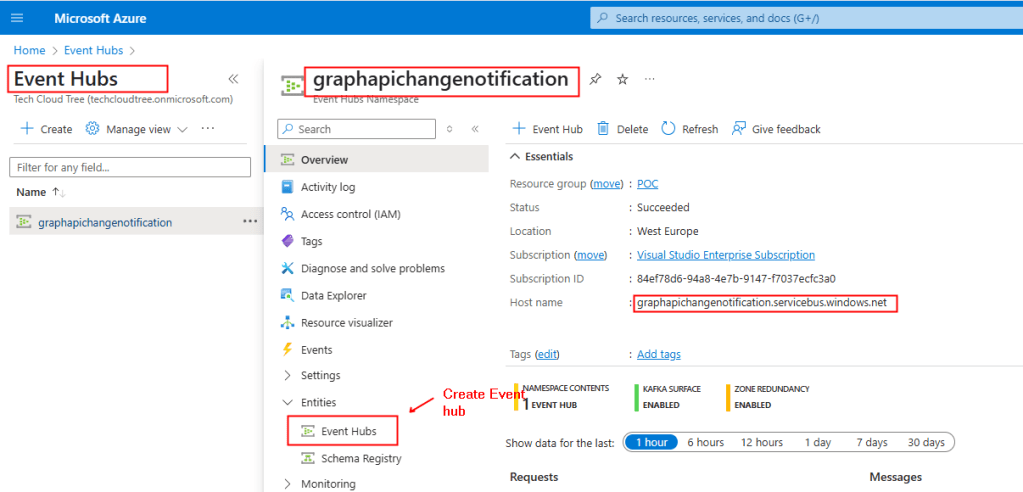
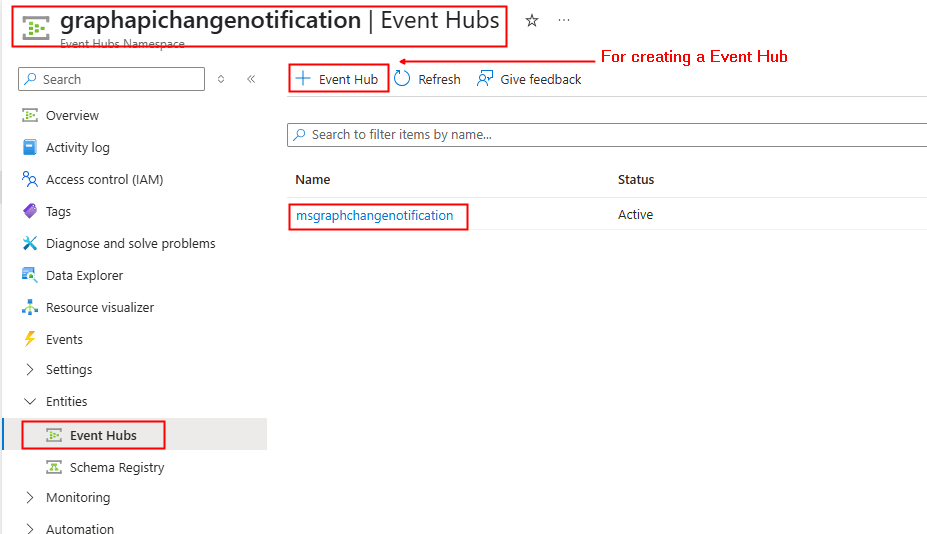
To construct the above URL, In the Overview section of the Event Hubs Namespace copy the Host Name as shown below from the screenshot and the name of your event hub as shown in the screenshot 2.

Screenshot 2:


Creating a Custom Connector in Power Platform

A custom connector is used to manage the lifecycle of the Microsoft Graph subscription, including creating the subscription and updating/renewing it before it expires, as the duration of a subscription is not infinite.

3.1 Create a Custom Connector

The Entra ID app is registered with required permissions, the next step is to create the custom connector. To create the connector, go to Power Automate or Power Apps portal → Custom Connectors → New Custom Connector – Create from blank.

In the General Tab, Provide graph.microsoft.com under Host.

  1. In the Security tab, set Authentication type:
  • Select OAuth 2.0
  • Enter the Client ID, Client Secret from the Entra Id app registration
  • Set the Resource URL to your Dataverse environment Url: https://graph.microsoft.com/
  1. Click Create connector. After this, the Redirect URL will be generated – Copy it. Next in the Entra ID App registration create earlier, navigate to the Authentication section under the Manage, add the copied Redirect URL by clicking + Add a platform and selecting Web.

You can download the Swagger definition of the custom connector from here.  After importing the file into your environment, replace the client ID and client secret in the security settings.

The Microsoft Graph API endpoints for creating, renewing / updating subscriptions for change notifications, utilized in connector definitions are thoroughly documented in this Microsoft Learn link. The action in the custom connector for renewing the subscription can be used in a scheduled Power Automate flow.

Summary:

So far, we have set up the foundational components required for enabling real-time notifications. This includes configuring an App Registration with the necessary permissions to create and manage subscriptions via a custom connector. We have also set up Azure Event Hub to receive alerts from Microsoft Graph.

In the next part, we will focus on creating the subscription and configuring a Power Automate flow to process and act on presence updates received from Azure Event Hub. Stay tuned! Hope you have found this informational & thanks for reading. If you are visiting my blog for the first time, please do look at my other blogposts.

Do you like this article?

Subscribe to my blog with your email address using the widget on the right side or on the bottom of this page to have new articles sent directly to your inbox the moment I publish them.